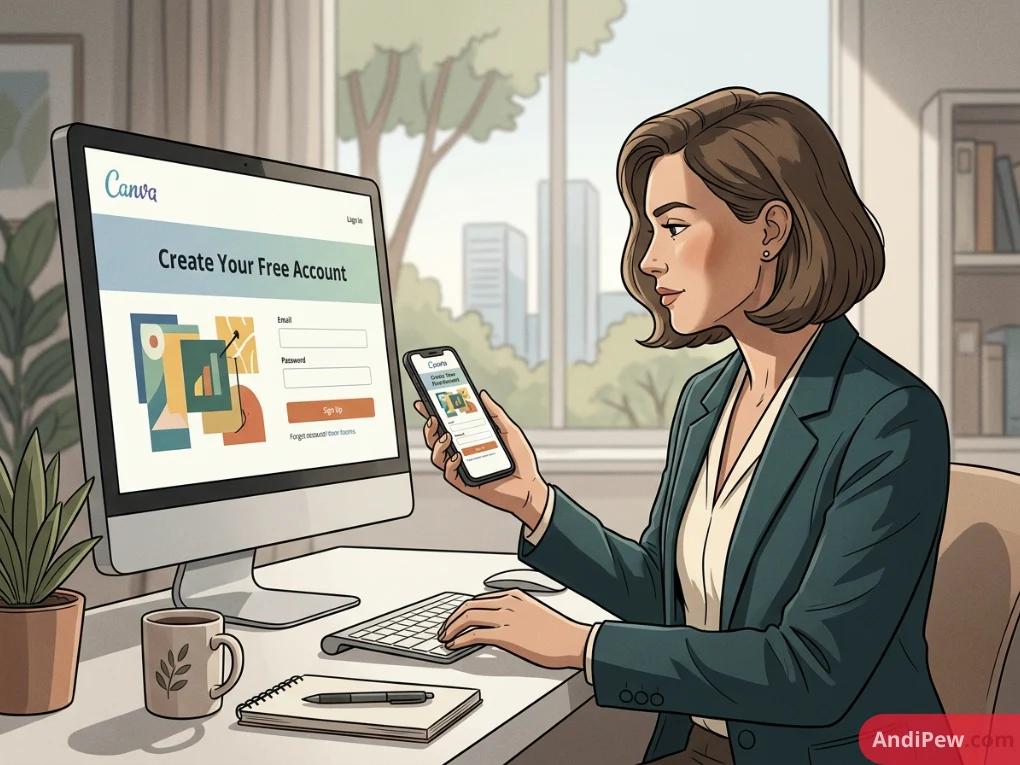
Graphic design used to require years of technical training, specialized software, and heavy computational power. Today, cloud-based design platforms allow anyone—regardless of technical background—to build presentation decks, marketing collateral, social media posts, and video assets in minutes.
At the center of this transition is Canva, an intuitive design suite used by millions of individuals, educational institutions, and businesses worldwide.
Whether you need to design personal projects at zero cost, launch marketing campaigns for your startup, or set up classroom resources, learning how to create a Canva account is the first step. This guide covers every registration pathway, account type, security setting, and troubleshooting scenario to get your workspace running smoothly.
What Is Canva and Why Do You Need an Account?
Canva is a cloud-based visual communication platform that brings layout design, photo editing, video production, document collaboration, and brand asset management into a unified workspace.
Creating an account gives you access to:
- A library of millions of customizable templates.
- A drag-and-drop editor that requires no coding or prior design experience.
- Cloud storage that autosaves your designs across desktop, tablet, and mobile devices.
- Real-time multi-user collaboration and commenting features.
- Direct export options in PDF, PNG, SVG, MP4, and presentation formats.
(For detailed design walkthroughs once your account is active, check out our comprehensive library of canva tutorials).
Canva Account Types: Which One Fits Your Needs?
Before initiating the Canva sign up process, identify the account tier that aligns with your operational requirements.
| Account Type | Target Audience | Primary Features | Pricing |
| Canva Free | Beginners, casual designers, personal users | 1M+ free templates, 1000+ fonts, 5GB cloud storage, core design tools | $0 forever |
| Canva Pro | Freelancers, creators, solo entrepreneurs | 100M+ premium assets, Brand Kits, Magic Studio AI tools, 1TB storage, background remover | Monthly / Annual subscription |
| Canva for Education | K-12 teachers, school staff, students | Full Pro-level tools, LMS integrations (Canvas, Google Classroom), safe sharing controls | 100% Free for eligible educators |
| Canva for Nonprofits | Registered charitable organizations | All Canva Pro features for up to 5 team members | 100% Free upon verification |
| Canva Business / Teams | Marketing agencies, startups, enterprise teams | Centralized brand kits, team workflows, approval processes, shared brand controls | Per-seat subscription |
How to Create a Canva Account for Free (Desktop & Mobile)
If you are just getting started, the Canva registration workflow for a standard free account takes less than two minutes.
Step 1: Navigate to the Official Sign-Up Page
Open your web browser and navigate to canva.com. Click the purple Sign up button in the top right corner of the homepage.
+----------------------------------------------------------------+
|  Canva                   Features   Plans   Learn     [Sign up]|
|                                                                |
|         What will you design today?                           |
|         [ Continue with Google   ]                             |
|         [ Continue with Email    ]                             |
|         [ Continue another way   ]                             |
+----------------------------------------------------------------+

Step 2: Choose Your Registration Method
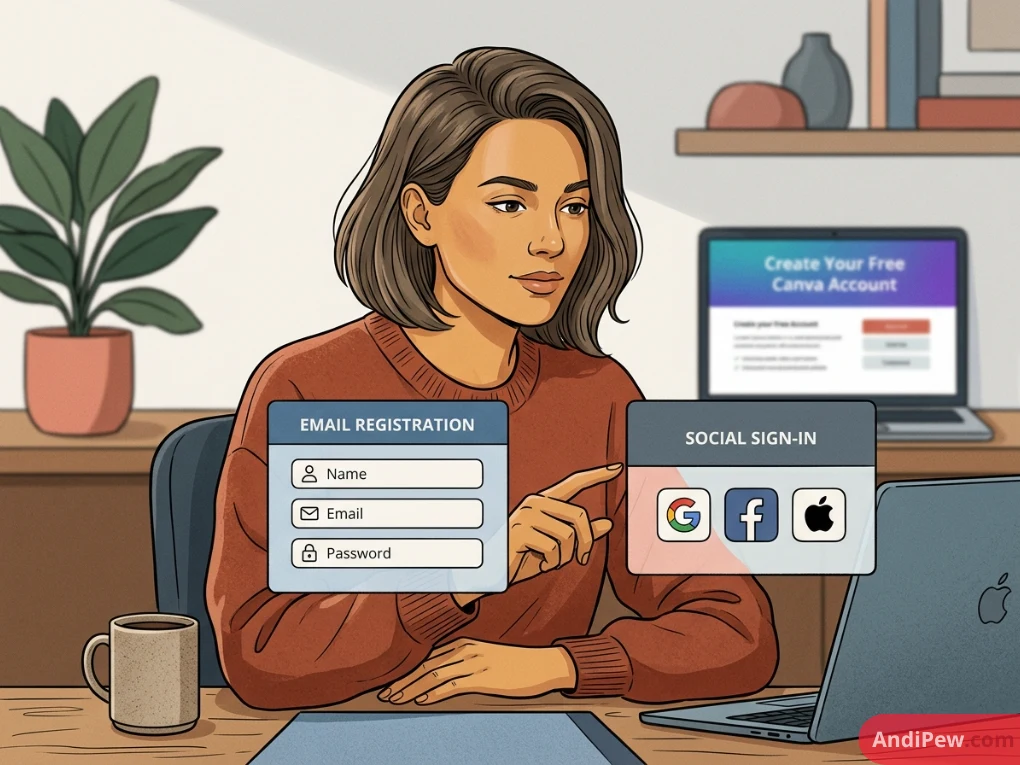
Canva offers several authentication methods to establish your Canva login setup:
- Continue with Google: Instantly links your existing Google identity without needing a separate password.
- Continue with Email: Allows you to register with any standard personal or corporate email address.
- Continue with Apple / Facebook / Microsoft / Clever: Alternative single sign-on (SSO) options for quick access.
Step 3: Complete Identity Verification
- If signing up via Email: Enter your full name and preferred email address, then create a secure password. Canva will send a 6-digit verification code to your inbox. Enter the code in the prompt window.
- If signing up via SSO (Google, Apple, Microsoft): Authenticate directly through the third-party pop-up modal and grant basic profile permissions.

Step 4: Define Your Usage Intent
Canva will present a short onboarding questionnaire asking: “What will you be using Canva for?”
Options include:
- Personal
- Small Business
- Large Company
- Student
- Teacher
- Non-profit / Charity
Selecting your primary category tailors the template recommendations displayed on your home dashboard.
Creating an Account on Mobile (iOS & Android)
- Download the official Canva: Design, Photo & Video app from the Apple App Store or Google Play Store.
- Open the app and tap Sign up.
- Select your preferred login method (Apple ID, Google, or Email).
- Verify your credentials to land on the mobile workspace.
How to Create Specialized Canva Accounts
Depending on your academic, commercial, or institutional background, you may qualify for free upgrades or require multi-seat business environments.
How to Create a Canva Account for Students
Students frequently search for how to create a Canva account for students or confuse Canva with the Canvas Learning Management System (LMS) used by colleges.
Understanding Canva vs. Canvas LMS
- Canva: A graphic design suite.
- Canvas LMS: A classroom management platform used by universities for grading, homework submissions, and syllabi.
Important Distinction on “Canvas Accounts”:
If you are searching for how to make a canvas account for college or how to create a canvas account without join code, you are likely trying to access your university’s Canvas LMS portal.
- For college courses, your university creates and provisions your Canvas LMS account via your official student ID/SSO.
- If an instructor gives you a self-enrollment link, you can join using your student email. Without an institutional portal or instructor join link/code, open registration for accredited college Canvas instances is restricted by your school’s IT administration.
Setting Up Canva as a Student
To get Canva for your coursework:
- Through a Teacher’s Invitation: If your K-12 teacher uses Canva for Education, they will provide a direct classroom invite link or an access code. Click the invite link, sign in with your school Google or Microsoft account, and you will automatically join their student workspace.
- Standard Student Sign-Up: Higher education and college students can register at
canva.comusing their.eduemail address. While higher education students use standard Free or Pro plans (unless the institution holds a campus-wide enterprise license), using your institutional email ensures seamless file sharing with classmates and professors.
How to Create a Teacher Canva Account (Canva for Education)
If you are a certified primary or secondary (K-12) educator, you can upgrade to Canva for Education completely free of charge.
Step 1: Visit canva.com/education
              ↓
Step 2: Click "Get Verified"
              ↓
Step 3: Sign up with verified school email domain
              ↓
Step 4: Upload official teaching proof (ID/Certificate)
              ↓
Step 5: Receive approval & invite students to class space
Step-by-Step Verification:
- Go to
[canva.com/education](https://canva.com/education)and click Teachers -> Get Verified. - Sign up using your official educational email address (e.g.,
teacher@school.orgorname@k12.state.us). - Enter your school details and upload proof of your teaching credentials. Acceptable documents include:
-
A photo of your official school ID card showing current employment.
-
Teaching license or state certification.
-
Recent pay stub from an educational institution (confidential financial figures redacted).
-
Official employment verification letter on school letterhead.
-
- The Canva verification team reviews applications typically within 24 to 48 hours. Once verified, your account unlocks full Pro-tier functionality and classroom collaboration tools for you and your students.
How to Create a Canva Business Account & Canva Team Account
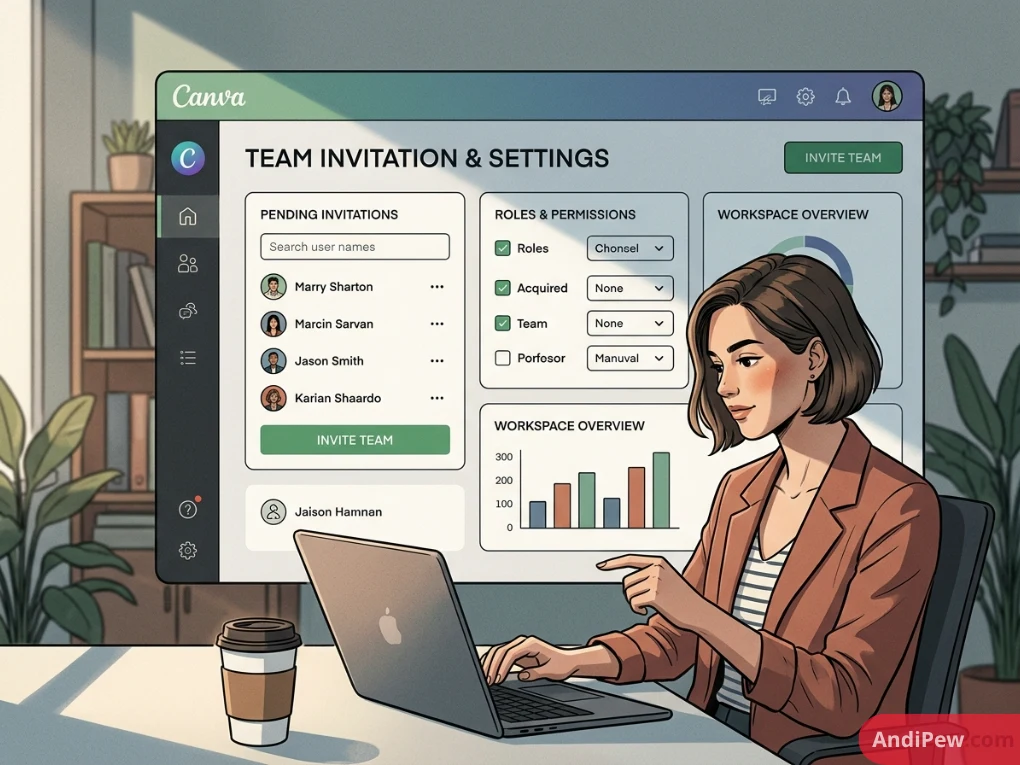
For commercial organizations, agencies, and cross-functional departments, how to create a Canva business account involves setting up a collaborative team workspace.
How to Build a Team Workspace:
- Log into your primary Canva account.
- Click the Gear icon (Account Settings) in the top-right corner.
- Select Billing & Teams from the left-hand navigation menu.
- Click Create a new team or Upgrade to Canva Teams.
- Assign a workspace name (e.g., Acme Corp Marketing).
- Enter the email addresses of the team members you wish to invite, assign their access roles (Administrator, Brand Designer, or Member), and configure shared brand assets (palettes, custom fonts, logos).
How to Create a Nonprofit Canva Account
Canva grants eligible non-governmental organizations (NGOs), 501(c)(3) charities, and social enterprises free access to premium tools through the Canva for Nonprofits initiative.
Eligibility & Registration Steps:
- Navigate to
[canva.com/canva-for-nonprofits/](https://canva.com/canva-for-nonprofits/). - Click Apply now.
- Create or log in with your organization’s primary contact email.
- Complete the application form by attaching your non-profit registration documentation, such as:
-
IRS 501(c)(3) determination letter (United States).
-
Registered Charity certificate (UK, Canada, Australia).
-
Local country tax-exempt/charitable certification.
-
- Once validated, up to 5 individual users within your organization receive full Pro access under one centralized umbrella workspace.
How to Create a Canva Pro Account
If you are an individual creator who needs premium export formats (such as SVG or transparent background PNGs), the complete asset library, and one-click resizing, upgrading to Canva Pro takes only a few steps:
- Log into your standard Canva account.
- Click the Try Canva Pro button situated on the sidebar or top banner.
- Select either the Monthly or Yearly billing cycle. (Yearly billing typically offers a substantial discount over monthly payments).
- Enter your credit card, debit card, or PayPal credentials.
- If eligible, your account will activate a free trial period. You can test Pro tools before the first automated billing transaction processes.
How to Create a Canva Creator Account
Canva Creators design templates, stickers, illustrations, and stock media that are distributed across the global template marketplace, earning royalties whenever users utilize their elements.
How to Apply:
- Visit
[canva.com/creators/](https://canva.com/creators/). - Review the current portfolio intake guidelines.
- Click Apply or register for the waitlist when applications open.
- Submit your existing portfolio URL (e.g., Behance, Dribbble, or a personal website) demonstrating strong typography, layout balance, and original illustration skills.
- Once accepted, your account gains an exclusive Creator Dashboard to upload elements and track performance metrics.
How to Create a Second Canva Account
There are situations where managing multiple accounts is necessary—such as maintaining a strict separation between corporate consulting projects and personal hobbies.
Options for Setting Up a Second Account:
- Option A: Distinct Email Addresses: Register a new Canva account by navigating to
canva.comin an Incognito/Private window and signing up with a secondary email account. - Option B: Workspace Switching (Recommended): Rather than creating entirely separate logins with different credentials, join or create multiple teams under one unified login. Canva allows users to switch between personal and professional workspaces from the profile dropdown menu in the upper right-hand corner without logging out.
Essential Post-Registration Setup: Secure & Optimize Your Account
Completing your Canva registration is only the beginning. Complete these initial settings to secure your workspace and optimize productivity:
[Account Creation] ──> [Enable 2FA] ──> [Configure Profile] ──> [Upload Brand Assets] ──> [Start Designing]
Enable Two-Factor Authentication (2FA)
Protect your designs and saved credit cards against unauthorized access:
- Click your profile avatar -> Account Settings.
- Select Login & security on the left menu.
- Under Two-factor authentication (2FA), click Turn on.
- Scan the QR code using an authenticator app (such as Google Authenticator or 1Password) and submit the verification code.
Configure Account Settings & Notifications
In the Account settings panel:
- Update your public display name.
- Configure marketing and project activity email notifications to prevent unnecessary inbox volume.
- Set your default language preference for the layout editor.
Build Your First Brand Kit (Pro, Teams, and Education Accounts)
If you upgraded from the free tier:
- Open the Brand tab from the home navigation menu.
- Upload your vector logo files (SVG or high-res PNG).
- Enter your brand’s specific HEX color codes to keep all future assets consistent.
- Define your default typography rules for Titles, Subheadings, and Body text.
Troubleshooting Common Canva Sign-Up & Login Issues
If you encounter roadblocks during registration, review these common fixes:
Problem 1: “Email Address Already Associated with an Account”
- Cause: You previously registered via Google SSO or an older password combination.
- Solution: Click Log in instead of Sign up. Select Forgot password?, enter your email, and reset your password to regain control of the profile.
Problem 2: Verification Code Not Arriving
- Cause: Aggressive spam filters, email firewalls, or slight typos in the address.
- Solution: Check your Junk, Promotion, and Spam folders. If using a strict corporate or school network, check with your network administrator to ensure emails from
@canva.comare allowlisted.
Problem 3: Social Login (Google / Facebook / Apple) Pop-up Blocked
- Cause: Browser privacy extensions or pop-up blockers interrupting the SSO handshake.
- Solution: Temporarily disable third-party ad blockers, clear your browser cache and cookies, or finish signing up using a direct email and password combination.
Problem 4: Institutional Education Approval Denied
- Cause: Incomplete documentation or lack of clear dates on credentials.
- Solution: Resubmit the application ensuring your full legal name, current school year/semester, and the institution’s official letterhead are visible in the uploaded image.
Frequently Asked Questions (FAQ)
Is creating a Canva account completely free?
Yes. Creating a basic Canva account is 100% free forever. It provides access to the standard drag-and-drop editor, over a million free design templates, thousands of fonts, and 5GB of cloud storage without requiring credit card details.
Do I need to enter credit card information to sign up for Canva?
No. You do not need a credit card to complete a standard free Canva sign up. Payment information is only required if you actively enroll in a free trial of Canva Pro or purchase a team subscription.
Can I change my Canva account email address later?
Yes. Open Account settings, navigate to the Your account tab, click Edit next to your email address, enter your new email, and verify the confirmation message sent to that inbox.
Can college students get Canva Pro for free?
Canva for Education is currently designated for primary and secondary (K-12) teachers, school districts, and their students. Higher education and college students use the Free plan or subscribe to Canva Pro, though select universities maintain separate enterprise partnerships that grant campus-wide licenses.
What is the difference between deleting an account and logging out?
Logging out closes your current session while keeping all designs, uploads, and data stored in the cloud. Deleting your account permanently erases your designs, assets, team memberships, and profile data from Canva’s servers.
Getting started with digital design does not require complex installations or expensive software packages. By learning how to create a Canva account, you open up an accessible, collaborative design canvas suitable for every visual task.