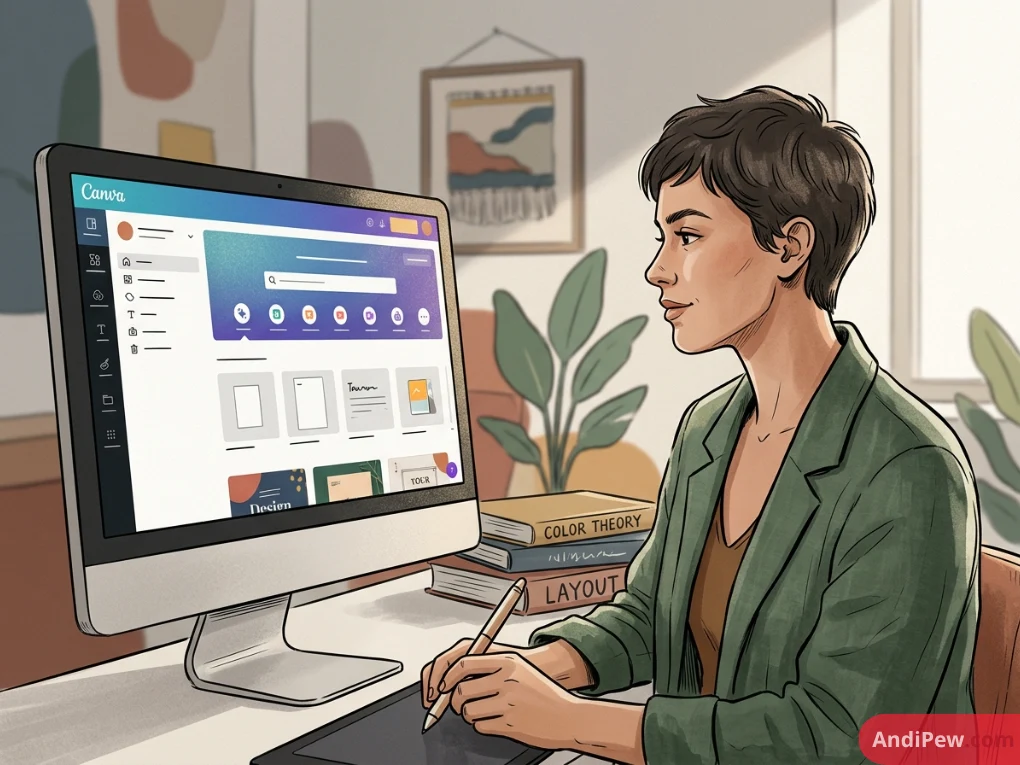
Stepping into a modern design suite can feel overwhelming. With thousands of templates, design formats, AI-driven magic tools, and team collaboration hubs, figuring out where everything lives is often the biggest hurdle for new creators.
Whether you are designing a quick social media graphic or organizing brand assets for an entire business, understanding your workspace saves hours of trial and error.
This Canva dashboard overview walks you through every button, panel, menu, and hidden shortcut on the Canva home screen. By the end of this guide, you will master Canva navigation and feel right at home inside the Canva interface guide.
If you are brand new to the platform, check out our guide on how to create a canva account before diving into these features.
What Is the Canva Dashboard?
The Canva dashboard is the central mission control for your entire Canva account. When you log in via web browser or open the desktop application, the home screen is the first screen you see.
Unlike the Canva Editor—which is where you customize individual designs on an active canvas—the dashboard handles file organization, project management, asset libraries, team permissions, template discovery, and account settings.
Key Purposes of the Canva Home Screen
- Initiating New Designs: Choose custom dimensions or select preset design formats (presentations, docs, videos, prints).
- Organizing Files: Manage folders, brand assets, uploads, and shared team assets in one centralized hub.
- Browsing Templates: Search a massive library of pre-made layouts tailored to virtually any industry or medium.
- Accessing Specialized Workspaces: Seamlessly switch between the Brand Kit / Brand Hub, Content Planner, and third-party Canva Apps.
First Impressions: Breaking Down the Canva Interface
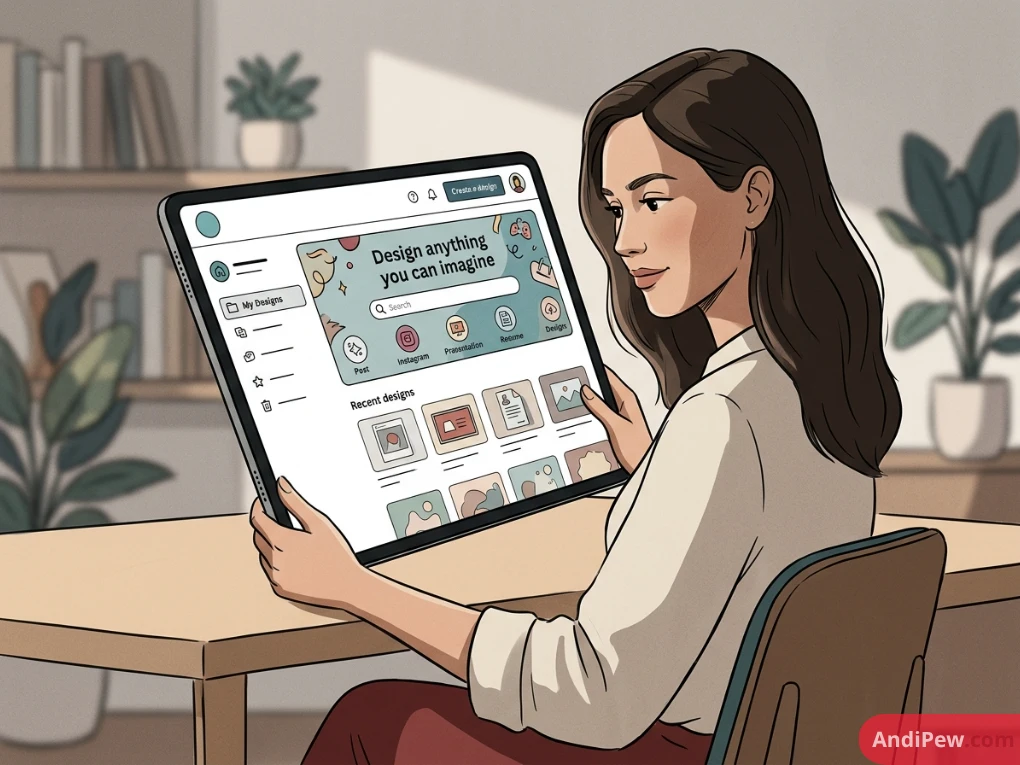
When you look at the Canva home screen, the layout is divided into four main visual zones:
- Top Navigation Bar (Header): For global settings, account management, notification alerts, and quick design creation.
- Left-Hand Side Navigation Panel: Your persistent menu for jumping between home, projects, templates, brand assets, and apps.
- Hero Banner & Search Area: The prominent central area designed to help you quickly query templates or start a specific project format.
- Main Content Stream: A dynamic workspace area showing recent designs, suggested templates, and team activity feeds.
+------------------------------------------------------------------------------------+
|  [Logo]  [Features / Plans]                [Search Bar]           [Settings] [Profile] |
+------------------+-----------------------------------------------------------------+
|                  |  HERO BANNER: "What will you design today?"                     |
|  - Home          |  [Doc] [Whiteboard] [Presentation] [Social] [Video] [More...]   |
|  - Magic Studio  +-----------------------------------------------------------------+
|  - Projects      |  RECENT DESIGNS                                                 |
|  - Templates     |  [ Design 1 ]    [ Design 2 ]    [ Design 3 ]    [ Design 4 ]   |
|  - Brand         +-----------------------------------------------------------------+
|  - Apps          |  DISCOVER TEMPLATES & INSPIRATION                               |
|                  |  [ Template 1 ]  [ Template 2 ]  [ Template 3 ]  [ Template 4 ] |
+------------------+-----------------------------------------------------------------+
The Top Navigation Bar Explained
The top navigation bar sits persistently across your dashboard. It acts as the global control center for your user profile and workspace configuration.
The Canva Logo (Home Button)
Clicking the Canva logo in the upper-left corner always returns you directly to your main dashboard home screen from anywhere in the file directory.
Global Dropdown Menus
Depending on your account tier (Free, Pro, Teams, or Enterprise), the top bar includes dropdown menus:
- Design Spotlight: Quick links to popular document types like visual documents, marketing collateral, social media posts, and print products.
- Business / Education: Direct access to enterprise solutions, classroom workflows, and case studies.
- Plans & Pricing: An overview of your current plan features and upgrade options.
- Learn: Direct access to official tutorials, design courses, and documentation. For a structured learning path, browse our curated canva tutorials.
The Central Search Bar
The search bar at the top of the Canva dashboard is multi-functional. You can toggle your search query between:
- Templates: Finds pre-made layouts based on keywords, design styles, colors, or themes.
- Projects: Searches through your own created designs, shared folders, images, and uploaded files.
Settings, Notifications, and Account Profile
On the top-right corner, you will find:
- Gear Icon (Account Settings): Manage your personal profile, email preferences, billing details, subscription plans, login security, and language settings.
- Bell Icon (Notifications): Displays real-time updates regarding shared designs, team mentions, document comments, and access requests.
- Profile Avatar: Switch between different teams or workspaces, access help center resources, or sign out.
- “Create a design” Button: The bright, high-contrast button used to immediately launch a new canvas using custom dimensions or preset categories.
Mastering the Left-Hand Side Navigation Panel
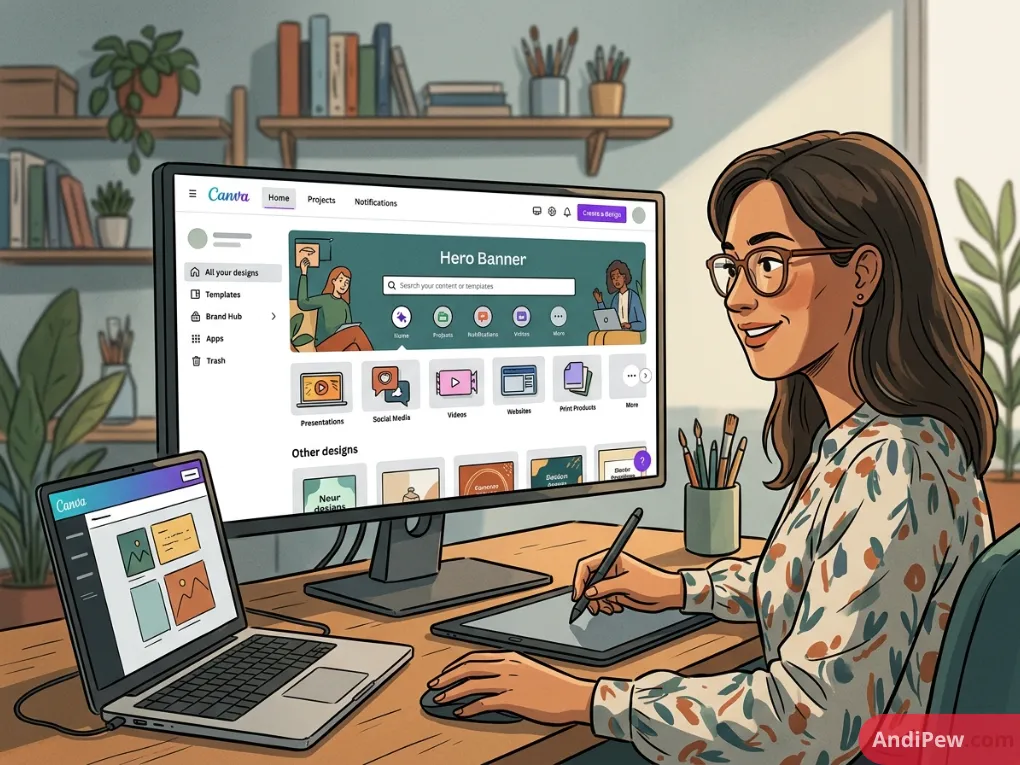
The sidebar on the left side of your screen is the backbone of day-to-day Canva navigation.
Left Navigation Menu Breakdown
├── 🏠 Home (Default landing screen)
├── ✨ Magic Studio (AI tools, generative text & media)
├── 📁 Projects (Recent designs, folders, uploads, trash)
├── 🎨 Templates (Explore categorized template libraries)
├── 🏷️ Brand (Brand Kits, logos, color palettes, typography)
└── 🧩 Apps (Third-party integrations, extensions, mockups)
Home
Returns you to the primary dashboard view featuring recent designs, banner shortcuts, and personalized recommendations.
Magic Studio
Canva’s dedicated portal for AI-powered creation tools. From here, you can access:
- Magic Design: Generates complete presentations, social posts, or videos from text prompts.
- Magic Write: An AI copywriting assistant embedded directly into docs and designs.
- Magic Animate & Magic Switch: Tools that convert formats instantly (e.g., turning a presentation into a summary doc or translating text across languages).
Projects
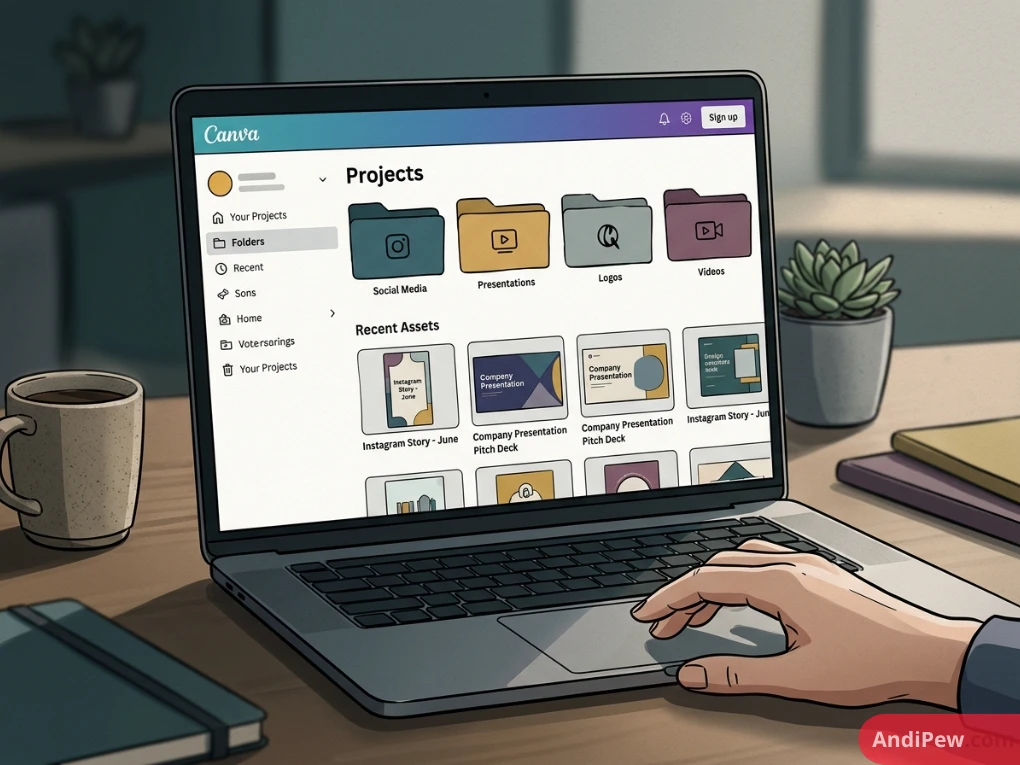
The Projects tab is your primary file management system. It houses every creative asset you own or collaborate on, divided into logical sub-tabs:
- All: A chronological feed of all assets.
- Folders: Custom-organized directories created by you or shared by teammates.
- Designs: Every standalone canvas you have generated.
- Images & Videos: All raw media files uploaded from your local drive, cloud storage, or social channels.
Templates
Clicking this tab takes you into Canva’s massive design library. It organizes templates by context:
- Business: Invoices, proposals, business cards, resumes, pitch decks.
- Social Media: Instagram stories, TikTok video frames, Facebook banners, LinkedIn carousels.
- Education: Lesson plans, certificates, worksheets, flashcards.
- Marketing: Posters, flyers, email headers, menus, brochures.
Brand (Brand Hub / Brand Kit)
Note: Available primarily on Canva Pro, Canva for Teams, and Canva for Education.
The Brand Hub keeps assets uniform across your entire organization. Inside, you can store:
- Logos: Transparent PNGs, SVGs, and brand marks.
- Color Palettes: Hex codes grouped by campaign or corporate identity.
- Typography: Default header, subheader, and body fonts, plus uploaded custom font files (.OTF, .TTF).
- Brand Voice & Guidelines: Specific tone rules for AI writing generation and design layout standards.
Apps
Canva integrates with hundreds of external platforms and specialized micro-tools. The Apps section lets you explore:
- Productivity Integrations: Google Drive, Dropbox, Typeform, Box.
- Creative Enhancements: QR code generators, AI image generators, mockup creators, photo enhancers, chart builders.
- Direct Publishing: Schedulers for Facebook, Pinterest, LinkedIn, and Instagram.
The Central Canvas Area: What Will You Design Today?
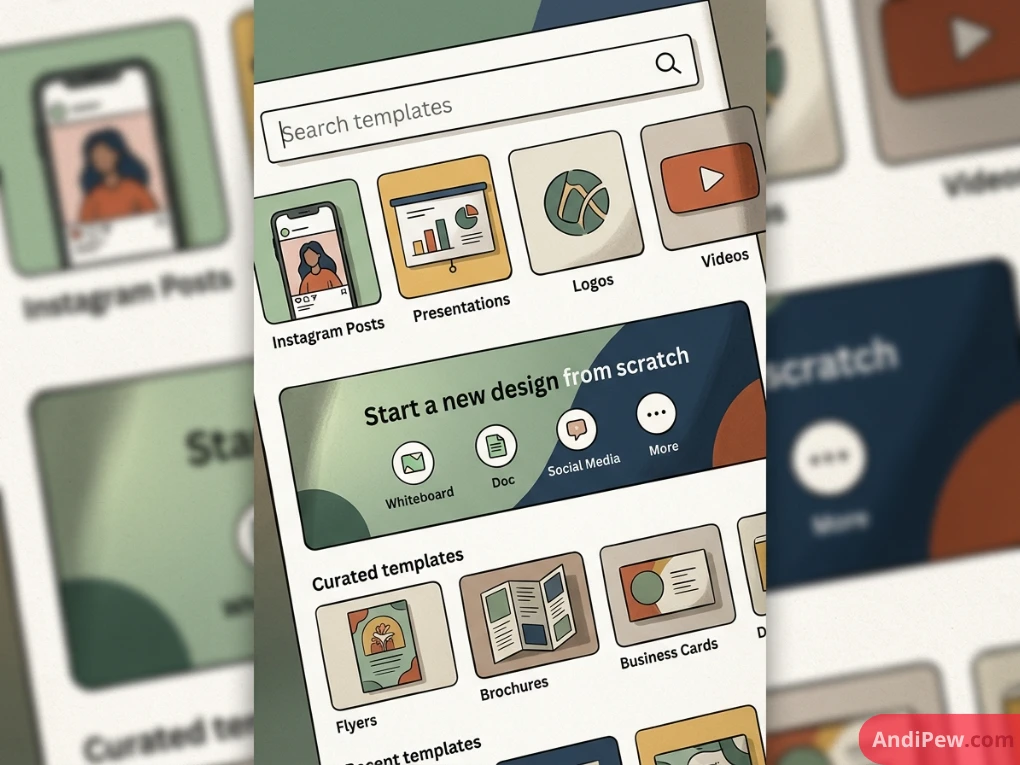
The middle of the Canva home screen is designed for action. Rather than forcing you through complex file setup dialogs, Canva presents you with direct entry points.
The “What will you design today?” Category Selector
Across the top of the main body, interactive circular or square icons represent the core output formats:
| Format Icon | Common Dimensions / Presets | Best Used For |
| Docs | Standard A4, Letter, Infinite visual doc | Meeting notes, briefs, proposals, visual agendas |
| Whiteboards | Infinite collaborative canvas | Brainstorming, flowcharts, sprint planning, diagrams |
| Presentations | 16:9 widescreen, 4:3 standard, Mobile | Pitch decks, keynotes, webinars, client reports |
| Social Media | Square (1:1), Portrait (4:5), Story (9:16) | Instagram, Facebook, LinkedIn, X, Pinterest |
| Videos | 1080p Full HD, TikTok/Reels (9:16) | Video ads, YouTube shorts, intros, animated social clips |
| Print Products | Custom DPI print-ready layouts | T-shirts, mugs, flyers, brochures, invitations |
| Websites | Responsive one-page sites | Portfolios, event landing pages, link-in-bio hubs |
Recent Designs Section
Directly below the category icons sits your Recent designs grid.
- Each thumbnail shows a preview of your file, its title, and its last-modified timestamp.
- Hovering over any design thumbnail reveals a three-dot menu (…) allowing you to:
-
-
Make a copy.
-
Move to a specific folder.
-
Download / Export.
-
Share the link.
-
Move to trash.
-
File Organization & Management in Canva
As your asset volume grows, maintaining an organized workspace is essential for rapid productivity.
Suggested Workspace Folder Hierarchy
└── My Organization
    ├── 📁 01_Brand Assets (Logos, Icons, Guidelines)
    ├── 📁 02_Marketing & Social
    │   ├── 📁 2026_Q1_Campaigns
    │   └── 📁 Evergreen_Social_Posts
    ├── 📁 03_Client Projects
    │   ├── 📁 Client_AcmeCorp
    │   └── 📁 Client_BetaTech
    └── 📁 04_Templates_Internal
How to Create and Manage Folders
- Navigate to the Projects tab on the left-hand navigation panel.
- Click the Add new (+) button in the top right corner of the Projects view.
- Select Folder.
- Give your folder a clear, descriptive name (e.g.,
Social Media - Q3 Campaign) and hit Create folder. - Drag and drop designs directly into this folder or use the three-dot menu on any thumbnail to move files.
Managing the Trash Bin
If you accidentally delete a file, Canva keeps it in your Trash folder (accessible under Projects) for 30 days before permanent deletion. You can restore designs, images, and folders with a single click.
Team Workspaces & Collaboration Features
If you are working with clients, employees, or classmates, the Canva dashboard shifts into a shared collaborative environment.
Workspace Switching
If you belong to multiple organizations (for example, your personal account and a company team), click your Profile Icon in the top navigation bar to toggle between workspaces instantly. Each workspace maintains its own isolated designs, folders, and brand kits.
Team Permissions and Roles
Within a team workspace, administrators can assign distinct permission levels:
- Administrator: Full control over billing, member invitations, Brand Kits, and folder permissions.
- Template Designer: Can publish and lock official company templates to ensure nobody accidentally breaks layout rules.
- Member: Can create designs, view shared assets, and organize files within permitted folders.
Canva Free vs. Canva Pro Dashboard: What Changes?
While both free and paid users enjoy a clean layout, upgrading to Canva Pro, Teams, or Enterprise unlocks several functional sections on the home screen:
| Feature Area | Canva Free Dashboard | Canva Pro / Teams Dashboard |
| Brand Hub | 1 basic palette (up to 3 colors) | Unlimited palettes, custom fonts, logos, brand voice guidelines |
| Folders & Storage | 5 GB Cloud Storage | 1 TB to Unlimited Cloud Storage with deep sub-folder structures |
| Magic Studio AI | Limited trial runs of basic tools | Unrestricted access to Magic Switch, Background Remover, Magic Expand |
| Team Management | Basic single-member workspace | Advanced roles, design approval workflows, shared team spaces |
| Content Planner | Not included | Interactive calendar for scheduling social media posts directly |
Common Navigation Mistakes and How to Avoid Them
Even experienced creators run into organization issues when their accounts grow. Here are the top mistakes and best practices:
- Treating “Recent Designs” as a Filing Cabinet: Leaving hundreds of files on the root home screen makes specific assets difficult to locate later. Move files into structured folders immediately upon creation.
- Searching in the Wrong Tab: If you cannot find your file using the main search bar, verify whether your search filter is toggled to Templates instead of Projects.
- Ignoring Naming Conventions: Leaving files titled
Untitled design - Presentationleads to clutter. Rename your files directly from the dashboard by clicking on the title beneath the thumbnail preview.
Frequently Asked Questions (FAQ)
Where do I find my saved files on the Canva home screen?
All your created files are accessible under the Projects tab on the left-hand navigation menu. You can also view your most recent designs directly on the main body of the Home tab under the “Recent designs” section.
How do I start a design with custom dimensions?
Click the purple Create a design button in the top-right corner of the dashboard, then select the Custom size (+) button at the bottom of the dropdown menu. Enter your desired width, height, and unit of measurement (pixels, inches, millimeters, or centimeters).
What is the difference between the Canva Dashboard and the Canva Editor?
The Canva dashboard is your organizational management hub where you handle account settings, folders, teams, brand kits, and template browsing. The Canva Editor is the active design screen that opens when you click on an individual project to edit graphics, text, and media.
Can I customize what appears on my Canva home screen?
While the core structure remains standardized, the dashboard dynamically adapts to your usage habits by highlighting your most frequently used design types, recently opened files, and recommended templates based on your industry profile.
Conclusion
Navigating the Canva home screen does not have to feel intimidating. By understanding the relationship between the top header, the left sidebar, the central category picker, and the Projects directory, you can transition smoothly from idea to finished design in minutes.
A well-structured dashboard saves time, keeps your branding cohesive, and eliminates design clutter.