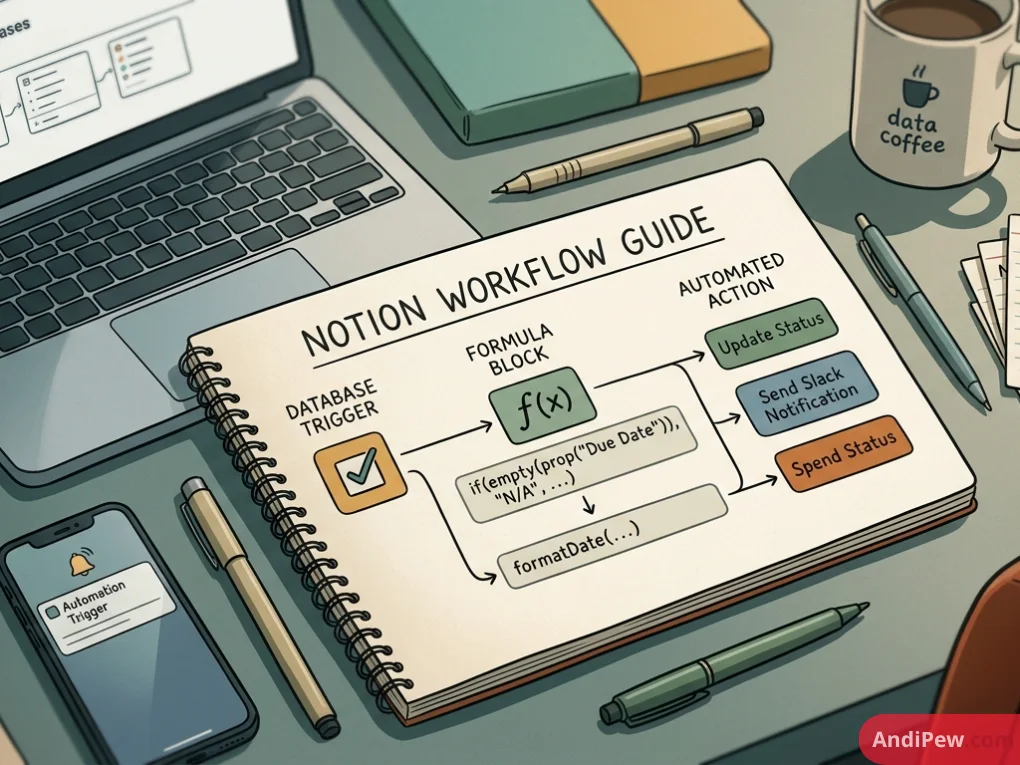
Building an efficient digital workspace requires moving past basic note-taking and static task lists. While structuring your workspace with Notion pages and blocks lays the foundation, true efficiency begins when your data computes itself and tasks update automatically.
By combining Notion formulas and automations, you turn a standard Notion database into an interactive, self-updating operating system. This comprehensive guide covers everything from writing your first Formulas 2.0 expression to building multi-step automated triggers that eliminate repetitive admin work.
Why Pair Formulas with Database Automations?
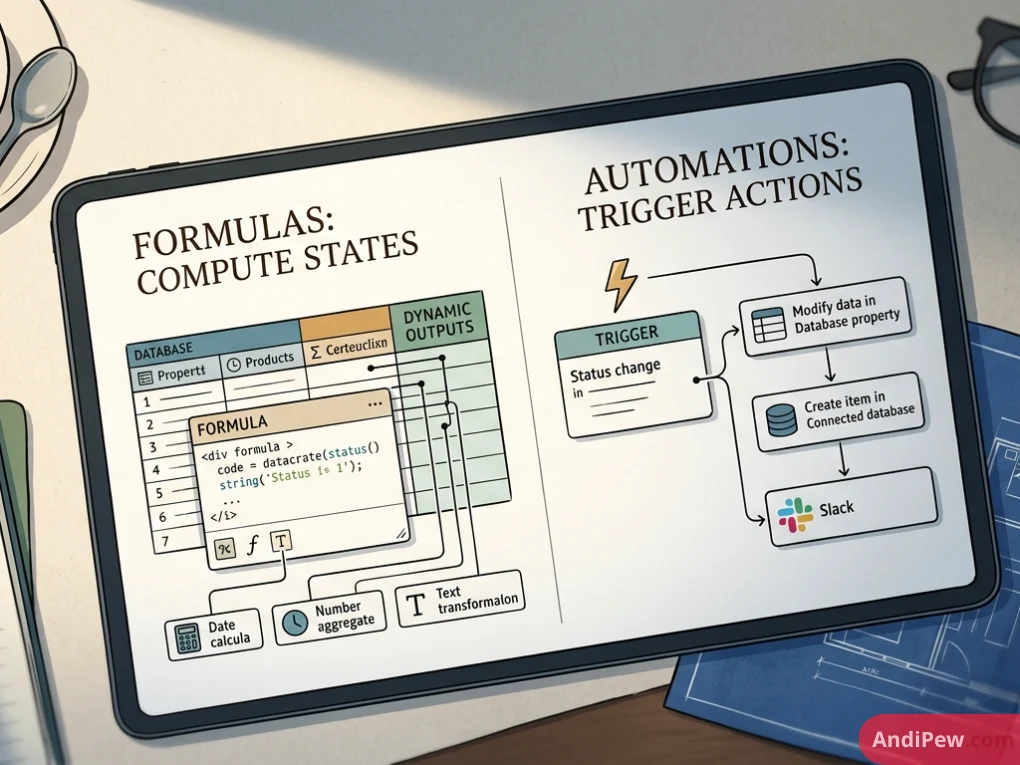
Formulas and automations solve two distinct operational problems:
- Formulas compute states: They calculate dates, aggregate numbers, transform text, and return dynamic outputs based on database properties.
- Automations trigger actions: They listen for specific changes—like a status flip or a new page creation—and execute actions across properties, connected databases, or Slack.
When paired together, formulas act as the logic layer that assesses where a project stands, while automations act as the execution layer that carries tasks forward.
Notion Formulas 2.0: Core Concepts and Architecture
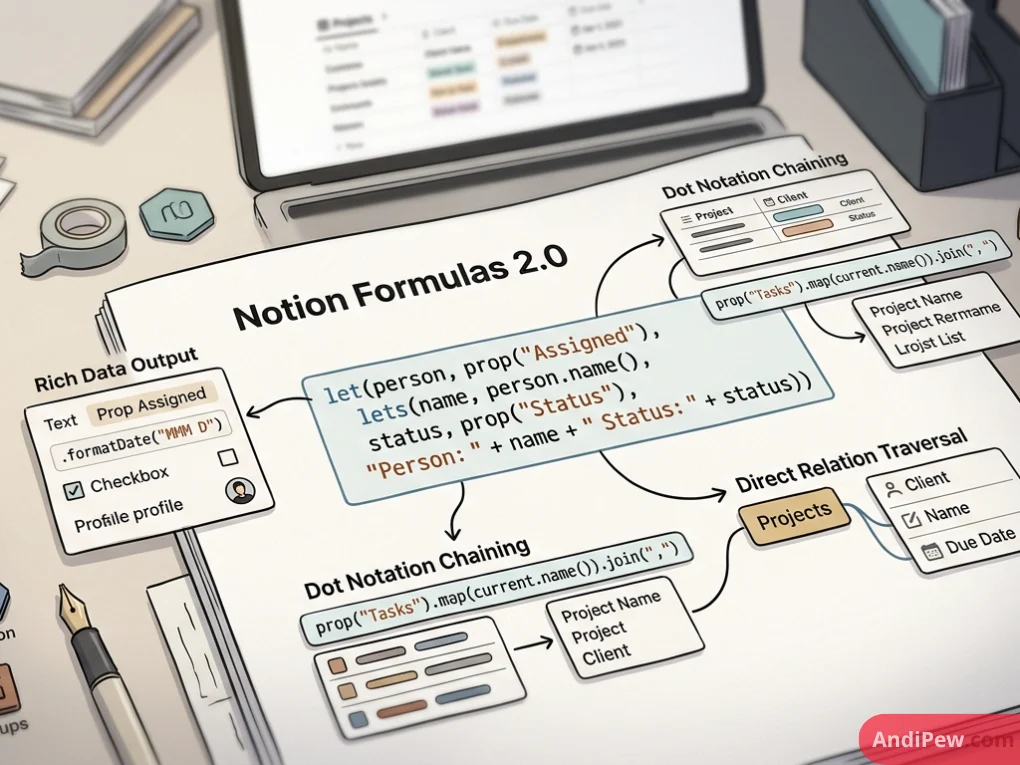
Notion updated its formula engine to Formulas 2.0, moving from simple single-line calculations to a full-featured, JavaScript-like expression language.
Key Capabilities of Formulas 2.0
- Rich Data Types: Formulas can now output text, numbers, booleans, dates, people, and even styled lists.
- Dot Notation: Chain functions together cleanly (e.g.,
prop("Tags").map(current.name())). - Direct Relation Traversal: Access properties across related databases without needing separate Rollup properties.
- Multi-Line Code & Variables: Use
let()andlets()to assign variables, making complex logic easy to read and maintain.
Notion Formula Tutorial: Step-by-Step Syntax & Examples
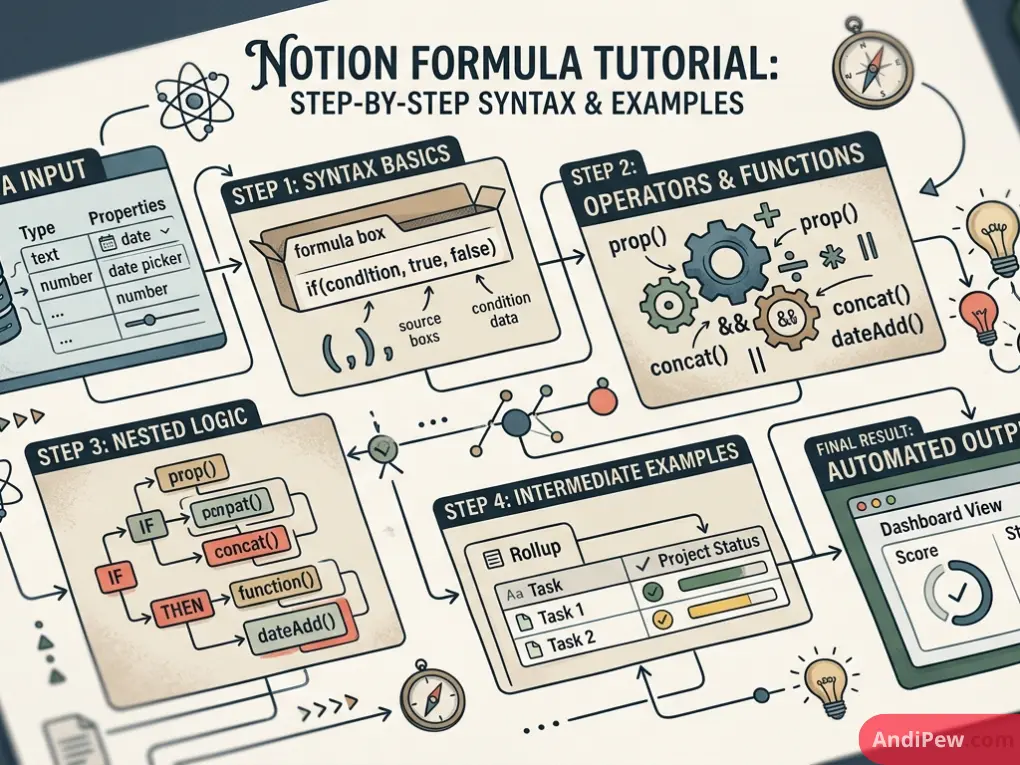
Getting started with formulas requires understanding basic syntax conventions. Let’s break down the essential functions and build up to intermediate logic.
Basic Text and Number Calculations
To calculate total invoice amounts with sales tax applied:
prop("Subtotal") * (1 + prop("Tax Rate"))
To format a string with dynamic values:
"Task: " + prop("Task Name") + " | Priority: " + prop("Priority")
Logical Operators with ifs() and if()
The legacy if() function required messy nesting for multiple conditions. The modern ifs() function evaluates pairs of conditions and return values in sequence:
ifs(
  prop("Progress") == 1, " Complete",
  prop("Progress") > 0.5, " In Progress",
  prop("Progress") > 0, " Just Started",
  " Not Started"
)
Date & Deadline Calculations
Dynamic date tracking prevents deadlines from slipping by computing time differences on the fly:
dateBetween(prop("Due Date"), now(), "days")
To display a human-readable urgency badge:
ifs(
  empty(prop("Due Date")), "⚪ No Date",
  dateBetween(prop("Due Date"), now(), "days") < 0, " Overdue",
  dateBetween(prop("Due Date"), now(), "days") == 0, " Due Today",
  dateBetween(prop("Due Date"), now(), "days") <= 3, " Urgent",
  " On Track"
)
Working with Relations and Rollups (No Rollup Needed)
In Formulas 2.0, you can query relations directly. If you have a Tasks relation linked to a Projects database, you can count completed tasks directly inside the Project entry:
prop("Tasks").filter(current.prop("Status") == "Done").length()
To calculate the project completion percentage:
round(
  (prop("Tasks").filter(current.prop("Status") == "Done").length() /
  max(prop("Tasks").length(), 1)) * 100
) + "%"
Notion Formulas and Automations in Excel vs. Notion
Many workspace designers migrate to Notion after managing workflows using spreadsheets. While both platforms offer computation and workflow triggers, their structural approaches differ significantly.
| Capability | Notion Formulas & Automations | Microsoft Excel Formulas & Automations |
| Data Structure | Object-based relational databases with named properties | Grid-based cell references (e.g., A1:B10) |
| Formula Syntax | Typed properties, dot notation, and chaining (prop().filter()) |
Functional formulas (SUMIFS, INDEX/MATCH, XLOOKUP) |
| Cross-Table Linking | True bi-directional database relations | Lookup functions or Power Pivot relational models |
| Native Automations | Native UI triggers (Status change, page created, property edited) | Power Automate, VBA Macros, or Office Scripts |
| Visual Output | Rich text, callouts, emojis, tags, and progress bars | Cell styles, conditional formatting, and charts |
| Learning Curve | Low-to-medium for modern web users | High for advanced macros, moderate for standard formulas |
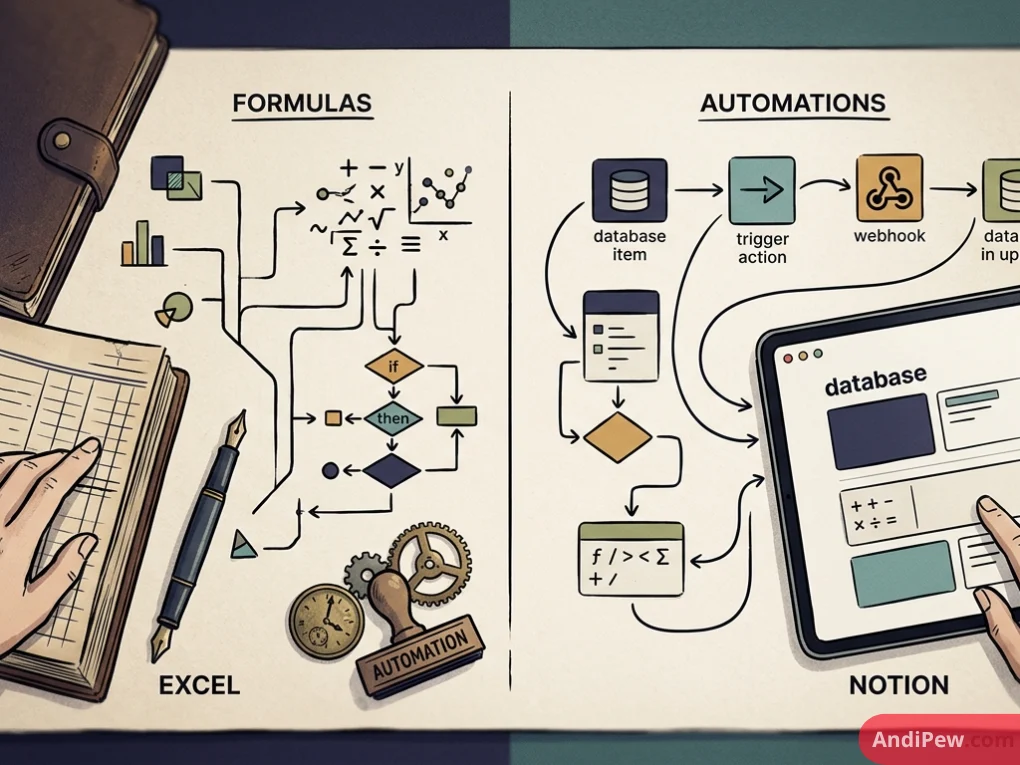
When planning notion formulas and automations in excel environments, treat Excel as the heavy-duty numerical engine for financial modeling and deep statistical analysis, while using Notion as the operational hub where tasks, visual progress, and collaborative context reside.
Complete Notion Automation Guide: Native Triggers and Actions
Database automations in Notion execute background tasks whenever changes occur in your workspace. This eliminates manual status updates, task reassignments, and date stamping.
Native Trigger Types
- Page Added: Runs whenever a new entry is created in a database.
- Property Edited: Triggers when a specific property (e.g., Status, Assignee, Priority) changes value.
Native Action Types
- Add Page To Database: Creates a corresponding record in a target database.
- Edit Properties in This Page: Updates fields on the trigger page (e.g., marking “Completed Date” as today).
- Edit Pages in Another Database: Modifies linked records across relations.
- Send Slack Notification: Broadcasts automated alerts to a designated Slack channel.
- Send Notion Notification: Pings workspace members inside Notion.
4 Practical Blueprints: Combining Formulas & Automations
Implementing practical recipes helps clarify how these tools interact in real-world scenarios.
Blueprint 1: The Auto-Archiving Task Pipeline
Goal: Automatically mark tasks as archived and timestamp their completion when a user sets the status to “Done”.
Formula Property (Days Since Completion):
if(!empty(prop("Completed Date")), dateBetween(now(), prop("Completed Date"), "days"), 0)
Database Automation:
- Trigger: When
Statusis set toDone. - Action 1: Set
Completed DatetoToday (Now). - Action 2: Set
Archivedcheckbox toChecked.
Blueprint 2: Dynamic Project Health Dashboard
Goal: Display real-time project risk indicators based on open tasks and passing deadlines without manual status reporting.
Formula Property (Health Score):
let(
  overdueTasks,
  prop("Tasks").filter(current.prop("Status") != "Done" and current.prop("Due Date") < now()).length(),
  ifs(
    overdueTasks > 3, " Critical Risk",
    overdueTasks > 0, " Needs Attention",
    " Healthy"
  )
)
Database Automation:
- Trigger: When
Statuschanges toIn Review. - Action: Send a notification to the Project Lead property to review deliverables.
Blueprint 3: Recurring Meeting Action-Item Generator
Goal: Create default sub-tasks automatically every time a new client project or meeting page is created.
Database Automation:
- Trigger: When a new page is added to the
Clientsdatabase. - Action 1: Add page to
Taskswith name “Schedule Kickoff Call” and link relation to trigger page. - Action 2: Add page to
Taskswith name “Send Onboarding Questionnaire” and link relation to trigger page. - Action 3: Set
Client StatustoOnboarding.
Blueprint 4: Automated Sprint Rollover Notification
Goal: Detect when sprint scope exceeds capacity and alert the team on Slack.
Formula Property (Scope Alert):
let(
  totalEstimate,
  prop("Tasks").map(current.prop("Story Points")).sum(),
  ifs(
    totalEstimate > prop("Sprint Capacity"), " Over Capacity",
    " Normal"
  )
)
Database Automation:
- Trigger: When
Scope Alertproperty is edited. - Action: Send notification to Slack channel
#sprint-planningstating that the sprint backlog requires re-estimation.
Best Practices for Scalable Notion Workspaces
To keep large workspaces running smoothly, follow these architecture principles:
Avoid Redundant Formulas: Each formula recalculates on client load. For static values, use automations to set a static property rather than keeping an active formula running indefinitely.
Structure Complex Code with lets(): Breaking expressions into named variables keeps formulas legible for team members:
lets(
  total, prop("Amount"),
  discount, prop("Discount Rate"),
  net, total * (1 - discount),
  net
)
Prevent Automation Loops: Ensure that actions triggered by an automation do not inadvertently trigger another automation in an endless cycle.
Centralize Data with Relations: Link related databases rather than duplicating properties across disparate tables. For a full foundational overview, explore our complete Notion guide.
Frequently Asked Questions (FAQ)
Can Notion database automations update formulas?
No. Formulas compute values automatically based on their underlying logic and properties. Automations can, however, update the standard properties that a formula reads from, which causes the formula’s output to refresh instantly.
What is the difference between Notion Formulas 1.0 and 2.0?
Formulas 2.0 introduced dot syntax, direct access to relation properties without rollups, local variables (let and lets), multi-line code support, and native support for rich arrays and lists.
Can Notion automations connect to external webhooks?
Native Notion database automations connect directly to Slack and internal Notion actions. To connect Notion to webhooks or third-party platforms like Gmail, Google Calendar, or Jira, integrate Notion via tools like Make, Zapier, or the official Notion API.
Are Notion automations available on free plans?
Basic database automations with standard trigger/action pairs are available on Free plans with certain feature limits, while advanced triggers, external actions, and workspace-wide limits scale with Notion Plus, Business, and Enterprise plans.
Combining formulas and automations transforms Notion from a passive repository into an active workflow engine. By offloading recurring task generation, status checks, and data calculations to automated systems, your team saves hours of weekly admin time.
Review your active databases today, identify the manual properties you update repeatedly, and implement these formulas and automations to build a self-sustaining productivity hub.