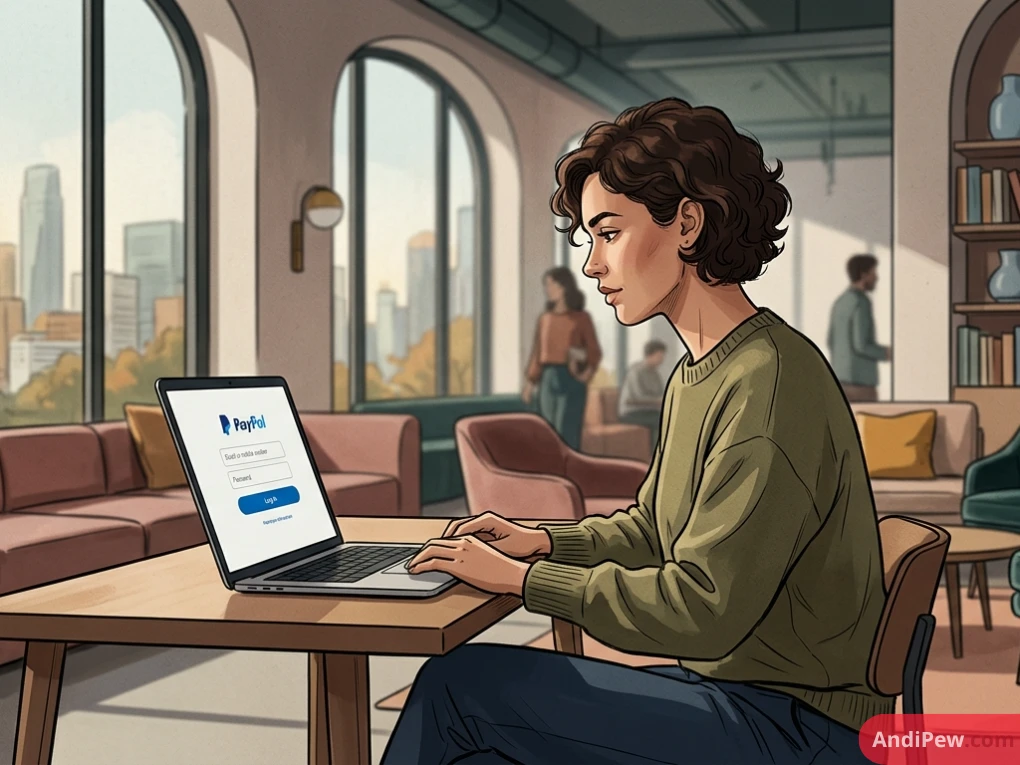
Managing your money online should be fast and frictionless, whether you are splitting dinner with friends, paying for an online order, or managing invoices for your business. However, because digital wallets are a prime target for cybercriminals, simply typing “paypal login“ into a search engine and clicking the first link you see requires a bit of caution.
Spoofed websites and third-party redirect pages frequently mimic financial portals. Furthermore, security upgrades like passkeys and two-factor authentication (2FA) can occasionally lock you out if you recently upgraded your phone or cleared your browser cookies.
Below, you will find the official ways to access your account across desktop and mobile devices, step-by-step recovery methods if you are locked out, and essential security checks to keep your balance safe.
Official PayPal Login Links: Where to Sign In Safely
Before entering your email address or password anywhere, always verify that you are on an authentic PayPal domain.
- Official Sign-In Page:
https://www.paypal.com/signin(or regional equivalents such ashttps://www.paypal.com/us/signin - Direct Account Dashboard:
https://www.paypal.com/myaccount/home(redirects you to the login screen if you do not have an active session)
Warning: How to Spot Fake Login Portals
Scammers frequently build lookalike login pages hosted on free website builders or unrelated domains (for example, URLs formatted like https://sites.google.com/.../paypallogin or domains containing extra hyphens like paypal-secure-login.com).
Never enter your credentials on a third-party hosting site. Always check your browser’s address bar to confirm the root domain is strictly paypal.com before typing your password. Bookmark the official sign-in page in your browser so you never have to rely on search results or email links to access your wallet.
How to Log In to Your PayPal Account (Step-by-Step)
Depending on how you use the platform, you have several ways to sign in. Here is how to access your dashboard on any device.
Logging In on a Desktop Browser
-
Open an updated web browser (such as Chrome, Safari, Edge, or Firefox) and navigate directly to paypal.com/signin.
-
Enter the email address or mobile phone number associated with your account and click Next.
-
Choose your verification method:
-
Password: Enter your password and click Log In.
-
Passkey / Biometrics: If you have enabled passkeys on your computer or linked smartphone, follow the on-screen prompt to verify via Touch ID, Face ID, or Windows Hello.
-
One-Time Code: In some regions or account configurations, you can request a single-use SMS or app notification code instead of typing your password.
-
-
Complete your Two-Factor Authentication (2FA) challenge if prompted, and you will be directed to your account home screen.
Logging In via the PayPal Mobile App
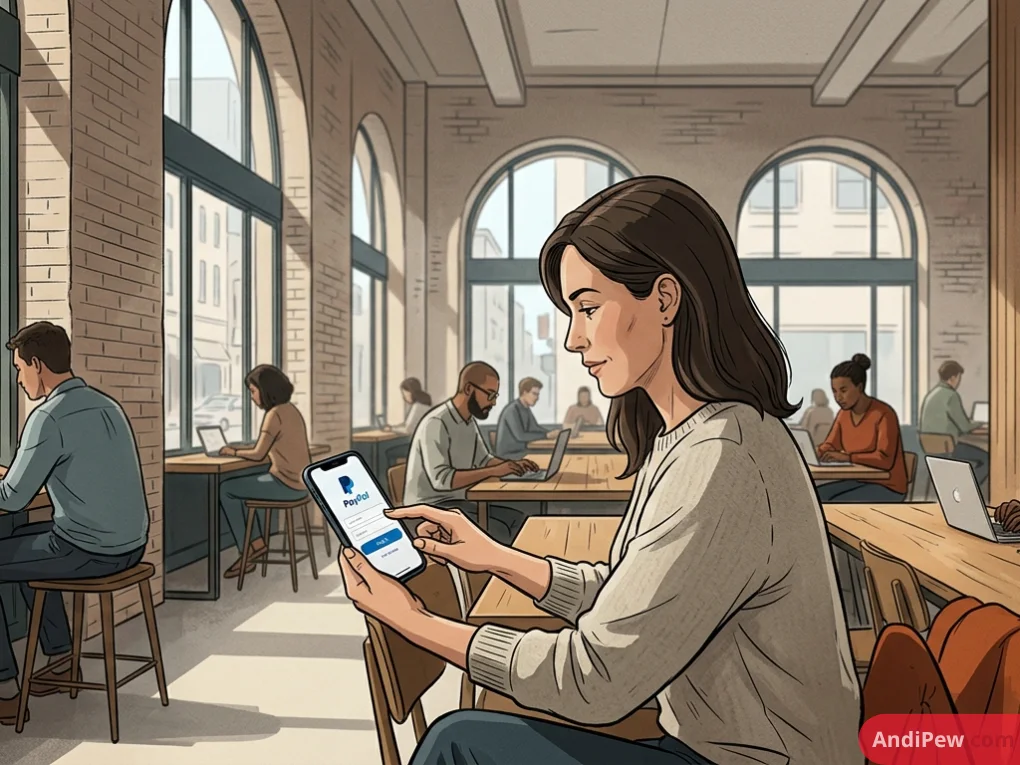
For everyday transactions, the official mobile app (available on the Apple App Store and Google Play Store) offers the fastest and most secure login experience.
- Download and open the official PayPal app on your iOS or Android device.
- Enter your registered email address or mobile number.
- Authenticate using your password, passkey, or one-time security code.
- Enable Biometric Login: Once signed in, go to your Profile Settings -> Login and Security to turn on Face ID, Touch ID, or Android Biometrics. Future logins will only require a quick glance or fingerprint scan.
Personal vs. Business Account Login
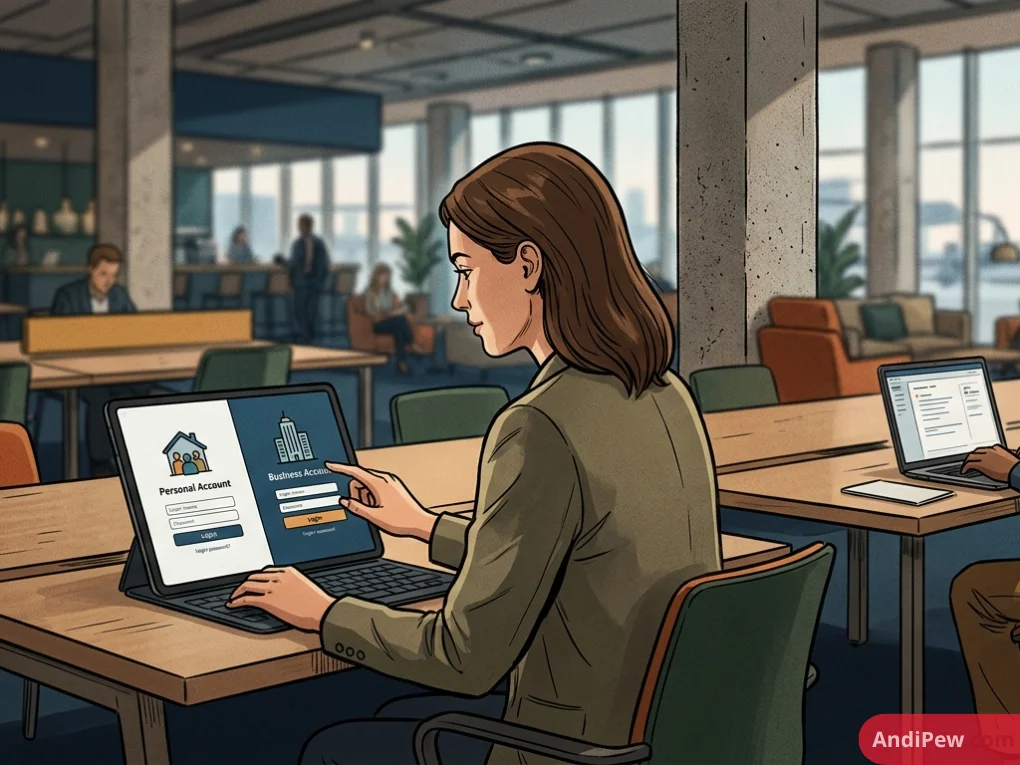
Are you wondering if you need a separate portal for a merchant account? Both Personal and Business accounts use the exact same PayPal login page ([paypal.com/signin](https://paypal.com/signin)). The system automatically routes you to the consumer dashboard (myaccount/home) or the merchant dashboard (mep/dashboard) based on the email credentials you enter.
Comparison of PayPal Login Methods
Choosing the right authentication method balances convenience with account protection. Here is how the current sign-in options compare:
| Login Method | Security Level | Best For | Key Requirement |
| Passkeys (Face ID / Touch ID / Windows Hello) | Very High (Phishing-resistant) | Daily desktop & mobile users | Compatible device with screen lock enabled |
| Password + Authenticator App (2FA) | Very High | Desktop power users & Business accounts | Google Authenticator, Microsoft Authenticator, or Authy |
| Password + SMS One-Time Code | High | General users | Active access to your registered mobile phone number |
| Standard Password Only | Moderate | Not recommended | Strong, unique password not used on other websites |
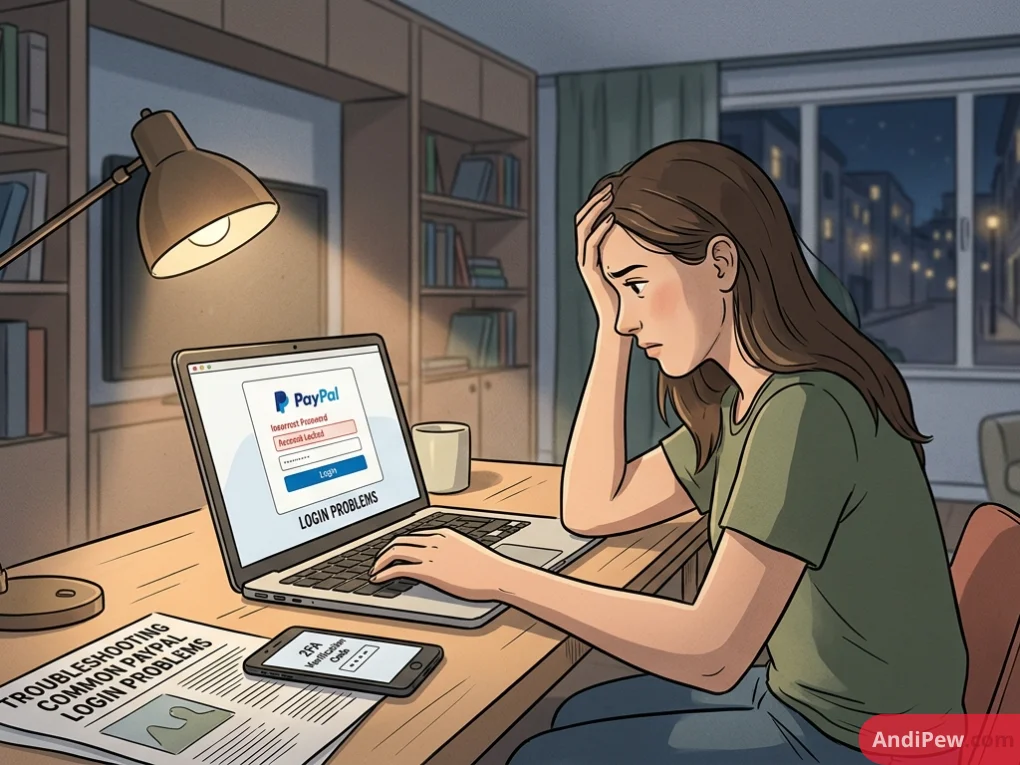
Troubleshooting Common PayPal Login Problems
Even when you have the right URL, technical hiccups or security triggers can block you from reaching your dashboard. Here is how to resolve the most common sign-in obstacles.
Forgot Your Password or Email Address
If your password isn’t working, do not guess repeatedly—too many failed attempts will trigger a temporary security lockout.
- Go to the PayPal login screen and click Forgot password? right below the email/password box.
- Enter the email address you used to register and click Next.
- Choose how you want to confirm your identity (via SMS code, phone call, WhatsApp, or email link, depending on your account settings).
- Once verified, create a new, unique password.
- Forgot your email? Click Forgot your email? on the password recovery screen and enter up to three email addresses you might have used. The system will tell you if one of them matches an active profile.
Lost Access to Your 2FA Phone Number
Getting a new phone number can complicate two-step verification if your account still tries to text your old device.
- Use a Backup Method: When prompted for your 6-digit code during login, click Try another way at the bottom of the prompt. You may be able to verify via an authenticator app, security questions, or confirming a linked credit card number.
- Contact Support for a Manual Reset: If you have no backup methods configured, click Help or Contact Us at the bottom of the page and choose Login Problems. You will need to verify your identity directly with PayPal customer service to update your phone number on file.
“We’re Having Trouble Making Sure It’s You” Error
This security block typically happens when PayPal’s automated risk system detects an unusual connection environment. To fix it:
- Turn Off Your VPN or Proxy: PayPal aggressively blocks IP addresses associated with commercial VPNs or proxy servers to prevent unauthorized access from masked locations. Disconnect your VPN and try again.
- Clear Browser Cache and Cookies: Corrupted session cookies often cause infinite login loops. Clear your browser cache or open a fresh Incognito / Private Browsing window.
- Avoid Repeated Attempts: If you see this message, wait at least 24 hours before trying again from a familiar Wi-Fi network and device you have used to log in previously.
Account Locked or Temporarily Limited
If you can log in but cannot send or withdraw funds—or if you receive a notice that your account is locked—visit your Resolution Center immediately after signing in. You will usually see a checklist asking you to upload a photo ID, confirm a bank statement, or verify recent transaction activity to lift the restriction.
Best Practices to Keep Your Account Secure
Because your digital wallet links directly to your bank accounts and credit cards, locking down your login credentials is essential.
- Upgrade to a Passkey: Passkeys replace traditional passwords with cryptographic keys stored on your device. Because a passkey is tied mathematically to the official
paypal.comdomain, it cannot be phished—even if you accidentally visit a fake website, your passkey simply will not trigger. - Use an Authenticator App Instead of SMS: While SMS codes are far better than no 2FA at all, authenticator apps generate codes locally on your phone, protecting you against SIM-swapping attacks.
- Turn Off “Stay Logged In” on Shared Devices: PayPal offers a “Remember me” or One Touch feature for faster checkout. Only enable this on your personal, password-protected phone or laptop—never on a public, library, or shared workplace computer.
- Verify Suspicious Emails Independently: If you receive an urgent email claiming your account is suspended or displaying a high-dollar invoice you didn’t authorize, do not click the link in the email. Open a new browser tab, go to
paypal.com/signinmanually, and check your official Message Center and Resolution Center. If there is no alert inside your dashboard, the email is a phishing scam. You can forward suspicious emails to phishing@paypal.com.
Frequently Asked Questions (FAQs)
Why can’t I log into my PayPal account right now?
The most common reasons for login failure are an active VPN connection, outdated browser cookies, a mistyped password causing a temporary security lockout, or an expired two-factor authentication device. Disable any VPNs, clear your browser cache, or try signing in through the official mobile app on a familiar Wi-Fi network.
How do I log into PayPal without a phone number?
If you no longer have access to the mobile number tied to your account, enter your email on the sign-in screen and select Try another way when asked for an SMS code. Depending on your security setup, you can authenticate via email, a linked authenticator app, or by confirming the full number of a linked bank card. If none of those options appear, you must contact PayPal Support by phone to verify your identity.
Can I stay logged into PayPal permanently?
No. Even if you select the option to stay logged in for faster checkout, PayPal will automatically sign you out after a period of inactivity or whenever you attempt sensitive actions—such as viewing your full security settings, adding a new bank account, or sending a large payment—to protect your balance if your device is lost.
Is a Google Sites or third-party link a safe PayPal login page?
No. Official PayPal login pages are hosted exclusively on paypal.com. Any login page hosted on Google Sites (sites.google.com), Wix, WordPress, or unfamiliar domains is an unauthorized page or a phishing attempt designed to steal your credentials.
Accessing your digital wallet should never feel like a guessing game. By sticking strictly to the official domain, upgrading your account to use passkeys or an authenticator app, and knowing how to bypass common browser and VPN blocks, you can keep your money accessible to you—and completely off-limits to scammers.