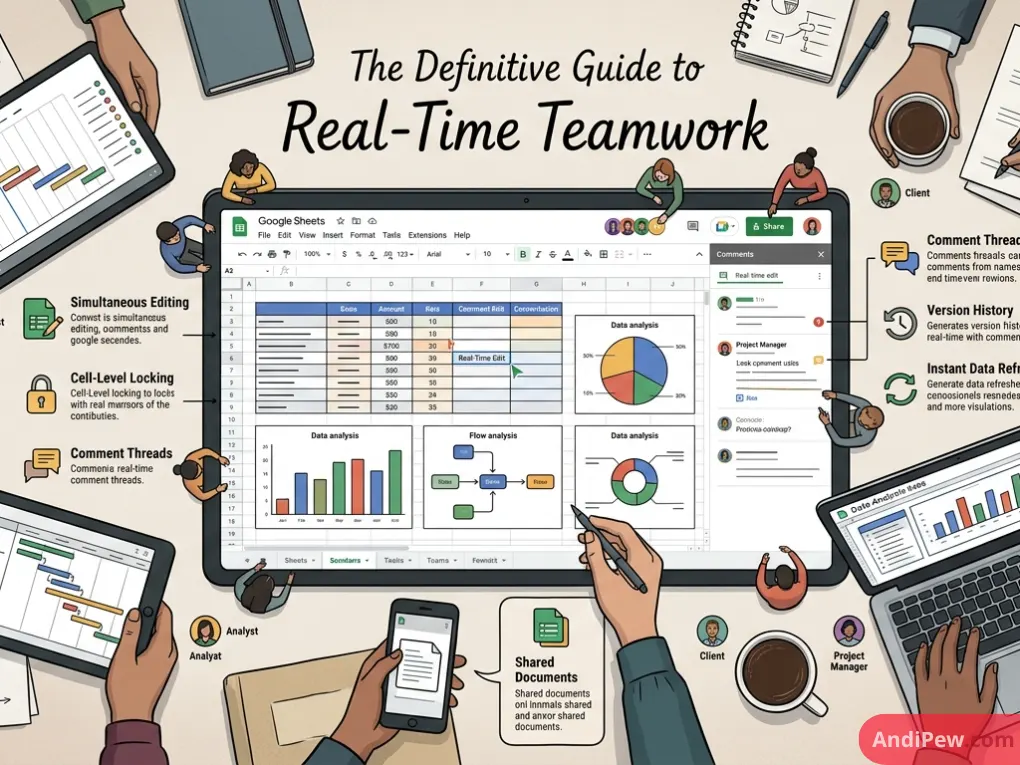
Sending spreadsheets back and forth as email attachments—only to realize someone edited Q3_Financials_Final_v2_FINAL.xlsx instead of v3—is a relic of the past.
Modern teams need agility. Whether tracking sprints, consolidating departmental budgets, or analyzing survey data, Google Sheets collaboration allows dozens of colleagues to work together simultaneously without data collisions or lost work.
In this comprehensive guide, you will discover how google sheets real time collaboration works under the hood, master essential google sheets collaboration tools, implement rock-solid security permissions, and discover best practices to transform how your team works together.
What Is Google Sheets Collaboration?
Google Sheets collaboration refers to the cloud-native toolset inside Google Workspace that allows multiple users to view, comment on, review, and edit the exact same spreadsheet at the exact same moment.
Unlike traditional desktop applications adapted for the web, Google Sheets was built from the ground up as a cloud-first platform. Every single change, cursor movement, formula entry, and format update synchronizes instantly across devices.
How Real-Time Collaborative Editing Works
When multiple collaborators open a spreadsheet, each user is assigned an avatar and a dedicated cursor color in the top-right corner.
As you type or highlight cells, other collaborators see your highlighted cell border in real time. Google’s servers process concurrent edits using operational transformation algorithms, ensuring that if two users modify adjacent cells simultaneously, neither edit is lost or corrupted.
If you are new to the workspace environment, start by exploring our detailed google sheets tutorial to build your foundation before mastering multi-user setups.
Core Google Sheets Collaboration Features Every Team Needs
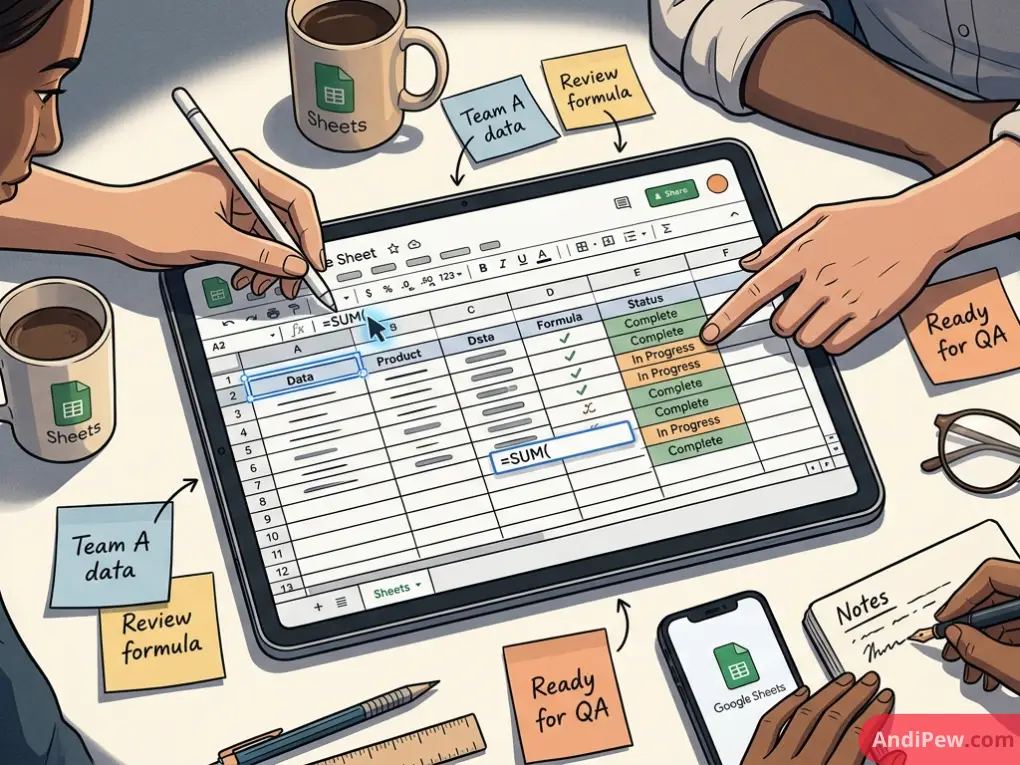
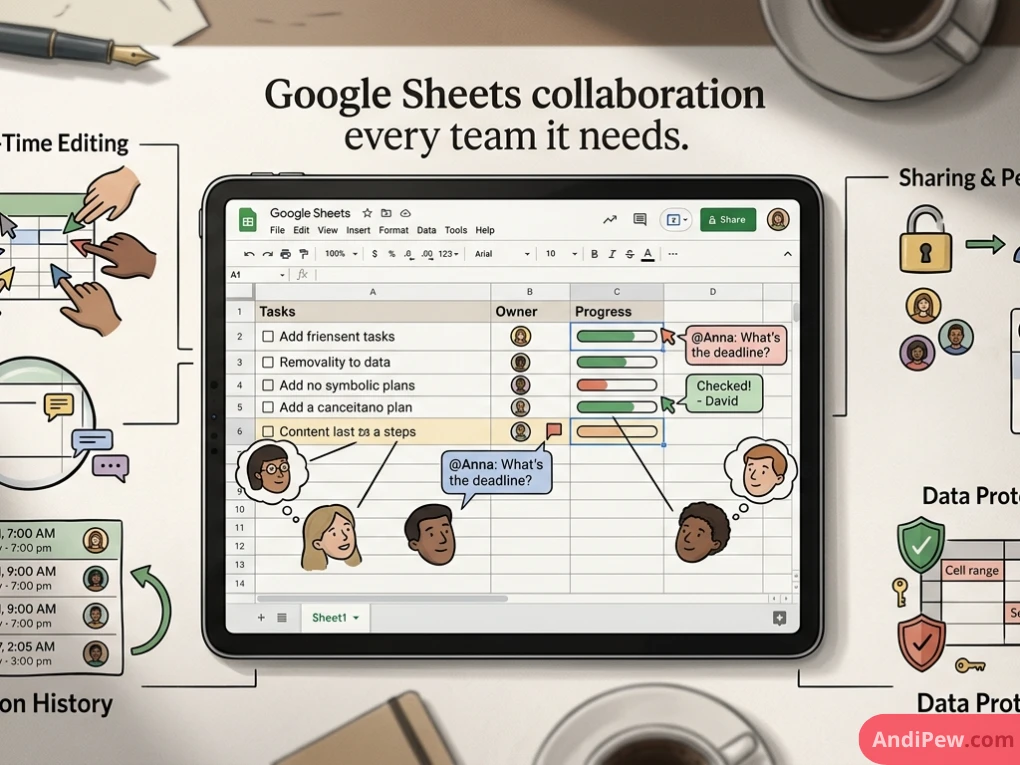
Google Sheets packs an extensive array of built-in features engineered specifically for group productivity. Here is a breakdown of the foundational google sheets collaboration features your team should adopt immediately.
Granular Sharing Roles (Viewer, Commenter, Editor)
Before inviting collaborators, you need to understand the three primary access levels:
- Viewer: Users can read and filter data (if temporary views are used), but cannot modify cells, create comments, or alter structures.
- Commenter: Users can view data and add contextual comments or suggest changes, but cannot overwrite formulas, raw values, or styling.
- Editor: Users have full operational permissions to write formulas, delete data, insert sheets, and invite others (unless restricted by the document owner).
Contextual Comments and Smart Action Items
Spreadsheets often require discussion. Instead of switching to an external messaging app, use inline google sheets comments directly on specific cells.
- Highlight the cell that needs clarification.
- Right-click and select Comment (or use the shortcut
Ctrl + Alt + Mon Windows /Cmd + Option + Mon Mac). - Add actionable context right beside the data point.
To learn step-by-step techniques for thread management, review our deep dive on google sheets comments.
Smart Mentions and Task Delegation
Need a specific teammate to review a revenue calculation? Leverage mentions google sheets functionality:
- Type
@followed by your teammate’s name or email address inside any cell or comment box. - Select their name from the dynamic Google Workspace pop-up.
- Check the Assign to [Name] box to create a formal action item. The assignee receives an instant automated notification with a direct link to the cell.
Check out our guide on using mentions google sheets to streamline your team’s everyday communications.
Complete Audit Trails with Version History
One of the biggest anxieties of shared spreadsheets is: “What if someone breaks my formulas?”
With google sheets version history, you can inspect every single change made since the document was created. You can see who made each edit, when it happened, and restore previous versions with a single click.
Read our full walk-through on google sheets version history to learn how to name versions, inspect granular cell revisions, and roll back accidental deletions.
Cell and Range Protection
In complex files, team members should only edit designated inputs—not core financial formulas or master headers. Google Sheets lets you lock entire sheets or specific cell ranges, permitting only specific people to make changes.
To set up protected zones across your files, see our tutorial on how to protect sheet google sheets.
Step-by-Step Google Docs and Sheets Collaboration Tutorial
While both tools belong to Google Workspace, mastering team workflows across Docs and Sheets follows similar core principles. Follow this step-by-step google docs collaboration tutorial to set up a shared workspace cleanly.
Step 1: Access the Sharing Modal
Open your spreadsheet and click the large green Share button located in the top-right corner.
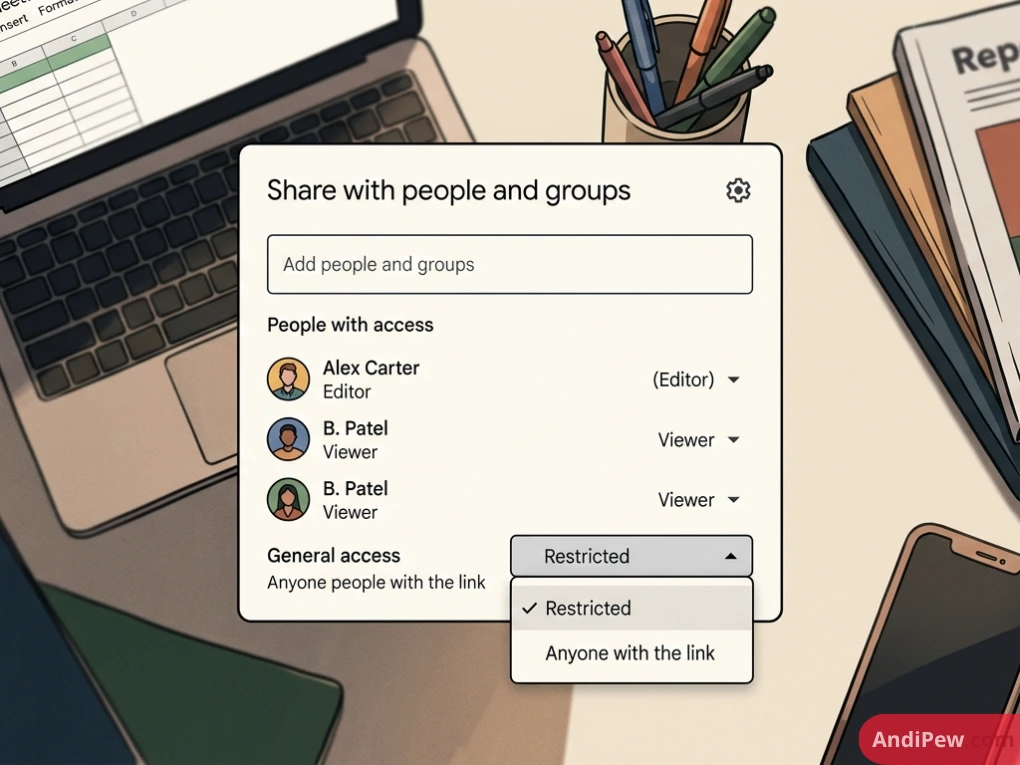
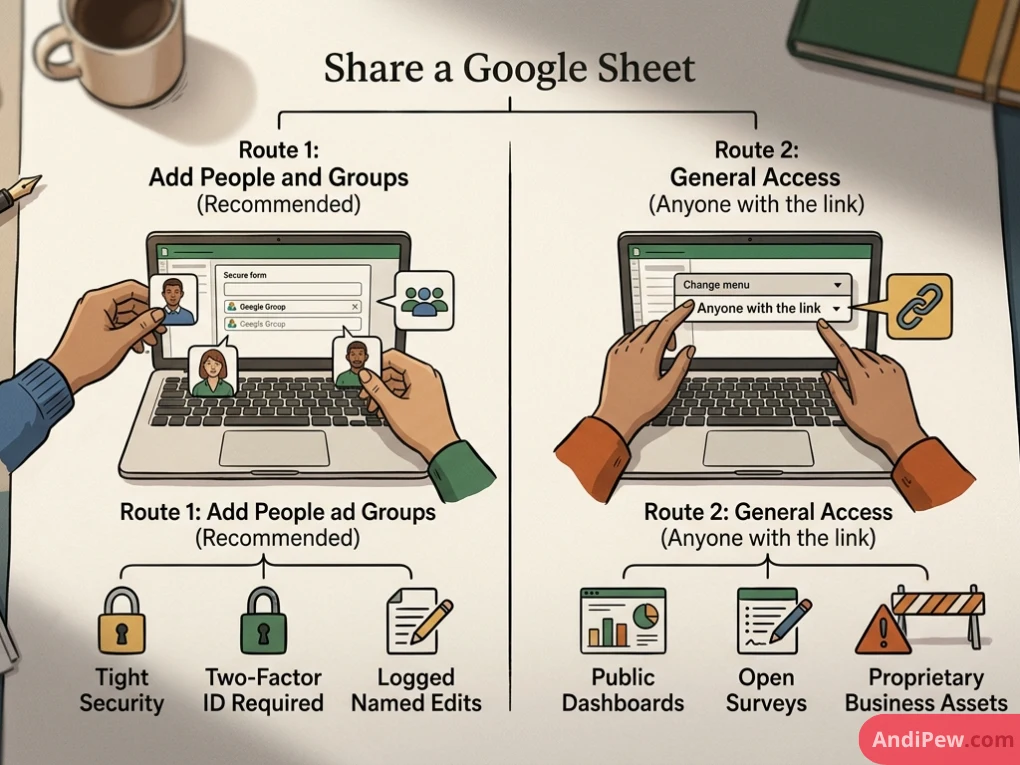
Step 2: Choose Direct Invitations vs. Shareable Links
You have two sharing routes:
- Add People and Groups (Recommended): Enter individual email addresses or Google Groups. This maintains tight security, enforces two-factor identification, and logs named edits.
- General Access (Anyone with the link): Change the setting to “Anyone with the link.” This is great for public dashboards or open surveys, but risky for proprietary business assets.
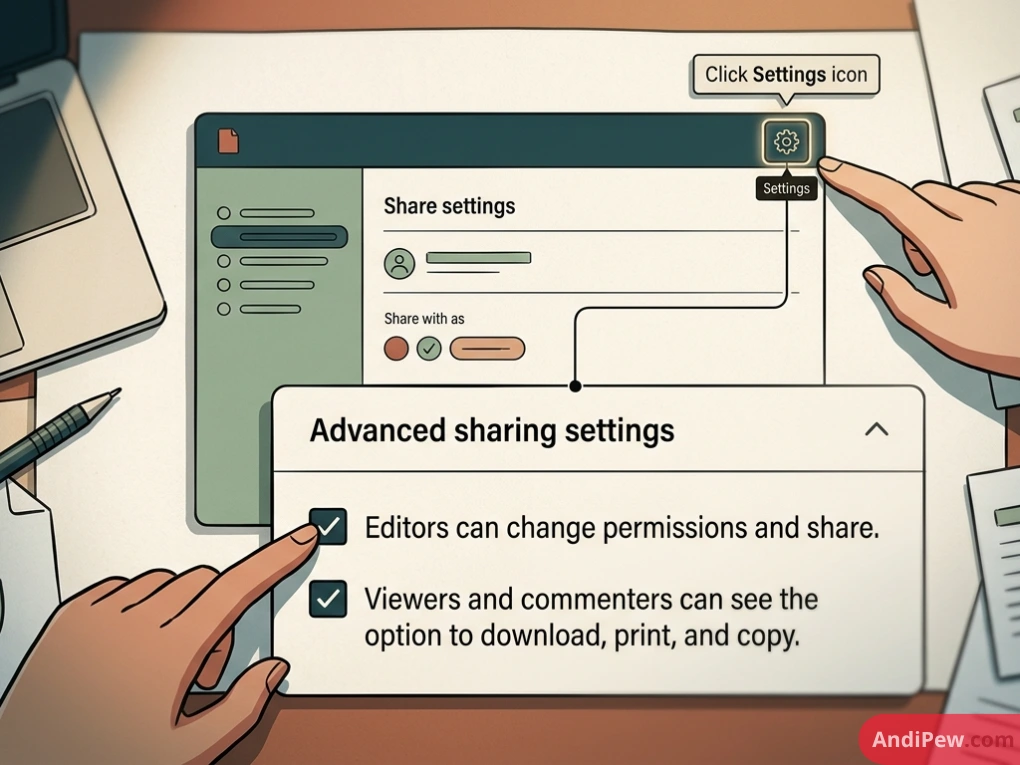
Step 3: Configure Advanced Sharing Safeguards
Click the Settings gear icon in the top-right corner of the Share modal to toggle two critical enterprise protections:
- Uncheck: “Editors can change permissions and share.” (Prevents external contractors or editors from sharing data with unauthorized parties.)
- Uncheck: “Viewers and commenters can see the option to download, print, and copy.” (Prevents unauthorized exfiltration of intellectual property.)
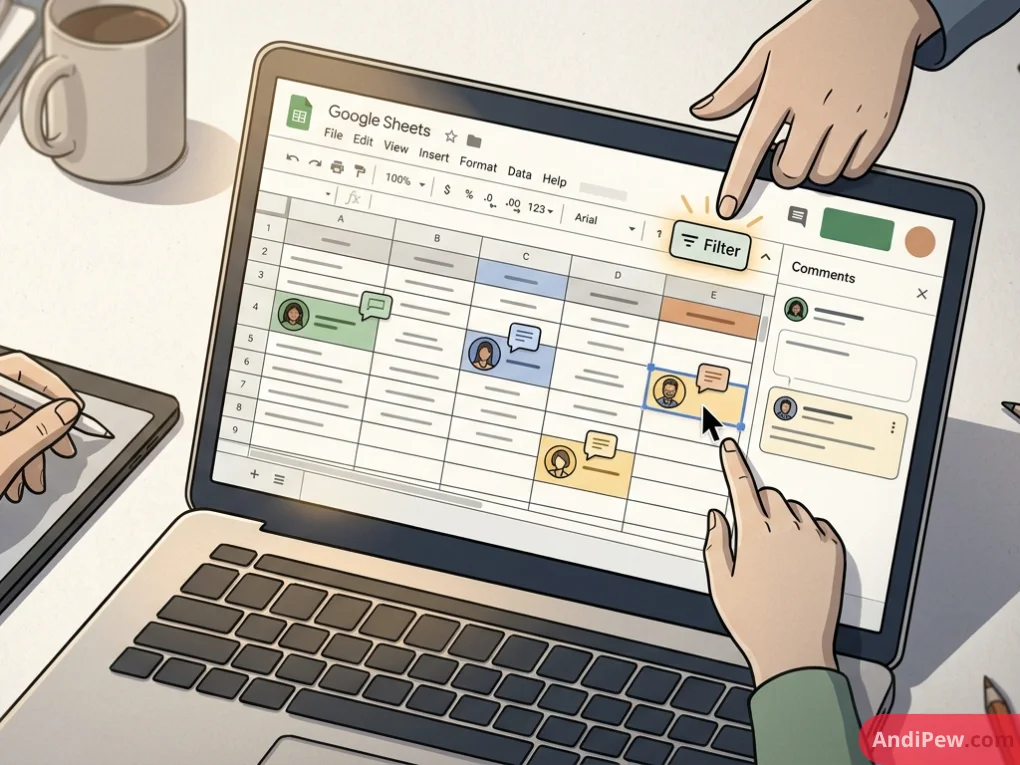
Step 4: Work Asynchronously or in Real-Time
Once collaborators join, you can co-author cells, reply to comment threads, and filter data together seamlessly.
How to Manage, Restrict, or Remove Collaborators
Knowing how to add team members is only half the battle; lifecycle management requires knowing how to update permissions and use google sheets remove collaboration workflows when a project wraps up or personnel changes occur.
How to Remove a Collaborator or Downgrade Access
- Open the file and click Share.
- Locate the person whose access you want to modify under “People with access.”
- Click the dropdown menu beside their name (e.g., Editor).
- Choose a lower tier (such as Viewer or Commenter) or click Remove access.
- Click Save to apply the changes immediately.
Setting Expiration Dates for External Contractors
If you are working with vendors, agencies, or seasonal staff, you can prevent lingering security access by assigning an automatic expiration date:
- Open the Share menu.
- Click the dropdown next to the collaborator’s name.
- Select Add expiration.
- Select a cutoff date (e.g., 30 days). Once the date passes, Google Sheets automatically revokes their access.
Google Sheets vs. Microsoft Excel for Collaboration
The spreadsheet market has long been a battle between Google Sheets and Microsoft Excel. While Microsoft has updated Excel with web features and OneDrive co-authoring, real-time collaboration remains native to Google’s DNA.
| Feature / Capability | Google Sheets | Microsoft Excel (365 / Online) |
| Real-Time Co-Authoring | Instant, zero-latency sync across all platforms | Capable on 365/Web; desktop sync can lag |
| Setup & Friction | 100% web-based; requires zero client installation | Desktop app requires OneDrive/SharePoint sync |
| Concurrent Users | Up to 100 simultaneous editors smoothly | Slower responsiveness under heavy concurrent loads |
| Sharing Granularity | Native cell/range locks, time-bound access | Complex permission trees via SharePoint |
| Comments & Mentions | Integrated smart chips, @ assignments, email pings |
Available in 365; can produce notification delays |
| Audit Logs | Detailed cell edit history and full version restore | AutoSave versioning exists; desktop UI can be clunky |
| Advanced Modeling | Up to 10M cells; robust for 95% of standard business needs | Industry standard for multi-gigabyte models & massive power pivots |
The Verdict on Google Sheets vs Excel for Collaboration
If your priority is financial engineering, local VBA macros, and modeling datasets with hundreds of thousands of rows, Microsoft Excel desktop remains the undisputed powerhouse.
However, for distributed teams, real-time dashboarding, cross-departmental project tracking, and agile teamwork, google sheets vs excel for collaboration consistently tilts in Google’s favor due to its instant sync, frictionless onboarding, and intuitive UI.
Clarifying “Google Sheets Colab”: Spreadsheets vs. Google Colaboratory
In search queries, users frequently search for google sheets colab. It is important to clarify a common naming point:
- Collaborative Google Sheets: This refers to everyday spreadsheet co-working, where team members manipulate formulas, data validation, and charts together.
- Google Colaboratory (Google Colab): This is a separate Google Workspace product designed for data scientists and developers. It provides hosted Jupyter notebook environments running Python in your browser, complete with free GPU access.
How Google Sheets and Google Colab Work Together
Data engineering teams often connect the two tools:
- Teams collect survey responses or field logs inside Google Sheets.
- Data scientists mount Google Drive inside Google Colab and use the Python library
gspreadorpandasto read sheet data directly into a machine-learning pipeline. - The trained model outputs predictions back into Google Sheets for executive review.
This integration delivers an end-to-end analytical workflow combining collaborative data entry with high-performance computing.
Advanced Team Features and Collaborative Workflows
To get the most out of Google Sheets, leverage these advanced google sheets team features designed to prevent teams from stepping on each other’s toes.
Filter Views (Avoid Disrupting Your Teammates)
When multiple people work in a sheet at once, a common pain point occurs when one user sorts column A, accidentally shuffling the entire screen for everyone else working in the sheet.
Filter Views solve this completely:
- Go to Data > Filter views > Create new filter view.
- A dark border appears around the spreadsheet grid.
- Sort, filter, and organize the records as needed.
- Only you see this filtered view. Your colleagues continue viewing the original arrangement without disruption. You can name these views (e.g., “Sarah’s Open Tasks”) and share the direct URL with others.
Track Multi-Department Initiatives
When teams manage agile sprints or quarterly roadmaps, building transparent trackers is critical. Combine data validation, conditional formatting, and real-time alerts to build live operational engines.
For an in-depth framework on managing deliverables, read our guide on google sheets project tracking.
Notification Rules for Hands-Off Monitoring
Instead of manually checking a sheet to see if an intern or client updated their figures, configure automatic email triggers:
Click Tools > Notification rules.
Select when notifications arrive:
- Any changes are made.
- A user submits a linked Google Form.
Choose your alert frequency: Email – daily digest or Email – right away.
Troubleshooting Common Google Sheets Collaboration Issues
Even with an intuitive tool, edge cases can disrupt team operations. Here is how to fix the most common collaboration issues.
Edit Clashes and Overwritten Formulas
- Cause: Two team members typing in the same cell at the same time, or formulas referencing ranges being sorted without relative locks.
- Fix: Use cell protections (
Data > Protect sheets and ranges) to lock formulas. Always encourage team members to use Filter Views rather than global filters.
Slow Performance and Input Lag
- Cause: Sheets approaching the 10-million-cell limit, excess blank rows, or hundreds of volatile formulas (
NOW(),TODAY(),INDIRECT(),IMPORTRANGE()). - Fix: Delete unused rows and columns at the boundaries of your sheet. Convert calculated historical values to static text via Paste Special > Values only. Consolidate cross-sheet references.
Accidental Sheet Deletion
- Cause: An editor mistakenly deletes a tab containing reference tables.
- Fix: Go to File > Version history > See version history. Find the checkpoint immediately before the deletion, click the three dots, and choose Restore this version.
Best Practices Checklist for High-Performing Teams
Before rolling out Google Sheets across your organization, adopt this team hygiene checklist:
- [ ] Establish Cell Hygiene: Reserve Column A and Row 1 for standardized labels; freeze header rows (
View > Freeze > 1 row). - [ ] Lock Master Calculations: Protect formulas and macro-dependent ranges with
protect sheet google sheetsrules. - [ ] Standardize Data Inputs: Use Dropdown Data Validation (
Insert > Dropdown) to prevent typos in collaborative status columns. - [ ] Use Smart Mentions: Tag owners directly (
@name) so tasks appear in their personal notification feeds. - [ ] Audit Permissions Quarterly: Remove ex-employees, decommission public links, and prune external contractor access.
Frequently Asked Questions (FAQ)
How many users can collaborate in Google Sheets simultaneously?
Up to 100 people with edit, view, or comment permissions can work on a Google Sheet at the exact same time. If more than 100 people need to access the file, it is recommended to publish the sheet as a web page or share it with “Viewer” access through Google Drive.
Can collaborators see what I am doing in Google Sheets in real time?
Yes. When you are active in a sheet, other users can see your profile icon in the toolbar and a colored border around the active cell you have selected. If you edit text or formulas, those characters appear on their screens almost instantaneously.
How do I stop someone from editing formulas in a shared sheet?
You can protect specific cells or ranges. Go to Data > Protect sheets and ranges, select the range containing your formulas, click Set permissions, and restrict edit access strictly to yourself or trusted administrators.
What is the difference between Google Sheets and Google Colab?
Google Sheets is a cloud spreadsheet app for tabular data, budgets, and business reporting. Google Colab (short for Colaboratory) is an interactive developer environment used by data scientists to write and execute Python code in web browsers.
Can people without a Google account collaborate on my sheet?
Yes, if your Google Workspace organization administrator enables visitor sharing. You can share with their non-Google email address, and they will receive a verification code that allows them to view, comment on, or edit the sheet as an invited guest without registering a full Google account.
Conclusion
Modern business moves too fast to rely on isolated spreadsheets and fractured email threads. Embracing google sheets collaboration empowers distributed teams to work from a single, reliable source of truth—complete with real-time updates, clear task ownership, and historical accountability.
By mastering access controls, implementing filter views, locking formulas, and using inline comments, your organization can eliminate version conflicts and complete projects faster.