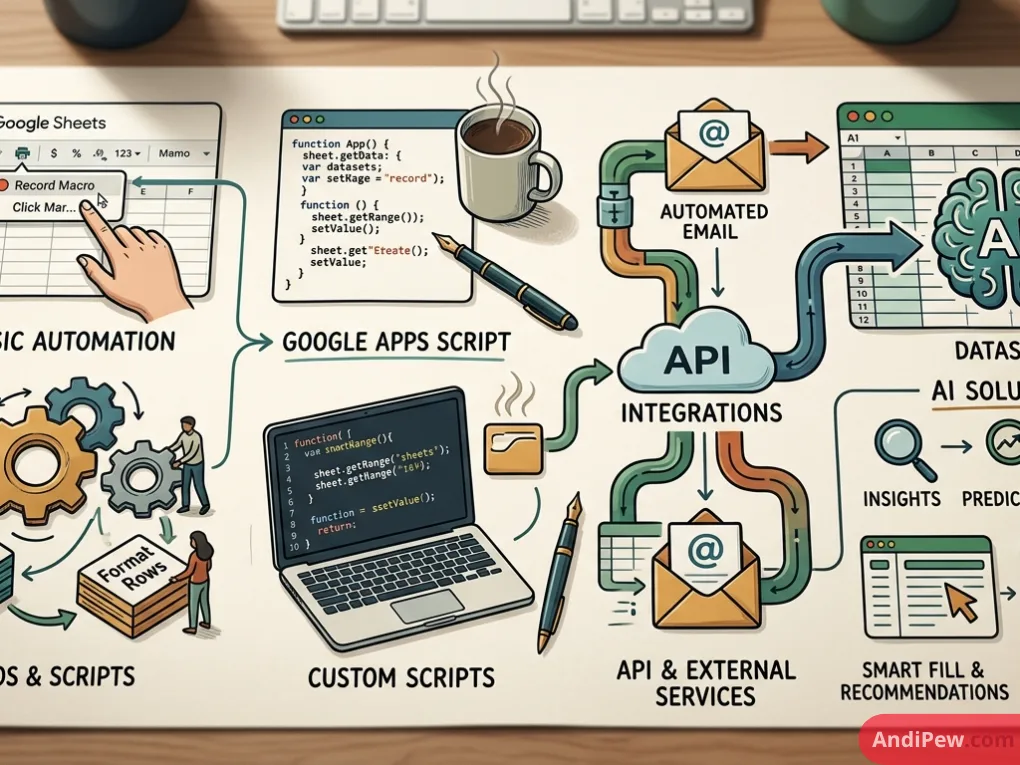
Every workday, millions of business hours vanish into manual data entry. Professionals copy names between tabs, reformat CSV exports, pull lead data into CRM systems, and send repetitive project updates over email.
Spreadsheets remain the undisputed backbone of modern work. Yet using them manually turns them into productivity bottlenecks.
That is where google sheets automation transforms your workflow. Automating Google Sheets turns a passive grid of cells into an active, self-running operations engine. Whether you are building real-time dashboards, auto-generating client invoices, or triggering personalized email updates, spreadsheet automation eliminates human error and frees up focus for high-leverage strategy.
If you are just getting started with basic functions, take a moment to review our comprehensive google sheets tutorial to ensure your core spreadsheet skills are sharp.
In this guide, you will learn everything from built-in no-code tools to Google Apps Script, AI extensions, Python pipelines, and career pathways in the automation space.
What is Google Sheets Automation and Why Does It Matter?
Google Sheets automation refers to using built-in software rules, scripts, native integrations, or artificial intelligence to execute repetitive spreadsheet tasks without direct human intervention.
Instead of typing numbers or manually running formatting routines, you define clear instructions once. Your spreadsheet then runs them on command, on a fixed schedule, or in response to real-time events.
Core Benefits for Daily Operations
- Elimination of Human Error: Copy-pasting inevitably causes typos, accidental overwrites, and misplaced rows. Automation executes tasks with 100% precision every cycle.
- Instant Time Recovery: Routines that typically demand 45 minutes every morning run silently in seconds.
- Interconnected Ecosystems: Google Sheets becomes an operational hub connecting forms, web apps, enterprise databases, and email clients.
- Continuous Scalability: Processing 5,000 rows takes the exact same operational effort as processing five rows.
Levels of Spreadsheet Automation
Automation is not an all-or-nothing switch. It spans a clear progression of capabilities:
| Level | Technology / Approach | Ideal Use Case | Skill Required |
| Level 1: Native Features | Formulas (QUERY, FILTER), Conditional Rules |
Auto-organizing and dynamic filtering | Beginner (No-code) |
| Level 2: Record & Play | Google Sheets Macros | Repetitive cell styling and daily imports | Beginner (No-code) |
| Level 3: Low-Code Add-ons | Marketplace Tools, SheetAutomation, Zapier | Multi-app data syncing and webhooks | Intermediate (No-code / Low-code) |
| Level 4: Native Code | Google Apps Script (JavaScript) | Custom logic, menu buttons, auto-emails | Intermediate (Code) |
| Level 5: AI & APIs | LLM Add-ons, Python (gspread, pandas) |
Enterprise data pipelines, predictive analysis | Advanced (Code / Prompting) |
Built-in Automation: Google Sheets Macros
The quickest way to start automating is right inside your spreadsheet toolbar.
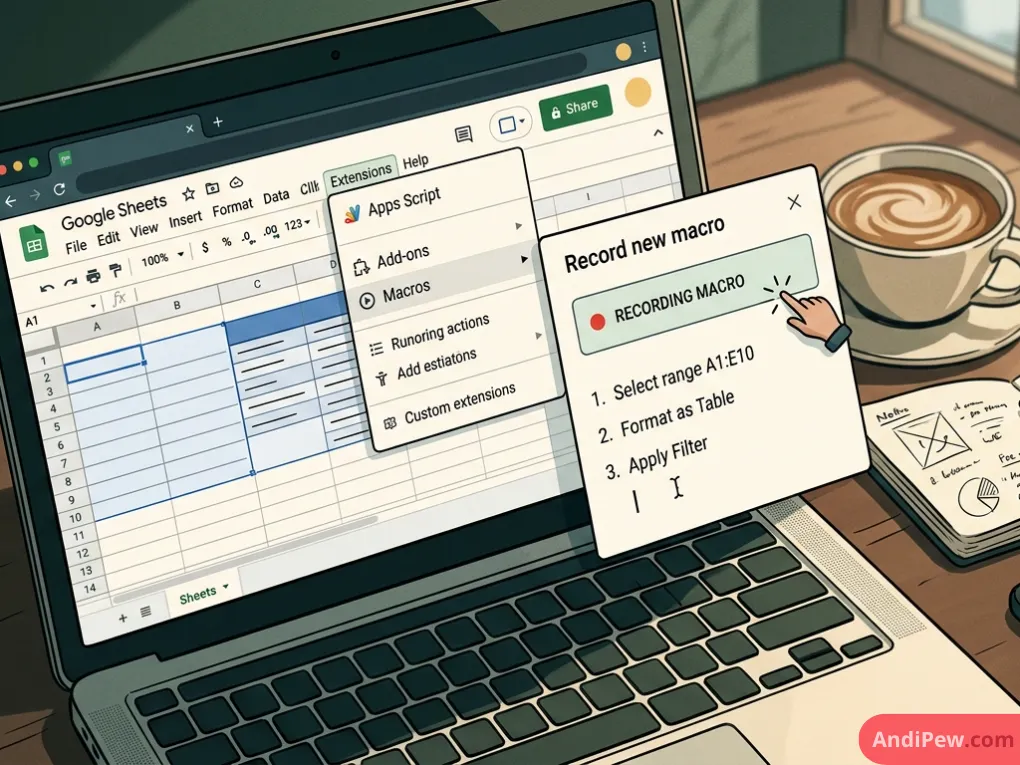
Google Sheets macros allow you to record a series of manual actions—such as sorting rows, clearing specific ranges, formatting numbers into currency, or applying formulas—and save them as an executable script.
Extensions ➔ Macros ➔ Record macro
Absolute vs. Relative References
When recording a macro, Google Sheets prompts you to choose between two reference modes:
- Use Absolute References: The macro acts on the exact cell coordinates recorded. If you style cell
B2, the macro will only ever format cellB2, regardless of what cell you currently click. - Use Relative References: The macro acts based on your active selection. If you select a cell and make it bold, applying the macro later bolds whatever cell you currently have selected.
Step-by-Step: Recording Your First Macro
- Open your target spreadsheet.
- Click Extensions in the top navigation bar.
- Hover over Macros and select Record macro.
- Choose either Absolute or Relative references at the bottom of the screen.
- Perform your routine actions (for example: freeze the header row, apply bold text, set background color to soft gray, and apply borders).
- Click Save in the recording dialogue box.
- Assign a memorable name and an optional keyboard shortcut (e.g.,
Ctrl + Alt + Shift + 1).
Whenever you press that key combination or run the macro from the menu, the entire sequence executes instantly.
Low-Code Integration: Dedicated Google Sheets Automation Tools
Built-in macros work well within a single file. However, modern business data rarely lives in one place. Lead captures originate in web forms, payment notices arrive via Stripe, and team conversations happen in Slack.
Connecting these systems requires dedicated google sheets automation tools.
Standalone Add-ons: SheetAutomation
Apps like SheetAutomation (available via the Google Workspace Marketplace) allow users to construct condition-based triggers inside sheets without coding. You can configure rules such as:
- When column D changes to “Approved”, copy the row to the “Active Projects” tab.
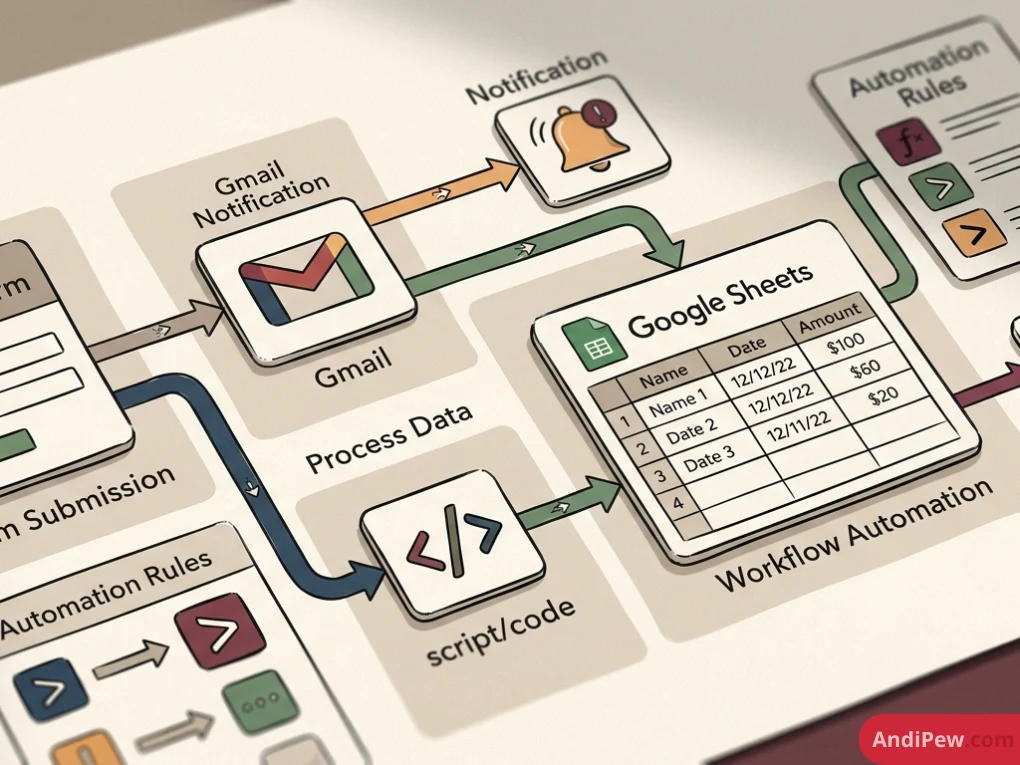
- When a new row is appended via a form, send a notification alert.
Enterprise Automation Anywhere & iPaaS
For cross-platform orchestration, teams utilize integration platforms like Make, Zapier, and enterprise-grade robotic process automation (RPA) tools such as Automation Anywhere.
These tools monitor Google Sheets using webhooks and API endpoints. When a row changes, the automation platform picks up the payload and carries it across platforms:
- A new sale lands in an e-commerce platform.
- The row appends automatically to a Google Sheet master ledger.
- The platform generates an invoice PDF in Google Drive.
- An alert posts directly to an internal Slack channel.
Google Apps Script Tutorial: Unlocking Full Customization
When ready-made tools hit functional walls, google apps script gives you total programmatic control.
Google Apps Script is a rapid-application development platform based on modern JavaScript. It runs directly on Google’s cloud servers and interacts natively with Docs, Drive, Calendar, Gmail, and Sheets.
Accessing the Script Editor
To launch your code environment:
- Open your sheet.
- Select Extensions ➔ Apps Script.
- A clean IDE appears in your browser with a file named
Code.gs.
Writing a Google Sheets Automation Script
Let’s look at a practical, clean example. Suppose you need a function that reads rows in your active sheet and formats specific columns:
/**
 * Automatically cleans and formats the active sheet headers.
 */
function formatSpreadsheetHeader() {
  const sheet = SpreadsheetApp.getActiveSpreadsheet().getActiveSheet();
  const headerRange = sheet.getRange(1, 1, 1, sheet.getLastColumn());

  // Apply standard visual hierarchy
  headerRange.setBackground('#1a73e8');
  headerRange.setFontColor('#ffffff');
  headerRange.setFontWeight('bold');
  sheet.setFrozenRows(1);
}
Automating Emails from Google Sheets
One of the most requested business capabilities is google sheets automation email delivery.
Consider a spreadsheet tracking overdue invoices. Using Apps Script, you can loop through rows and send customized notification emails directly through your linked Gmail account:
/**
 * Scans an invoice sheet and auto-sends reminder emails.
 */
function sendPaymentReminders() {
  const sheet = SpreadsheetApp.getActiveSpreadsheet().getSheetByName("Invoices");
  const data = sheet.getDataRange().getValues();

  // Skip header row (index 0)
  for (let i = 1; i < data.length; i++) {
    const clientName = data[i][0];
    const clientEmail = data[i][1];
    const balanceDue = data[i][2];
    const paymentStatus = data[i][3];
    const emailSentFlag = data[i][4];

    if (paymentStatus === "Overdue" && emailSentFlag !== "SENT") {
      const subject = `Notice: Outstanding balance for ${clientName}`;
      const message = `Hello ${clientName},\n\nOur records indicate an unpaid balance of $${balanceDue}. Please submit payment at your earliest convenience.`;

      MailApp.sendEmail(clientEmail, subject, message);

      // Update cell to prevent duplicate sends
      sheet.getRange(i + 1, 5).setValue("SENT");
    }
  }
}
Scheduling Triggers
A script does not need you to press “Run” manually. You can set up event-driven triggers:
- Time-Driven: Run a function every morning at 8:00 AM, or every Monday at open of business.
- On Edit: Fire code immediately when a human or integration updates a cell.
- On Form Submit: Process data the split second a user completes an attached Google Form.
Google Sheets Automation AI: Next-Generation Workflows
Artificial intelligence has altered spreadsheet operations. Rather than writing formulas from scratch, modern teams deploy google sheets automation ai to interpret, summarize, and categorize unstructured information at scale.
Native Workspace AI & AI Formulas
With integrations like Gemini for Google Workspace or third-party extensions connecting OpenAI APIs, you can run prompts inside standard formulas.
Imagine you have 1,000 raw customer support tickets in Column A. Manually reading each ticket to assign sentiment and tags would take days. With AI formulas, you write:
=AI("Analyze the sentiment of this text as Positive, Neutral, or Negative: " & A2)
The AI reads cell A2, evaluates the text, and populates the field instantly down the column.
Prompt-to-Code with Apps Script
You no longer need to be a seasoned software engineer to create robust Apps Script routines. Modern LLMs can draft Apps Script functions cleanly. Provide an AI model with your schema and exact logical requirements:
“Write a Google Apps Script that checks Column E for dates older than 30 days, archives those entire rows to a tab named ‘Archive’, and removes them from the primary ‘Active Leads’ sheet.”
The model generates the exact code framework, which you paste directly into the Apps Script IDE.
Google Sheets Automation 🚀 Smarter Dashboards & Reports
Spreadsheets reach peak business value when they turn raw transaction logs into executive intelligence.
By pairing automated data aggregation with dynamic visualization formulas, you create google sheets automation 🚀 smarter dashboards & reports that update in real time without touching a single button.
Key Formulas Powering Automated Dashboards
IMPORTRANGE: Imports clean data ranges from separate, external Google Sheets. Useful for isolating departmental records from executive summary sheets.QUERY: Runs pseudo-SQL queries against raw data grids to group, filter, order, and aggregate figures on the fly.FILTER&SORT: Automatically creates isolated, live-updating views of filtered items based on dynamic dropdown criteria.
=QUERY(SalesData!A1:H, "SELECT B, SUM(E) WHERE H = 'Completed' GROUP BY B ORDER BY SUM(E) DESC LABEL SUM(E) 'Total Revenue'")
This single formula compiles data dynamically. As new sales records hit the source tab, the summary calculation updates immediately. Pair this with native charts and conditional formatting to build an executive reporting system that requires zero maintenance.
Google Sheets Automation Python: Enterprise-Scale Data Pipelines
While Apps Script runs directly inside the Google ecosystem, data engineers often choose google sheets automation python workflows for heavy-duty analytics, machine learning, and multi-database syncing.
Python connects to Google Sheets via the official Google Drive and Google Sheets APIs.
Popular Libraries
gspread: A lightweight, Pythonic library designed to interact with Google Sheets with minimal boilerplate.pandas: The standard data analysis tool. It allows you to transform complex, multi-gigabyte data sets in memory and dump clean aggregations directly into Google Sheets.
Basic Python Automation Flow
Using service account credentials, a Python script can pull data from an enterprise warehouse (such as PostgreSQL or BigQuery), reformat it into a dataframe, and write it out cleanly:
import gspread
import pandas as pd

# Connect using Google Cloud Service Account
gc = gspread.service_account(filename="service_account_credentials.json")
spreadsheet = gc.open("Q3-Financial-Reporting")
worksheet = spreadsheet.sheet1

# Pull API / database information into Pandas
df = pd.read_sql("SELECT product_id, revenue, units_sold FROM transactions", db_connection)

# Write transformed data directly to the sheet
worksheet.update([df.columns.values.tolist()] + df.values.tolist())
Python scripts can be scheduled via CRON jobs, hosted on serverless functions (such as AWS Lambda or Google Cloud Functions), or integrated into complex Airflow data pipelines.
Career Opportunities: Virtual Assistant Jobs and Automation Specialists
As organizations digitize their operations, the demand for individuals skilled in spreadsheet orchestration continues to surge.
The Role of a Google Sheets Automation Specialist
A dedicated google sheets automation specialist bridges the gap between everyday business operations and deep IT infrastructure. Companies hire these specialists to:
- Audit messy operational tracking sheets.
- Create unified API connections across SaaS apps.
- Write tailored Apps Script plugins for internal teams.
- Architect self-maintaining KPI dashboards.
Virtual Assistant Upskilling
A standard administrative assistant may manage calendars and enter receipt values by hand. However, landing a high-paying google sheets automation virtual assistant job requires mastering these automated systems.
Virtual assistants who know how to automate lead distribution, schedule reminder emails, and build dynamic client reports can command significantly higher hourly rates than general administrative freelancers.
Available Learning Paths & Courses
If you plan to upskill, enrolling in a structured google sheets automation course accelerates your timeline. Look for programs covering:
- JavaScript fundamentals tailored for Google Workspace.
- REST API handling and JSON parsing in Apps Script.
- Best practices for spreadsheet database architecture.
- Security, OAuth scopes, and Workspace administrative governance.
Troubleshooting Common Errors and Best Practices
When automating spreadsheets, poor design decisions can cause sluggish sheets or broken script executions. Follow these proven principles to keep your sheets reliable.
Avoid Cell-by-Cell Script Calls
Apps Script calls incur network overhead. Setting cell values one at a time in a loop is the most common beginner mistake:
-
Slow (Anti-pattern):
JavaScriptfor (let r = 1; r <= 1000; r++) { sheet.getRange(r, 1).setValue("Completed"); // 1,000 separate API calls } -
Fast (Batch processing):
JavaScriptconst values = new Array(1000).fill(["Completed"]); sheet.getRange(1, 1, 1000, 1).setValues(values); // 1 single API call
Mind the Quota Limits
Google imposes daily execution limits to prevent service abuse. Free accounts have stricter limits on email dispatches (100 recipients per day) and script runtime limits (6 minutes per single execution) than Google Workspace enterprise accounts. Plan your batch jobs accordingly.
Implement Data Validation Guardrails
Automations run on strict logic. If an automated script expects a numerical currency in Column C but encounters a text string like “Pending”, downstream calculations will fail. Always use native Google Sheets Data Validation rules to ensure inputs stay clean.
Frequently Asked Questions (FAQ)
Can you automate Google Sheets without knowing how to code?
Yes. You can use the built-in Macro Recorder to turn repetitive clicks into automated actions. Additionally, no-code platforms like Zapier and Workspace Marketplace extensions allow you to construct complex automations using visual, trigger-and-action builders.
What is the difference between Excel VBA and Google Sheets Automation?
Excel uses Visual Basic for Applications (VBA), which runs locally on your desktop machine. Google Sheets uses Google Apps Script (based on JavaScript) or cloud APIs, which run on Google’s cloud infrastructure. This allows Google Sheets automations to run continuously even when your computer is powered off.
Is Google Apps Script free to use?
Yes. Google Apps Script is built into all personal and Workspace accounts at no extra charge. It is subject only to standard Google platform quotas (such as maximum daily run times and email limits).
Can Google Sheets send an email automatically based on a cell value?
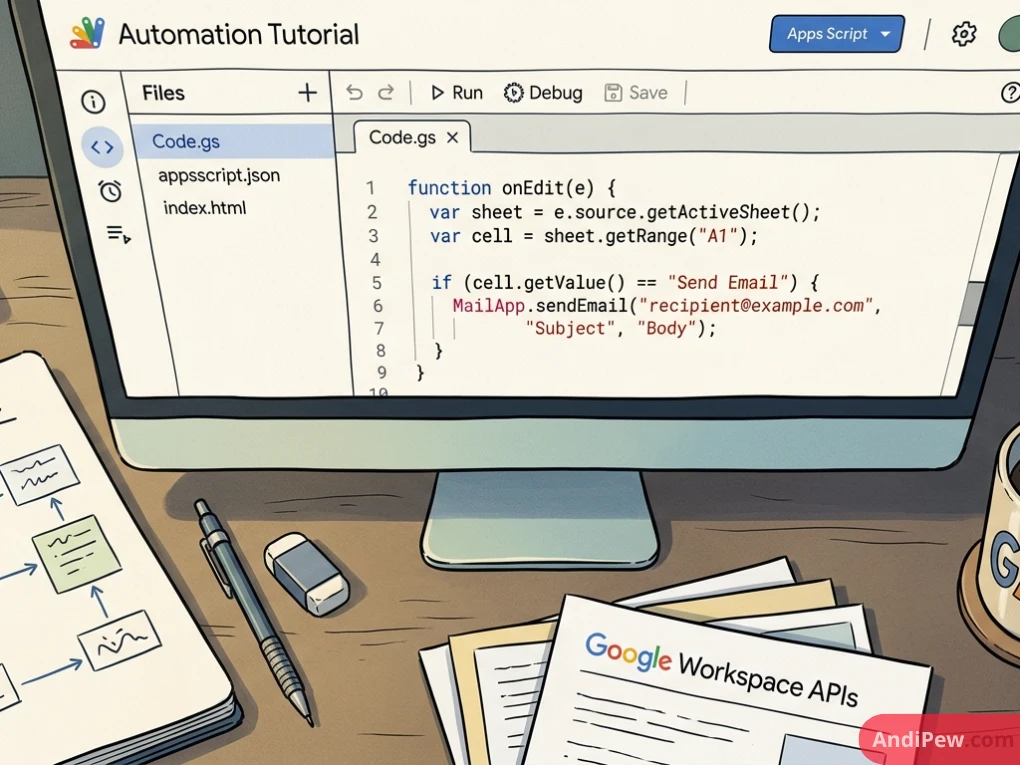
Yes. Using Google Apps Script, you can configure an onEdit trigger or scheduled time-driven trigger that evaluates cell contents (such as “Pending” or “Overdue”) and calls the MailApp.sendEmail() API when conditions are met.
Conclusion
Google Sheets is no longer just a digital ledger for static calculations. With macros, Apps Script, no-code integrations, Python APIs, and AI models, it serves as a fully customizable business engine.