Cloud-based spreadsheets have transformed how teams collaborate, analyze metrics, and manage projects. Whether you are tracking a personal budget, managing enterprise inventory, or building interactive reporting dashboards, mastering Google Sheets gives you a powerful, real-time toolkit.
This comprehensive Google Sheets tutorial walks you through everything from basic navigation to advanced formulas, automation, and data visualization.
Getting Started: Google Sheets for Beginners
Google Sheets is a cloud-based spreadsheet program included in the free, web-based Google Docs Editors suite offered by Google. Because it operates entirely within your browser or mobile app, your data saves automatically to Google Drive and supports real-time collaboration with multiple teammates.
How to Create a New Spreadsheet
To begin building your first workbook:
- Navigate to sheets.google.com in any web browser and log in with your Google Account.
- Click the Blank spreadsheet button (+ icon) or choose a pre-built template from the template gallery.
- Alternatively, type
sheets.newinto your browser’s address bar to instantly spin up a blank sheet.
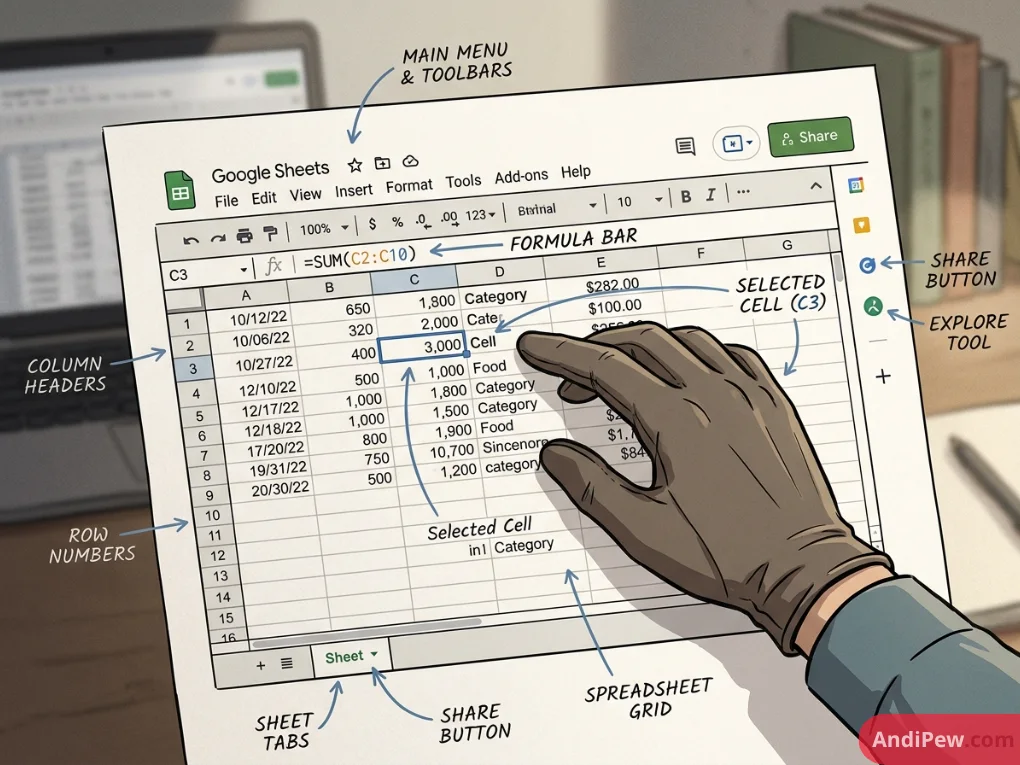
Understanding the User Interface
Before entering data, familiarize yourself with key interface components:
- Menu Bar & Toolbar: Found at the top of your screen, providing quick access to formatting tools, filter views, font styling, and alignment controls.
- Formula Bar: The horizontal input field directly below the toolbar. It displays the underlying formula or exact value of the currently selected cell.
- Columns and Rows: Columns run vertically and are labeled with letters (
A, B, C...). Rows run horizontally and are labeled with numbers (1, 2, 3...). - Cell: The intersection of a column and a row (e.g.,
B4). - Sheet Tabs: Located at the bottom left, allowing you to add, rename, color-code, or reorder multiple worksheets within a single workbook.

Fundamental Operations: How to Use Google Sheets
Inputting and formatting data cleanly ensures accurate calculations later on.
Entering and Formatting Data
- Data Types: Sheets automatically recognizes numbers, dates, currency, percentages, and plain text.
- Number Formatting: Highlight your target cells, then use Format > Number to convert raw figures into currency (
$), percentages (%), or custom date formats. - Cell Styling: Use background fills, borders, font weights, and text wrapping (Format > Wrapping > Wrap) to keep your tables legible.
Basic Data Manipulation
- Freezing Panes: Keep your header rows visible while scrolling down large datasets by selecting View > Freeze > 1 row (or up to your active row).
- Sorting Data: Highlight a range, go to Data > Sort range, and sort your data alphabetically (A–Z) or numerically ascending/descending.
- Filtering: Click Data > Create a filter to isolate specific rows based on text matches, date ranges, or numeric conditions without permanently deleting unselected rows.

Essential Formulas and Functions
Formulas perform mathematical calculations and data manipulation. Every formula in Google Sheets must start with an equals sign (=).
| Function | Syntax | Description | Example Use Case |
| SUM | =SUM(range) |
Adds all numbers in a specified range. | =SUM(B2:B50) to total monthly expenses. |
| AVERAGE | =AVERAGE(range) |
Calculates the arithmetic mean. | =AVERAGE(C2:C30) to calculate test scores. |
| COUNT / COUNTA | =COUNT(range) |
Counts numeric cells (COUNT) or non-empty cells (COUNTA). | =COUNTA(A2:A100) to count registered attendees. |
| IF | =IF(test, value_if_true, value_if_false) |
Evaluates a logical condition. | =IF(D2>=70, "Pass", "Fail") |
| SUMIF / COUNTIF | =SUMIF(range, criterion, [sum_range]) |
Calculates sums or counts based on a single condition. | =COUNTIF(E2:E100, "Completed") |
Basic Syntax Example:
=SUM(C2:C10)
=IF(B2>1000, "High Volume", "Standard")
Google Sheets Tutorial: Intermediate Techniques
Once you understand standard formulas, intermediate techniques allow you to connect datasets, validate user input, and clean raw data.
Data Validation and Dropdown Menus
Prevent data entry errors by restricting what users can type into a cell:
- Select your target cells.
- Navigate to Data > Data validation > Add rule.
- Under Criteria, choose Dropdown or Dropdown (from a range).
- Input your allowed values and assign colors to each option for quick visual tracking.




Conditional Formatting
Automatically highlight trends, deadliness, or errors based on cell contents:
- Highlight your dataset and go to Format > Conditional formatting.
- Set rules such as “Cell value is greater than 100” (fill green) or “Text contains ‘Overdue'” (fill light red).
Lookup Functions: VLOOKUP vs. XLOOKUP
Connecting records across different tabs is a foundational spreadsheet skill.
Plaintext
VLOOKUP Syntax:
=VLOOKUP(search_key, range, index, [is_sorted])
Example: =VLOOKUP(A2, Products!A1:D100, 3, FALSE)

XLOOKUP Syntax (Recommended):
=XLOOKUP(search_key, lookup_range, result_range, [missing_value], [match_mode])
Example: =XLOOKUP(A2, Products!A1:A100, Products!C1:C100, "Not Found")
XLOOKUP improves upon VLOOKUP by searching in any direction (left or right), handling column insertions without breaking, and defaulting to exact matches.
Advanced Data Analysis and Automation
Advanced users leverage dynamic array formulas and database queries to automate end-to-end data processing.
The QUERY Function
The QUERY function allows you to use SQL-like commands to filter, sort, and aggregate tables dynamically.
Plaintext
=QUERY(A1:E100, "SELECT A, B, SUM(D) WHERE E = 'Approved' GROUP BY A, B ORDER BY SUM(D) DESC", 1)
Dynamic Array Formulas (FILTER, UNIQUE, ARRAYFORMULA)
=UNIQUE(A2:A): Extracts distinct items from a messy column, instantly removing duplicates.=FILTER(A2:D, C2:C="West Region", D2:D>500): Returns only rows meeting multiple conditions without altering the source data.=ARRAYFORMULA(B2:B*C2:C): Applies a single calculation across an entire column automatically, saving you from copying formulas down hundreds of rows.
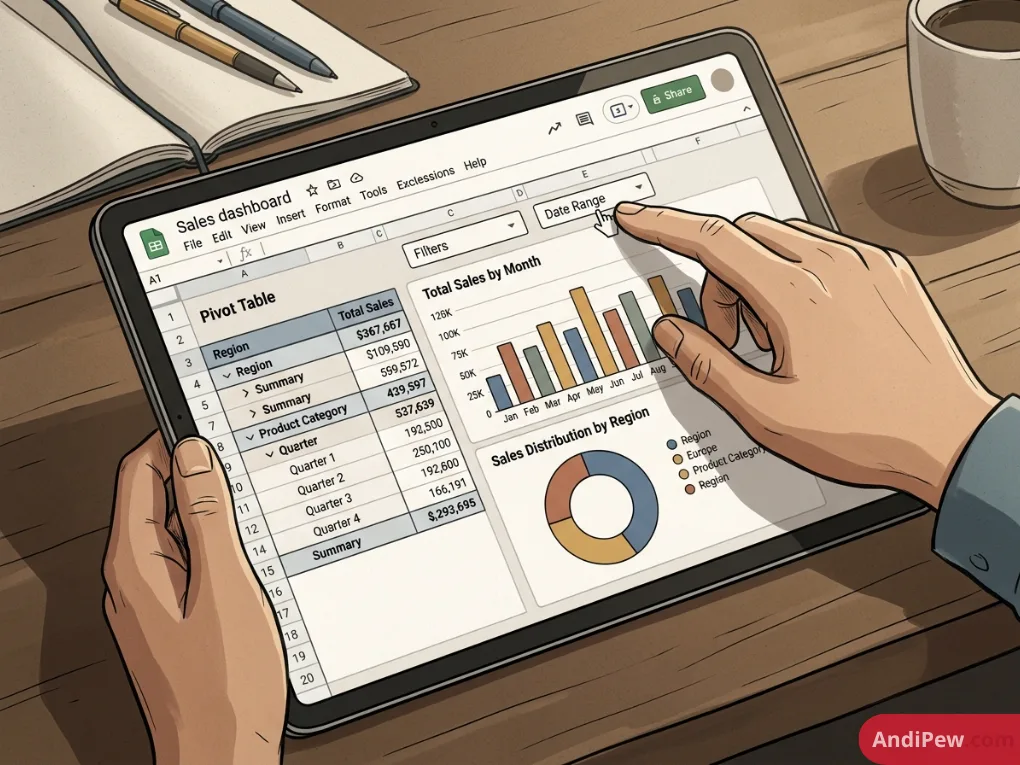
Pivot Tables and Visual Dashboards
- Select your data table and click Insert > Pivot table.
- Add fields to your Rows, Columns, Values, and Filters.
- Pair your summary tables with built-in charts via Insert > Chart (bar graphs, line charts, or donut charts) to create automated management dashboards.
Collaboration, Sharing, and Productivity Best Practices
Collaboration is where Google Sheets excels over traditional desktop spreadsheet software.
Granular Sharing Permissions
Click the top-right Share button to manage access levels:
- Viewer: Read-only access; users cannot alter values or leave notes.
- Commenter: Users can highlight data and leave feedback threads without modifying cell values directly.
- Editor: Full rights to add data, rewrite formulas, and alter layouts.
Version History and Protection
- Track Changes: Click File > Version history > See version history to inspect exact edits made by collaborators or roll back mistakes with one click.
- Lock Specific Ranges: Prevent accidental overwrites on complex formula cells by going to Data > Protect sheets and ranges, then restricting edit access to authorized users only.
Comparison: Google Sheets vs. Microsoft Excel
Choosing the right spreadsheet platform depends on your team’s workflow and data size requirements:
| Feature / Capability | Google Sheets | Microsoft Excel (Desktop) |
| Primary Platform | Cloud-native / Web browser | Desktop app (Windows / Mac) & Web |
| Real-Time Collaboration | Seamless, built-in real-time co-authoring | Available via OneDrive/SharePoint |
| Maximum Cell Capacity | Up to 10 million cells per workbook | Over 17 billion cells (1,048,576 rows × 16,384 cols) |
| Automation Language | Google Apps Script (JavaScript) | VBA / Office Scripts (TypeScript) |
| Add-on Ecosystem | Google Workspace Marketplace | Microsoft Office Store Add-ins |
| Pricing | Free tier included with Google Account | Microsoft 365 Subscription or Standalone License |
Learning Resources, Templates, and Offline References
To further accelerate your spreadsheet skills, take advantage of these supplementary learning formats:
- Interactive Tutorials & Documentation: Developer platforms like W3Schools offer structured syntax sandboxes to practice formula construction.
- Video Walkthroughs: Visual learners can search curated YouTube playlists to see dynamic dashboards built in real time.
- Downloadable Guides: Save this guide or export reference sheets (File > Download > PDF document (.pdf)) to create a handy desk cheat sheet for offline reference.
- Multilingual Tutorials: For localized guidance, video tutorials and step-by-step guides in languages such as Hindi provide accessible instruction for regional workflows.
Frequently Asked Questions (FAQ)
Is Google Sheets completely free to use?
Yes. Anyone with a personal Google account receives full access to Google Sheets with 15 GB of pooled Google Drive cloud storage at no cost. Paid Google Workspace plans provide custom domain email addresses and higher storage quotas for businesses.
Can I use Google Sheets without an active internet connection?
Yes. Enable offline mode by installing the Google Docs Offline Chrome extension. Go to Google Drive settings and check the “Offline” box to edit, format, and calculate numbers offline; changes will synchronize automatically once reconnected.
How do I fix the #N/A or #REF! formula errors?
#N/A: Indicates that a lookup function (likeVLOOKUPorMATCH) cannot find your search key. Wrap your formula in=IFERROR(your_formula, "Custom Message")to handle missing values gracefully.#REF!: Occurs when a referenced cell or range has been deleted or cannot be resolved. Check whether you removed a row, column, or sheet that your formula relies on.
How do I import an existing Excel (.xlsx) file into Google Sheets?
Open Google Sheets, click File > Import > Upload, and choose your .xlsx file. You can open the file natively or convert it into a standard Google Sheets document.
Master Spreadsheets Today
Learning Google Sheets transforms raw data into actionable insights, helping you streamline administrative workflows and make data-driven decisions faster.
Ready to sharpen your skills? Open a new spreadsheet at sheets.new, test out the SUMIF and XLOOKUP formulas from this tutorial, and start building your custom dashboard today.