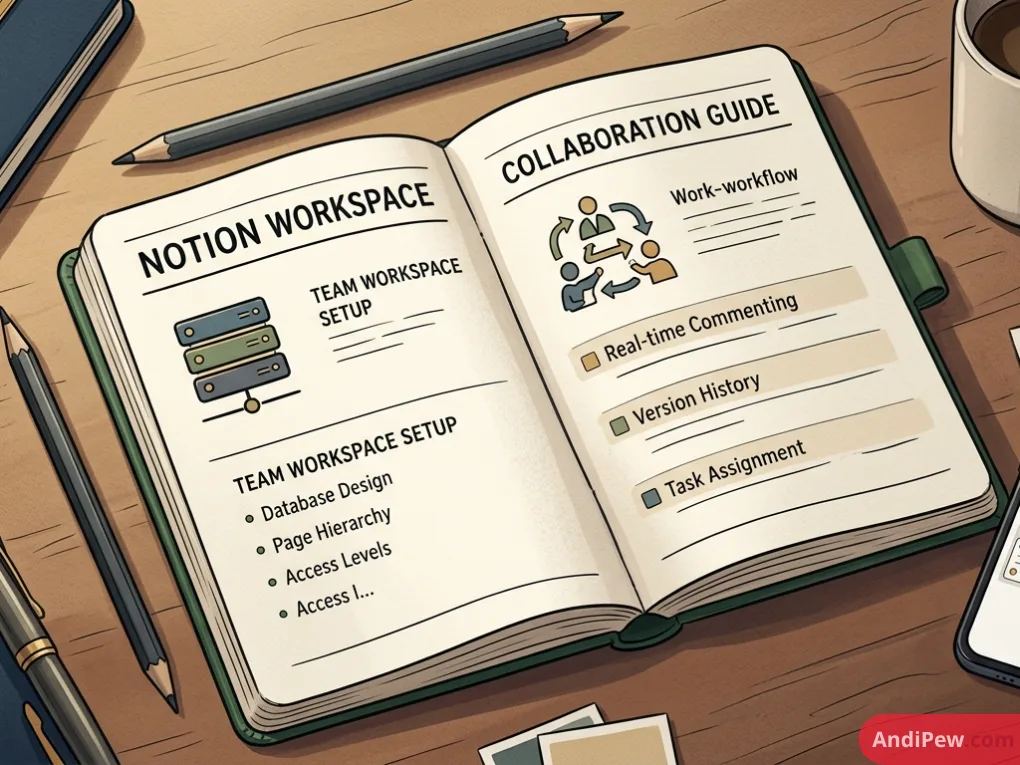
Keeping a modern team aligned across scattered documents, endless chat threads, and fragmented task boards is one of the hardest operational challenges companies face today. When project context is trapped in silos, productivity stalls and miscommunication rises.
Notion for teams solves this by unifying documentation, project management, databases, and meeting workflows into a single connected workspace. Whether you run an agile startup, manage an enterprise division, or coordinate remote freelancers, structuring Notion properly transforms how your group shares knowledge and executes projects.
This complete guide breaks down everything you need to build, scale, and optimize a collaborative workspace, including departmental workflows, pricing plans, team templates, and the best alternatives.
What Is Notion for Teams and How Does It Work?
Notion is an all-in-one productivity platform built on modular blocks. Instead of forcing rigid structures, Notion lets organizations design custom project trackers, knowledge wikis, dynamic roadmaps, and client portals tailored precisely to their operational workflows.
At its core, a team workspace replaces multiple disconnected tools by integrating:
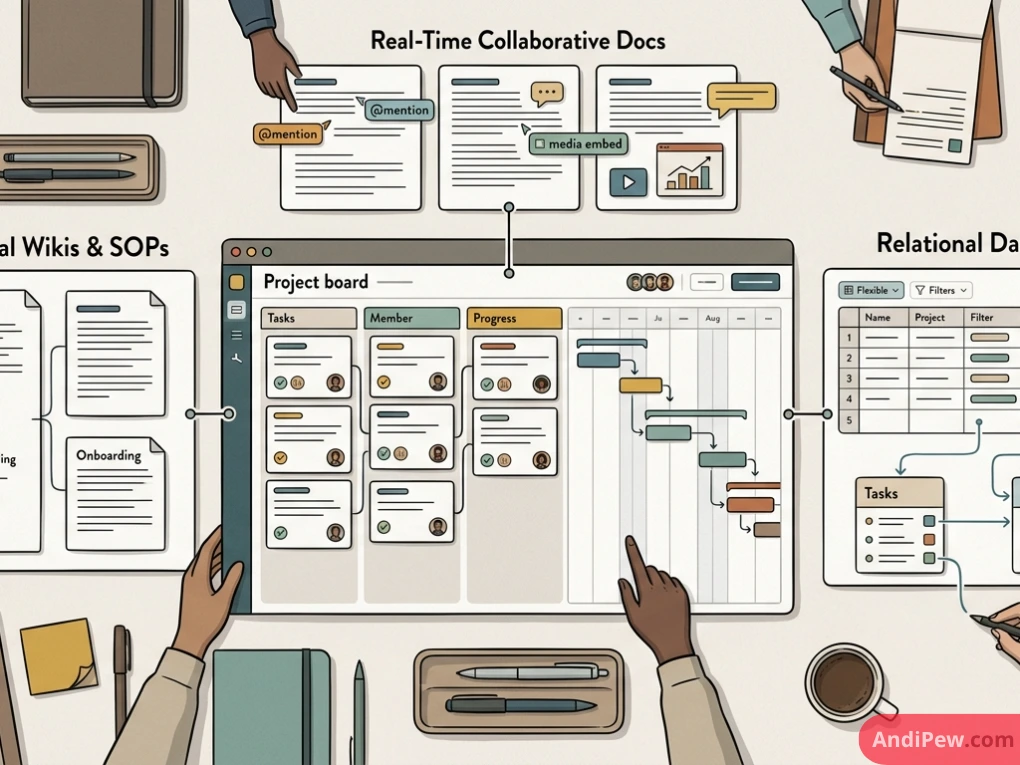
- Internal Wikis and SOPs: Central hubs for company policies, onboarding materials, and product documentation.
- Relational Databases: Flexible tables, Kanban boards, Gantt timelines, and calendars that connect projects directly to tasks, deliverables, and team members.
- Real-Time Collaborative Docs: Rich text pages supporting live co-editing, inline comments,
@mentions, and media embeds.
If you are just getting started with the basics of blocks, explore our detailed Notion pages and blocks overview to master the core building mechanics.
Key Notion Collaboration Features Every Team Needs
Modern collaboration requires seamless visibility and minimal friction. Notion delivers several built-in features engineered specifically for distributed and cross-functional teams.
Real-Time Co-Authoring and Inline Feedback
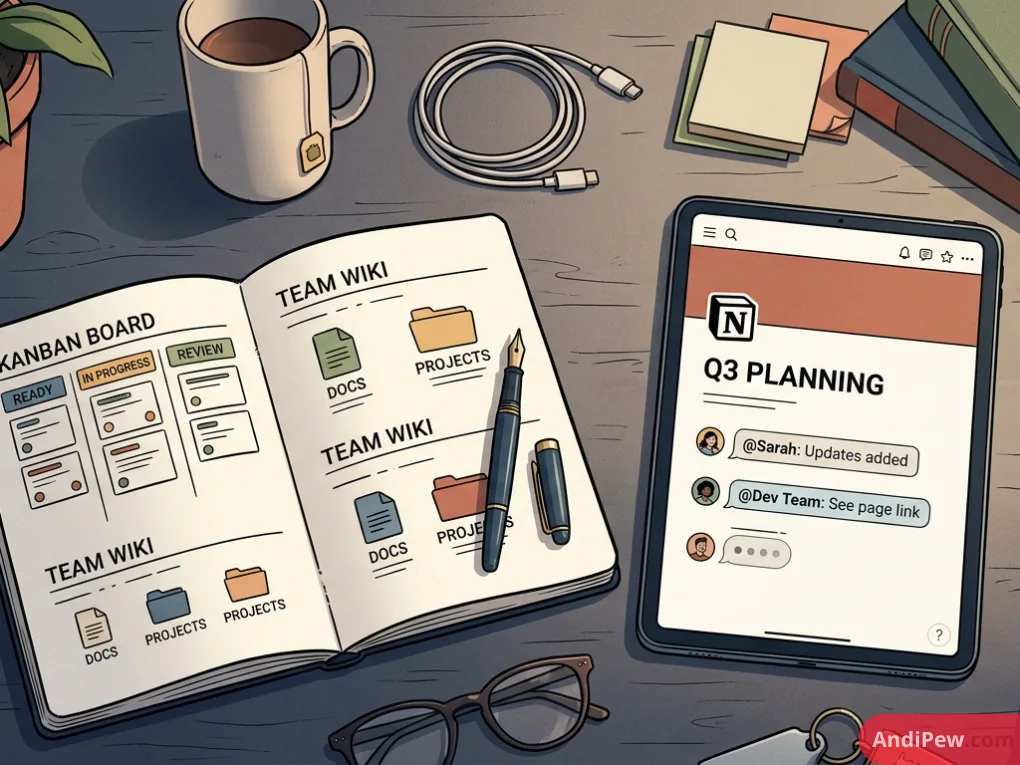
Multiple team members can write, edit, and brainstorm on the same page simultaneously without version conflicts. You can highlight any text or block to leave targeted comments, assign action items with @mentions, and resolve discussions once addressed.
Granular Permissions and Teamspaces
Notion uses Teamspaces to organize departments—such as Engineering, Design, or HR—within a shared parent workspace. Workspace administrators can configure access levels:
- Full Access: Edit, share, and manage page permissions.
- Can Edit: Modify content without altering access settings.
- Can Comment: View content and leave feedback.
- Can View: Read-only access for sensitive company documentation.
For a deeper dive into organizing complex workspaces, check out our comprehensive Notion guide.
Integrated Notion Calendar for Teams
The dedicated Notion Calendar for teams synchronizes your team’s scheduled tasks, milestones, and deliverables directly with Google Calendar, Microsoft Outlook, and Apple iCloud.
Team members can attach Notion meeting docs directly to calendar events, see colleagues’ availability, and schedule client calls without leaving their workflow.
Native Integrations and Notion for Microsoft Teams
A connected workspace thrives when integrated with existing communication stacks. The Notion for Microsoft Teams integration and Slack app allow you to:
- Receive automated page update notifications in designated chat channels.
- Preview Notion docs and database rows directly inside chat conversations.
- Convert chat messages into actionable Notion tasks with a single click.
Departmental Workflows: Notion in Action
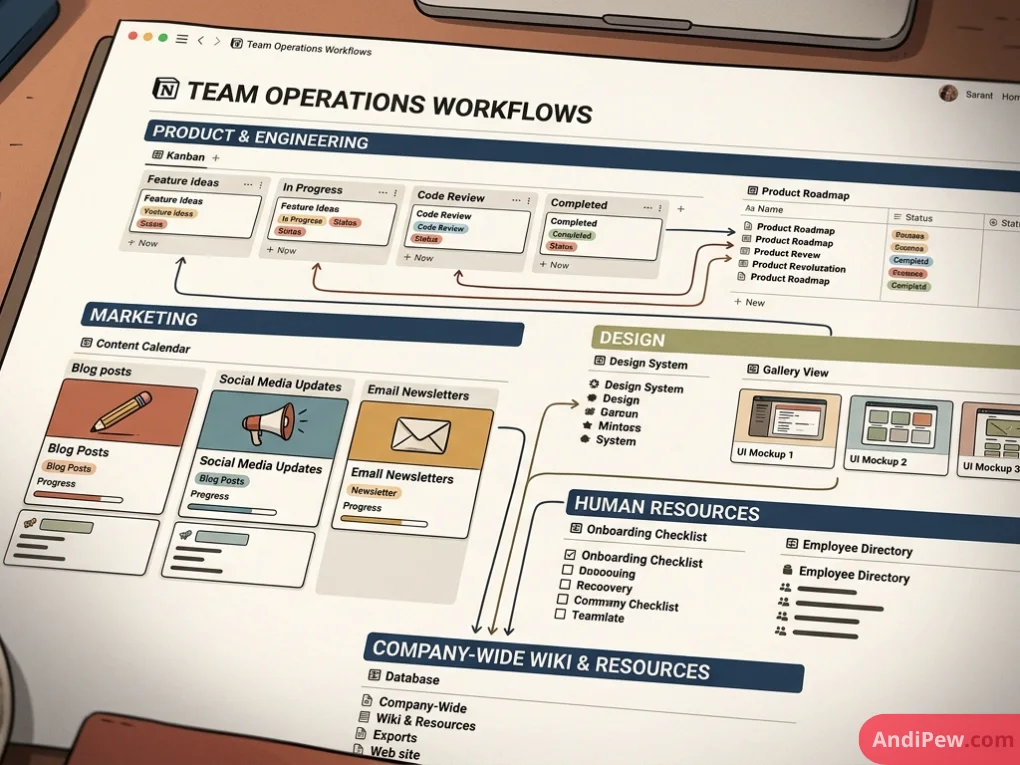
Different departments require different operational structures. Here is how specialized teams maximize Notion’s capabilities.
Notion for Marketing Teams
Marketing departments handle multi-channel campaigns, asset creation, and editorial calendars simultaneously. Using a centralized database architecture:
- Content Calendars: Writers, designers, and editors track articles and social posts from idea pitch to publication.
- Brand Asset Libraries: Teams store style guides, approved logos, typography rules, and press kits.
- Campaign Trackers: Relational databases link individual copy drafts, banner designs, and landing page URLs to overarching quarterly campaigns.
Notion for Sales Teams
Sales organizations frequently leverage Notion as a lightweight, highly customizable CRM:
- Lead Pipelines: Visual Kanban boards track prospects through discovery, proposal, negotiation, and closing stages.
- Client Portals: Share secure, read-only dashboard pages with external prospects containing project proposals, deliverables, and service scopes.
- Call Notes and Playbooks: Reps document discovery call transcripts, objection-handling cheat sheets, and competitor comparison matrices.
Notion for Product and Engineering Teams
Agile technical teams use Notion to maintain high-velocity execution:
- Sprint Planning: Product managers link user stories and feature specs directly to engineering tasks.
- Bug Tracking: Filterable database views categorize bugs by severity, assigned developer, and release status.
- API Documentation & Tech Specs: Engineers draft clean code blocks and architecture diagrams alongside product requirements.
Powering Workflows with Notion Databases and Automations
The engine behind every scalable team workspace is the relational database. Unlike traditional spreadsheets, a Notion database allows items to function as independent sub-pages packed with rich documentation, checklists, and metadata.
To learn how to structure properties and relations, review our deep dive on Notion database.
Teams can eliminate tedious manual admin work using database automations:
- Status Triggers: Automatically update project completion percentages when all related tasks are marked “Done”.
- Assignment Alerts: Trigger an instant notification to a team lead whenever a bug status switches to “Needs Review”.
- Recurring Agendas: Automatically generate standardized weekly 1-on-1 and sprint retrospective pages every Monday.
To build custom rollups, date calculations, and advanced workflows, explore our guide on Notion formulas and automations.
Leveraging Notion AI for Teams
Modern workspaces increasingly rely on embedded artificial intelligence to speed up execution. Notion AI for teams serves as an interactive intelligence layer across your entire document ecosystem:
- Enterprise Q&A Search: Ask questions in natural language (e.g., “What is our travel reimbursement policy?”) and receive accurate answers sourced directly from internal company docs.
- Automated Meeting Summaries: Convert transcripts and unstructured notes into bulleted takeaways, action items, and assigned deadlines automatically.
- Drafting and Localization: Generate first drafts of PRDs, press releases, or marketing copy, and translate company SOPs into multiple languages instantly.
Notion Templates for Teams: Fast-Track Your Setup
Starting from a blank workspace can be overwhelming. Using pre-built Notion templates for teams provides an immediate structural framework that you can customize over time.
| Template Type | Primary Use Case | Key Features Included |
| Company Wiki & Hub | Cross-department onboarding & handbook | Department directories, company values, benefit links, office policies |
| Agile Sprint & Roadmap | Product and software engineering | Backlogs, sprint boards, bug trackers, feature release timelines |
| Marketing Hub | Content marketing and campaign execution | Multi-platform editorial calendars, asset repositories, UTM link managers |
| Agency Client Tracker | Client management and deliverables | Client directories, invoice logs, project milestone trackers, shared portals |
Browse our curated collection of production-ready Notion templates to launch your team workspace in minutes.
Notion for Teams Pricing Breakdown
Understanding Notion’s pricing structure helps you choose the right tier based on headcount and security requirements.
Notion for Teams Free (Free Plan)
- Cost: $0
- Best For: Solo operators and testing functionality with up to 10 guests.
- Limitations: Multi-member workspaces trigger a 1,000-block collaboration limit, 5 MB file upload caps, and limited 7-day version history.
Notion Plus Plan
- Cost: $10 per member/month (billed annually) or $12 monthly.
- Best For: Small to mid-sized teams building a centralized project management hub.
- Key Features: Unlimited collaborative blocks, unlimited file uploads, 30-day page history, and custom database forms.
Notion Business Plan
- Cost: $20 per member/month (billed annually) or $24 monthly.
- Best For: Growing organizations requiring tighter permissions and integrated AI capabilities.
- Key Features: Full Notion AI integration, SAML Single Sign-On (SSO), private teamspaces, granular database permissions, and 90-day page history.
Notion Enterprise Plan
- Cost: Custom quote-based pricing.
- Best For: Large enterprises with strict compliance, security, and provisioning demands.
- Key Features: SCIM automated user provisioning, audit logs, unlimited version history, dedicated customer success manager, and zero-data-retention security protocols.

Notion Alternatives for Teams: When to Look Elsewhere
While Notion is versatile, specific operational requirements may warrant exploring dedicated alternatives.
Top Alternatives Compared
| Tool | Best Used For | Free Plan Strengths | Key Difference vs. Notion |
| ClickUp | Complex task & project tracking | Robust free tier with unlimited members | Better native time-tracking and Gantt dependencies out of the box. |
| Coda | Interactive docs with app-like formulas | Generous free document-maker model | Superior programmatic formulas and button automations. |
| Obsidian | Local-first, highly secure knowledge bases | 100% free for non-commercial personal use | Offline Markdown storage; lacks native multi-user live collaboration. |
| Basecamp | Simple client communication & projects | Limited free plan for personal projects | Opinionated, fixed workflow; zero setup required compared to Notion. |
| Airtable | Heavy relational data and complex logic | Free tier with 1,000 records per base | True relational database engine; less document-focused than Notion. |
When Should Small Teams Choose an Alternative?
Discussions around Notion for teams Reddit communities highlight common friction points:
- Steep Initial Learning Curve: Because Notion is completely flexible, unguided teams can accidentally build messy, cluttered workspaces.
- Heavy Formula/Data Requirements: If your team requires advanced computational pivot tables or external API-heavy data routing, Airtable or Coda may be more suitable.
- Dedicated Sprint Enforcement: Teams wanting strict Scrum constraints out of the box often prefer Jira or ClickUp.
Best Practices for Scaling a Notion Team Workspace
To keep your workspace organized as your headcount expands, implement these proven governance rules:
- Establish a Workspace Architect: Designate one or two team leads to approve top-level database changes, templates, and teamspace structures.
- Standardize Naming Conventions: Use consistent tag naming, project statuses (e.g.,
Backlog,In Progress,Under Review,Completed), and date formats across every department. - Keep Databases Global, Views Local: Build centralized master databases for all company tasks and projects. Create filtered views on departmental dashboards rather than creating duplicate, isolated databases.
- Lock Master Databases: Prevent accidental property deletions or filter modifications by enabling the “Lock Database” setting on core company hubs.
- Archive Inactive Content Regularly: Move completed projects, expired proposals, and outdated meeting notes into an “Archive” database to maintain high search speed and clean visual navigation.
Frequently Asked Questions (FAQ)
Is Notion good for small teams?
Yes. Notion is ideal for small teams because it replaces 3–5 separate subscriptions (such as a wiki, basic project management board, and document editor) with a single, cost-effective platform.
Can a team use Notion for free?
While Notion offers a free plan, it is designed primarily for individual use. When multiple members join a free workspace, Notion applies a shared 1,000-block ceiling. Small teams usually need to upgrade to the Plus plan ($10/user/month) for unlimited collaborative work.
How secure is Notion for confidential team data?
Notion encrypts data both in transit (TLS 1.2+) and at rest (AES-256). For organizations requiring enterprise-grade security, the Business and Enterprise tiers include SAML SSO, private teamspace controls, and compliance features like SCIM and audit logging.
How does Notion compare to Microsoft Teams and Slack?
Notion is not an asynchronous instant-messaging tool; it is an organized knowledge base and project workspace. It works best alongside Slack or Microsoft Teams by acting as the permanent source of truth for documents, specifications, and tasks discussed in daily chats.
Building an efficient Notion for teams workspace eliminates communication silos, reduces tool fatigue, and gives every team member complete clarity on projects, goals, and daily responsibilities. By leveraging relational databases, teamspaces, and structured templates, your organization can establish a scalable digital headquarters that grows seamlessly alongside your business.
Ready to organize your team? Start by auditing your current document stack, deploy a standardized project template, and gradually migrate your workflows into a unified Notion workspace.