WhatsApp is the most widely used messaging platform across the globe, connecting billions of people every day. While mobile devices are the primary way most people text, managing conversations on a phone during work or study sessions can disrupt focus and slow down communication.
That is where WhatsApp Web becomes essential.
Whether you want to streamline your daily workflow, type out long business updates on a full-sized keyboard, or quickly transfer media between your computer and mobile device, running WhatsApp on a computer transforms your messaging experience. In this guide, we break down everything you need to know about accessing WhatsApp Web, using the browser version, downloading dedicated desktop software, troubleshooting common connection drops, and maximizing built-in productivity features.
What Is WhatsApp Web?
WhatsApp Web is the browser-based client of WhatsApp that mirrors conversations, contacts, and media from your smartphone directly onto your computer screen. Rather than being an independent messaging service, it functions as an extension of your primary mobile account.
Originally launched as a simple mirrored interface requiring a continuous phone connection, the platform now runs on an updated multi-device infrastructure. This means your computer establishes its own secure session. You can send messages, review media, and download documents even if your smartphone runs low on battery or temporarily drops its cellular signal.
How WhatsApp Web Differs from WhatsApp Desktop
Many users confuse the browser client with the downloadable desktop software. While both allow you to manage chats from a personal computer, they differ in installation, performance, and features:
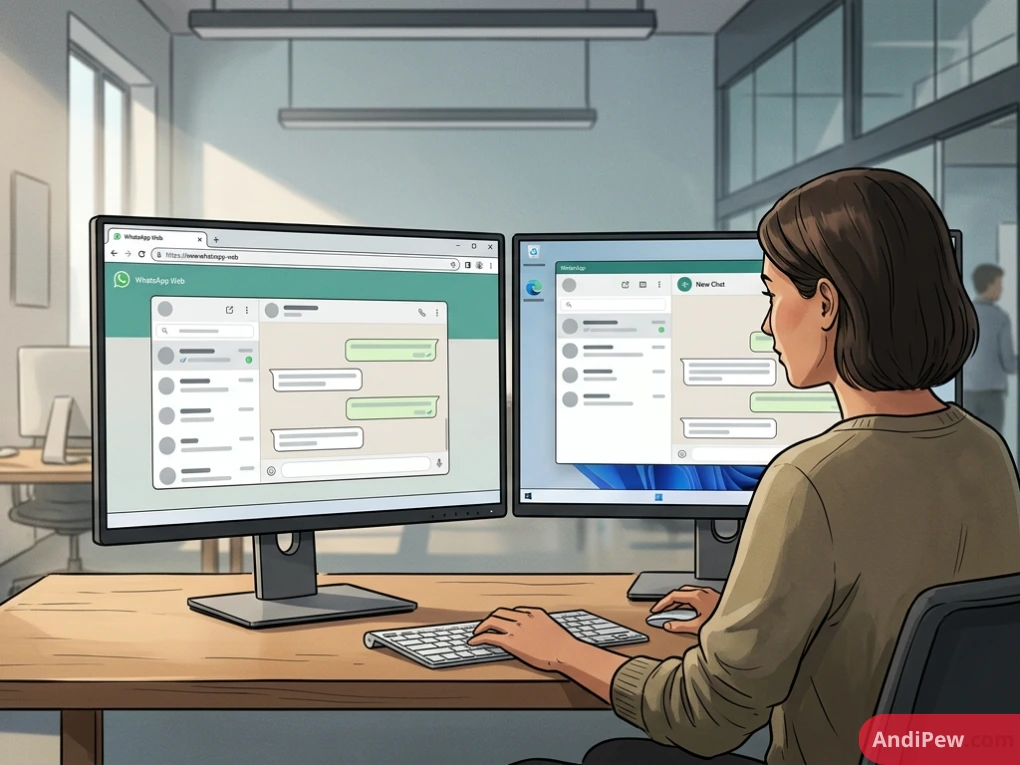
- WhatsApp Web Browser: Runs directly inside any modern internet browser (Google Chrome, Mozilla Firefox, Microsoft Edge, Safari, Opera). It requires no software installation or administrative privileges, making it ideal for shared or office computers.
- WhatsApp Desktop App: A standalone application installed via the Microsoft Store (Windows) or the Mac App Store (macOS). It integrates directly into the operating system, supports native OS keyboard shortcuts, and provides native desktop voice and video calling.
Key Benefits of Using WhatsApp on Your Computer
Switching to a computer screen for daily messaging offers distinct ergonomic and functional advantages:
- Faster Typing Speed: Using a full physical keyboard lets you respond to inquiries, write notes, and handle complex conversations significantly faster than tapping on a mobile touchscreen.
- Seamless File Sharing: Dragging and dropping spreadsheets, PDFs, high-resolution photographs, and archives directly from your computer files into a conversation saves time compared to cloud-syncing back to mobile.
- Reduced Screen Switching: Keeping communications inside an open browser tab prevents you from constantly picking up your phone, reducing workflow disruptions during work or study.
- Multi-Device Support: Link up to four companion devices simultaneously without needing your primary smartphone to remain actively online at all times.
- Enterprise & Support Workflow: When paired with WhatsApp Web Business, customer representatives can manage incoming client inquiries using pre-set templates, contact labels, and multi-agent setups.
System and Browser Requirements
Before opening the platform, verify that your computer meets standard compatibility requirements:
| Requirement Component | Supported Specifications |
| Operating Systems | Windows 10 (version 19041 or higher), Windows 11, macOS 11 (Big Sur) or newer, Linux (via browser) |
| Compatible Web Browsers | Google Chrome, Mozilla Firefox, Microsoft Edge, Safari, Opera, Brave |
| Internet Connection | Stable broadband, Wi-Fi, or reliable Ethernet connection on your computer |
| Mobile Phone | Active WhatsApp account on Android (OS 5.0+) or iOS (iOS 12+) |
| Hardware | Functional rear camera on your mobile phone to scan the authentication QR code |
How to Access WhatsApp Web: Step-by-Step Login Guide
Accessing your conversations through a browser takes less than a minute. Follow these steps to complete the WhatsApp Web đăng nhập (login) process securely:
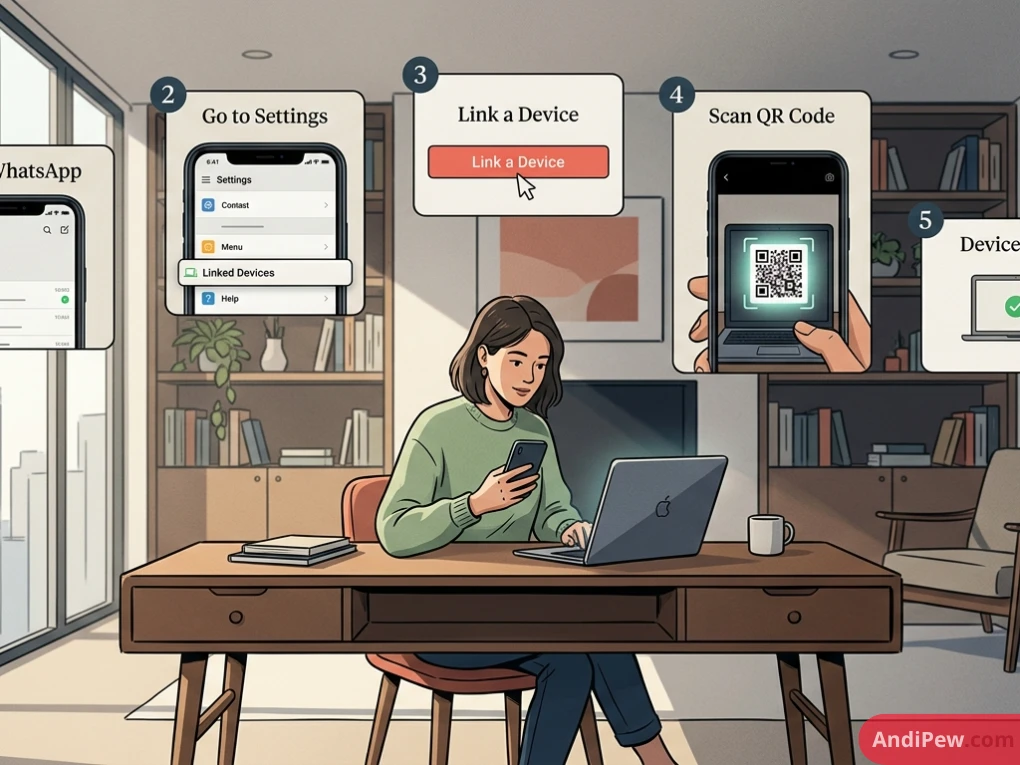
Step 1: Open the Official Website
Open your preferred web browser on your PC or laptop. Navigate to the official portal: web.whatsapp.com.
Security Note: Always verify the URL in your browser address bar. Avoid unofficial third-party websites or browser extensions that request your login credentials or ask you to scan unauthorized barcodes.
Step 2: Locate the WhatsApp Web QR Code
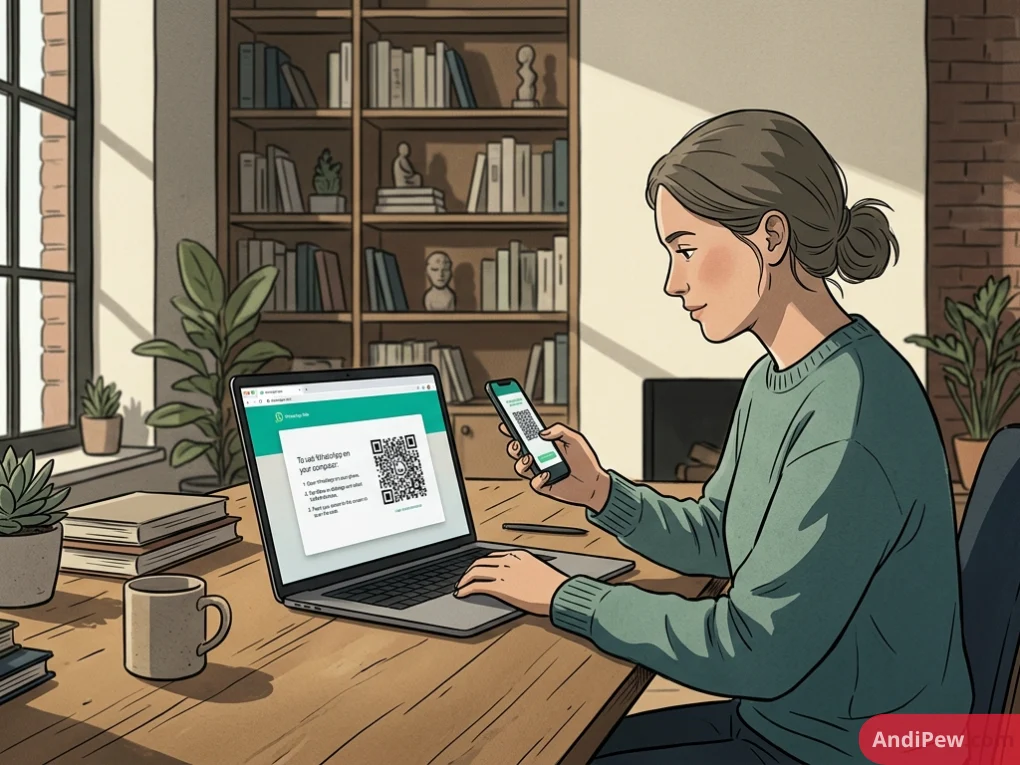
Once the page loads, an encrypted, dynamic WhatsApp Web QR code appears on the right side of the screen. This barcode refreshes periodically to protect your session from unauthorized interception.
Step 3: Open WhatsApp on Your Phone
Take your primary smartphone and launch the WhatsApp mobile app:
- On Android: Tap the three vertical dots in the top-right corner of the screen and select Linked Devices.
- On iPhone: Tap the Settings gear icon in the bottom-right corner and select Linked Devices.
Step 4: Scan the Code
Tap the green Link a Device button. If your phone uses biometric authentication (fingerprint scan or Face ID) or a PIN, confirm your identity. Your phone’s camera viewfinder will then open. Point the camera directly at your computer screen to scan the WhatsApp Web QR code.
Within a few moments, the browser syncs your recent chat history, contacts, and media archives. Your messages appear on your computer monitor, ready for immediate use.
Alternative Login: How to Log In with a Phone Number
If your smartphone camera has physical hardware damage or cannot focus properly on the screen, WhatsApp provides an alternative linking method using your mobile telephone number:
- Open web.whatsapp.com on your computer.
- Click the link at the bottom of the QR code box: Link with phone number.
- Select your country from the dropdown menu to apply the correct international calling code.
- Type in your primary phone number and click Next.
- An 8-character alphanumeric code will appear on your computer screen.
- Open WhatsApp on your smartphone. You will see a system push notification stating: “Enter code to link new device.”
- Tap the notification, confirm your identity with your biometric lock/PIN, and enter the 8-character code shown on your monitor.
- Once verified, the browser automatically loads your active chats.
WhatsApp Web Browser vs. WhatsApp Desktop App: Which Should You Choose?
Deciding whether to use the browser interface (WhatsApp Web online) or install the local desktop application depends on how you work throughout the day:
| Feature | WhatsApp Web (Browser) | WhatsApp Desktop (Installed App) |
| Installation Requirement | None (runs in-browser) | Requires download & installation |
| Storage Usage | Negligible (uses browser cache) | Around 150 MB – 300 MB of local disk space |
| Voice & Video Calling | Limited / Dependent on browser build | Fully supported (one-on-one and group calls) |
| Keyboard Shortcuts | Standard web-based shortcuts | System-level integrated shortcuts |
| System Notifications | Dependent on browser permissions | Native operating system notifications |
| Best For | Temporary workstations, shared PCs, Linux users | Primary home/work laptops, heavy daily use |
If voice and video meetings are central to your daily workflow, downloading the standalone desktop software provides a more complete experience. For general day-to-day messaging, document sharing, and text-based client communication, the web browser version offers identical utility without occupying system disk storage.
WhatsApp Web for Business: Professional Customer Communication
For small businesses, customer support representatives, and freelancers, running WhatsApp Web Business directly on an office computer improves response times and organizational efficiency.
When you link an account set up through the WhatsApp Business app on mobile to your web browser, several business-oriented tools carry over:
Contact and Chat Labels
Organize active discussions using color-coded labels (e.g., New Customer, Pending Payment, Order Completed, Important Lead). On a wide desktop monitor, you can view, sort, and manage these tags quickly.
Quick Replies
Save time typing repetitive responses for common questions regarding shipping schedules, payment details, or store hours. Pressing the forward slash key (/) on your desktop keyboard brings up your preset response templates instantly.
Catalog and Product Previews
Share product catalogs and service listings directly with prospective clients by attaching items straight from your linked business database into the desktop chat.
Essential Keyboard Shortcuts for WhatsApp Web
Using keyboard shortcuts helps you navigate conversations quickly without reaching for a mouse:
| Action | Windows Shortcut | Mac Shortcut |
| Mark Chat as Unread | Ctrl + Alt + Shift + U |
Cmd + Option + Shift + U |
| Mute Selected Chat | Ctrl + Alt + Shift + M |
Cmd + Option + Shift + M |
| Archive Selected Chat | Ctrl + Alt + Shift + E |
Cmd + Option + Shift + E |
| Delete Selected Chat | Ctrl + Alt + Backspace |
Cmd + Option + Backspace |
| Search in Active Chat | Ctrl + Alt + / |
Cmd + Option + / |
| Start New Chat | Ctrl + Alt + N |
Cmd + Option + N |
| Open Profile / Settings | Ctrl + Alt + , |
Cmd + Option + , |
| Cycle to Next Chat | Ctrl + Alt + Tab |
Cmd + Option + Tab |
| Cycle to Previous Chat | Ctrl + Alt + Shift + Tab |
Cmd + Option + Shift + Tab |
Security, Privacy, and Safe Usage Guidelines
Because WhatsApp Web displays your personal and professional communications on a larger monitor, keeping your sessions secure is vital—especially in open offices or shared spaces.
End-to-End Encryption
Like the mobile app, conversations conducted over WhatsApp Web use end-to-end encryption. Your messages, attachments, calls, and voice notes are scrambled from the sender’s client and decrypted only upon arrival at the recipient’s authenticated device. Neither internet service providers nor WhatsApp can read the contents of your messages.
Preventing Unauthorized Physical Access
- Log Out of Shared Devices: When using a library computer, hotel business center terminal, or colleague’s laptop, always log out before stepping away.
- Review Active Sessions Regularly: Open WhatsApp on your phone, go to Linked Devices, and review the list of every active browser session. If you see a computer name or geographic location you do not recognize, tap that device and select Log Out immediately.
- Lock Your Computer Screen: Get in the habit of locking your workstation operating system (
Windows Key+Lon PC orCmd+Ctrl+Qon Mac) whenever you step away from your desk.
How to Safely Log Out of WhatsApp Web
To close your session properly, you can log out from either your computer or your smartphone:
Logging Out Directly from Your Browser
- In the WhatsApp Web interface, click the three dots menu (or settings gear icon) located above your chat list.
- Click Log out from the dropdown menu.
- Confirm your choice when prompted. The interface will immediately reset to the initial QR code login screen.
Logging Out Remotely from Your Phone
If you forgot to log out of an office or shared computer before heading home:
- Open WhatsApp on your smartphone.
- Navigate to Settings (iOS) or More Options (Android) and choose Linked Devices.
- Locate the session you wish to close under the Device Status list.
- Tap the device entry and select Log Out. Access to that computer will terminate instantly.
Troubleshooting Common WhatsApp Web Issues
If you encounter technical issues when using WhatsApp Web, here are solutions to the most common problems:
The QR Code Fails to Load or Expire Constantly
- Refresh the Browser: Click the refresh button in your browser to generate a fresh QR code.
- Disable Ad Blockers and Tracker Protections: Aggressive content-blocking extensions can prevent the dynamic authentication script from loading. Temporarily disable these extensions for
web.whatsapp.com. - Clear Browser Cache: Clear out corrupted cached files and cookies within your browser settings, then reload the page.
“Computer Not Connected” Error Message
- Test Local Connectivity: Verify that your computer has an active, working internet connection by loading any standard external webpage.
- Corporate Firewall Restrictions: Certain corporate and educational Wi-Fi networks block WebSocket traffic or messaging ports. If you are connected to a workplace network, contact your network administrator or test the connection on an alternative Wi-Fi network.
“Phone Not Connected” Notification
Under the modernized multi-device architecture, companion browsers do not need your phone to stay online constantly. However, if your primary mobile phone remains disconnected from the internet for over 14 consecutive days, your linked devices will automatically be logged out as a security precaution. Reconnect your phone to the internet and link your browser again.
Push Notifications Are Not Appearing
- Grant Browser Permissions: Click the padlock icon on the left side of your browser URL address bar and ensure that Notifications are set to Allow.
- Check OS Focus/Do Not Disturb Settings: On Windows, check Focus Assist; on macOS, review Focus/Do Not Disturb settings to make sure system notifications are not muted.
Frequently Asked Questions (FAQ)
Can I use WhatsApp Web without my phone being turned on?
Yes. Thanks to multi-device functionality, once your computer browser is successfully linked via the QR code or phone verification, you can continue chatting even if your primary phone runs out of battery or loses its network connection. However, your account will disconnect if your primary phone stays offline for more than 14 days.
Can I make voice or video calls on WhatsApp Web?
Voice and video calling are primarily supported on the standalone WhatsApp Desktop app for Windows and Mac. While selective browser environments occasionally pilot call capabilities, installing the native desktop application remains the official, supported method for making computer-based calls.
Is WhatsApp Web completely free?
Yes. WhatsApp Web is free to use. It requires only an existing WhatsApp account, a compatible browser, and an internet connection. WhatsApp does not charge subscription fees for desktop messaging.
How many computers can I link to my WhatsApp account at once?
You can link up to four companion devices (such as computers or tablets) simultaneously to a single primary WhatsApp phone number.
Why won’t my camera scan the WhatsApp Web QR code?
This usually happens due to poor screen contrast, physical smudges on the camera lens, or ambient room glare reflecting off your monitor. Increase your monitor brightness, clean your phone camera lens, and hold the phone steady about 8–12 inches away from the screen. If the camera still fails to focus, select the Link with phone number option instead.
Conclusion
Using WhatsApp Web is one of the easiest ways to streamline your daily communication. By moving your conversations to a laptop or desktop computer, you gain access to faster typing, simple drag-and-drop document transfers, and a focused workspace free from continuous phone interruptions.
Whether you choose the quick access of the browser interface or the expanded call features of the desktop app, getting set up takes only a few seconds.