Visual content drives digital communication. Whether you run an online storefront, manage a classroom, or build a personal brand on social media, professional graphics make your message stand out. Graphic design used to require steep learning curves and expensive software suites. Today, Canva makes graphic design accessible to everyone.
If you are looking for practical canva tutorials, you have landed in the right place. This comprehensive guide covers everything from canva basics to advanced design workflows. By the time you finish reading, you will understand how to use canva with confidence and efficiency.
What Is Canva and Why Should You Learn It?
Canva is an all-in-one cloud-based graphic design platform built for non-designers and creative professionals alike. With intuitive drag-and-drop mechanics, a vast media library, and intelligent automation tools, Canva allows anyone to produce stunning visual assets in minutes.
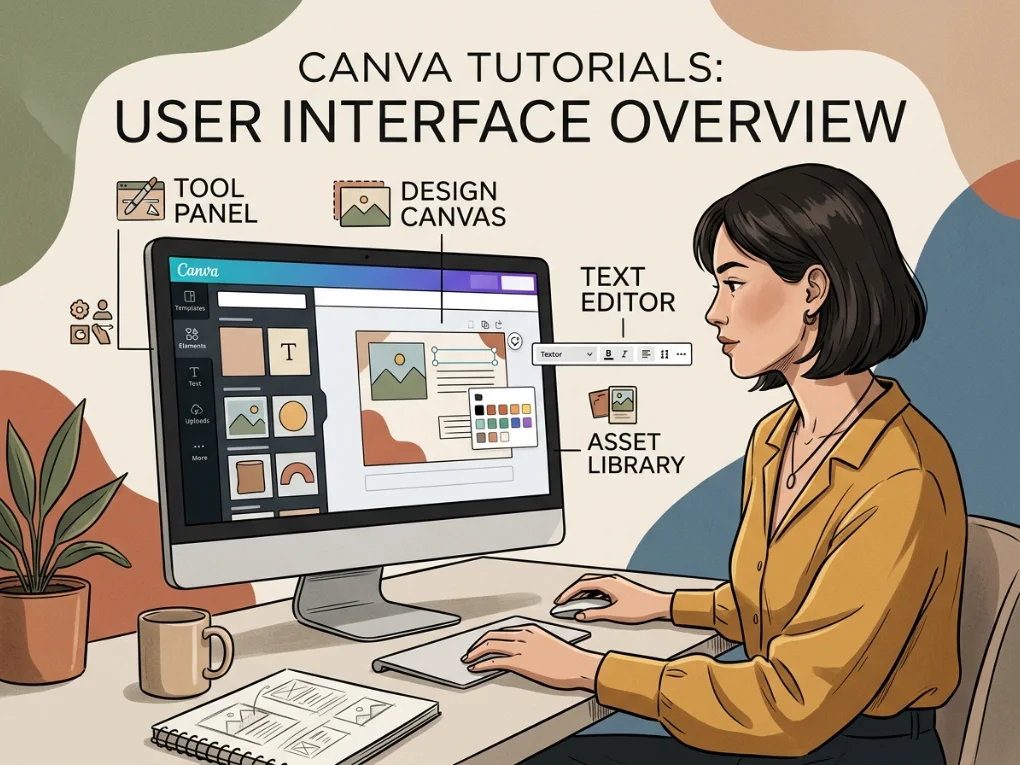
Getting Started: The Foundation of Canva Basics
Before creating complex assets, you need a solid grasp of account setup and dashboard navigation.
Step 1: Account Creation and Setup
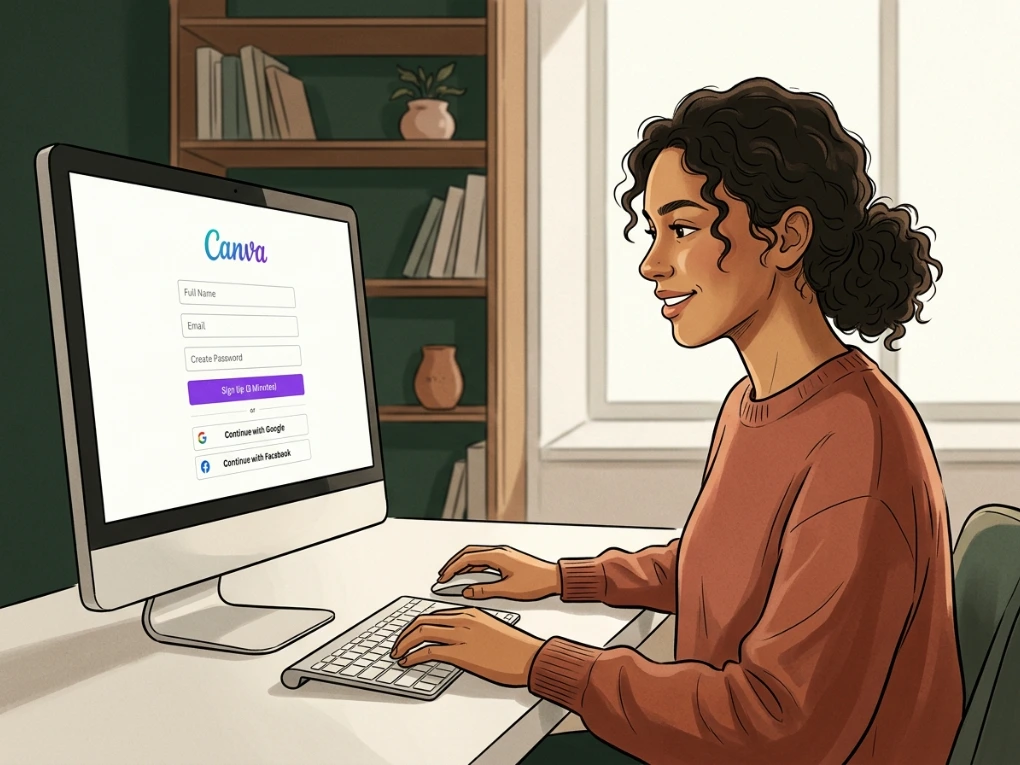
Getting started takes under two minutes. You can sign up using an email address, Google account, or social login. To get up and running, follow our detailed walkthrough on how to create a canva account.
Step 2: Exploring the Canva Dashboard
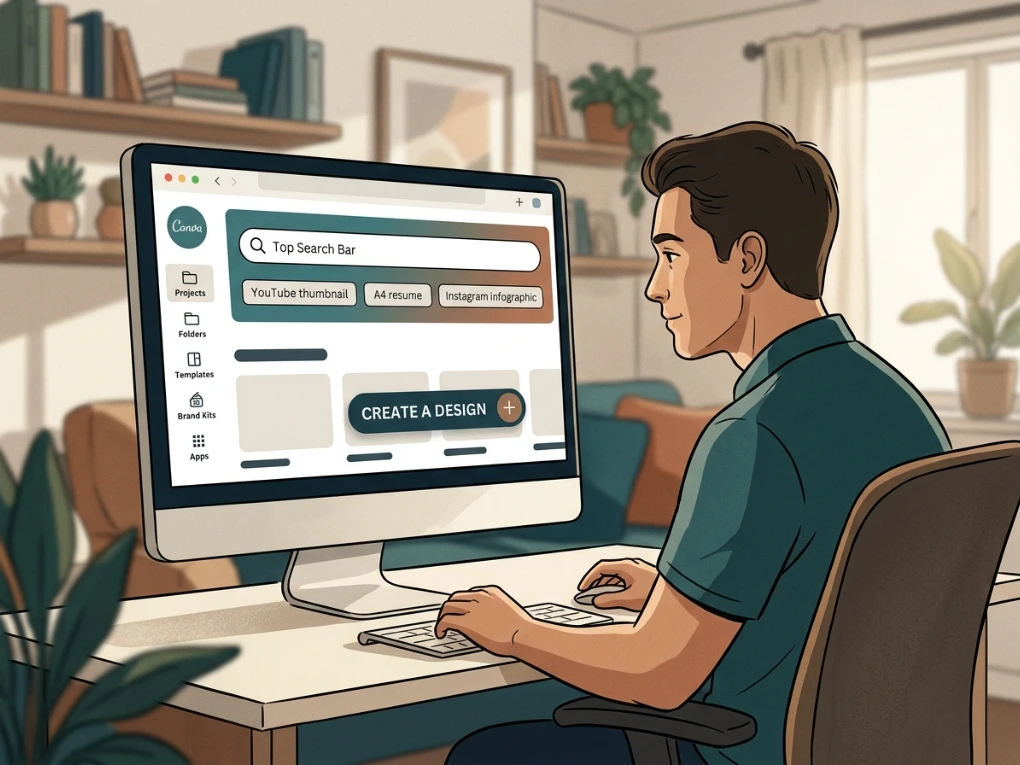
Once logged in, the primary interface serves as your command center. Check our canva dashboard overview for a deep dive, or review the core dashboard elements below:
- Top Search Bar: Find templates by entering keywords like “YouTube thumbnail,” “A4 resume,” or “Instagram infographic.”
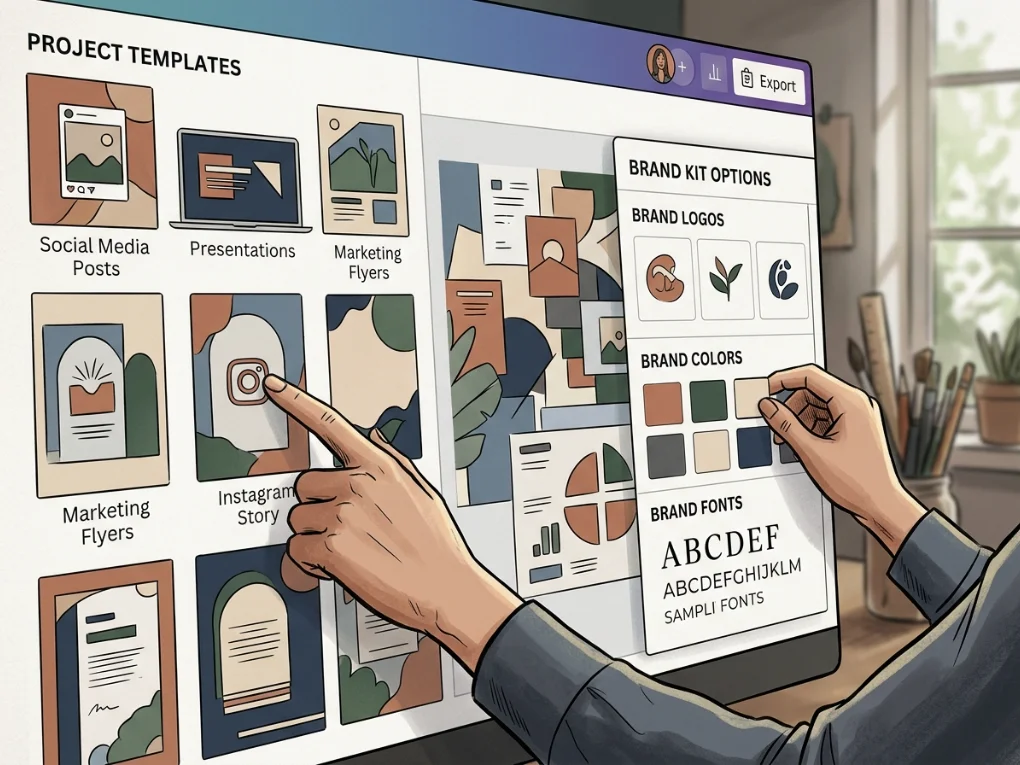
- Left Navigation Panel: Access your projects, shared folders, templates, Brand Kits, and integrated apps.
- Create a Design Button: Start with custom dimensions or standard industry presets.
Step 3: Canva Free vs. Pro Feature Comparison
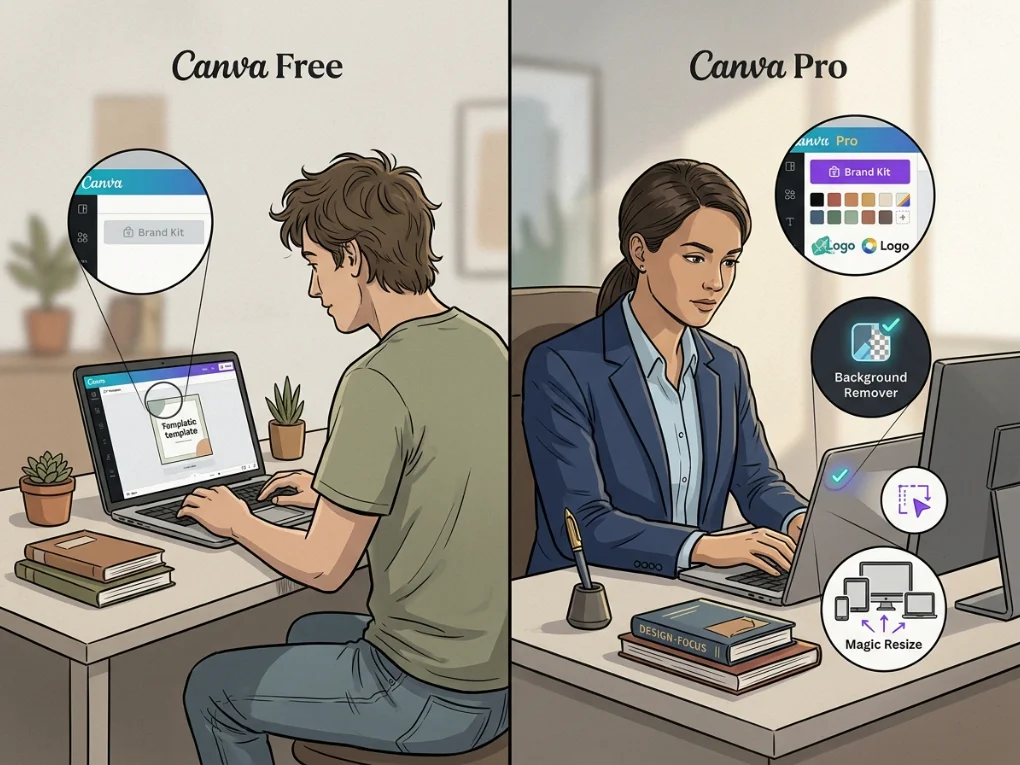
Canva provides a robust free tier, while Canva Pro unlocks enterprise features and expanded libraries. Explore our in-depth breakdown of canva free vs pro to see which fits your needs.
| Feature / Tool | Canva Free | Canva Pro |
| Templates | 1+ Million Free Templates | 100+ Million Premium Templates |
| Stock Photos & Graphics | Millions of standard assets | Full access to premium media library |
| Brand Kits | 1 basic palette (up to 3 colors) | Unlimited Brand Kits, fonts, and logos |
| Background Remover | Limited / Trial | 1-Click One-Touch Background Removal |
| Magic Resize | Manual resizing required | Instant multi-format conversion |
| Cloud Storage | 5 GB | 1 TB |
| Export Formats | Standard PNG, JPG, PDF, MP4 | Vector SVG, Transparent PNG, High-Res PDF |
The Canva Editor Guide: Master the Workspace
Understanding the editing workspace turns creative ideas into polished designs without friction.
┌────────────────────────────────────────────────────────────────────────┐
│                        CANVA EDITOR LAYOUT                             │
├─────────────┬──────────────────────────────────────────────────────────┤
│             │  [Top Menu Bar: Undo, Resize, Share, Export]             │
│             ├──────────────────────────────────────────────────────────┤
│  SIDEBAR    │                                                          │
│  • Design   │                                                          │
│  • Elements │                     CANVAS AREA                          │
│  • Text     │               (Your Active Design Page)                  │
│  • Uploads  │                                                          │
│  • Draw     │                                                          │
│  • Projects │                                                          │
│  • Apps     │                                                          │
│             ├──────────────────────────────────────────────────────────┤
│             │  [Bottom Bar: Page Manager, Grid View, Zoom Level]       │
└─────────────┴──────────────────────────────────────────────────────────┘
For an exhaustive tour of toolbar settings, check out our canva editor guide. Here is an overview of key workspace sections:
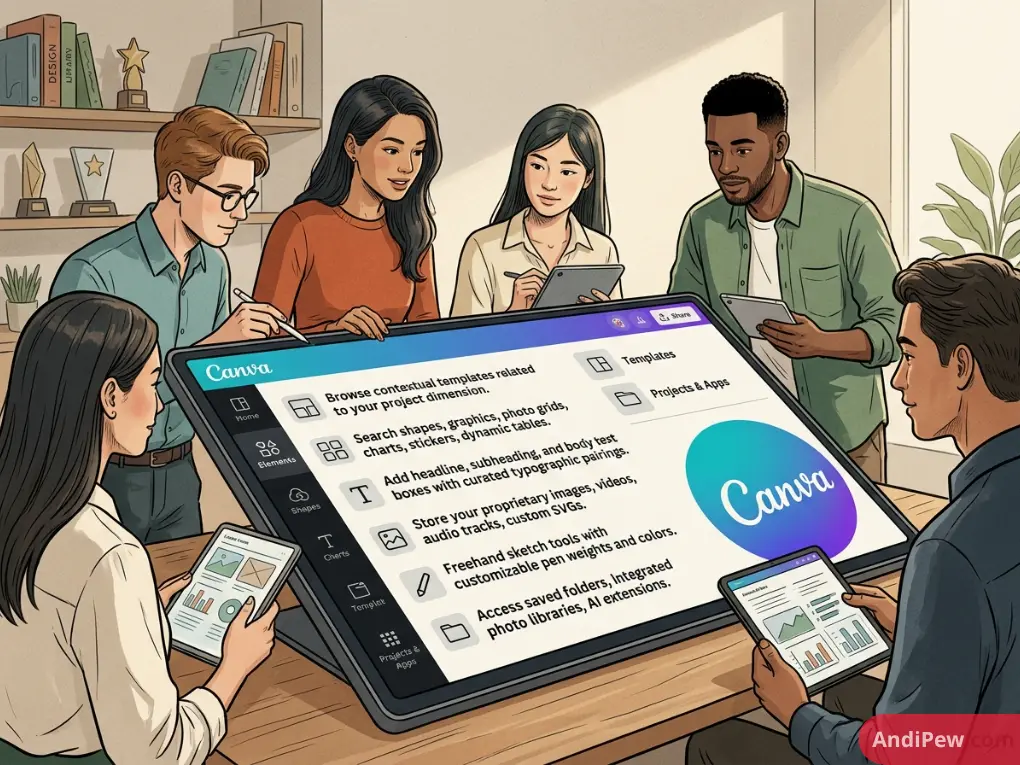
The Left-Hand Toolbar
- Design: Browse contextual templates related to your project dimension.
- Elements: Search shapes, graphics, photo grids, charts, stickers, and dynamic tables.
- Text: Add headline, subheading, and body text boxes with curated typographic pairings.
- Uploads: Store your proprietary images, videos, audio tracks, and custom SVGs.
- Draw: Freehand sketch tools with customizable pen weights and colors.
- Projects & Apps: Access saved folders, integrated photo libraries, and AI extensions.
The Upper Context Bar
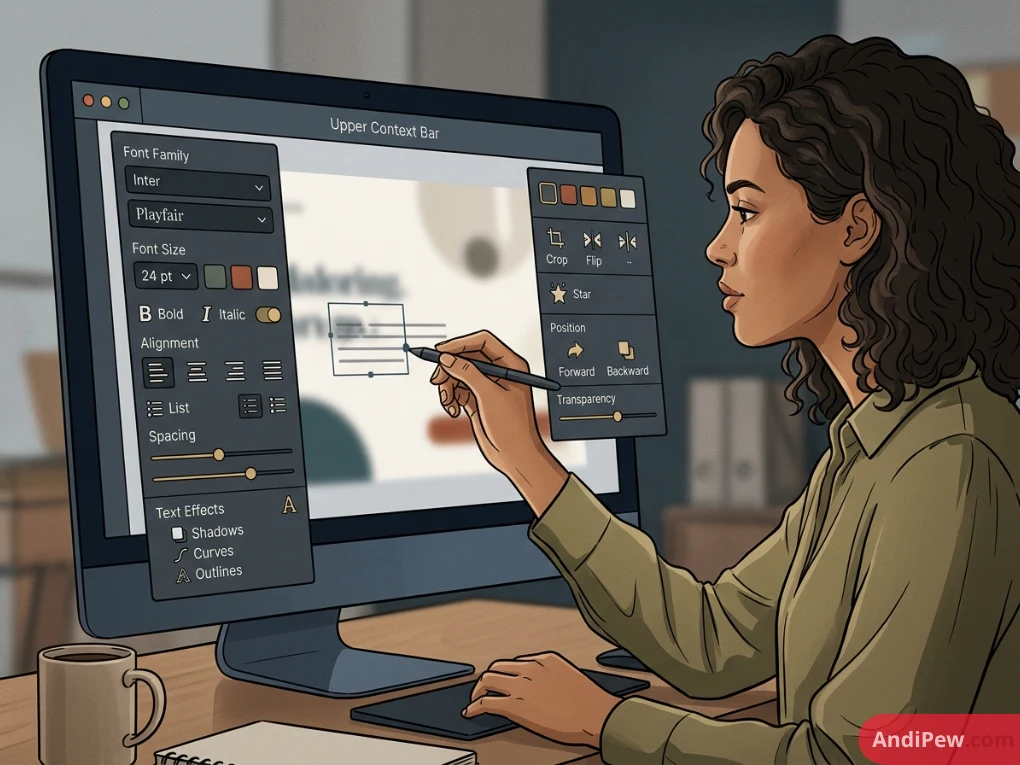
When you select an element on the canvas, the top bar changes dynamically:
- For Text Elements: Adjust font family, font size, color, bold/italic, alignment, bullet lists, spacing (letter and line), and text effects (shadows, curves, outlines).
- For Images & Graphics: Access color swatches, crop tools, flip options, animation triggers, position layers, transparency, and photo filters.
Essential Terms to Know
As you learn, you will run into specific graphic design terms. Bookmark our canva glossary to master concepts like bleed marks, kerning, color hierarchy, and vector grouping.
Step-by-Step Tutorial: How to Create Your First Design
Ready to build your first project from scratch? Follow these step-by-step instructions. For a broader range of design workflows, review how to create a design in canva.
  ┌──────────────────────────────────────────────────────────────┐
  │              5-STEP CANVA DESIGN WORKFLOW                    │
  ├──────────────┬───────────────────────────────────────────────┤
  │ 1. Canvas    │ Choose a blank template or preset dimensions  │
  │ 2. Layout    │ Pick a template or add frames and grids       │
  │ 3. Assets    │ Add graphics, custom photos, and icons        │
  │ 4. Style     │ Apply brand colors and typographic hierarchy  │
  │ 5. Export    │ Download in the appropriate file format       │
  └──────────────┴───────────────────────────────────────────────┘
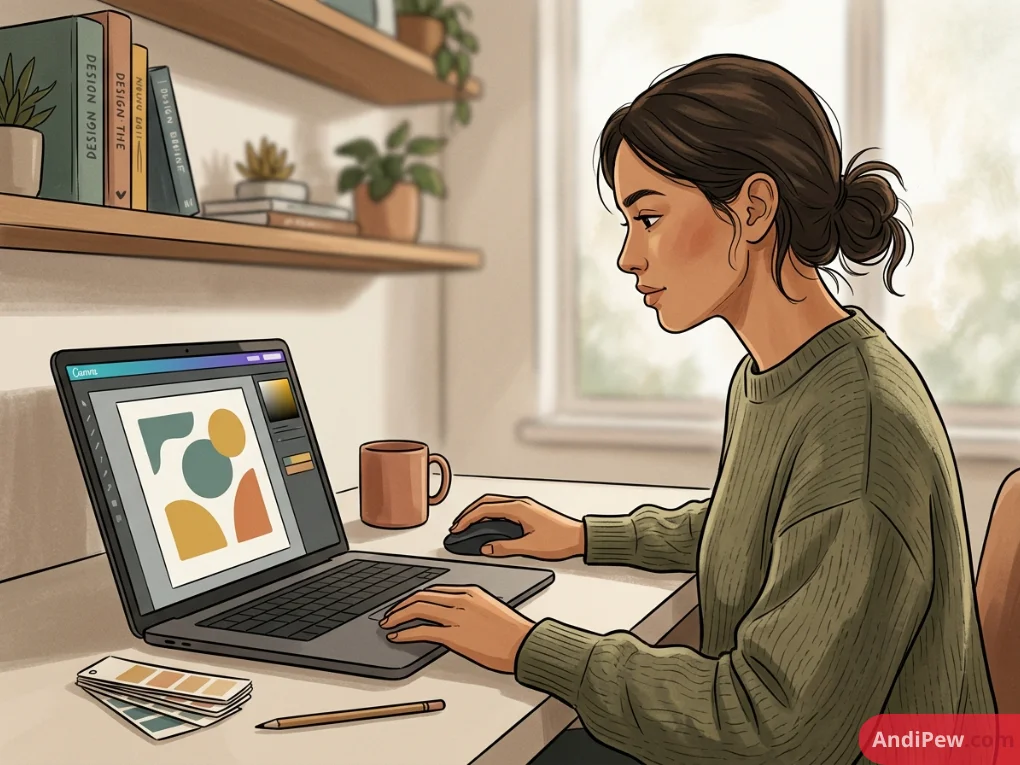
Step 1: Set Up the Dimensions
- Click Create a design in the top-right corner.
- Select a preset (e.g., Instagram Post (Square) at 1080 × 1080 px) or enter custom dimensions in pixels, millimeters, or inches.
Step 2: Choose a Base Template or Canvas Color
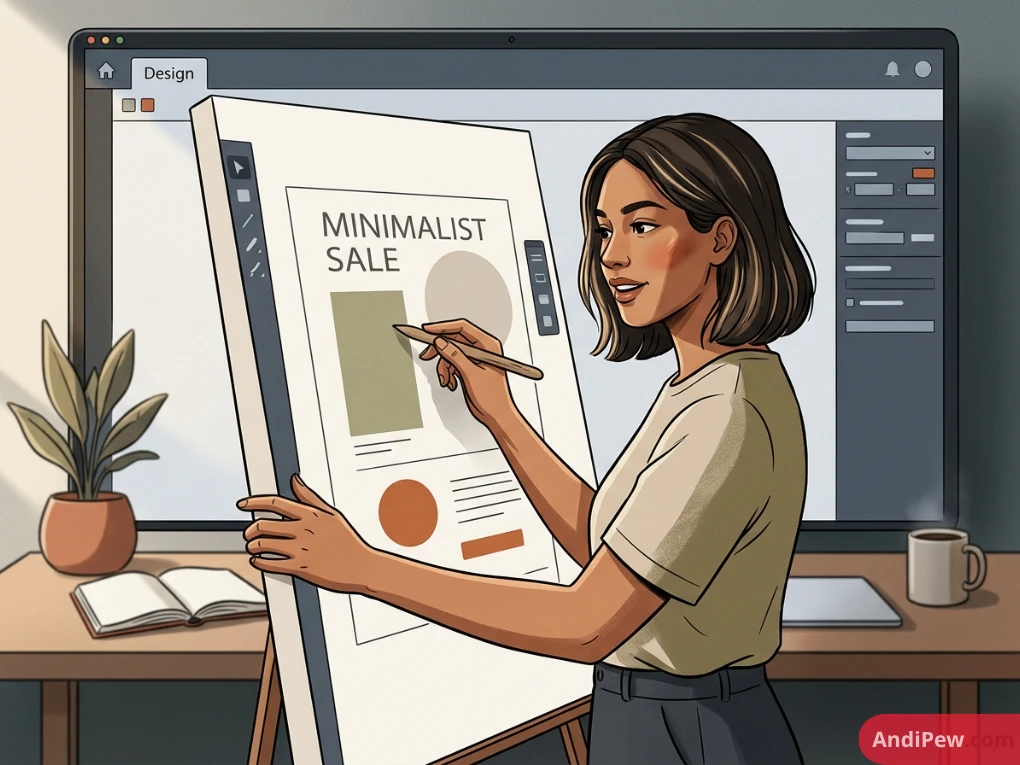
- Using a Template: Go to the Design tab in the sidebar. Type a theme (e.g., “Minimalist Sale”) and click a layout to apply it to your canvas.
- Starting Blank: Click the canvas background, open the color palette from the top bar, and choose a clean background tone.
Step 3: Add and Customize Visual Elements
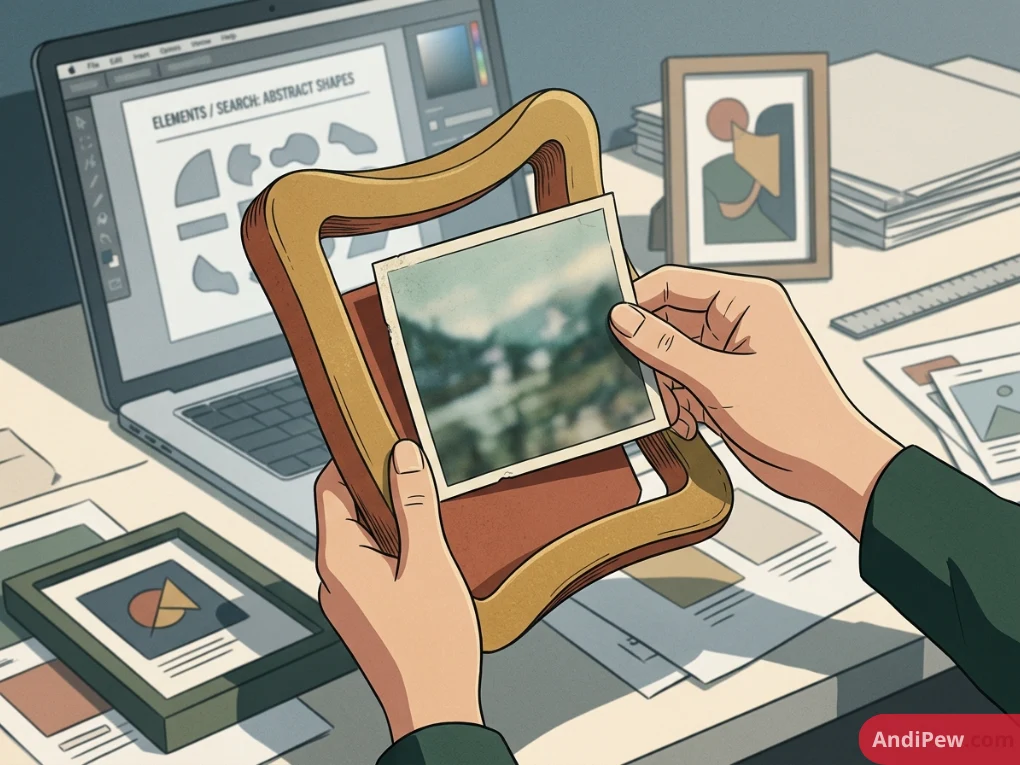
- Navigate to Elements.
- Search for “abstract shapes” or “photo frames.”
- Drag a frame onto the canvas.
- Open the Uploads tab (or search free stock photos in Elements) and drag your chosen image directly inside the frame.
Step 4: Add Typography and Hierarchy
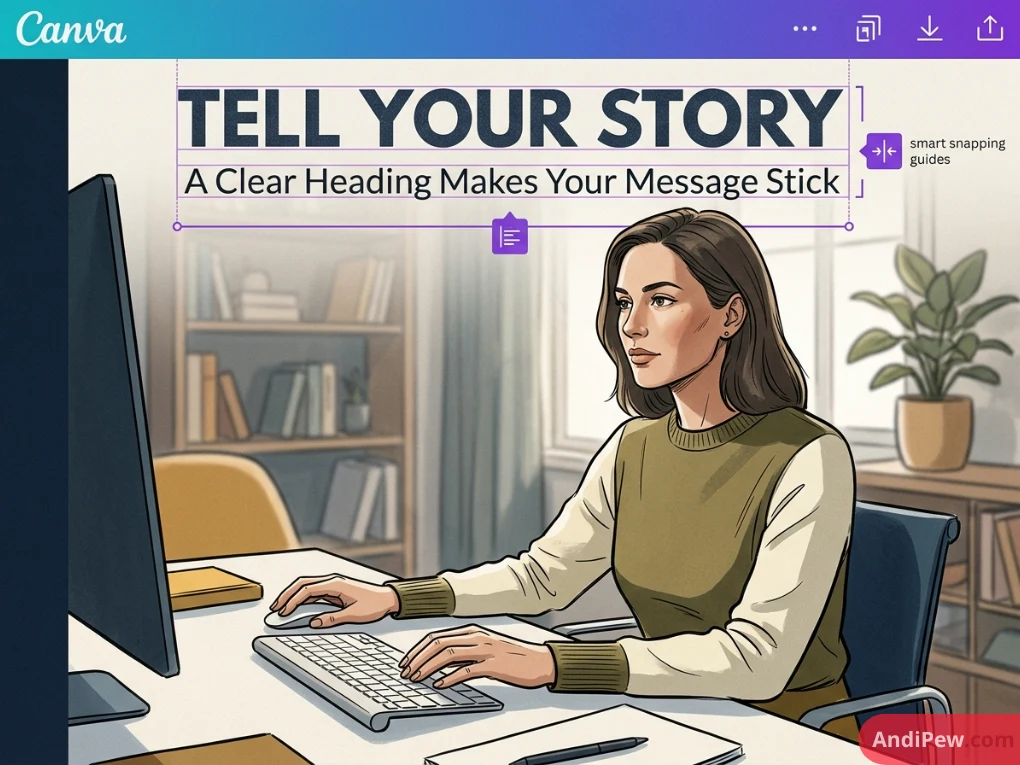
- Click the Text tab.
- Click Add a heading.
- Type your primary message. Use an eye-catching, legible font (e.g., Montserrat, Playfair Display, or League Spartan).
- Add a subheading for secondary details using a neutral font (e.g., Open Sans or Lato).
- Align text using Canva’s smart snapping guides (the purple alignment lines).
Step 5: Finalize and Export
- Click the Share button in the upper-right corner.
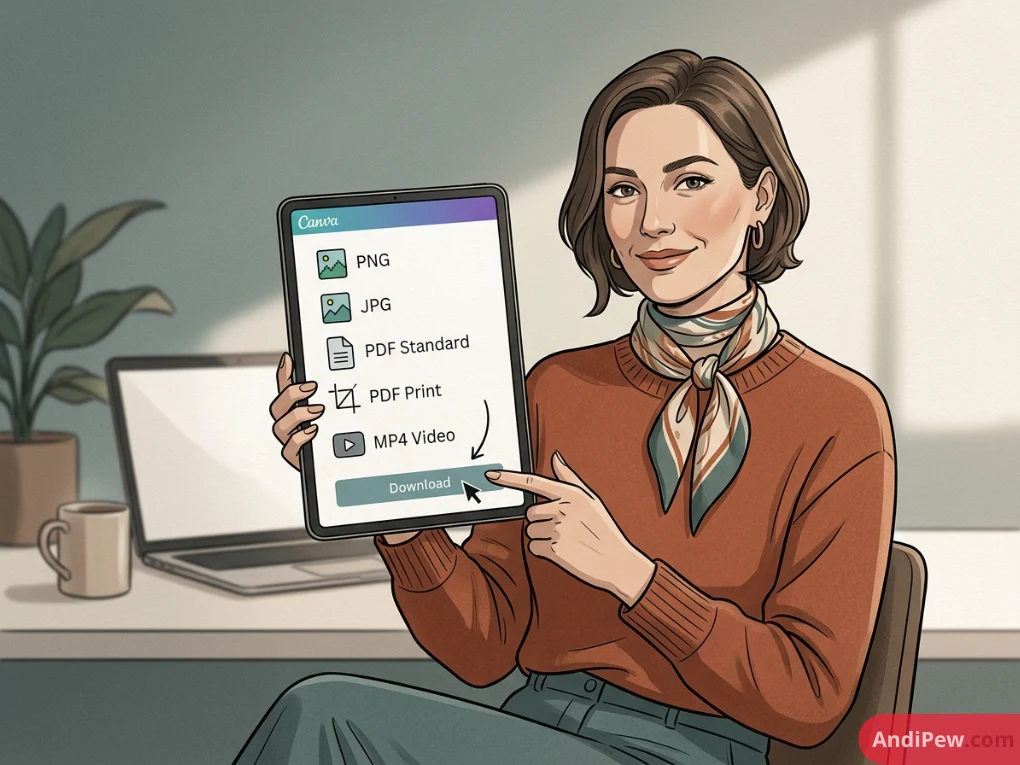
- Select Download.
- Choose the appropriate file format:
-
PNG: Best for digital graphics, social media, and images with crisp text.
-
JPG: Ideal for large web photos requiring smaller file sizes.
-
PDF Standard: Great for multi-page documents and digital reading.
-
PDF Print: High-resolution output with optional crop marks and bleed.
-
MP4 Video: Essential for animated designs, Reels, and presentation recordings.
-
- Click Download to save your design locally.
Tailored Canva Tutorials for Every Audience
Canva adapts to a wide variety of workflows. Here are specialized walkthroughs tailored to specific use cases.
Canva Tutorials for Instagram & Social Media
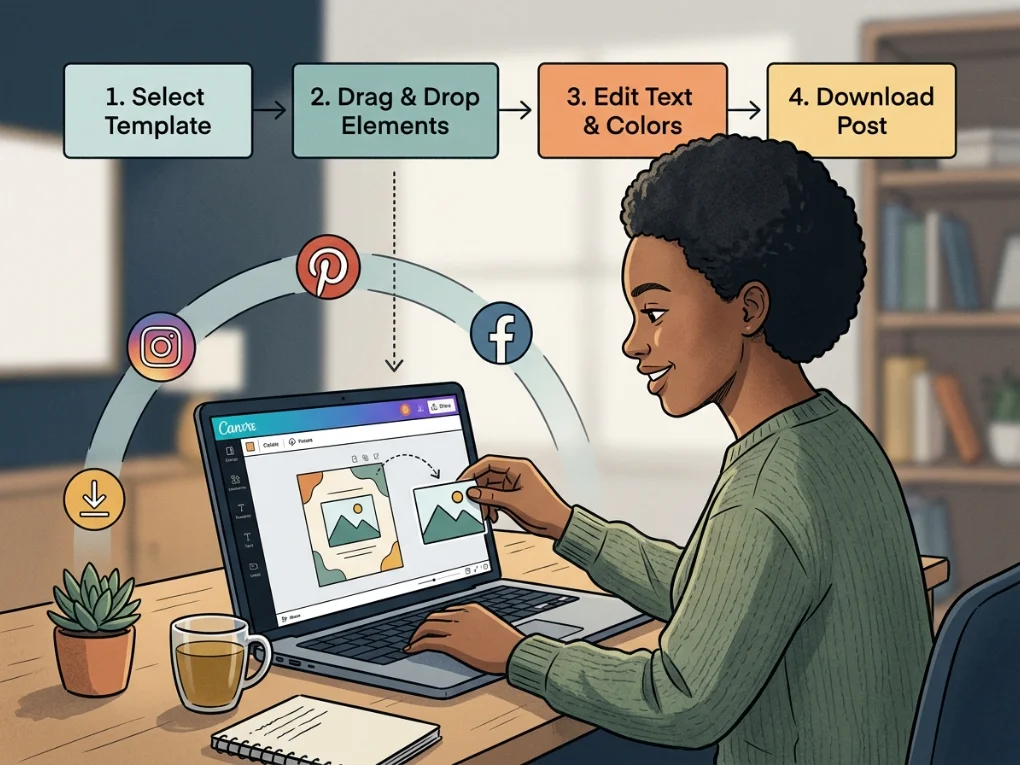
Social platforms reward consistent, polished visuals. Here is how to create high-performing social content:
┌────────────────────────────────────────────────────────┐
│            SOCIAL MEDIA POST COMPOSITION               │
├────────────────────────────────────────────────────────┤
│  [ High-Contrast Headline (≤ 6 Words)               ]  │
│  [ Compelling Central Image / Visual Hook           ]  │
│  [ Supporting Value / Brief Subtitle                ]  │
│  [ Clear Call to Action / Handle / Website          ]  │
└────────────────────────────────────────────────────────┘
- Single-Feed Posts: Use high-contrast color palettes and bold, centered headings that remain readable on mobile screens.
- Seamless Carousels: Use a 2160 × 1080 px canvas (for a 2-slide post) or custom grid guides. Position elements across the center split line to create an engaging slide-through experience.
- Instagram Stories & Reels: Select the 1080 × 1920 px format. Use Canva’s timeline editor to trim audio, add animated text transitions, and place dynamic stickers.
- Social Scheduling: If you use Canva Pro free, you can connect your social channels and schedule posts directly from the editor using the built-in Content Planner.
Canva Tutorials for Teachers & Educators
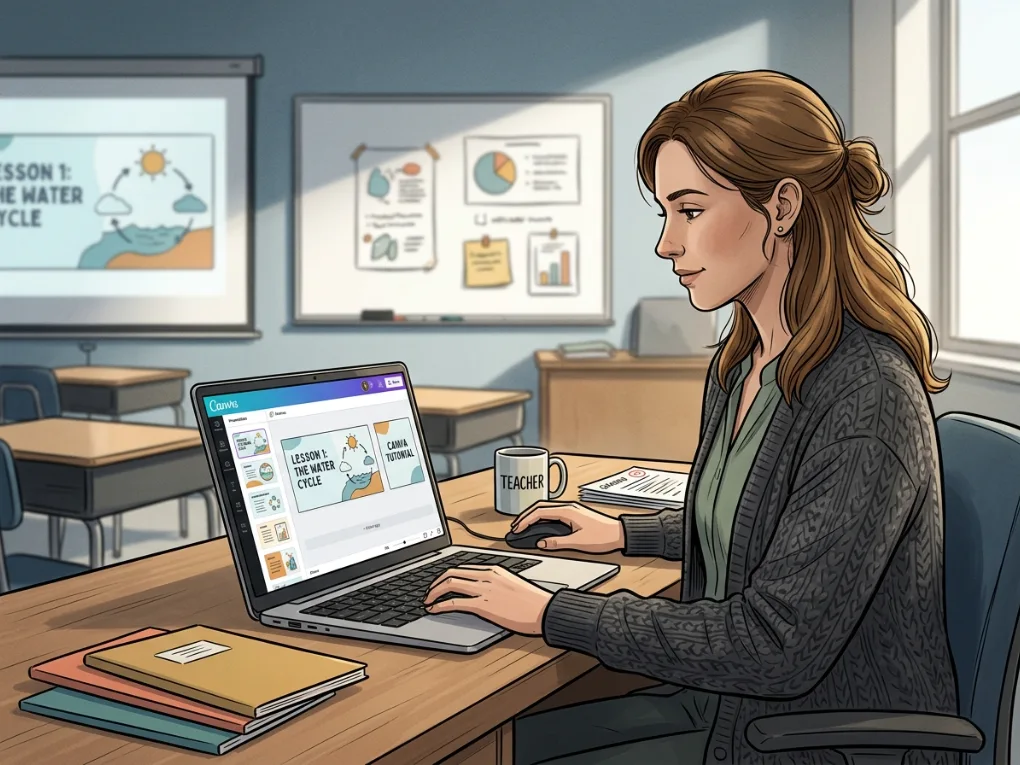
Educators can save hours each week by creating interactive classroom resources:
- Interactive Presentations: Build gamified slides with clickable buttons linked to internal pages or external resources.
- Printable Worksheets: Search the “Worksheet” template category (standard 8.5 × 11 in). Use the Elements tab to add lined grids, matching columns, and visual math counters.
- Google Classroom Banners: Create customized header banners (1000 × 250 px) with your classroom name, office hours, and themed illustrations.
- Canva for Education: Verified K-12 teachers and students can access Canva Pro features for free by signing up through an educational domain.
Canva Tutorials for Students
Students can create clean, well-structured academic projects:
- Group Presentations: Click Share > Link sharing > Anyone with the link can edit to collaborate on slides with classmates in real time.
- Infographic Reports: Turn research data into visual summaries using Canva’s pre-formatted infographic templates (800 × 2000 px).
- Resumes & Portfolios: Use clean, professional single-page resume templates to highlight experience, skills, and portfolio links.
Canva Tutorials for Kids
Canva is safe, engaging, and easy for young learners:
- Digital Art & Doodling: Use the Draw tool to make custom sketches and color in pre-made digital coloring book pages.
- Custom Greeting Cards: Combine cartoon stickers, animated text, and family photos to create printable birthday cards.
- Storybooks: Create multi-page visual stories with character graphics, dialogue bubbles, and colorful backgrounds.
Video & PDF Resources: Canva Tutorials YouTube and Downloadables
Learners absorb information through different formats. Combining written guides, video walkthroughs, and reference sheets creates an ideal learning routine.
Best YouTube Learning Channels
If you prefer video walkthroughs, these resources provide reliable, step-by-step guidance:
- Official Canva YouTube Channel: The best source for official platform updates, deep dives into new features, and design workshops.
- Design with Canva Creators: Independent design channels that showcase daily workflow hacks, typography tips, and portfolio reviews.
- Quick-Fix Shorts & Reels: Great for discovering 60-second tricks, keyboard shortcuts, and hidden design features.
Downloadable Offline Resources: Canva Tutorials PDF
Having an offline reference helps when working without a second screen:
- Canva Keyboard Shortcuts Cheat Sheet (PDF): Keep essential key combinations (like
Tfor text,Rfor rectangle,Cfor circle, andCmd/Ctrl + Gfor grouping) within arm’s reach. - Print-Ready Design Checklist (PDF): Verify bleed lines, color contrasts, and margin boundaries before sending files to a commercial printer.
Desktop App vs. Mobile App: Choosing the Right Environment
Canva works smoothly across web browsers, dedicated desktop applications, and mobile apps. Review our canva app vs desktop comparison to match your device to your workflow.
┌──────────────────────────────────────┬──────────────────────────────────────┐
│        Canva Desktop Workspace       │          Canva Mobile App            │
├──────────────────────────────────────┼──────────────────────────────────────┤
│ • Best for complex multi-page layouts│ • Best for on-the-go social updates  │
│ • Precise mouse-and-keyboard control │ • Direct photo/video uploads         │
│ • Multi-window and dual-screen setup │ • Quick text and story adjustments   │
│ • Advanced timeline video editing    │ • One-tap social sharing             │
└──────────────────────────────────────┴──────────────────────────────────────┘
- Use Desktop for: Complex brochures, 20+ slide presentations, high-detail print layouts, and team management.
- Use Mobile for: Quick social posts, Stories, fast text edits on existing designs, and direct publishing.

Top 7 Time-Saving Canva Design Tips
- Use One-Key Shortcuts:
-
Press
Ton your canvas to instantly insert a text box. -
Press
Rto create a rectangle. -
Press
Cto generate a circle. -
Press
Lto draw a straight line.
-
- Lock Elements in Place: Select background elements and press the Lock Icon (top right) to prevent accidental shifts while editing foreground layers.
- Copy Styles Instantly: Use the Paint Roller Tool (Copy Style) to copy font styling, colors, and shadows from one element to another with a single click.
- Organize with Layers Panel: Click Position > Layers to inspect, reorder, group, and adjust overlapping objects with ease.
- Use Smart Guides and Tidy Up: Select multiple elements, click Position > Space Evenly > Tidy Up to fix alignments and spacing automatically.
- Group Related Elements: Highlight grouped items and press
Ctrl + G(Windows) orCmd + G(Mac) to move them together without breaking alignment. - Find Assets Quickly with Brand Codes: When you find a graphic style you like, click the three dots (
...) on the element and select View more by [Artist] or View Collection to find matching illustrations.
Frequently Asked Questions (FAQ)
Is Canva completely free to use?
Yes. Canva offers a comprehensive free plan that includes access to thousands of templates, graphics, photos, and standard export options. You can upgrade to Canva Pro for advanced features like Background Remover, Brand Kits, and unlimited premium assets.
How long does it take a beginner to learn Canva?
Most beginners pick up the basics within 30 to 60 minutes. Because Canva uses an intuitive drag-and-drop system, you can produce clean, professional graphics on your very first day.
Can I use Canva designs for commercial purposes?
Yes, designs created in Canva can be used for business branding, marketing materials, social media promotion, and client projects, provided you follow Canva’s content license terms (e.g., not reselling standalone stock elements).
What is the difference between Canva on desktop vs. mobile?
The desktop version provides a larger workspace, keyboard shortcuts, and finer cursor control—making it ideal for complex, multi-page designs. The mobile app focuses on speed, quick adjustments, and direct social media publishing.
Are there free Canva accounts for teachers and students?
Yes. Verified K-12 educators and their students can access Canva for Education, which includes Canva Pro features at no cost.
Conclusion
Learning graphic design no longer requires years of technical training. Canva provides the tools, templates, and flexibility you need to turn creative ideas into polished visual assets for business, education, or personal projects.
Start by exploring simple layouts, experiment with typography, and practice the time-saving tips outlined above. Visual communication is an essential modern skill, and Canva makes building it enjoyable and accessible.