
Graphic design used to require years of training, expensive desktop software, and hours of tedious manual adjustment. Today, Canva has democratized digital design, allowing anyone—from corporate managers to solopreneurs—to create stunning visuals in minutes.
The secret behind this speed and polish is Canva’s massive library of pre-built layouts. Knowing how to use Canva templates effectively is one of the most valuable digital skills you can build today. Whether you need a crisp Instagram Carousel, a pitch deck, an invoice, or a resume, starting with a template cuts your workflow by more than half while preserving professional quality.
In this comprehensive guide, you will learn everything you need to know about how to Canva templates—from finding and organizing layouts to in-depth Canva template editing, cross-platform exports, and even building a digital product business.
What Are Canva Templates?
A Canva template is a pre-designed layout containing editable text boxes, graphics, frames, backgrounds, and color schemes. Rather than starting with a blank white canvas, you load an expertly balanced composition and swap in your unique copy, images, and brand assets.
Key Benefits of Designing with Templates
- Massive Time Savings: You bypass the drafting and layout phases entirely.
- Consistent Visual Polish: Built-in font pairings, margins, and hierarchy ensure balanced aesthetics.
- Full Flexibility: Templates are never locked. Every single element—from background textures to tiny icons—can be moved, recolored, or replaced.
- Cross-Device Accessibility: Work seamlessly across desktop browsers, tablets, and mobile apps.
If you are just getting started with graphic layout principles, pairing this walkthrough with our foundational guide to Canva design basics will help you understand visual hierarchy, balance, and alignment.
Step 1: Finding and Selecting the Perfect Canva Template
Canva hosts millions of layouts across hundreds of categories. Choosing the right starting point ensures you do not waste time restructuring the canvas later.
[Search Bar Query] ──► [Filter by Format / Theme] ──► [Preview Template] ──► [Customize Template]
Search by Dimension or Topic
Navigate to your Canva home dashboard. In the central search bar, you can search in two ways:
- By Document Type: Type terms like
Instagram Post (Square),Presentation (16:9),A4 Document, orYouTube Thumbnail. This ensures your canvas starts with exact, high-resolution dimensions. - By Topic/Theme: Type specific queries like
Real Estate Market Update,Minimalist Wedding Invitation, orFitness Coach Workbook.
Apply Filters
Narrow your search results using the filter sidebar on the left:
- Category: Business, Social Media, Marketing, Education, Print.
- Style: Modern, Minimalist, Corporate, Aesthetic, Bold.
- Theme: Sale, Holiday, Product Launch, Quote.
- Color: Filter for layouts that already match your primary brand hue.
- License: Filter by Free vs. Pro.
Star Your Favorite Templates for Quick Access
When browsing, hover over any template card and click the Star icon (or the three dots ... > Star).
How to Access Starred Canva Templates
Lost track of your saved layouts? Here is how to access starred Canva templates in seconds:
- Open Canva and look at the left-hand navigation sidebar on your home screen.
- Click on Projects (or Starred directly, if pinned to your sidebar).
- Select the Starred tab or folder.
- All your bookmarked templates and design files appear here for immediate access.
Step 2: Canva Template Editing & Customization
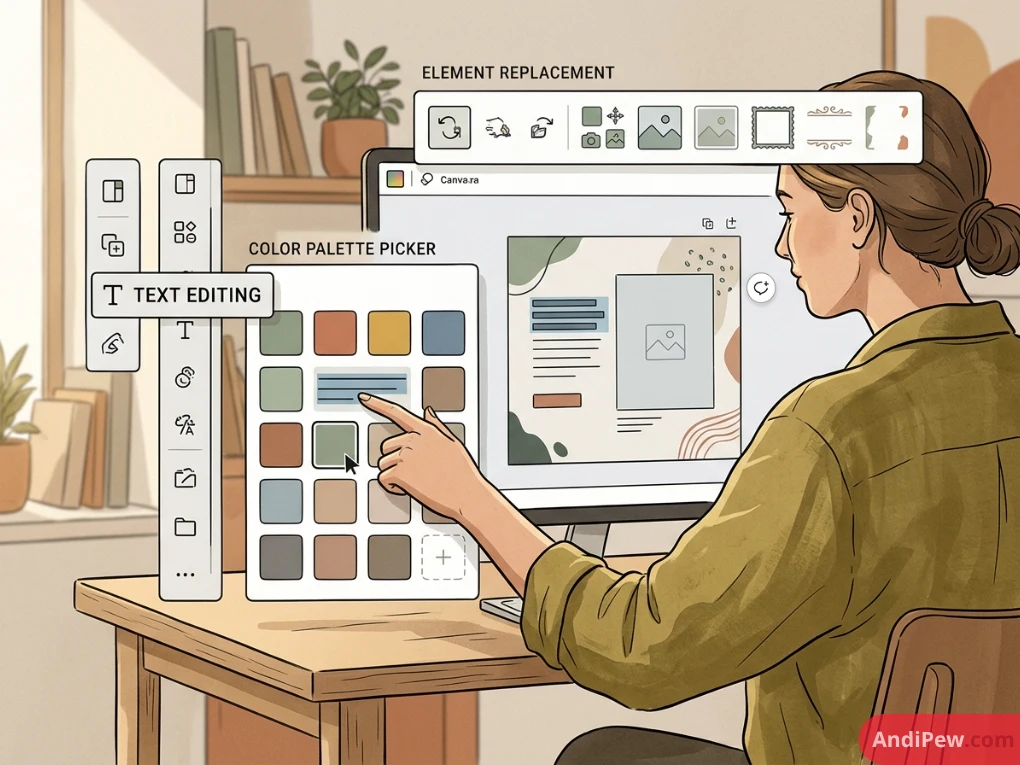
Once you open your layout, you are inside the Canva Editor. Mastering customize Canva template workflows comes down to four core adjustments: typography, color, media, and layout elements.
                       ┌─────────────────────────┐
                       │  Canva Template Canvas  │
                       └────────────┬────────────┘
                                    │
         ┌──────────────────────────┼──────────────────────────┐
         ▼                          ▼                          ▼
 ┌───────────────┐          ┌───────────────┐          ┌───────────────┐
 │ Edit Text &   │          │ Change Color  │          │ Replace Media │
 │  Typography   │          │    Palette    │          │  and Assets   │
 └───────────────┘          └───────────────┘          └───────────────┘
Editing and Styling Text
- Replace Text: Double-click any text box to highlight the placeholder copy, then type your content.
- Change Fonts: Select the text box and click the font dropdown in the top toolbar. Canva offers hundreds of typography options.
- Adjust Sizing and Spacing: Use the font size controls or click the Spacing button to fine-tune letter spacing (tracking) and line spacing (leading).
Customizing Colors with “Change All”
Never change background and accent colors box by box. Use Canva’s batch color tool:
- Click on any colored element or background block.
- Click the Color Tile on the top toolbar.
- Choose your new brand color or enter a custom Hex code (e.g.,
#1A365D). - At the bottom of the color panel, a prompt will appear: “Change all [Old Color] to [New Color]?”
- Click Change All. Canva instantly updates every matching color across your entire multi-page document.
Replacing Images and Videos (Frames & Grids)
Templates use placeholder images inside pre-arranged Frames:
- Go to the Uploads tab on the left sidebar to add your personal photos, or browse the Elements tab for stock photography.
- Click, drag, and drop your chosen image directly on top of the existing template photo.
- The image will automatically snap into the frame while maintaining the layout’s cropping and mask.
- Double-click the image within the frame to reposition, scale, or rotate it.
Managing Design Layers
Complex templates layer elements (shapes, drop shadows, text, frames) on top of each other:
- Right-click any element and select Layer > Show Layers.
- A sidebar panel will display every element on your canvas in order.
- Drag layers up or down to bring items forward or send them behind other elements without clicking blindly on the canvas.
For intermediate styling tricks and design composition rules, explore our library of detailed Canva tutorials.
Free vs. Pro: How to Use Canva Templates for Free
One common frustration for new creators is opening an attractive template only to find watermarks across images or a prompt requiring a paid subscription. Understanding Canva’s asset tiers will help you avoid unexpected charges.
┌──────────────────────────┬────────────────────────────┬────────────────────────────┐
│ Asset Type / Feature     │ Canva Free Account         │ Canva Pro Account          │
├──────────────────────────┼────────────────────────────┼────────────────────────────┤
│ Free Templates           │ Full access (100% free)    │ Full access                │
│ Pro Templates (Crown 👑) │ Watermarked / Pay to export│ Full access included       │
│ Stock Media (Free)       │ Free usage                 │ Free usage                 │
│ Stock Media (Pro 👑)     │ ~$1–$3 per single export   │ Unlimited free downloads   │
│ Magic Resize             │ Manual copy-pasting only   │ 1-Click Instant Resize     │
│ Transparent PNG Export   │ Not available              │ Fully supported            │
│ Brand Kits               │ Limited (1 palette, 3 cols)│ Unlimited Brand Kits       │
└──────────────────────────┴────────────────────────────┴────────────────────────────┘
How to Use Canva Templates for Free (Without Getting Billed)
- Filter Search Results: When searching for templates, click the All Filters button and scroll down to Price. Check the Free box. This eliminates all Pro-exclusive templates from your view.
- Scan for Hidden Pro Elements: Even on a free template, a designer may have inserted a premium icon or photo. Look for the faint crosshatch watermark or a small crown symbol in the bottom-right corner of an element.
- Swap Premium Elements: If you love a layout that has a Pro element, simply delete that specific image or icon. Replace it with a free alternative from the Elements tab. Once all assets on the canvas are free, your document downloads with zero cost.
Can You Legally “Use Canva Premium Templates for Free”?
Many users search for how to use canva premium templates for free. It is important to know the platform’s legitimate policies:
- The Legitimate Route: You can sign up for a Canva Pro 30-Day Free Trial. This grants full access to premium templates, Magic Switch resizing, transparent background exports, and premium stock libraries. Remember to cancel before the billing cycle if you do not plan to continue.
- Canva for Nonprofits & Education: Verified educators, students, and 501(c)(3) non-profit organizations can apply for free Pro-tier access (Canva for Education / Canva for Nonprofits).
- Important Notice: Third-party hacks, pirated asset scrapers, or unlicensed bypass tools violate Canva’s Terms of Service and risk account termination, legal liability, and copyrighted asset strikes. Always use built-in free assets or the official trial.

Working with Third-Party Templates (Etsy, Creative Market, Gumroad)
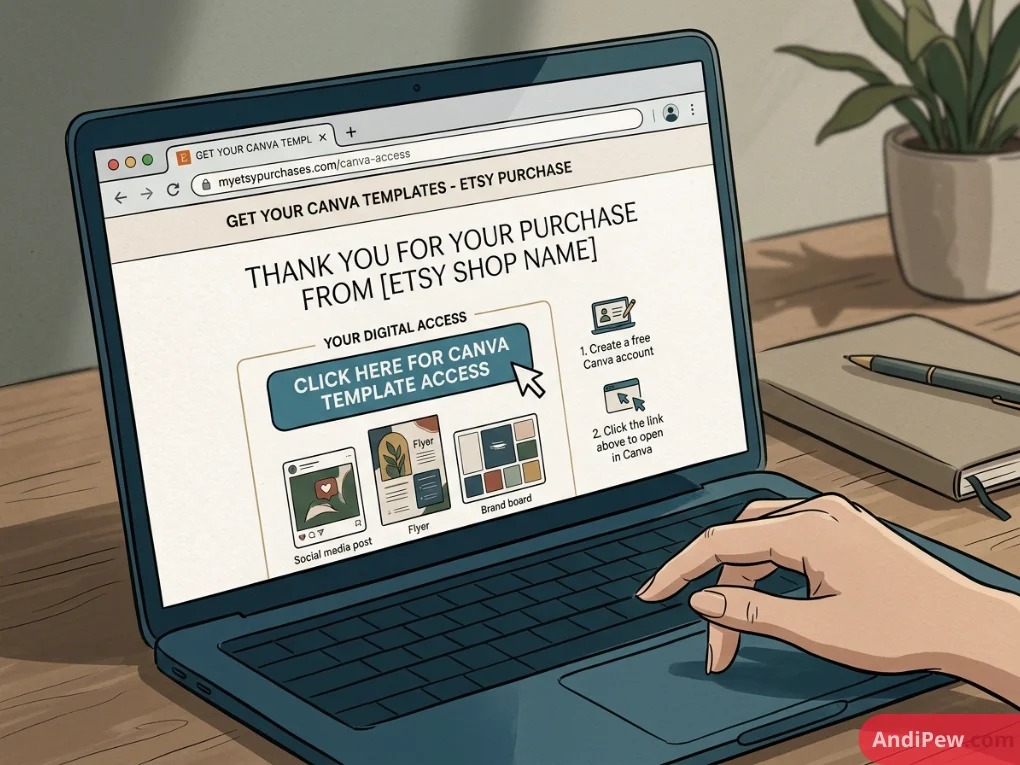
Thousands of professional creators sell bespoke Canva templates on platforms like Etsy. If you bought a bundle of social media graphics, client onboarding packets, or printable planners, here is how to use Canva templates from Etsy.
[Buy on Etsy] ──► [Download PDF Access Guide] ──► [Click Template Link] ──► [Canva Creates Working Copy]
Step-by-Step Etsy Template Import:
- Download Your Purchase File: After completing your Etsy purchase, go to Your Account > Purchases and Reviews and download the attached digital file (usually a
.PDF). - Open the Template Access Link: Open the downloaded PDF. Inside, the creator will provide a button or hyperlink reading “Click here to access your Canva Templates”.
- Inspect the Landing Page: Clicking this link takes you to a Canva landing page stating: “A template created by [Creator Name] was shared with you. Start designing now.”
- Click “Use Template for New Design”: Canva automatically duplicates the template and saves an independent master working copy into your personal Canva account.
- Protect Your Master Copy: Before you begin Canva template editing, click File > Make a copy. Label this file
[Project Name] - Master Backup. Edit only the duplicate. If you ever make an unfixable formatting mistake, your untouched original remains safe in your dashboard.
Integrating Canva Templates with PowerPoint & Google Slides
Canva is an exceptional presentation builder, but corporate environments often require native presentation formats (.pptx) or Google Drive collaboration.
                            ┌─────────────────────────┐
                            │    Canva Presentation   │
                            └────────────┬────────────┘
                                         │
                 ┌───────────────────────┴───────────────────────┐
                 ▼                                               ▼
     ┌───────────────────────┐                       ┌───────────────────────┐
     │  Export to PowerPoint │                       │ Export to Google      │
     │      (.pptx file)     │                       │        Slides         │
     └───────────────────────┘                       └───────────────────────┘
How to Use Canva Templates in PowerPoint
If you designed a presentation in Canva and want to present or edit it inside Microsoft Office:
- Open your presentation in the Canva editor.
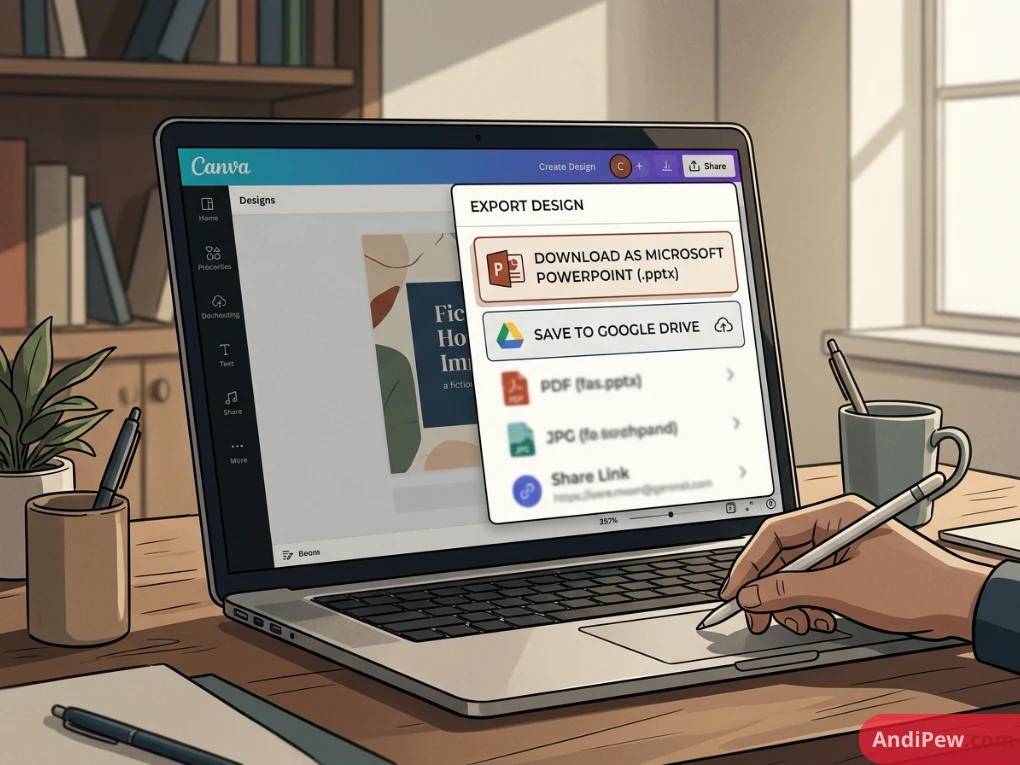
- Click the Share button in the upper right-hand corner.
- Click More (…) at the bottom of the dropdown menu.
- Scroll down to the Save section and select Microsoft PowerPoint (
.pptx). - Select the slide range you wish to export and click Download.
- Open the downloaded
.pptxfile inside PowerPoint. Text boxes, shapes, and images will remain editable components.
Pro Tip on Fonts: If your Canva template uses cloud-exclusive fonts not installed on your local computer, PowerPoint will substitute them with default system fonts (such as Arial or Calibri). For 100% visual fidelity during presentations, install the corresponding Google Fonts on your computer or export your Canva presentation as a high-resolution PDF Print.
How to Apply a Canva Template to an Existing PowerPoint Presentation
Many users ask how to apply canva template to existing powerpoint slides without starting over. While PowerPoint does not feature a one-click button to automatically skin legacy slides with a Canva layout, you can easily combine them using this hybrid workflow:
[Import PPTX into Canva] ──► [Apply Canva Layouts to Pages] ──► [Re-export as PPTX]
- Go to your Canva home screen and click Upload (or drag and drop your existing
.pptxfile onto the dashboard). - Canva automatically parses the PowerPoint file into an editable Canva presentation document.
- In the editor, open the Design / Templates tab in the left sidebar.
- Browse or search for the template design you want to adopt.
- Add a new slide from the template, then copy and paste your imported PowerPoint text into the new, stylized template layout.
- Once restyled, export the deck back out to
.pptxvia Share > More > Microsoft PowerPoint.
How to Use Canva Templates in Google Slides
Collaborating in Google Workspace? Follow these simple steps:
- In the Canva editor, click Share > More (…).
- Scroll to the Save category and choose Google Drive (or simply export as a Microsoft PowerPoint
.pptxfile to your computer). - Open Google Slides and start a blank presentation.
- Click File > Open > Upload tab, and select the exported
.pptxfile. - Google Slides converts the Canva layout into a native, cloud-editable Google Slides deck with isolated elements and text blocks intact.
How to Use Canva Templates to Make Money
Canva is not just a productivity tool—it powers profitable digital product businesses. From printable planners to social media kits, learning how to use canva templates to make money has created sustainable income streams for creators worldwide.
┌─────────────────────────────────────────────────────────────────────────────┐
│                       Canva Template Business Funnel                        │
├─────────────────────────────────────────────────────────────────────────────┤
│  1. Identify Market Demand (e.g., Notion covers, Real Estate flyers)        │
│  2. Build 100% Original Designs in Canva using FREE elements only           │
│  3. Generate a "Template Link" via the Share Menu                           │
│  4. Embed the Template Link inside a Delivery PDF                           │
│  5. List on Etsy, Shopify, or Gumroad & Earn Scalable Passive Income        │
└─────────────────────────────────────────────────────────────────────────────┘
Step 1: Research High-Demand Niches
Do not build generic templates. Create targeted solutions for specific industries:
- Social Media Bundles: 50 Real Estate Instagram Carousel templates, Pinterest pins for food bloggers.
- Lead Magnets & E-books: Coaching workbooks, fitness challenge trackers, recipe books.
- Small Business Essentials: Invoices, price lists, brand guidelines, wholesale line sheets.
- Printables: Wedding stationery suites, daily planners, habit trackers, chore charts.
Step 2: Build Using Only 100% Free Elements
When selling templates, you must only use Free Canva elements, fonts, and frames. If you include Pro assets, your paying customers will be greeted with watermarks and paywalls when they try to export their files, leading to refund requests and negative reviews.
Step 3: Create the Official “Template Link”
Never share a direct editor link ([canva.com/design/.../edit](https://canva.com/design/.../edit)) with a client or buyer. If you do, their edits will overwrite your original master file!
How to generate a secure Template Link:
- Open your finished original design in Canva.
- Click Share in the top-right corner.
- Click Template link (under the share options).
- Copy the unique URL generated by Canva (
[canva.com/template/](https://canva.com/template/)...). - When a customer clicks this link, Canva creates a brand-new instance of your design in their personal account without affecting your master copy.
Step 4: Understand Canva’s Commercial Licensing Rules
- What is Allowed: Designing completely original layouts, adding your own copy, assembling elements into a unique composition, and selling that composition as a template link or flattened digital product.
- What is Strictly Prohibited: Reselling standalone, unedited Canva stock elements, claiming Canva’s default templates as your own, or redistributing stock library files directly.
Expert Tips for Canva Template Customization
To ensure your customized graphics look like they were crafted by an agency rather than thrown together from a template, follow these best practices:
- Limit Your Typefaces to Two: Stick to one header font (bold, expressive, or serif) and one body font (clean, legible sans-serif like Montserrat, Open Sans, or Inter).
- Respect White Space: Avoid crowding the edges of your canvas. Give text boxes, logos, and margins room to breathe.
- Apply the 60-30-10 Color Rule: Make 60% of your canvas a dominant neutral color (white, beige, slate), 30% a secondary brand tone, and 10% an intentional accent color (for CTA buttons, highlights, and key dates).
- Use Canva’s Alignment & Tidy Up Tools: Select multiple elements, click Position, and select Tidy Up to ensure exact, uniform spacing horizontally and vertically.
- Lock Master Background Elements: Click an element and tap the Padlock icon in the top toolbar. This locks background elements in place so you do not accidentally shift them while editing text overlays.
Frequently Asked Questions (FAQ)
Can I use Canva templates for commercial purposes?
Yes. You can customize Canva templates and use the resulting designs for commercial marketing, client work, social media management, advertisements, physical flyers, and business stationery. However, you cannot resell Canva’s pre-made stock templates as-is without making substantial creative modifications.
Why do my exported slides look different in PowerPoint than in Canva?
This happens when your Canva template uses custom fonts that are not installed on your local computer. When PowerPoint opens the file, it substitutes unavailable fonts with standard system typefaces. To fix this, download and install the free Google Fonts used in your template onto your Mac or PC, or export the deck as a PDF.
What happens if I edit a shared template link?
When you open an official Canva Template Link (such as one purchased on Etsy or shared by a colleague), Canva automatically creates an independent copy in your personal account. Any changes, edits, or deletions you make apply only to your copy and will never alter the original creator’s file.
How do I revert an accidental mistake on a Canva template?
You can immediately undo any action by pressing Ctrl + Z (Windows) or Cmd + Z (Mac), or by clicking the Undo arrow in the top navigation bar. If you have Canva Pro, you can also view and restore older snapshots of your document via File > Version history.
Can I convert a Canva template into a custom size?
Yes. Canva Pro subscribers can use the Magic Switch (Resize) tool in the top menu to instantly convert any design (e.g., an Instagram Post) into another preset (e.g., a Pinterest Pin, Story, or Flyer). If you are using a Free account, you can manually create a blank canvas with your target dimensions and copy-paste the elements over.
Conclusion
Learning how to use Canva templates unlocks the ability to produce high-impact, brand-aligned visual content without spending thousands on software or agency retainers. By mastering the search filters, mastering batch color and typography edits, properly handling third-party imports from Etsy, and leveraging cross-platform exports to PowerPoint and Google Slides, you can streamline your entire content production workflow.
Remember the golden rule of template design: templates are your foundation, not your final product. Use them to guide your structure, then infuse your unique brand voice, color palette, and assets to make every design your own.