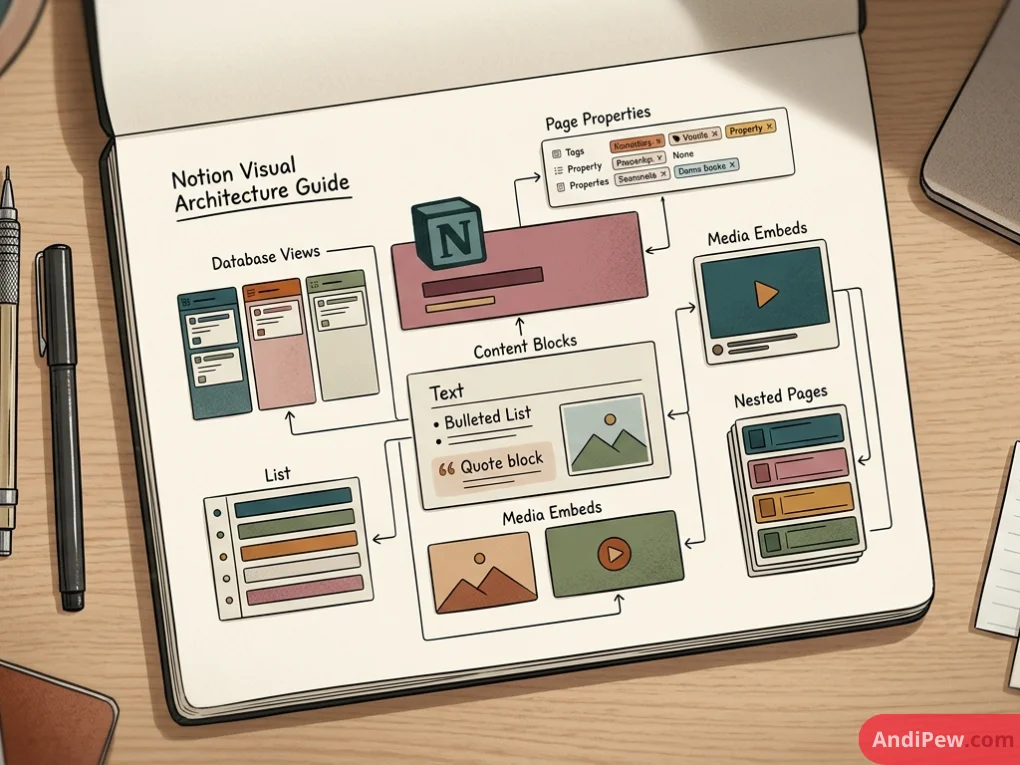
Every workspace in Notion, from a simple daily checklist to an enterprise company wiki, is built entirely from two foundational elements: pages and blocks.
Unlike traditional word processors that treat documents as continuous sheets of text, Notion functions like digital Lego bricks. Understanding how Notion pages and blocks snap together lets you turn a blank canvas into a tailored operating system for your work and life.
If you are just getting started with workspace design, check out our comprehensive Notion guide for broader workspace concepts. In this guide, we break down the mechanics of Notion blocks, how to structure robust pages, practical real-world examples, plan limitations, and troubleshooting strategies.
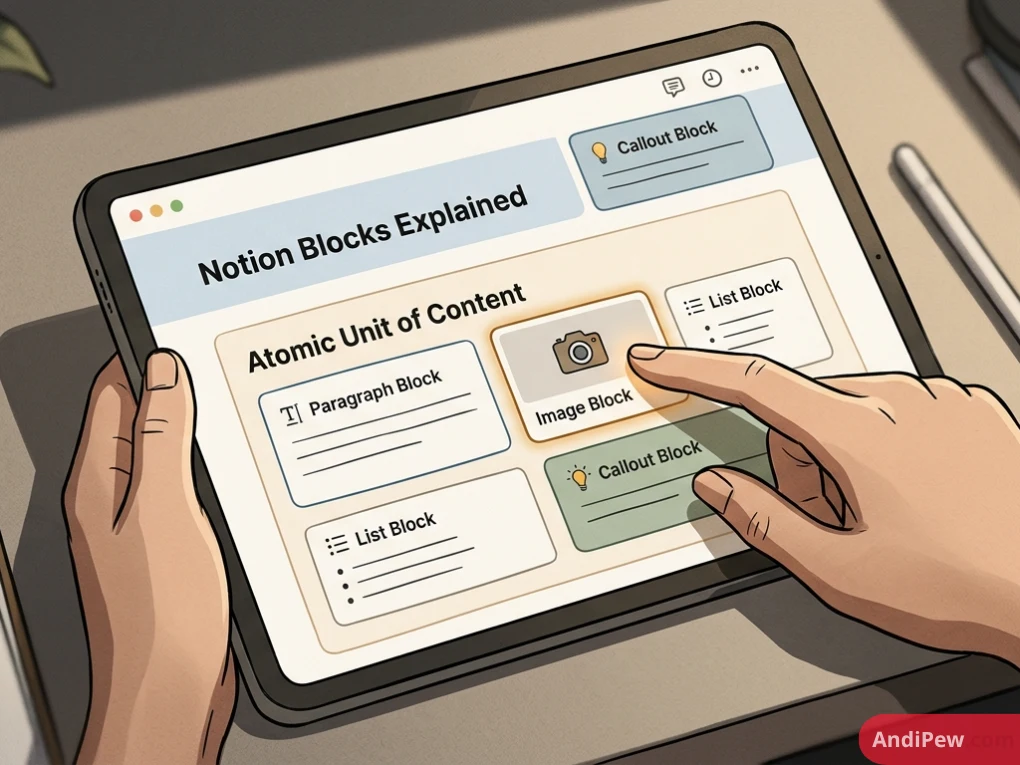
Notion Blocks Explained: The Atomic Unit of Content
To understand Notion, you must first understand blocks. In Notion, every single item you add to a canvas is an individual block. A paragraph of text is a block. A heading is a block. An uploaded image, a checkbox, an embedded spreadsheet, and even an entire nested sub-page are all distinct blocks.
+--------------------------------------------------------+
|  Page Title (Container Block)                          |
|  +--------------------------------------------------+  |
|  | [::] Heading 1 Block                             |  |
|  +--------------------------------------------------+  |
|  | [::] Paragraph Text Block                        |  |
|  +--------------------------------------------------+  |
|  | [::] [Image Block / Callout / Checklist]         |  |
|  +--------------------------------------------------+  |
|  | [::] Sub-Page Block (Nested Container)           |  |
|  +--------------------------------------------------+  |
+--------------------------------------------------------+
The Anatomy of a Block
Every block in Notion shares three universal operational features:
- The Six-Dot Handle (
::): Hovering over any block displays a handle on the left margin. Clicking and dragging this handle lets you reorder blocks or place them side-by-side into multi-column layouts. - The Context Menu: Clicking the handle opens an action menu where you can delete, duplicate, convert (
Turn into), or copy an anchor link to that specific block. - The Slash Command (
/): Typing/on any blank line summons the block selector, allowing you to insert any element instantly without lifting your hands from the keyboard.
Core Notion Block Types and When to Use Them
Notion categorizes its blocks into distinct groups depending on function. Knowing which block type fits your objective prevents interface clutter and improves readability.
| Block Category | Representative Block Types | Best Use Cases |
| Basic Blocks | Text, Headings (H1–H3), Bulleted/Numbered Lists, To-Do Lists, Toggles | Standard notes, task checklists, FAQs, hierarchical documents |
| Callout & Emphasis | Callouts, Quotes, Dividers | Highlighted warnings, key takeaways, visual section breaks |
| Media Blocks | Images, Videos, Audio, File Attachments, Code Blocks | Design briefs, multimedia reference hubs, technical documentation |
| Database Blocks | Tables, Boards (Kanban), Lists, Galleries, Calendars, Timelines | Project tracking, CRM, content calendars, asset inventories |
| Advanced Blocks | Synced Blocks, Table of Contents, Math Equations, Breadcrumbs | Global headers, long-form reference navigation, formula rendering |
| Embed Blocks | Google Drive, Figma, GitHub, PDF, Loom, Maps | Integrating third-party deliverables directly into context |
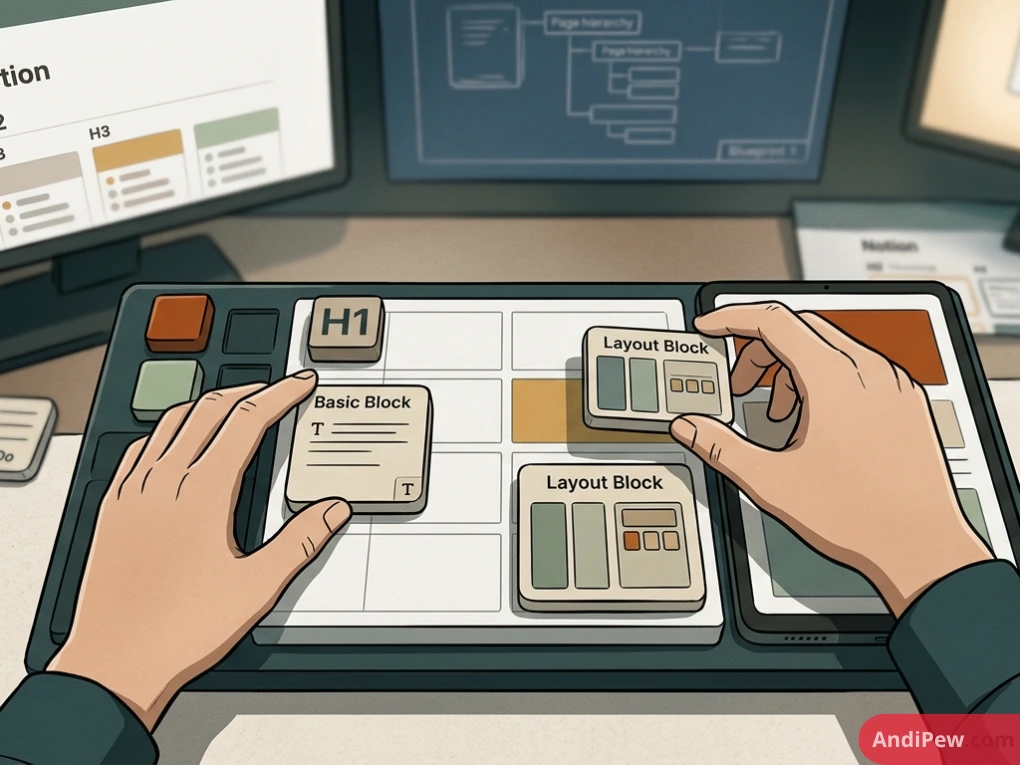
Basic and Layout Blocks
Headings (H1, H2, H3): Establish visual and semantic hierarchy. Use H1 for main section divisions, H2 for subtopics, and H3 for tactical breakdowns.
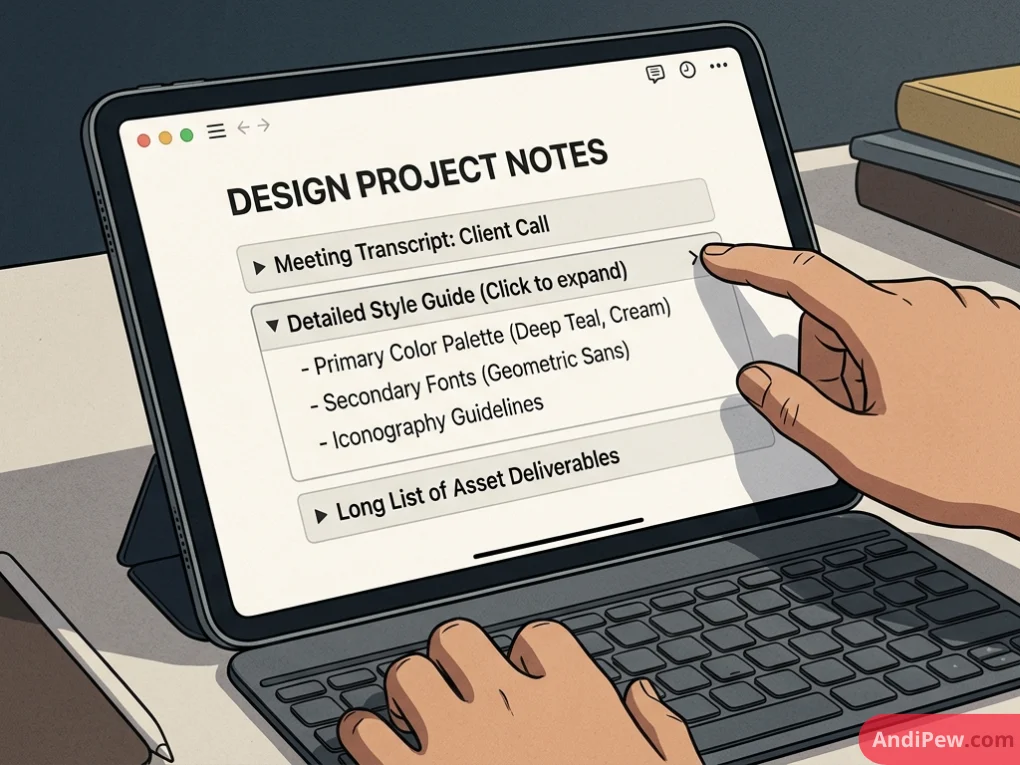
Toggle Lists: Perfect for minimizing visual clutter. Toggles hide long lists, meeting transcripts, or detailed instructions behind a clickable chevron.
Callout Blocks: Enclose text within a shaded background box with an icon. Ideal for warnings, summary principles, or central dashboard tips.
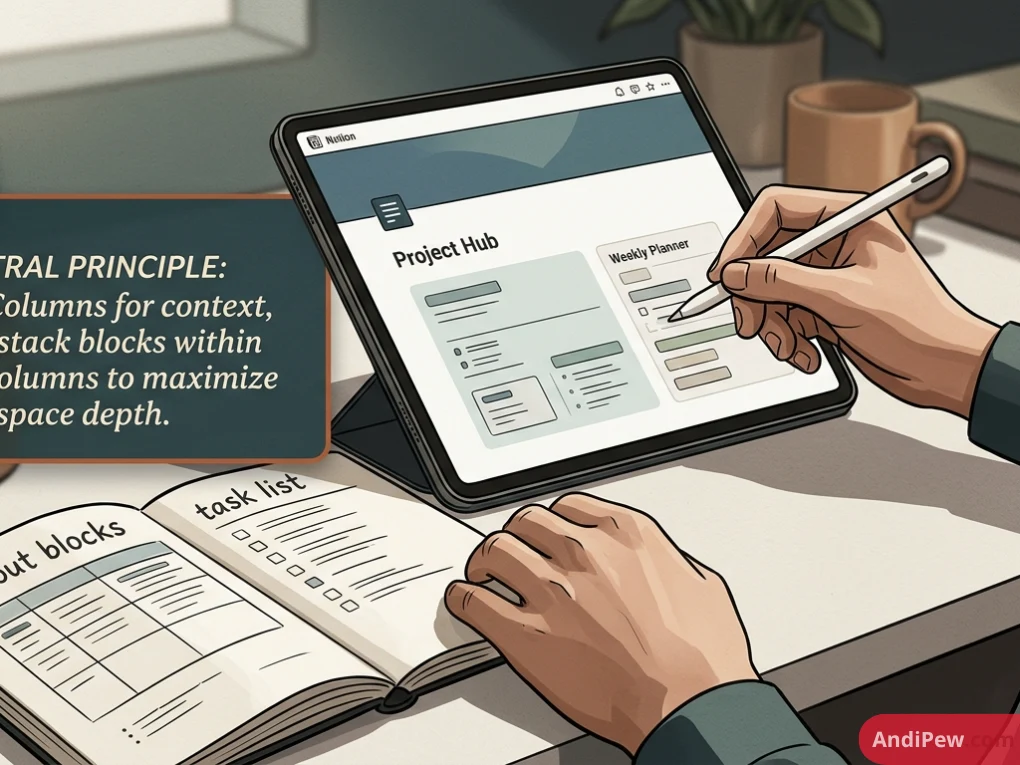
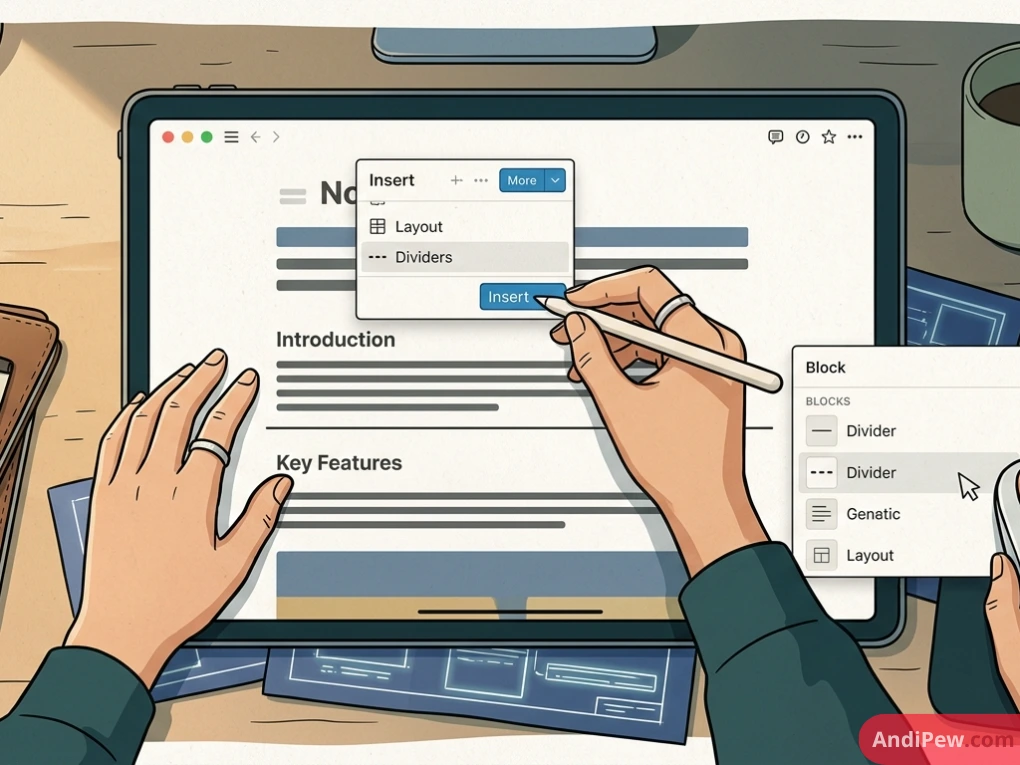
Dividers (---): Create clean horizontal rules across sections to prevent cognitive overload.
Advanced Structural Blocks
- Synced Blocks: A synced block updates simultaneously across every page where it is placed. If you update a navigation menu or master goal checklist inside one synced block, every linked instance across your workspace updates in real time.
- Table of Contents: Dynamically generates a clickable navigation menu based on the headings (H1–H3) present on your active page.
Notion Page Structure Guide: Organizing for Usability
A Notion page serves a dual purpose: it is simultaneously a document and a folder. Because pages can live infinitely inside other pages, establishing a clean page structure guide is vital for preventing sprawling “workspace sprawl.”
Master Workspace (Root Dashboard)
│
├── 📂 Personal Hub (Page)
│   ├── 📝 Daily Journal (Database Page)
│   └── 🥗 Meal Planner (Database Page)
│
└── 📂 Work Hub (Page)
    ├── 🚀 Active Projects (Kanban Board)
    │   └── 📄 Project Alpha (Page with Task Blocks)
    └── 📚 Knowledge Wiki (Nested Sub-Pages)
The Root Page (Parent Dashboard)
Your root page acts as your primary navigation dashboard. Avoid dumping raw notes directly onto this canvas. Instead, treat it like an executive directory populated with:
- High-level navigation cards (sub-pages or gallery views).
- Quick-capture task lists.
- Synced workspace announcements.
Intermediate Hubs (Functional Containers)
Hubs organize related operational streams, such as “Finance,” “Marketing,” or “Personal Habits.” These contain nested sub-pages and filtered database views relevant only to that domain.
Leaf Pages (Atomic Documents)
These are your final documents: specific meeting notes, recipe cards, or sprint documentation. Keep these focused on basic text, media, and task list blocks.
Real-World Notion Page Examples
To see how blocks and page hierarchies work in practice, let’s explore three practical templates.
Example 1: Project Management Sprint Page
+-------------------------------------------------------------------------+
|  [Icon] Sprint 24: Core Infrastructure Launch                           |
|  [Cover Image: Abstract Architecture]                                   |
|                                                                         |
|  > [Callout] Goal: Ship authenticated API routing by Friday EOD.        |
|                                                                         |
|  +-----------------------------+  +----------------------------------+  |
|  |  Column 1: Team & Scope     |  |  Column 2: Quick Links           |  |
|  |  * Lead: Alex M.            |  |  * Figma Spec (Embed)            |  |
|  |  * Status: In Progress      |  |  * GitHub PR (Embed)             |  |
|  +-----------------------------+  +----------------------------------+  |
|                                                                         |
|  --- (Divider)                                                          |
|                                                                         |
|  ## Sprint Tasks (Inline Database Board View)                          |
|  [ To Do (3) ]          [ In Progress (2) ]       [ Done (8) ]          |
|  +---------------+      +-----------------+       +----------------+    |
|  | Database Auth |      | Rate Limiting   |       | Schema Setup   |    |
|  +---------------+      +-----------------+       +----------------+    |
+-------------------------------------------------------------------------+
- Callout Block: Formats the sprint thesis and deadline prominently at the top.
- Two-Column Layout: Houses metadata on the left and live third-party asset embeds on the right.
- Inline Database Block: Displays active tasks using a Kanban Board view filtered by sprint stage.
Example 2: Notion for Meal Planning Dashboard
Using Notion for meal planning eliminates repetitive decision-making and automates shopping lists by pairing structural blocks with relation databases.
+-------------------------------------------------------------------------+
|  [Icon] Weekly Kitchen & Nutrition Hub                                  |
|                                                                         |
|  ## Weekly Menu                                                         |
|  [Mon: Mediterranean Bowl] [Tue: Sheet Pan Salmon] [Wed: Stir Fry]      |
|                                                                         |
|  +----------------------------------+  +-----------------------------+  |
|  |  Active Grocery List (Checklist) |  |  Recipe Vault (Gallery)     |  |
|  |  [ ] Organic Spinach             |  |  +-----------------------+  |  |
|  |  [ ] Wild Salmon Fillets         |  |  | [Img] Garlic Chicken  |  |  |
|  |  [ ] Olive Oil                   |  |  +-----------------------+  |  |
|  +----------------------------------+  +-----------------------------+  |
+-------------------------------------------------------------------------+
- Gallery Database Block: Visual recipe cards featuring ingredient checklists, cooking steps, and cover photos of dishes.
- Weekly Board View: Columns organized Monday through Sunday where recipe cards are assigned to specific days.
- To-Do List Block: An interactive checklist for the grocery store, populated directly from recipe requirements.
Example 3: Long-Form SOP / Technical Wiki
- Table of Contents Block: Positioned at the top to let team members jump straight to relevant sections.
- Toggle Blocks: Encapsulate edge-case troubleshooting rules so users aren’t overwhelmed by text.
- Code Blocks: Render formatted syntax with one-click copy functionality.
Understanding Notion Free Plan Limitations
Notion’s free tier is one of the most generous in the SaaS productivity space, but scaling personal or team projects requires knowing where the boundaries lie.
| Plan Feature | Free Plan | Plus / Business Plans |
| Total Blocks (Individual User) | Unlimited | Unlimited |
| Total Blocks (Multiple Team Members) | Limited block trial (~1,000 blocks shared) | Unlimited |
| File Upload Limit | Up to 5 MB per file | Unlimited individual file size |
| Page History (Version Control) | 7 Days | 30 to 90 Days (Enterprise: Unlimited) |
| Guest Collaborators | Up to 10 guests | 100 to 250 guests |
| Permission Granularity | Full page-level sharing | Workspace-wide team spaces & groups |
Key Rule: If you are an individual building a personal knowledge base, the Free Plan provides unlimited blocks and pages. The primary technical limit you will encounter is the 5 MB per file upload ceiling, which is easily bypassed by hosting large media on Google Drive or YouTube and using Notion’s embed blocks.
Troubleshooting: What to Do When Notion Website is Not Working
If you encounter performance issues, blank pages, or synchronization lags, systematic troubleshooting gets your workspace back online fast.
+-------------------------------------------------------+
|          Notion Website Not Working?                  |
+-------------------------------------------------------+
                           |
                           v
        [ Step 1: Check status.notion.so ]
         /                             \
     (Outage)                       (Operational)
        |                                 |
  Wait for fix                            v
                           [ Step 2: Test Incognito Window ]
                            /                             \
                      (Works)                         (Fails)
                         |                               |
                 Clear browser cache             Check network/DNS
                 & disable extensions            or desktop app
Check Official System Status: Visit status.notion.so to verify whether Notion is experiencing an API disruption, database degradation, or cloud infrastructure downtime.

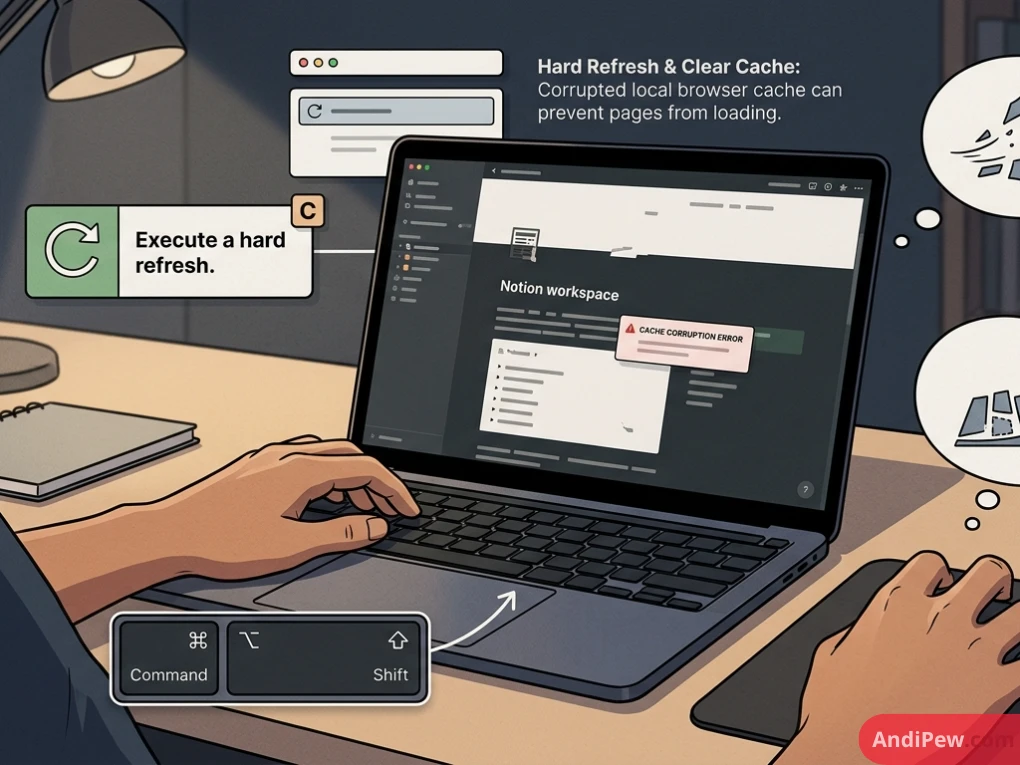
Hard Refresh & Clear Cache: Corrupted local browser cache can prevent pages from loading. Execute a hard refresh:
- Windows/Linux:
Ctrl + F5orCtrl + Shift + R - macOS:
Cmd + Shift + R
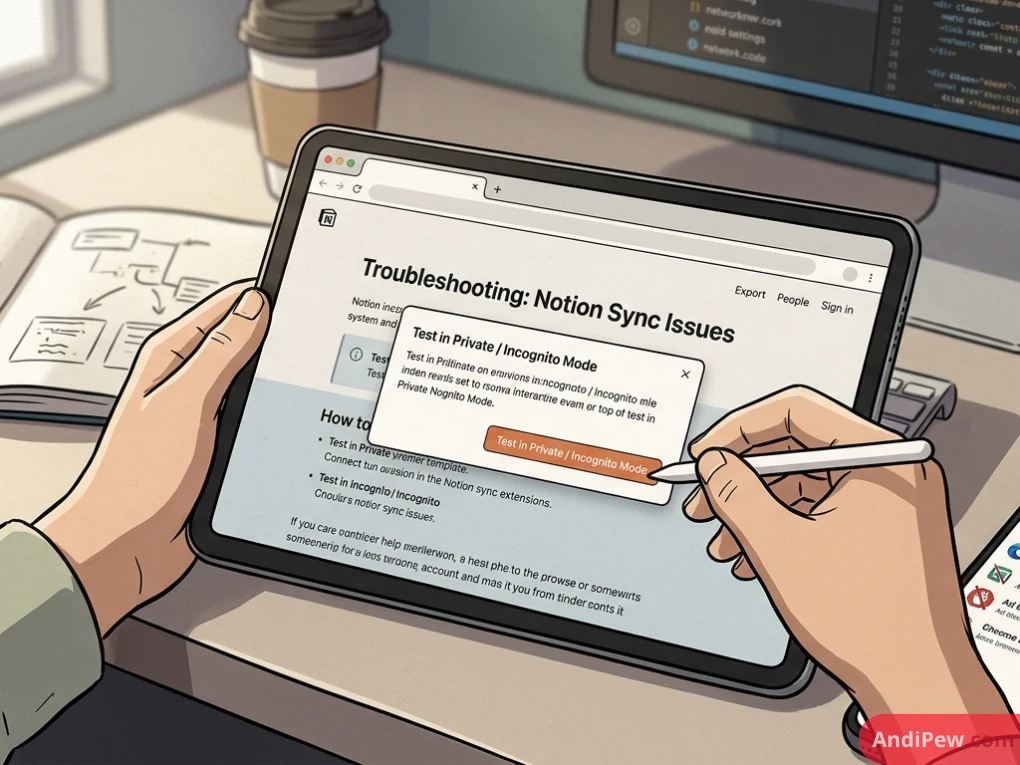
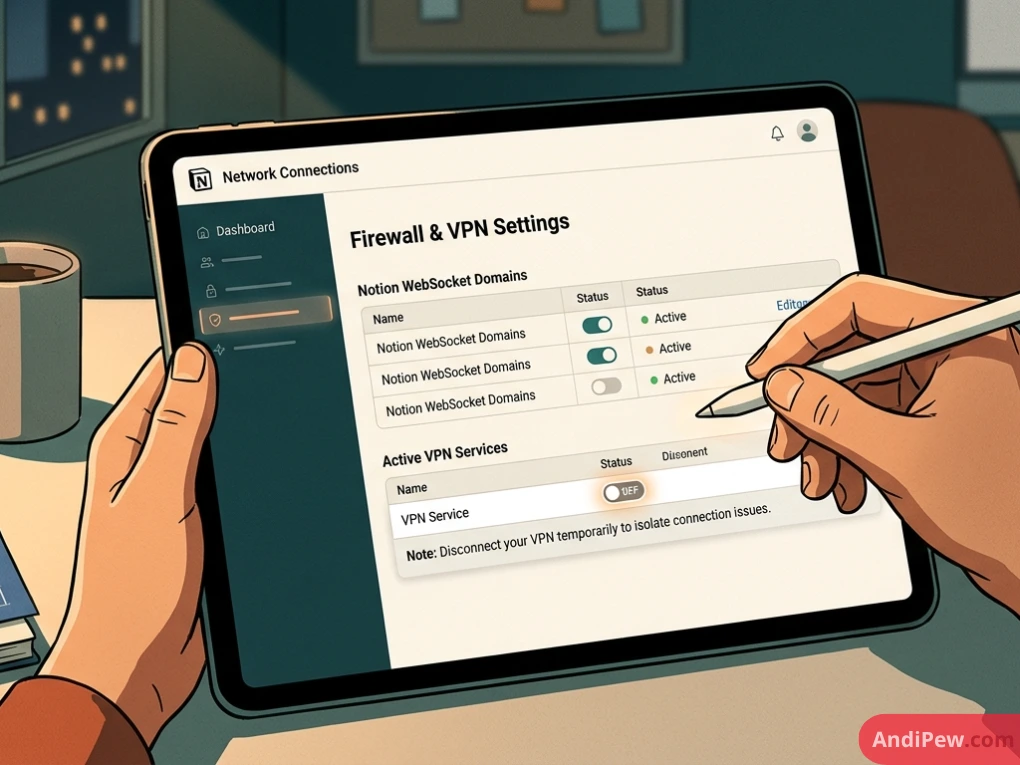
Test in Private / Incognito Mode: Conflicting browser extensions (particularly ad blockers and script injectors) can disrupt WebSocket connections required for Notion’s real-time sync.
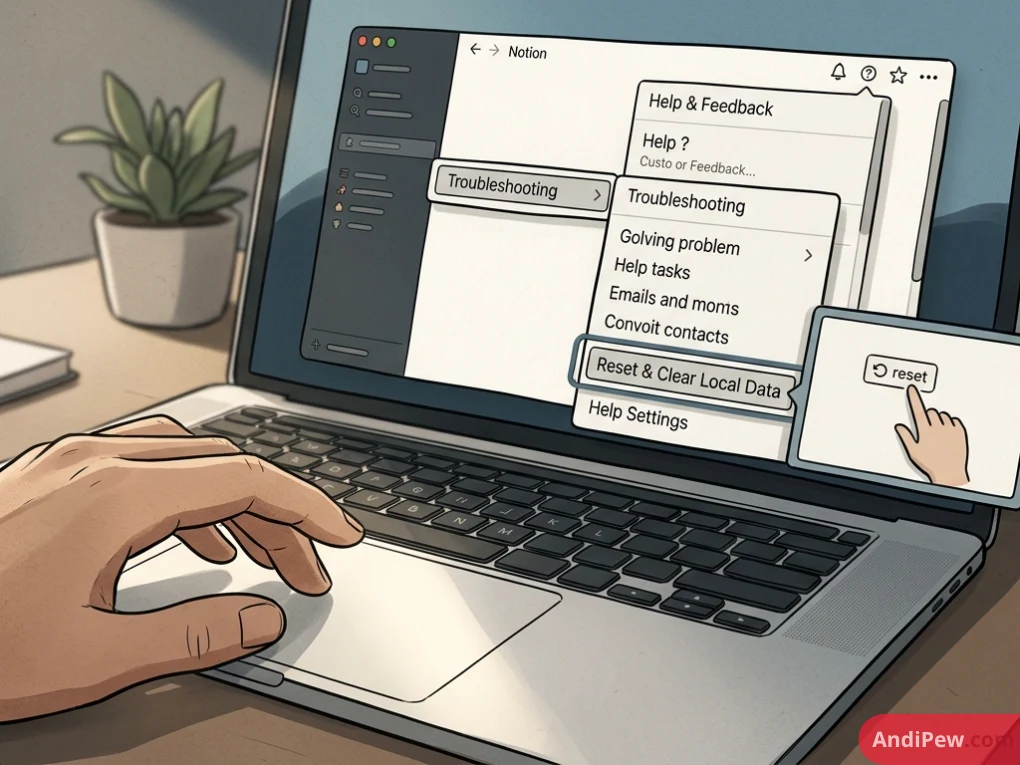
Reset the Desktop App: If using the standalone client, navigate to Help & Feedback > Troubleshooting > Reset & Clear Local Data.
DNS & Firewall Configurations: Corporate networks and VPNs occasionally block Notion’s WebSocket domains (*.notion.so and AWS data channels). Disconnect your VPN temporarily to isolate the issue.
Best Practices for Scaling Notion Workspaces
To keep your workspace snappy and clutter-free as it grows:
- Avoid Mega-Pages: Do not dump hundreds of media embeds onto a single un-paginated page. Distribute content across nested sub-pages.
- Limit High-Volume Inline Databases: Loading multiple inline databases with hundreds of unindexed records slows down render speeds. Apply default filters (
Status = ActiveorCreated within last 30 days) to keep pages lightweight. - Leverage Synced Blocks Sparingly: While powerful, nesting dozens of complex synced blocks within other synced blocks can increase page load latency.
Frequently Asked Questions (FAQ)
What is the difference between a page and a block in Notion?
In Notion, a block is the fundamental element of content (such as a paragraph, heading, image, or bullet point). A page is simply a specialized block that acts as a container for other blocks. Every page can hold an unlimited number of blocks, including other sub-pages.
Can a Notion block be converted into another block type?
Yes. Click the six-dot handle (::) to the left of the block, select Turn into, and choose your desired format (e.g., converting a standard paragraph into a Heading 2, Callout, or Toggle List).
How do I create multi-column layouts using blocks?
Click and hold the six-dot handle (::) next to any block, drag it to the far right or left edge of another block until you see a vertical blue guide line, then release. You can create up to five side-by-side columns.
Are there block limits on the Notion Free Plan?
For single users, the Notion Free Plan includes unlimited blocks and pages. If you add two or more members to a shared team workspace on the free tier, Notion activates a limited trial block quota across that shared space.
Mastering Notion pages and blocks transforms the application from a simple note-taking scratchpad into a scalable engine for your personal and professional productivity. By combining structural containers, dynamic database views, and reusable block templates, you can build an operating system tailored exactly to how your mind works.
Ready to build a workspace that stays organized automatically? Explore our comprehensive Notion guide to learn advanced database relations, rollup formulas, and automated productivity systems.