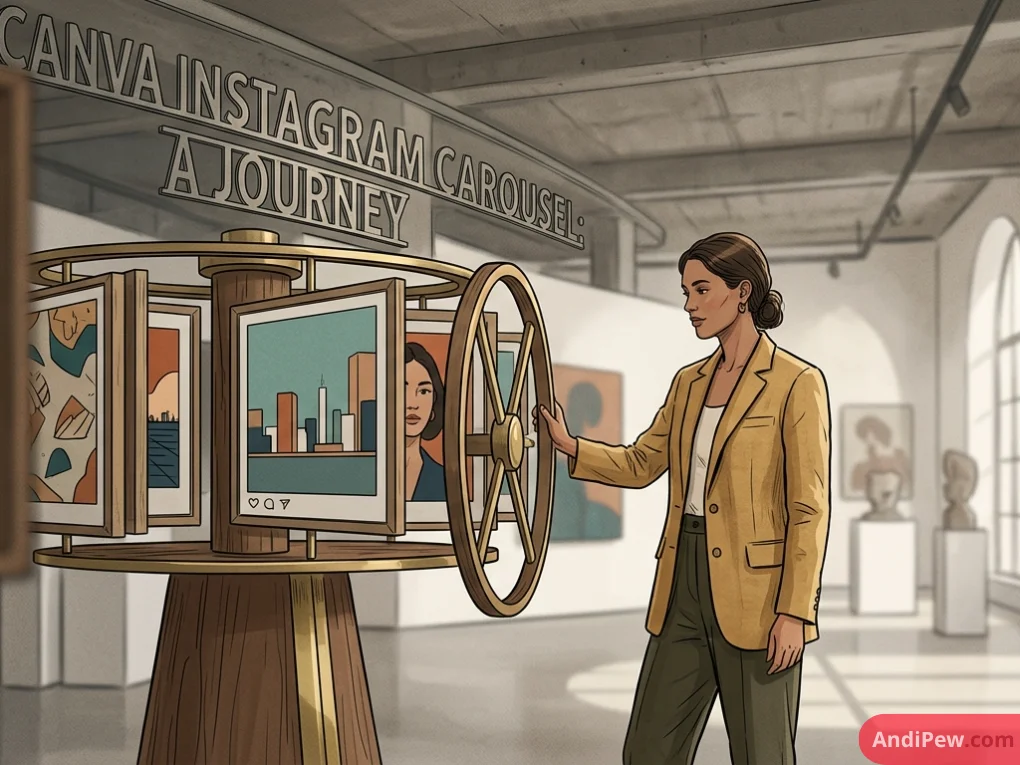
Struggling to keep your audience engaged on a crowded feed? A Canva Instagram carousel is a multi-slide visual post created by setting a wide custom dimension in Canva and dividing it into equal square or portrait sections. By calculating your total width (number of slides multiplied by 1080 pixels) while keeping the height fixed, you create a continuous, swipeable canvas.
This seamless technique stops the scroll and dramatically boosts engagement rates. This comprehensive 2026 guide explains how to master these designs, utilize AI tools, prevent compression blur, and structure slides for maximum impact.
Quick Summary:
- Standard portrait dimension: 1080 x 1350 pixels per slide (ideal for the 2026 algorithm).
- Seamless formula: Multiply 1080 by the number of slides to find your total canvas width.
- Export format: Always use PNG format to prevent Instagram image compression blur.
- Splitting tools: Use third-party grid cutters to slice the wide canvas before uploading.
What are the Best Dimensions for a Canva Instagram Carousel?
The best dimensions for a Canva Instagram carousel in 2026 are 1080 x 1350 pixels per slide (4:5 portrait ratio). To create a seamless design, multiply the base width of 1080 by your total number of slides, while keeping the canvas height fixed at 1350 pixels.
Instagram algorithms heavily favor the 4:5 portrait ratio over traditional 1:1 squares. A taller image occupies significantly more vertical screen real estate on mobile devices. This keeps users focused on your content longer and pushes competing posts off the screen.
To calculate your custom seamless canvas, use a simple formula: Number of Slides × 1080 px = Total Width. For example, a 5-slide portrait carousel requires a custom Canva dimension of 5400 x 1350 px.
Once your wide canvas is open, you must enable Canva’s built-in rulers and guides (File > View settings > Show rulers and guides). Drag vertical guide lines from the left ruler and drop them at exact 1080px increments (1080, 2160, 3240, etc.). These lines visually slice the canvas, showing exactly where the images will be split later.
| Number of Slides | Square Width (1:1) | Portrait Width (4:5) | Fixed Height |
| 2 slides | 2160 px | 2160 px | 1080 or 1350 px |
| 3 slides | 3240 px | 3240 px | 1080 or 1350 px |
| 4 slides | 4320 px | 4320 px | 1080 or 1350 px |
| 5 slides | 5400 px | 5400 px | 1080 or 1350 px |
| 10 slides | 10800 px | 10800 px | 1080 or 1350 px |

How to Make an Instagram Carousel in Canva Step-by-Step
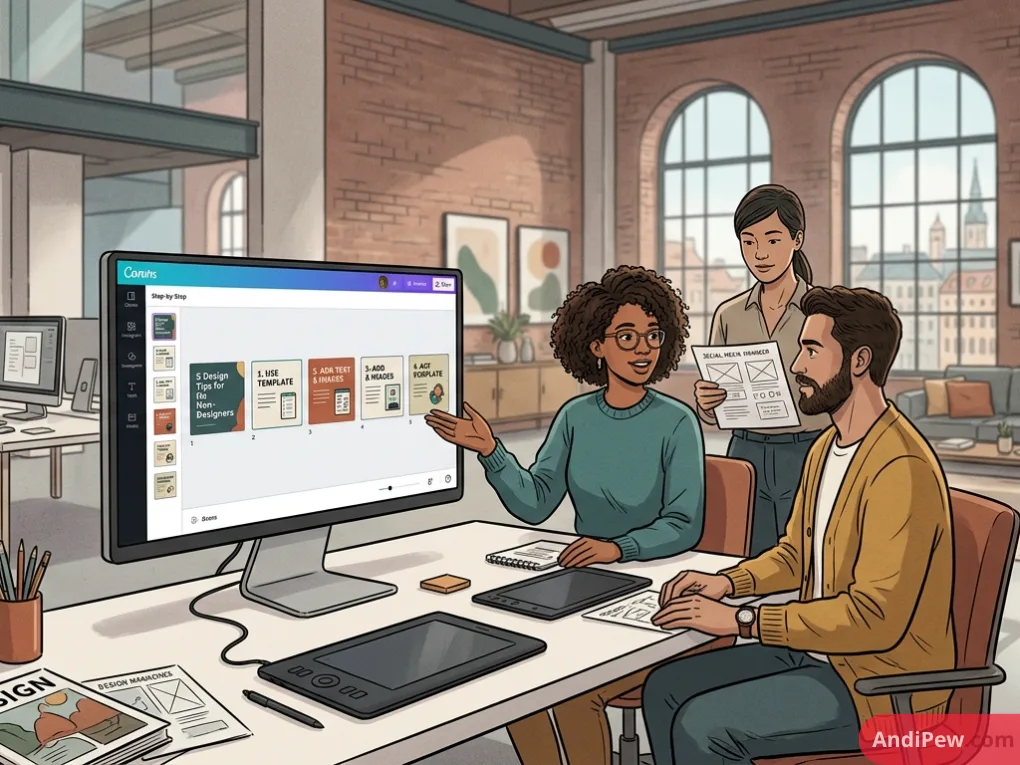
Wondering how to make an Instagram carousel in Canva effortlessly? Start by creating a custom-sized design based on your slide count, activate rulers to map out your breaks, and deliberately position elements across these seams to craft a continuous visual journey.
Follow these exact steps to build your seamless design:
- Open Canva and click “Create a design.” Select “Custom size” at the bottom of the dropdown menu.
- Enter your calculated dimensions. Input your total width (e.g., 5400) and your fixed height (1080 or 1350).
- Activate workspace guides. Navigate to
File > View settings > Add guidesand set custom vertical grids, or manually drag lines to every 1080px mark. - Position your seamless graphics. Drag design elements, shapes, and images directly across the vertical guide lines. This creates the “seamless” illusion when users swipe to the next frame.
- Secure your typography. Keep core text and crucial information away from the guide lines and outer edges to avoid awkward typography cut-offs.
How to Use Canva AI to Speed Up Carousel Creation
Designing a Canva carousel template from scratch takes time. Thankfully, Canva’s AI-powered Magic Studio automates copywriting, accelerates bulk generation, and suggests on-brand background aesthetics, cutting your production time in half.
Leverage these specific tools to scale your content production:
- Magic Write: Generate slide-by-slide copy instantly. Use a prompt like “Write a 5-slide Instagram carousel outlining SEO tips” to get perfectly segmented text ready for pasting.
- Bulk Create: Connect a CSV file directly to your pre-designed Canva carousel template. The Bulk Create app maps your spreadsheet data to specific text boxes, generating weeks of content in seconds.
- Magic Design: Upload your brand assets or raw photos, and Magic Design will automatically suggest background aesthetics and layouts tailored to your visual identity.
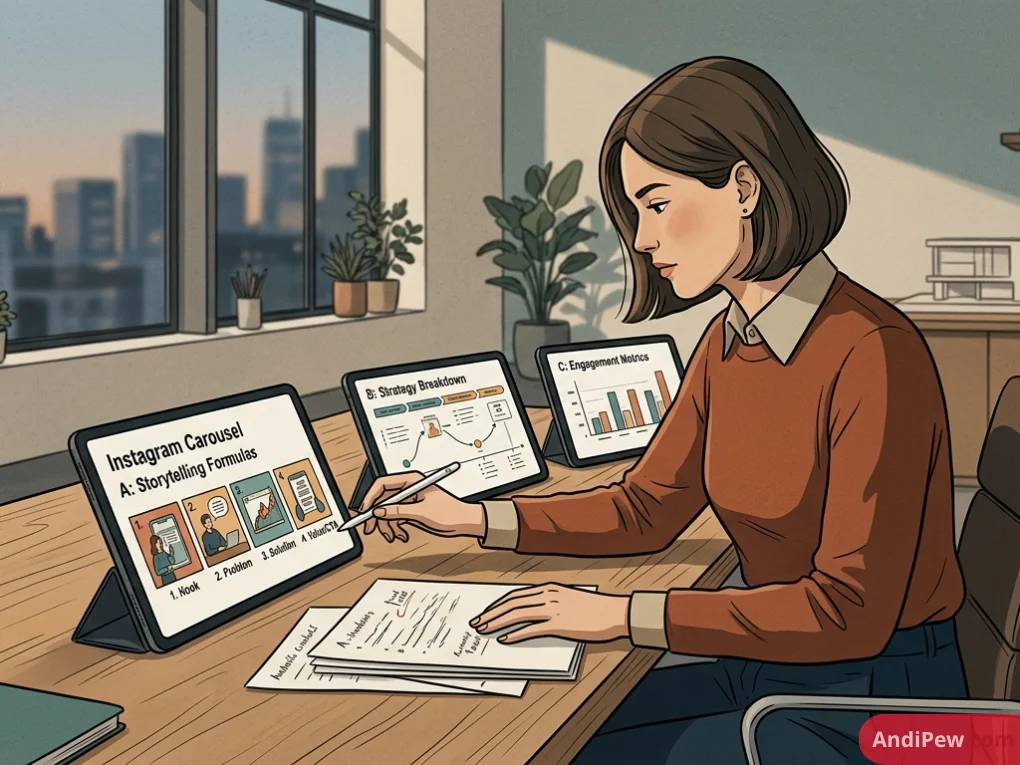
Proven Storytelling Formulas for Instagram Carousels
Aesthetic templates fail without a structured storytelling strategy. The most beautiful seamless graphics will not convert if the copywriting lacks information gain and a clear psychological progression.
High-converting multi-slide posts follow a strict anatomy. Every paragraph must earn its place.
Slide Mapping Strategy:
- Slide 1 (The Hook): Grab attention immediately. Use a concrete, disruptive statement. Example hook: “Stop doing keyword stuffing, try this semantic SEO framework instead.”
- Slides 2-3 (Agitating the Problem): Validate the user’s struggle. Explain why their current approach fails using real numbers and relatable scenarios.
- Slides 4-8 (Actionable Solutions): Deliver the core value. Provide self-contained claims, step-by-step instructions, and concrete examples that viewers can implement immediately.
- Slides 9-10 (Call to Action): Direct the user on what to do next. Clearly ask them to save the post, share it, or click the link in your bio.
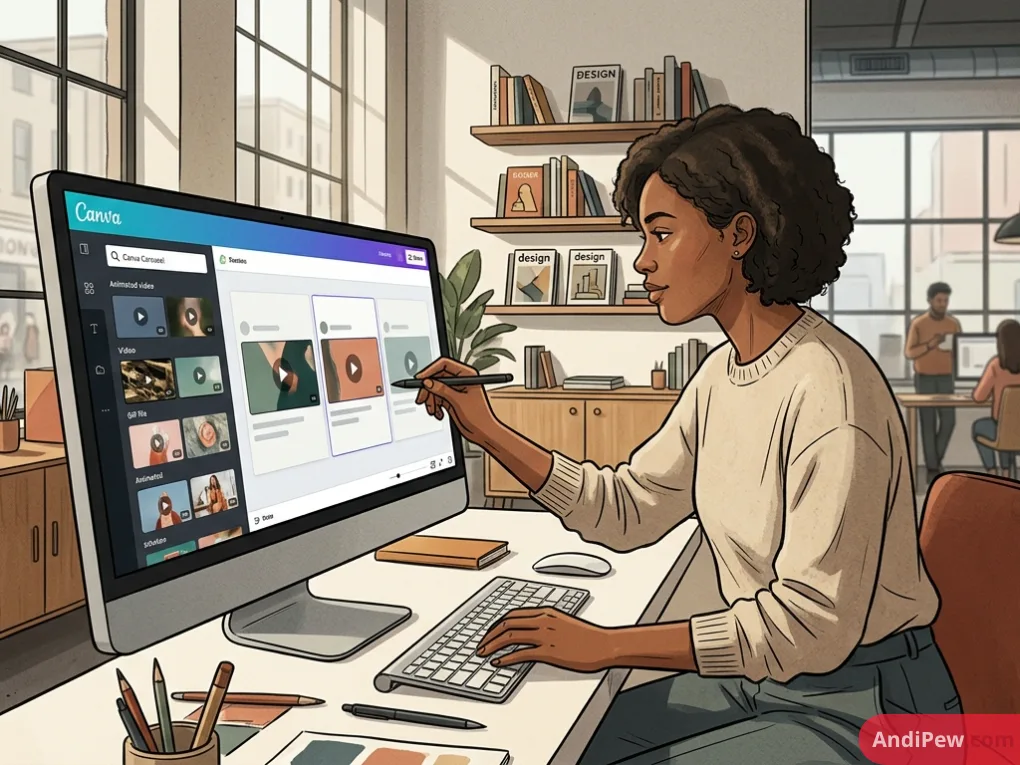
Can You Add Video or GIFs to a Canva Carousel Template?
Yes, you can add video or GIFs to a Canva carousel template. Seamless carousels do not have to be static. You can embed looping MP4 background videos or animated GIF stickers directly into specific frames of your workspace to increase dynamic engagement.
To insert and trim media seamlessly:
- Import your media files. Upload your MP4 or search Canva’s native Giphy library.
- Position within the guides. Drag the video onto a specific 1080px section of your wide canvas.
- Trim the timeline. Click the video element, select the scissors icon in the top toolbar, and adjust the duration.
Warning: Timeline syncing becomes complex when splitting video carousels. Third-party splitting tools usually export static images. To keep the video active, you must slice the video manually inside Canva by duplicating the project and cropping each slide, ensuring the video length is identical across all frames.
How to Export Your Canva Carousel Without Blurry Images
Why do wide canvases often look blurry upon upload? Blurriness usually happens due to low-resolution exports combined with aggressive Instagram native compression. To fix this, export your Canva Instagram carousel as a high-quality PNG rather than a standard JPG.
Follow these critical export protocols:
- Export as PNG: Always select PNG format in the download menu. This preserves crisp edges on text and vector graphics.
- Increase the scale: For Canva Pro users, drag the size slider to 1.5x or 2x before downloading. This ensures maximum pixel density.
- Use a dedicated splitting tool: Canva cannot automatically split a wide continuous image. Download the single wide file, then upload it to web-based grid splitting tools (like PineTools) to accurately cut the image into individual 1080px wide files without losing resolution.
Frequently Asked Questions (FAQ)
How many slides can an Instagram carousel have in 2026?
Instagram currently allows up to 20 frames per carousel post [citation needed]. This gives creators double the space compared to the older 10-slide limit, allowing for deeper storytelling and comprehensive micro-blogging directly on the feed.
Is there a free Canva carousel template available?
Yes, Canva’s library contains thousands of free carousel templates. You can find them by searching “Instagram carousel” in the templates tab, filtering by “Free,” and customizing the colors and fonts to match your specific brand guidelines.
Why is my Canva Instagram carousel blurry?
Blurriness happens due to low-resolution JPG exports or Instagram’s native compression. To fix this, export your file from Canva as a high-quality PNG. Ensure you are uploading over a stable Wi-Fi connection with Instagram’s “Upload at highest quality” setting toggled on.
How do I cut a seamless carousel in Canva?
Canva cannot automatically split one wide image into separate files upon export. You must download the wide continuous image to your computer first. Then, upload it to a free third-party image splitter tool to cleanly cut it into equal vertical sections.
Can I schedule carousels directly from Canva?
Yes, Canva features a built-in Content Planner. Once your individual slides are prepared and split, you can connect your Instagram Business account and schedule the carousel directly from the Canva editor dashboard.
Creating a seamless Canva Instagram carousel requires setting up precise custom dimensions, utilizing vertical guide lines to overlap elements, and exporting as a high-quality PNG to prevent blurriness. By merging these technical steps with structured storytelling formulas and Canva’s powerful AI features, you can produce engaging, high-converting content efficiently. Ready to upgrade your feed? Open your Canva dashboard today and test these seamless design techniques on your next social media campaign.
Explore more information and other interesting articles: