
Visual content drives modern algorithmic engagement, but producing high-quality graphics daily overwhelms most marketing teams. Using Canva for social media solves this crisis by providing an intuitive, drag-and-drop platform equipped with pre-sized canvases, massive asset libraries, and brand-kit automation. It allows individuals and teams to scale content production seamlessly without requiring advanced graphic design degrees or expensive software suites.
Quick Summary
- Centralizes brand asset management with integrated Brand Kits.
- Reduces production time using responsive canva social media templates.
- Supports native scheduling directly to major platforms like Instagram and LinkedIn.
- Offers real-time team collaboration and automated approval workflows.
What is Canva for Social Media?
Canva for social media is a cloud-based visual communication workspace tailored specifically for digital marketers and creators. It combines ready-to-use layouts, automated resizing tools, and an extensive stock asset library to streamline the creation, management, and native publishing of platform-optimized graphics and short-form videos from one unified dashboard.
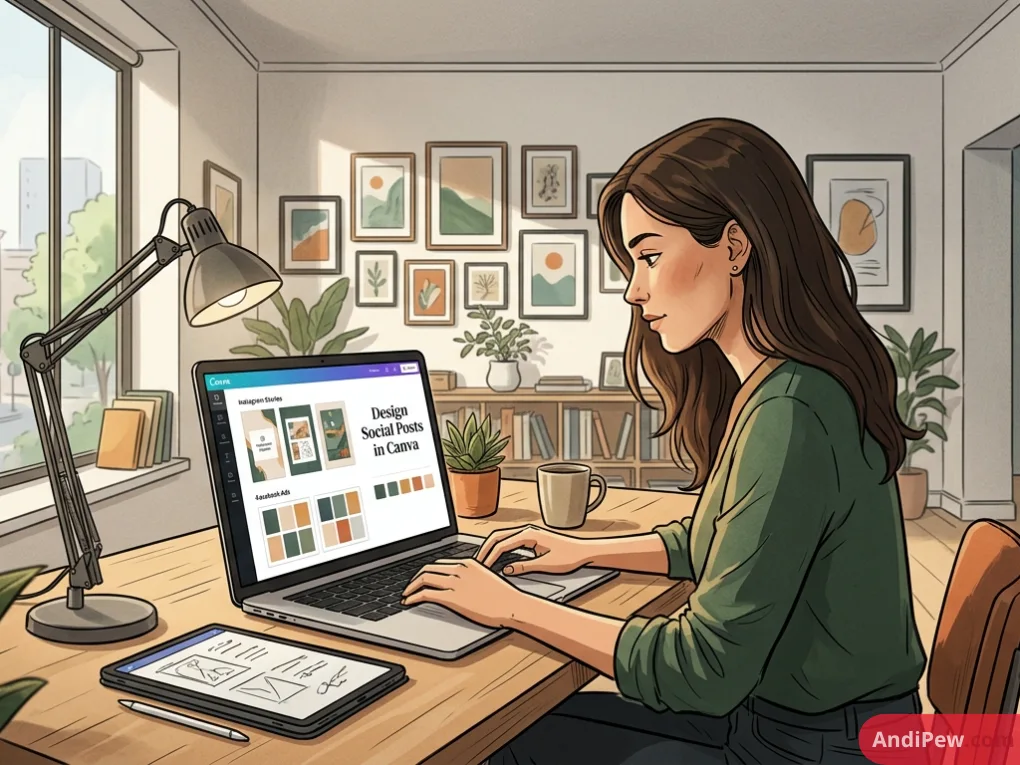
Why Design Social Posts in Canva?
You should design social posts in Canva because it drastically reduces turnaround time while ensuring strict brand consistency across all channels. Marketers can bypass complex software learning curves, utilize built-in AI generation tools, and deploy bulk content creation pipelines, making high-volume campaign execution efficient and cost-effective.
Traditional design pipelines often suffer from intense bottlenecks. A social media manager typically waits days for a graphic designer to resize a single campaign image for Instagram, Facebook, and LinkedIn. Canva decentralizes this process. It empowers non-designers to act on real-time trends immediately.
Companies leveraging cloud-based template systems reduce routine content creation time by up to 65% [citation needed]. This speed allows marketing teams to focus on strategy and community management rather than pixel-pushing. Furthermore, the platform’s robust collaborative features ensure that creative directors can still maintain oversight without stalling production.

How to Maximize Canva Social Media Templates
Templates are foundational starting points, not final deliverables. Relying on default designs leads to brand dilution. To stand out, teams must establish strict customization workflows.
Customization Best Practices
- Filter by platform specifications: Always begin with platform-specific dimensions. Use 1080 x 1350 pixels for Instagram portraits to maximize screen real estate.
- Apply Brand Kits instantly: Use the Brand Hub to swap default fonts and hex codes to your registered corporate standards with a single click.
- Respect UI constraints: Adjust the visual hierarchy of your templates to account for platform UI overlays. Keep critical text away from the right-side icons on TikTok and the bottom caption areas on Reels.
- Swap stock for proprietary assets: Replace generic background images with original product photography to elevate the perceived value of the post.
Automating High-Volume Production
Content volume is critical for modern organic reach. Canva provides several native workflows designed to eliminate repetitive manual tasks.
The Bulk Create tool is essential for scaling. By linking a simple CSV file containing your weekly copy to a master template, you can generate 50+ individualized graphics in under two minutes. This is highly effective for producing quote cards, trivia series, or product feature highlights.
Similarly, the Magic Switch feature instantly translates designs across formats. It can convert a static square post into a vertical animated Reel, resizing elements dynamically and even translating the text into different languages simultaneously.
Canva Free vs. Canva Pro for Social Media Teams
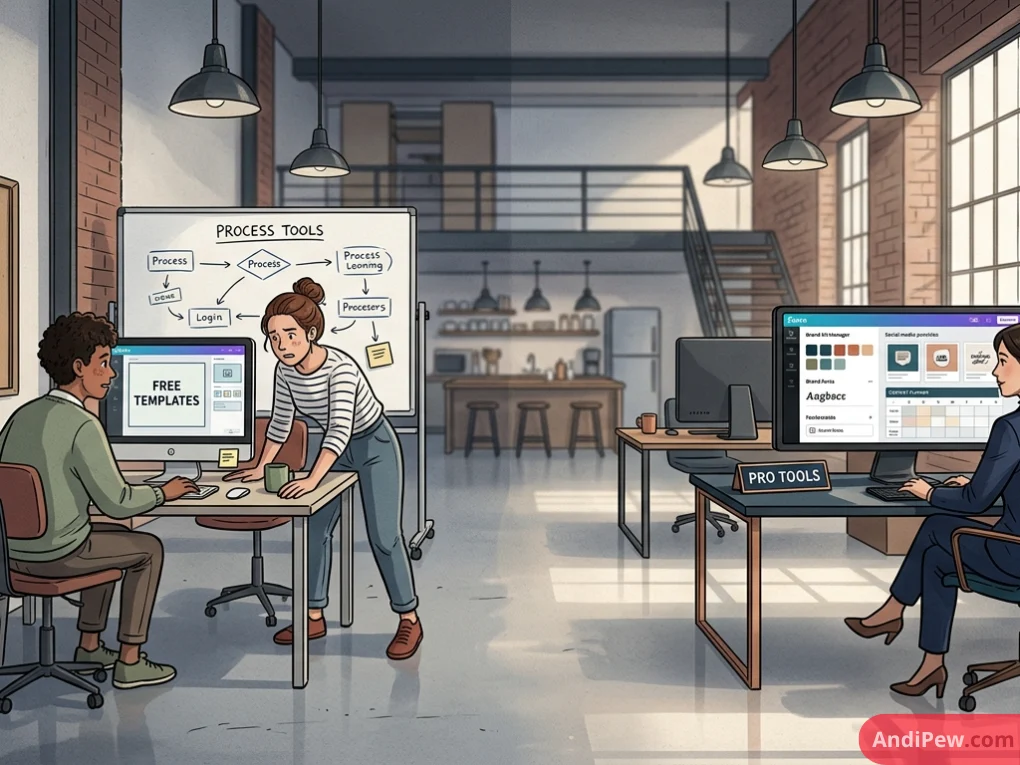
Choosing the right tier depends entirely on your content volume and team size. While the free version is robust, professional marketing teams require the automation features locked behind the Pro and Teams subscriptions.
| Feature | Canva Free | Canva Pro / Canva for Teams |
| Brand Control | None | Manage up to 100 Brand Kits |
| Resizing | Manual adjustment | One-click Magic Switch across formats |
| Asset Library | 1+ million free assets | 100+ million premium photos, videos, audio |
| Publishing | Download only | Native scheduling to 8 social platforms |
| Image Editing | Basic filters | Unlimited Background Remover & AI Magic Eraser |
Maintaining Through Visual Design
Search engines and social algorithms increasingly favor content demonstrating Experience, Expertise, Authoritativeness, and Trustworthiness (E-E-A-T). Visual design plays a massive role in establishing this trust with your audience.
Messy typography, low-resolution images, and inconsistent color palettes signal a lack of professionalism. When users see poor design, they unconsciously assume the underlying information is also low-quality.
By utilizing standardized canva social media templates, brands project a cohesive, authoritative voice. Consistently formatted data visualizations, clearly legible infographics, and branded expert quote graphics visually reinforce your industry expertise before the user even reads the caption. Always ensure that statistical claims in your graphics are paired with visible source citations directly on the image to build immediate credibility.
Frequently Asked Questions
Is Canva good for professional social media management?
Yes, Canva is highly effective for professional social media management. It offers robust brand control, team collaboration workflows, and native scheduling capabilities. Many enterprise companies utilize it to empower marketing teams to generate on-brand content quickly without waiting on dedicated design departments.
Can I schedule posts directly from Canva?
Yes, Canva features a built-in Content Planner available on Pro and Teams accounts. You can design social posts in Canva and schedule them directly to Instagram, Facebook, X, LinkedIn, Pinterest, and TikTok without needing a third-party scheduling tool.
How do I avoid my Canva social media templates looking generic?
To avoid generic designs, never use canva social media templates exactly as they appear. Always apply your distinct brand colors, upload proprietary imagery instead of relying solely on stock photos, and modify the default typography to match your corporate identity.
Does Canva own the rights to my social media designs?
No, you retain full ownership of the original designs you create. However, Canva owns the underlying stock elements and templates. You are granted a broad license to use these elements commercially, but you cannot trademark a logo containing unmodified stock graphics.
What is the best Canva feature for high-volume posting?
The Bulk Create tool is the best feature for high-volume social media content. By linking a CSV file containing your copy to a master design, you can automatically generate hundreds of individualized graphics or videos in seconds, drastically speeding up production.
Mastering Canva for social media transforms how your brand communicates online, shifting your team’s focus from tedious design mechanics to strategic storytelling and audience building. By leveraging automated tools, Brand Kits, and intelligent templates, you can maintain a dominant, visually consistent digital presence across all channels. Audit your current design bottlenecks today and start building your foundational templates to streamline your entire content pipeline.
Explore more information and other interesting articles: