
Whether you are designing a high-impact presentation, drafting social media graphics, or editing video content, Canva remains one of the most versatile visual communication platforms in the world. However, one common question arises when setting up your design workspace: should you use the Canva desktop app, work directly in your web browser, or stick to the Canva mobile app?
A few years ago, Canva was strictly a browser-based tool. Today, the ecosystem has expanded significantly. You can download dedicated desktop clients for Windows and macOS, install native mobile applications on iOS and iPadOS/Android, or open your favorite browser and start creating immediately.
In this comprehensive guide, we compare Canva app vs desktop across every major dimension—performance, interface usability, feature availability, offline capabilities, and cross-device workflows. By the end of this article, you will know exactly which platform fits your specific creative needs.
Quick Answer: Which Version Should You Use?
- Use the Canva Desktop App (Windows / Mac) if: You want a dedicated, distraction-free creative workspace with tab management, system-level shortcuts, and lower RAM consumption than running multiple browser tabs alongside other web tasks.
- Use Canva Web (Browser) if: You work across multiple shared devices, use a Chromebook, do not want to install extra software, or frequently integrate third-party web extensions.
- Use the Canva Mobile App (iOS / Android) if: You need to make quick text adjustments on the go, capture and upload photos directly from your phone camera, or post social content directly to Instagram, TikTok, or LinkedIn.
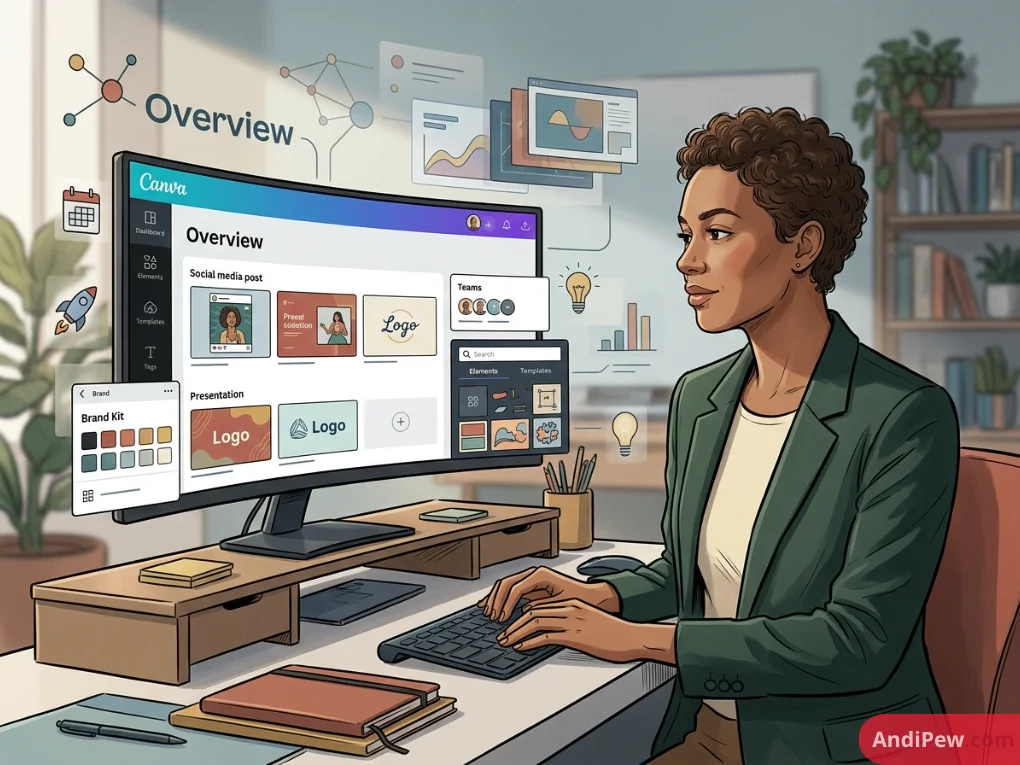
Desktop Platform Overview: Can You Use Canva on a Desktop?
If you are wondering, “can you use Canva on a desktop?” the answer is an emphatic yes. In fact, desktop remains the powerhouse environment for professional-grade visual creation.
When working on a desktop or laptop computer, you have two primary methods to access Canva:
- Canva Web (Browser Version): Accessed via Chrome, Safari, Firefox, Edge, or Brave at canva.com.
- Canva Desktop App: A dedicated, downloadable native client built for Windows and macOS operating systems.
If you are new to the platform, check out our step-by-step guide on how to create a canva account and explore our canva dashboard overview to get familiar with the primary navigation elements.
Canva Desktop App vs Website (Browser): Detailed Comparison
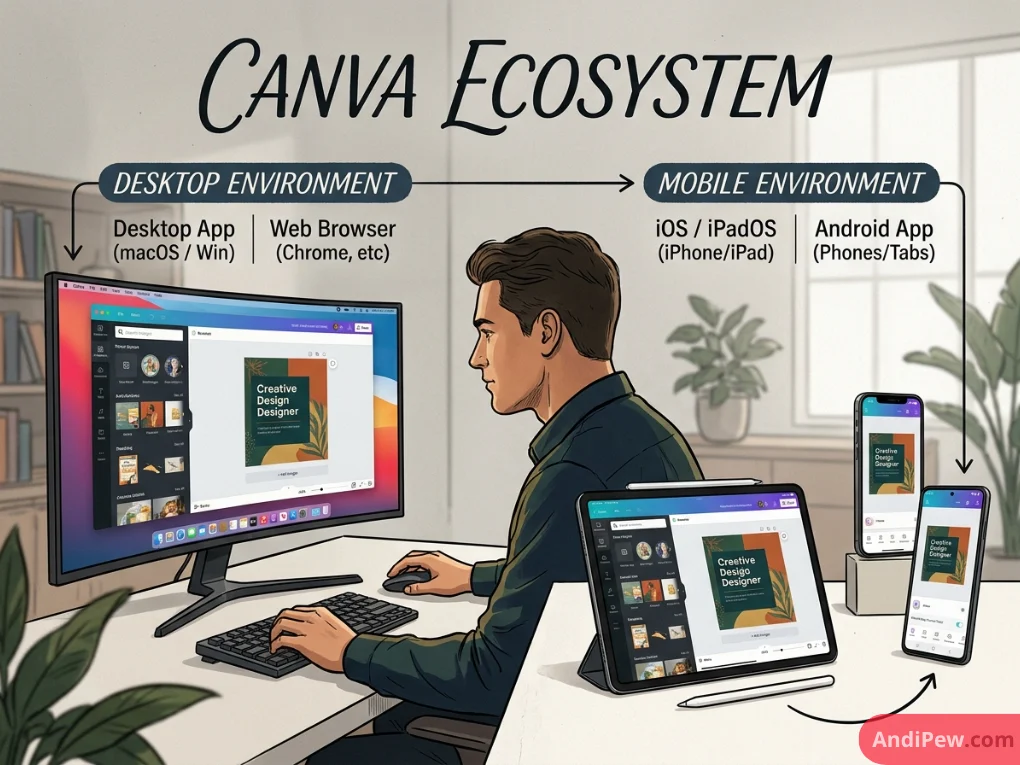
Many creators wonder: does Canva have a desktop app, and is the Canva app available for PC and Mac? Yes, Canva offers dedicated desktop software for both Windows 10/11 and macOS. But how does the Canva desktop app vs website (or Canva desktop app vs browser) stack up in daily use?
+---------------------------------------------------------------------------------------+
|                                CANVA ECOSYSTEM                                        |
+------------------------------------------+--------------------------------------------+
|             DESKTOP ENVIRONMENT          |             MOBILE ENVIRONMENT             |
|  +-------------------+----------------+  |  +-------------------+------------------+  |
|  |  Desktop App      |  Web Browser   |  |  |  iOS / iPadOS     |  Android App     |  |
|  |  (macOS / Win)    |  (Chrome, etc) |  |  |  (iPhone/iPad)    |  (Phones/Tabs)   |  |
|  +-------------------+----------------+  |  +-------------------+------------------+  |
+------------------------------------------+--------------------------------------------+
1. Distraction-Free Workspace & Tab Management
- Canva Desktop App: When you open designs in the desktop application, each document opens inside a dedicated tab strip within the app window. You are isolated from email notifications, open social feeds, and the dozens of unrelated browser tabs that typically clutter your screen.
- Canva Web Browser: Every new design opens in a new browser tab. If you already work with 20+ tabs open for research, client communications, and project management, your Canva tabs can quickly become lost in the shuffle.
2. Performance and Resource Management
- Canva Desktop App: The desktop client is packaged using an Electron-based framework. It runs independently of your main browser process. On many systems, this results in smoother zooming, panning, and canvas rendering—especially when working on complex multi-page documents or long video timelines.
- Canva Web Browser: The web version relies heavily on your browser’s hardware acceleration and available memory pool. If your browser is already consuming substantial RAM, running heavy visual renders or 4K video exports in Canva can cause occasional lag or tab crashes.
3. System Integration & Notifications
- Canva Desktop App: Offers native operating system notifications for team comments, mentions, and shared project updates. It also launches directly from your dock or taskbar upon startup.
- Canva Web Browser: Relies on browser-level push notifications, which many users disable by default.
4. Updates & Feature Availability
- Canva Desktop App: Automatically updates in the background. However, on rare occasions, experimental beta features or brand-new tool rollouts appear on the web version first before syncing to desktop app updates.
- Canva Web Browser: Always serves the most recent deployment directly from Canva’s cloud infrastructure without requiring software update downloads.

Canva Mobile vs Desktop: Core Differences Explained
Comparing Canva mobile vs desktop represents a fundamental shift in user experience. While the desktop versions prioritize precision, expansive screen real estate, and complex multi-layer editing, the mobile application focuses on immediacy, convenience, and rapid content generation.
+---------------------------------------------------------------------------------------+
|                               FEATURE PARITY OVERVIEW                                 |
+----------------------+--------------------+--------------------+----------------------+
| Feature              | Desktop App        | Web Browser        | Mobile App           |
+----------------------+--------------------+--------------------+----------------------+
| Precision Alignment  | Excellent (Mouse)  | Excellent (Mouse)  | Fair (Touch)         |
| Video Editing        | Full Timeline      | Full Timeline      | Compact Timeline     |
| Bulk Create & Data   | Fully Supported    | Fully Supported    | Not Supported        |
| Camera Integration   | Webcam Only        | Webcam Only        | Direct Native Camera |
| Multi-Tab Editing    | In-App Tabs        | Browser Tabs       | Single Active File   |
| Magic Studio Tools   | Full Access        | Full Access        | Full Access          |
+----------------------+--------------------+--------------------+----------------------+
1. Screen Real Estate and Workspace Layout
- Desktop: The desktop interface provides a wide canvas, a left-hand collapsible sidebar for elements, templates, uploads, and text styles, plus a persistent top toolbar for typography, spacing, effects, and animation controls.
- Mobile: Due to screen constraints on smartphones, toolbars are hidden inside sliding bottom sheets and expandable menus. You must tap through sub-menus to adjust font weights, line spacing, layering position, or transparency.
2. Input Precision: Mouse & Keyboard vs Touch Gestures
- Desktop: Precise pixel nudging using keyboard arrow keys, magnetic smart guides, lasso multi-element selection, and complex vector drag-and-drop actions are effortless with a physical mouse or trackpad.
- Mobile: Touch interactions (pinch-to-zoom, finger drag) work well for basic placement, but selecting small overlapping elements or fine-tuning micro-typography can feel tedious.
3. Typography & Complex Formatting
- Desktop: Full support for custom font uploads, advanced paragraph formatting, curved text adjustments, letter spacing, line height tweaking, and bulk text manipulation.
- Mobile: While text styling features exist, formatting extensive body copy, structured tables, or data-dense documents is significantly slower on mobile screens.
4. Advanced Video Editing Capabilities
- Desktop: Features an expanded multi-track video timeline, audio track layering, beat sync visualization, precise split-head scrubbing, and timeline zooming.
- Mobile: Provides a simplified slider timeline suitable for trimming clips, adding audio tracks, and applying quick transitions, but lacks the granular control needed for professional multi-scene video productions.
Canva Pro: Mobile vs Desktop Capabilities
When upgrading to a premium subscription, does your access change across platforms? Let’s analyze Canva Pro mobile vs desktop to understand where your subscription features shine.
If you are deciding whether a paid tier is right for your workflow, review our detailed guide on canva free vs pro to see the full cost-to-benefit breakdown.
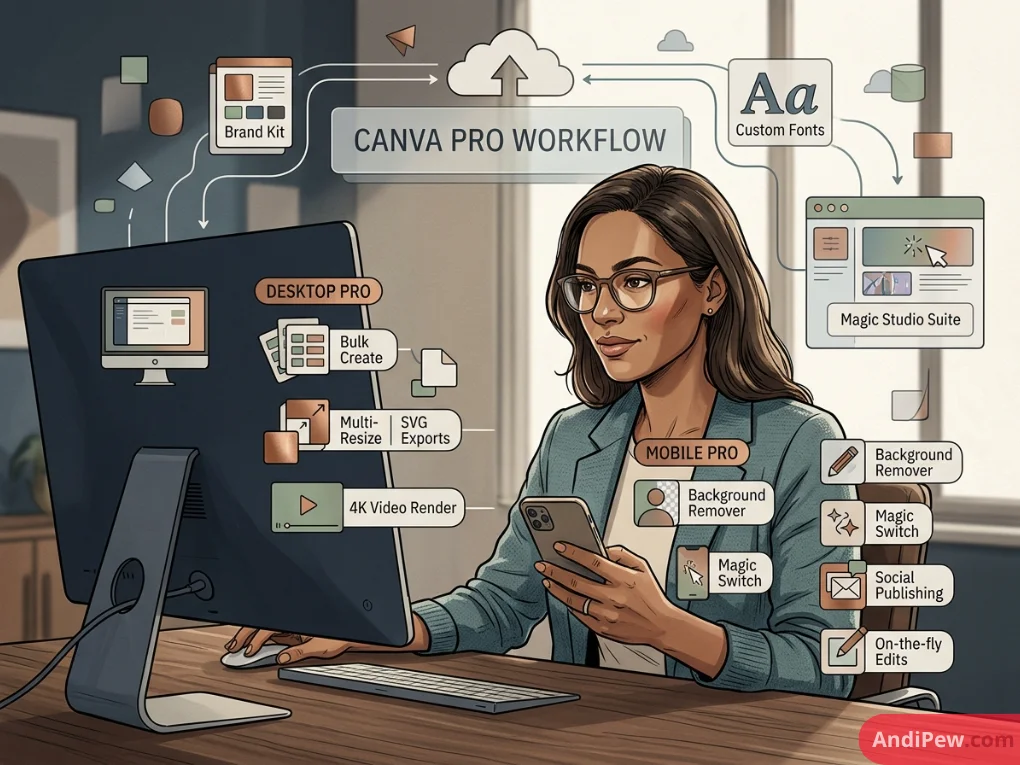
+------------------------------------------------------------------------------------+
|                               CANVA PRO WORKFLOW                                   |
|                                                                                    |
|   +----------------------------------------------------------------------------+   |
|   |                       CANVA CLOUD ECOSYSTEM                                |   |
|   |   - Brand Kit  - Cloud Storage  - Custom Fonts  - Magic Studio Suite       |   |
|   +----------------------------------------------------------------------------+   |
|             |                                                |                     |
|             v                                                v                     |
|   +-------------------+                            +-------------------+           |
|   |   DESKTOP PRO     |                            |   MOBILE PRO      |           |
|   |  - Bulk Create    |                            |  - Background Rem |           |
|   |  - Multi-Resize   |                            |  - Magic Switch   |           |
|   |  - SVG Exports    |                            |  - Social Publish |           |
|   |  - 4K Video Render|                            |  - On-the-fly Edits|          |
|   +-------------------+                            +-------------------+           |
+------------------------------------------------------------------------------------+
Pro Features Supported Equally on Both Platforms:
- Background Remover: One-click AI background removal for images and videos functions smoothly across desktop, web, and mobile.
- Magic Switch & Resize: Instantly reformat an Instagram Post into a Pinterest Pin, Presentation, or custom dimension across any device.
- Magic Studio AI Tools: Magic Eraser, Magic Expand, Magic Edit, and Magic Write are available on both mobile and desktop interfaces.
- Brand Kits: Instant access to brand color palettes, uploaded logos, and corporate font hierarchies across all platforms.
- Premium Asset Library: Complete access to over 100+ million premium stock photos, graphics, audio tracks, and video clips.
Pro Features Best Suited for Desktop:
- Bulk Create (Data Autofill via CSV/Spreadsheet): Generating hundreds of certificates, business cards, or social quote posts from a single spreadsheet is exclusively practical on desktop.
- High-Resolution Multi-Format Exports: Exporting print-ready CMYK PDF files, transparent high-res PNGs, or SVGs with precise vector paths is much easier to manage and verify on a desktop display.
- Brand Template Management: Setting up locked brand templates and organizational folder governance for enterprise teams is streamlined on the desktop web app.
Canva Mobile Tutorial: Step-by-Step Mobile Workflow
The Canva iOS Android app is engineered for agile creation. Whether you are using an iPhone, iPad, Samsung Galaxy, or Google Pixel, mastering the mobile interface allows you to produce content anywhere.
For a deeper dive into editing techniques, explore our complete canva editor guide and step-by-step walkthrough on how to create a design in canva.
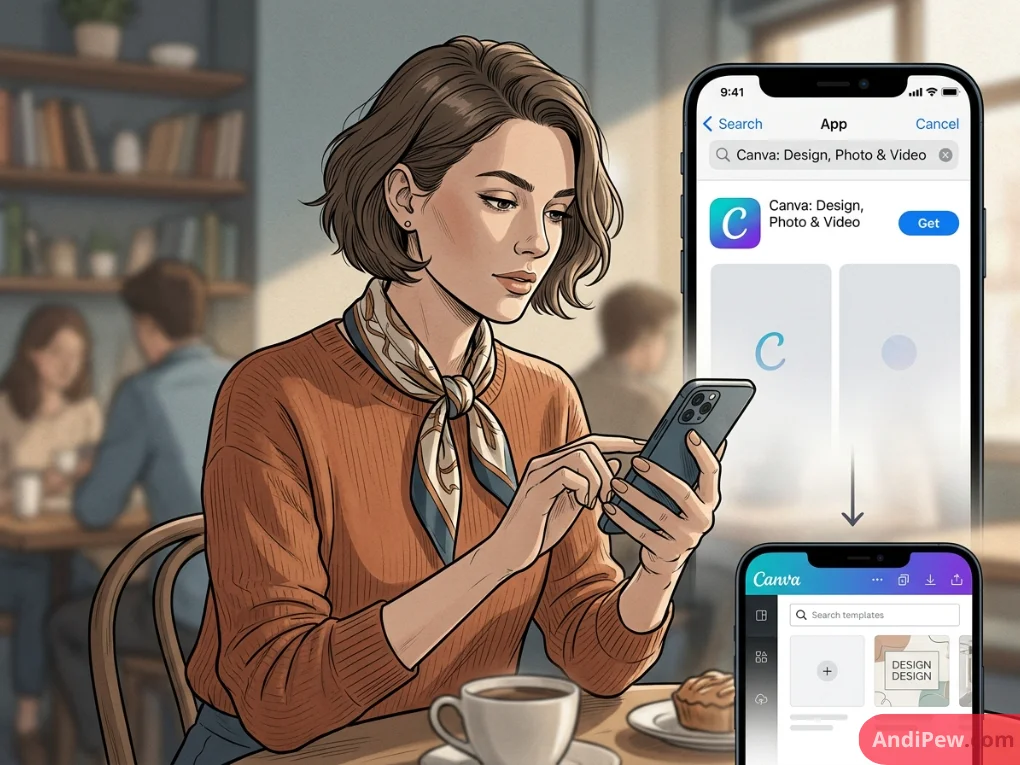
Step 1: Download and Launch the Mobile App
- Open the Apple App Store (iOS) or Google Play Store (Android).
- Search for
Canva: Design, Photo & Videoand tap Install. - Log in using your existing Canva credentials so your projects sync seamlessly.
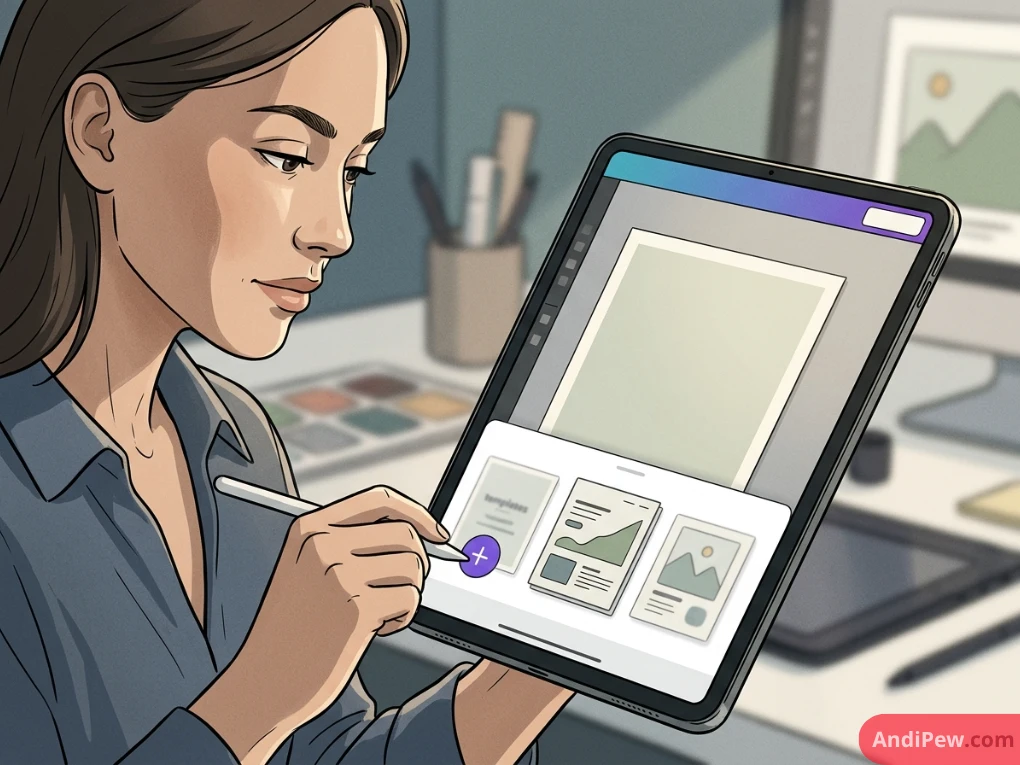
Step 2: Selecting a Template or Custom Canvas
- Tap the purple
+(Plus) button at the bottom center of your screen. - Select a preset format (e.g., Instagram Story (1080 × 1920 px)) or tap Custom Size.
- Browse the curated template drawer that slides up from the bottom. Tap any template to load it onto your canvas.
Step 3: Customizing Elements and Replacing Media
- Tap any element on the canvas to activate its bounding box.
- Notice the Bottom Action Bar that appears. Here you can access Replace, Color, Effects, Filter, Crop, Transparency, and Position.
- To add personal media, tap Replace > select Camera Roll to insert images or videos directly from your smartphone.

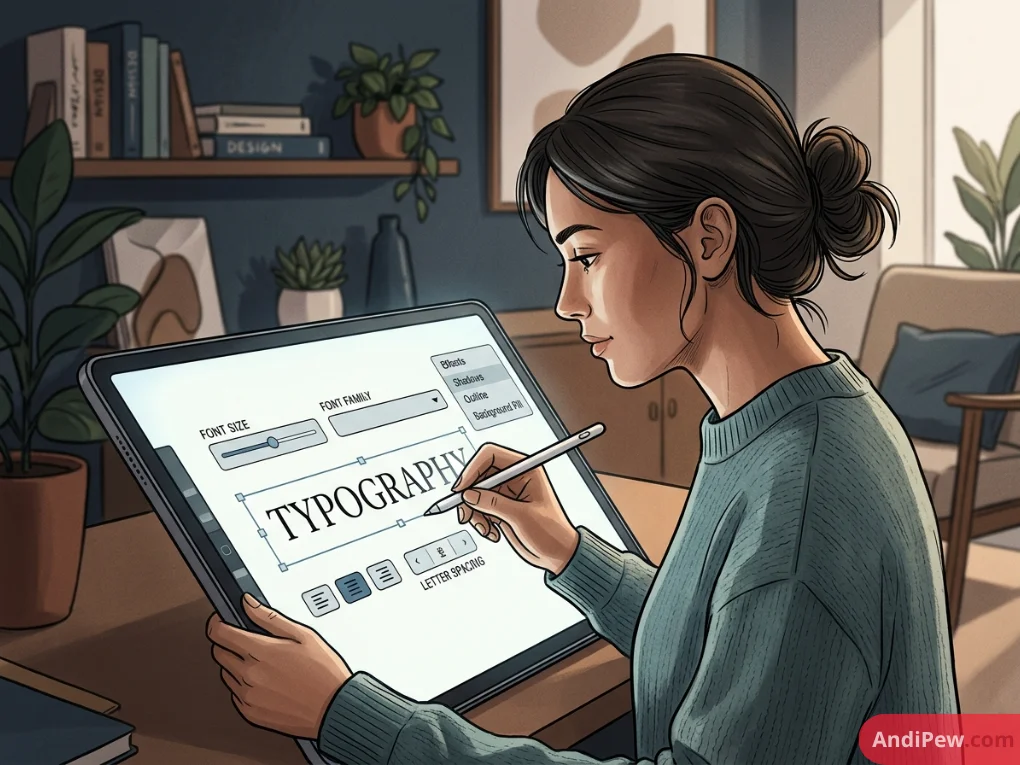
Step 4: Refining Typography
- Tap a text box to edit copy.
- Use the bottom toolbar to adjust the font family, font size slider, alignment, and letter spacing.
- Tap Effects to add shadows, lift, outline, or background pill shapes to your text.
Step 5: Exporting or Direct Social Publishing
- Tap the Share/Export icon (top right corner).
- Choose Download to save the final image or video directly to your phone’s photo library.
- Alternatively, tap your desired social channel (Instagram, TikTok, Facebook) to publish directly without leaving the app.

Detailed Platform Comparison Table
Below is an exhaustive breakdown comparing the Canva desktop app, Canva web browser, and the Canva iOS & Android mobile app.
| Feature / Capability | Canva Desktop App (Win/Mac) | Canva Web (Browser) | Canva Mobile App (iOS/Android) |
| Operating System | Windows 10/11, macOS | Any (Chrome, Safari, Edge) | iOS 14+, Android 8+ |
| Multi-Tab Design Workspace | Yes (Built-in Tab Bar) | Yes (Browser Tabs) | No (Single Project Focus) |
| Keyboard Shortcut Support | Full Native Support | Full Browser Support | Limited / External Keyboard Only |
| System Resource Efficiency | High (Dedicated Process) | Variable (Shares Browser RAM) | Optimized for Mobile OS |
| Offline Viewing / Basic Editing | Limited (Cached Designs) | No (Requires Internet) | Limited (Cached Thumbnails) |
| Direct Camera Upload | No (Webcam Only) | No (Webcam Only) | Yes (Direct Device Camera/Gallery) |
| Bulk Content Creation (CSV) | Yes | Yes | No |
| Timeline Video Editing | Multi-Track Expanded | Multi-Track Expanded | Compact Single/Dual Layer |
| Direct Social App Publishing | Via Web APIs | Via Web APIs | Direct to Native Social Apps |
| Precision Layout & Alignment | Exceptional | Exceptional | Moderate |
| Brand Kit Management | Complete Control | Complete Control | View & Apply Only |
| Cloud Auto-Sync Speed | Real-Time | Real-Time | Real-Time |
Offline Capabilities: What Happens When You Lose Connection?
A frequent question regarding Canva app vs desktop is whether any version works completely offline.
- Canva is fundamentally a cloud-based design tool. All template libraries, stock assets, AI generation servers, and rendering engines reside on Canva’s remote infrastructure.
- Desktop App Offline Behavior: If your connection drops while working in the desktop app, you can continue basic text and layout edits on your currently open design. However, you cannot search for new graphic elements, load new stock photos, run Magic Studio AI tools, or export high-resolution assets until your internet connection is restored. Once reconnected, changes sync automatically to the cloud.
- Mobile App Offline Behavior: The mobile app caches recent designs for previewing. However, active design generation and asset downloading require an active cellular or Wi-Fi data connection.
Professional Workflow: How to Combine Desktop and Mobile Like a Pro
The most effective content creators do not limit themselves to a single platform. Instead, they use a hybrid workflow that leverages the strengths of both desktop and mobile environments.
+------------------------------------------------------------------------------------+
|                            HYBRID POWER-USER WORKFLOW                              |
|                                                                                    |
|   +----------------------------------------------------------------------------+   |
|   | 1. DESKTOP STAGE (Precision & Setup)                                       |   |
|   |    - Establish Brand Kit colors, fonts, and core templates.               |   |
|   |    - Build multi-slide presentations and high-production social templates. |   |
|   |    - Run Bulk Create workflows with CSV data.                              |   |
|   +----------------------------------------------------------------------------+   |
|                                          |                                         |
|                                  (Cloud Auto-Sync)                                 |
|                                          v                                         |
|   +----------------------------------------------------------------------------+   |
|   | 2. MOBILE STAGE (Agility & Execution)                                      |   |
|   |    - Snap product photos/videos on your phone and upload to project.       |   |
|   |    - Make last-minute copy tweaks on the road.                             |   |
|   |    - Export directly to Instagram Stories, TikTok, or client chat apps.   |   |
|   +----------------------------------------------------------------------------+   |
+------------------------------------------------------------------------------------+
- Template Creation on Desktop: Build your core master templates on the Canva desktop app or browser, setting up fixed guide rails, brand colors, typography hierarchies, and layout structures.
- Asset Capture on Mobile: While at events, client meetings, or in the studio, snap high-resolution photos and video clips with your smartphone and upload them straight into your project folder using the mobile app.
- Refinement on Desktop: Open the project on desktop to fine-tune alignments, remove backgrounds, balance audio levels, and finalize layouts.
- Publishing on Mobile: Reopen the completed design on mobile for one-tap publishing directly to mobile-first social channels like Instagram Reels, TikTok, and YouTube Shorts.
For additional creative techniques and production workflows, explore our library of canva tutorials.
Pros & Cons Breakdown
Canva Desktop App (Windows & Mac)
Pros:
- Dedicated workspace free from web browser distractions.
- Clean multi-tab navigation within a single software window.
- Smooth canvas rendering and responsive keyboard shortcuts.
- Quick launch access directly from your desktop dock or taskbar.
Cons:
- Requires local hard drive storage for software installation.
- Occasional background updates required.
Canva Web Browser
Pros:
- Zero installation required—works on any device with an internet connection.
- Compatible with Chromebooks, Linux machines, and public computers.
- Immediate access to newly released platform features.
Cons:
- Contributes to browser tab clutter.
- Can experience memory bottlenecks if your browser is running many resource-heavy extensions or tabs simultaneously.
Canva Mobile App (iOS & Android)
Pros:
- Create, edit, and publish visual assets from anywhere.
- Direct integration with your mobile camera and photo gallery.
- Streamlined direct publishing to mobile social media apps.
Cons:
- Smaller screen makes complex layouts and alignment challenging.
- Lacks advanced batch tools like Bulk Create.
- Sub-menus require more taps to access common design settings.
Frequently Asked Questions (FAQ)
Does Canva have a desktop app?
Yes, Canva offers a free dedicated desktop application for both Windows (Windows 10 and 11) and macOS. You can download it directly from Canva’s official website or your operating system’s app store.
Is the Canva desktop app better than using the browser?
The Canva desktop app offers a cleaner, distraction-free environment with native tabs and dedicated system memory allocation. However, both the desktop app and web browser provide identical design tools, templates, and asset libraries.
Can you use Canva on a desktop without downloading software?
Yes. You can access the complete Canva design suite directly inside any modern web browser (such as Google Chrome, Mozilla Firefox, Apple Safari, or Microsoft Edge) by visiting canva.com.
Is Canva free on PC and mobile?
Yes. Canva’s core features are 100% free to use on desktop apps, web browsers, and iOS/Android mobile devices. You can also upgrade to Canva Pro on any platform to unlock premium templates, advanced AI tools, and expanded cloud storage.
Does Canva mobile sync with the desktop app?
Yes. Canva is cloud-based. Any design created or modified on your mobile phone automatically syncs in real time with your desktop app and web browser, provided you are logged into the same Canva account.
Which version is best for video editing?
The Canva desktop app or web browser is recommended for video editing. Desktop displays provide a larger multi-track timeline, finer audio scrubbing controls, and easier alignment for on-screen motion graphics.
Final Verdict & Recommendation
When choosing between the Canva app vs desktop, there is no single “winner”—each platform is tailored to different stages of the creative process:
- If you value precision, structured multi-page workflows, and deep focus, the Canva Desktop App or Web Browser is your best choice.
- If you need agility, on-the-go publishing, and instant camera uploads, the Canva Mobile App is an indispensable companion.
For the ultimate visual content workflow, install the desktop application on your primary computer for heavy lifting, and keep the mobile app on your smartphone for rapid edits and seamless publishing.