Do you struggle with uneven spacing in your graphic designs? To understand how to align elements in Canva, you must first select the items you want to arrange. Click “Position” in the top toolbar, and choose your desired layout option under the “Align elements” or “Align to page” menu. Mastering this basic function instantly elevates your designs from amateur to professional.
Quick Summary:
- Select multiple items by holding Shift and clicking.
- Use the “Position” menu for instant layout corrections. Set featured image
- Master the “Tidy Up” tool for mathematically even spacing.
- Utilize keyboard shortcuts to save hours of manual dragging.
Understanding how to align elements in Canva is the exact process of arranging text boxes, images, and shapes into a precise mathematical order. This prevents visual chaos and ensures your final design maintains perfect structural balance across digital and print mediums.
Why Does Precise Alignment Matter in Canva Designs?
Precise alignment matters because it directly dictates viewer navigation and brand perception. Properly aligned layouts reduce cognitive load, making information significantly easier to digest. Consistent visual structure immediately separates amateur graphics from authoritative, professional-grade marketing assets.
- Visual Structure: Proper alignment creates a clear path for the viewer’s eye. This improves readability and overall user experience.
- Brand Authority: Messy, unaligned social media posts erode consumer trust. Crisp, professional layouts demonstrate brand trustworthiness and high standards.
- Time Efficiency: Using the built-in canva alignment tool prevents hours of manual dragging. Automated functions save users an average of 30 minutes per complex project.
How Do You Align and Space Elements Evenly on Desktop?
To align and space elements evenly on desktop, select your objects and navigate to the Position menu. Click the Arrange tab to access the Tidy Up feature. This tool automatically distributes horizontal or vertical gaps perfectly between your selected items.
Step-by-Step UI Navigation:
- Click and drag your cursor to highlight multiple elements on your canvas.
- Click Position in the upper right toolbar menu.
- Select the Arrange tab.
- Click your desired alignment option (e.g., Left, Center, Right).
The ‘Tidy Up’ Feature: Use the Space Evenly function to automatically distribute equal gaps horizontally or vertically. This eliminates the need for manual measuring and guessing.
Align to Page vs. Align Elements:
| Feature | Function | Best Use Case |
| Align to Page | Moves objects relative to the canvas borders. | Centering a main title on a blank document. |
| Align Elements | Arranges items relative to each other’s boundaries. | Organizing a row of distinct social media icons. |
Learning how to align elements in Canva using these two distinct modes is critical for desktop efficiency.
How to Group and Align Objects on Canva Mobile and Tablet?
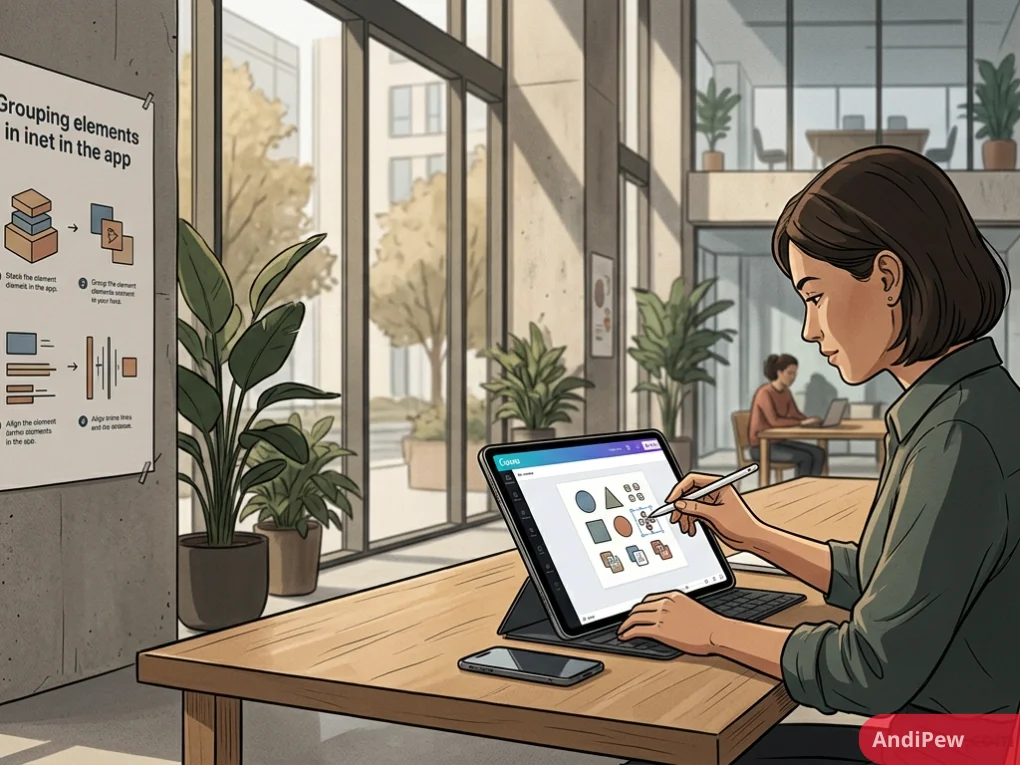
Grouping and aligning objects on mobile requires specialized touch gestures. Long-press a single element to activate multi-select, tap additional items, and swipe the bottom toolbar to locate the Position and Group icons.
Multi-Select Gestures: Tap and hold a single element until a sub-menu appears. Select Select Multiple to highlight additional objects on iOS or Android screens.
Bottom Toolbar Navigation: Swipe left on the bottom horizontal menu. Locate the Position icon to utilize the canva alignment tool, or tap the Group icon to lock items together.
Handling Touch Limitations: Small screens complicate precise dragging and dropping. Zoom in over 200% before moving elements manually. This prevents accidental resizing of nested objects.
Pro Tip: Mastering canva grouping objects on mobile is crucial. Always group complex layouts before attempting to reposition them across your artboard.
How to Use Smart Guides and Rulers in Canva?
Smart guides and rulers provide invisible infrastructure for flawless layouts. Activate rulers via the File menu or the Shift + R shortcut. Use the snapping magenta lines to perfectly position elements without constantly opening the alignment menus.
- Activating Rulers: Navigate to File > View Settings > Show Rulers. Alternatively, press the keyboard shortcut Shift + R to toggle rulers instantly.
- Understanding Smart Guides: Drag an element to reveal magenta and solid pink lines. These are smart guides snapping your object into alignment with other nearby items.
- Setting Custom Gridlines: Click and drag directly from the top or side rulers onto your canvas. The canva alignment tool snaps elements directly to these persistent manual guides.

How Do You Justify Text Alignment Perfectly?
Justifying text requires formatting the internal paragraph settings, not just moving the external text box. Cycle through the alignment icon in the top toolbar until text blocks hit both left and right margins evenly.
Text Box vs. Text Content: Moving the physical bounding box positions the container on the page. Formatting the text inside dictates how words wrap and fill that specific space.
Applying Justify Alignment: Highlight your text. Click the Alignment icon (four horizontal lines) in the top toolbar repeatedly. Cycle through left, center, and right until it reaches the block-style justify setting.
Troubleshooting Odd Spacing:
- Problem: Justified text creates massive, awkward gaps between words on short lines.
- Solution: Adjust the letter spacing in the Spacing menu. Alternatively, add manual line breaks (Shift + Enter) to force words into tighter clusters. This is a vital step when learning how to align elements in Canva for typography.
What Are the Best Canva Alignment Shortcuts and Hacks?
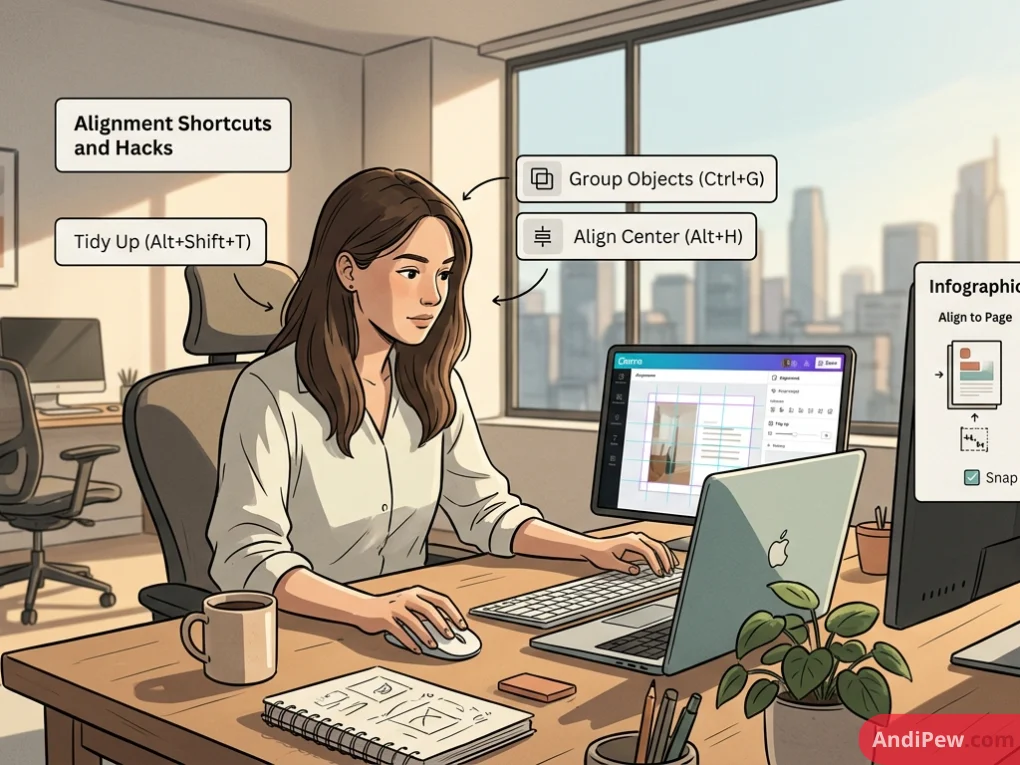
Professional workflow speed relies heavily on keyboard shortcuts and layer management. Micro-nudging with arrow keys, grouping elements for stability, and locking background layers drastically reduce design time and layout errors.
- Micro-Nudging: Select an element and press keyboard arrow keys for 1-pixel movements. Use Shift + Arrow keys for 10-pixel jumps.
- Grouping for Stability: Employing canva grouping objects allows you to align a clustered logo alongside separate text without breaking the internal layout. Press Ctrl + G (Windows) or Cmd + G (Mac).
- Locking Backgrounds: Click the Padlock icon on your background layers. Locked backgrounds cannot be accidentally moved when bulk-selecting foreground items with the canva alignment tool.
Frequently Asked Questions (FAQ)
Why is my Canva alignment tool grayed out?
The alignment tool becomes grayed out if you only select one element. You must hold Shift and click at least two separate objects to activate the “Align Elements” functionality in the Position menu.
Can I align elements to a specific object in Canva?
Canva aligns elements based on the overall bounding box of all selected items, not one specific key object. To bypass this, lock the object you want to remain stationary before aligning the others.
How do you group objects in Canva to align them together?
Select multiple items by clicking and dragging your cursor over them. Then, click “Group” on the floating toolbar or press Ctrl + G (Windows) or Cmd + G (Mac) to lock them into a single unit.
What is the Tidy Up feature in Canva?
The Tidy Up feature is an automatic spacing tool found in the Position menu. It instantly calculates and applies equal horizontal and vertical spacing between three or more selected elements.
How do I use the arrow keys to align in Canva?
Select an element and press any arrow key on your keyboard to move it exactly one pixel. Hold the Shift key while pressing an arrow key to move the element ten pixels at a time.
Does the Canva alignment tool work differently on mobile?
The core logic of the Canva alignment tool remains identical across devices. However, mobile users must utilize long-press gestures to select multiple items before accessing the alignment functions in the bottom swipe menu.
Mastering the “Position” menu is the absolute fastest way to arrange elements accurately across both desktop and mobile applications. Utilizing visual aids like Smart Guides, Rulers, and the “Tidy Up” feature eliminates guesswork and ensures mathematically perfect spacing. Combining the canva grouping objects feature with targeted keyboard shortcuts drastically speeds up your overall design workflow.
Open a blank Canva document right now, press Shift + R to turn on your rulers, and start practicing how to align elements in Canva to instantly upgrade your next design project.
Explore more information and other interesting articles: