Have you ever opened Canva, looked at a tool like “Kerning,” “Bleed,” or “Vector,” and wondered what it actually does?
While Canva has democratized visual design for millions, the platform is packed with graphic design terminology, proprietary feature names, and technical print settings. Understanding this specialized vocabulary is the fastest way to work faster, avoid costly printing mistakes, and unlock the platform’s full creative potential.
Whether you are a beginner building your first social media graphic or a marketer running brand campaigns, this Canva glossary breaks down all essential terms, tools, interface elements, and technical specifications into plain English.
Foundational Overview: What Is Canva?
Canva Definition and Background
The formal Canva definition is straightforward: Canva is a web- and app-based graphic design and visual communication platform launched in 2013 by Melanie Perkins, Cliff Obrecht, and Cameron Adams. It enables users to create social media graphics, presentations, posters, documents, videos, and print products using an intuitive drag-and-drop system.
What Does Canva Stand For?
A common question among beginners is: what does canva stand for?
“Canva” is not an acronym. The name is derived from the word canvas—the traditional surface used by artists for painting. The creators stylized the word into “Canva” to reflect a clean, digital, and modern workspace where anyone can create visual art regardless of technical skill.
If you are just getting started with your creative setup, our step-by-step tutorial on how to create a canva account walks you through the initial registration and workspace configuration.
Core Canva Workspace & Interface Glossary
Before diving into design theory, let’s map out the user interface (UI). Familiarity with the interface layout helps you navigate seamlessly between features.
+---------------------------------------------------------------------------------------+
|  [Top Menu Bar]  Home | File | Resize & Magic Switch | Undo/Redo | Share / Export     |
+-------------------+-------------------------------------------------------------------+
|  [Side Object]    |  [Floating Context Toolbar] (Font, Size, Color, Effects, Animate) |
|  - Design         +-------------------------------------------------------------------+
|  - Elements       |                                                                   |
|  - Text           |                       CANVAS / WORKSPACE                          |
|  - Brand          |                 (Active Artboard / Page Area)                     |
|  - Uploads        |                                                                   |
|  - Draw           |                                                                   |
|  - Apps           +-------------------------------------------------------------------+
|                   |  [Bottom Bar] Notes | Grid View | Zoom Slider | Fullscreen        |
+-------------------+-------------------------------------------------------------------+
Essential Interface Terms
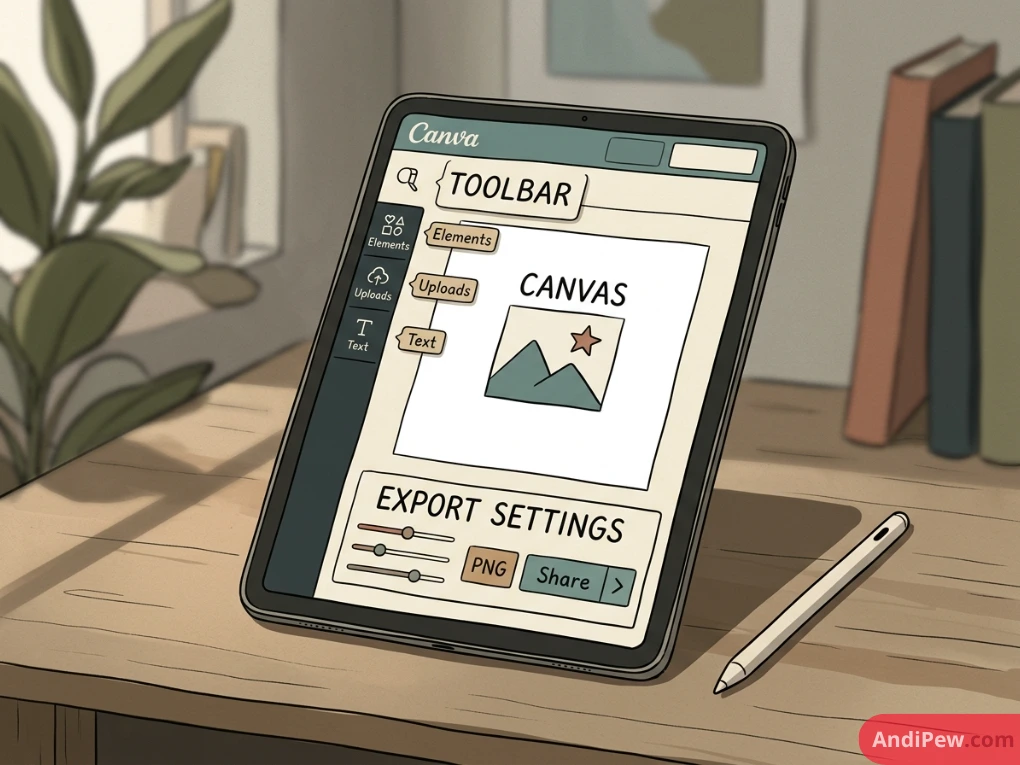
- Artboard (The Canvas): The central blank area where you build your visual composition. In Canva, each individual page in a document or presentation serves as an artboard.
- Side Object Panel (Left Sidebar): The primary navigation bar containing tabs for Design (templates), Elements, Text, Brand, Uploads, Draw, Projects, and Apps.
- Floating Context Toolbar: The horizontal bar directly above the canvas. Its options change dynamically depending on the selected object (e.g., showing font settings for text or cropping tools for photos).
- Top Navigation Bar: The static header housing file management tools, version history, Magic Switch, collaboration indicators, and the Share menu.
- Bottom Status Bar: The footer controls containing the Notes drawer, Page Manager, Grid View toggle, zoom percentage slider, and Fullscreen preview.
- Canvas Glossary Tool: A collective term used by design instructors to describe Canva’s integrated tooltips, help trays, and shortcut menus that explain tool functions within the editor.
For a comprehensive tour of your primary dashboard layout, explore our canva dashboard overview and complete canva editor guide.
The Complete A–Z Canva Design Glossary
Here is your definitive Canva design glossary, defining key Canva terms explained across layout design, typography, color science, and asset production.
A
- Alignment: The positioning of text, graphics, or imagery relative to margins, canvas edges, or other elements (Left, Right, Center, Justified, Top, Middle, Bottom).
- Anchor Point: The fixed reference point on an element around which transformations (like rotation and scaling) occur.
- Animation: Dynamic motion effects applied to individual elements, text boxes, or entire pages to convert static designs into MP4 videos or animated GIFs.
- Aspect Ratio: The proportional relationship between a design’s width and height (e.g.,
1:1for standard Instagram posts,16:9for widescreen presentations,9:16for TikTok/Reels).
B
- Background Remover: An automated tool (available to Pro, Teams, and Education tiers) that removes the background from images or videos with a single click.
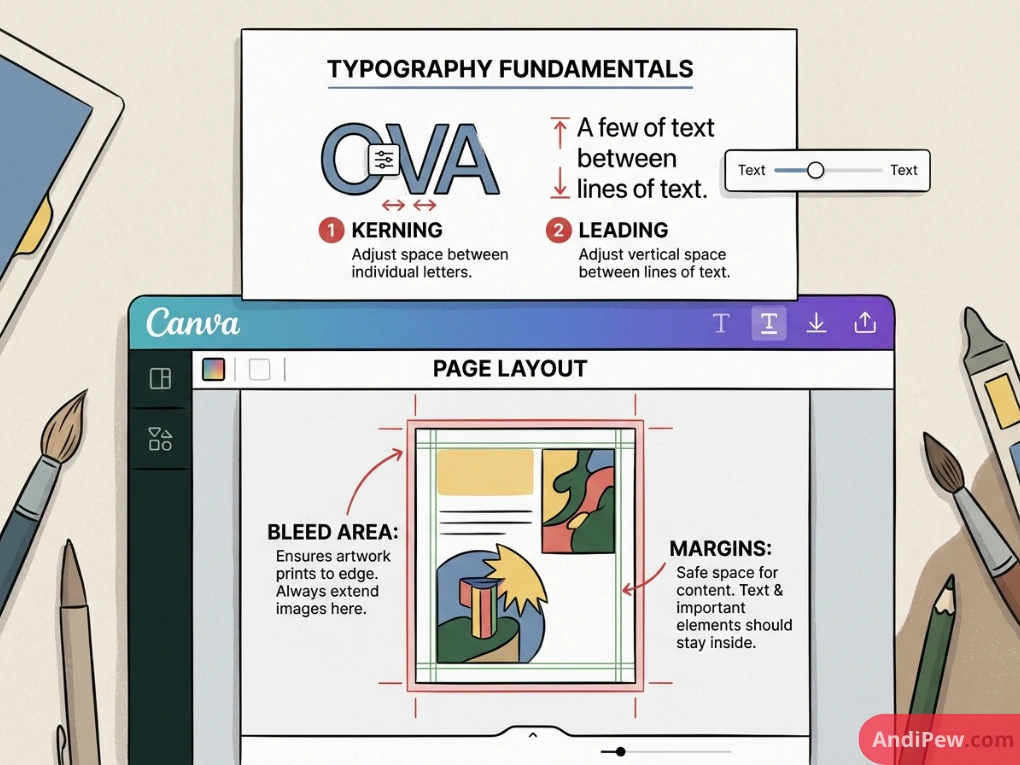
- Bleed (Print Bleed): An extra
1/8 inch (3.175 mm)border extending beyond the final trim edge of a document. It ensures no unprinted white borders remain after commercial cutting. - Bounding Box: The rectangular outline featuring grab handles that appears around an element when selected, used for resizing, stretching, and rotating.
- Brand Kit: A centralized asset hub storing approved brand color palettes, custom typography, official logos, and graphic guidelines for automated brand consistency.
C
- Color Palette: A curated selection of colors that complement each other, establishing the emotional tone and visual hierarchy of a design.
- Color Picker (Eyedropper): A digital tool that samples and duplicates any exact hex color code from an image or element on your screen.
- Crop: Trimming unwanted outer areas of an image or video to adjust framing, composition, or subject focus.
- Crop Marks: Fine corner lines printed on commercial proofs indicating where mechanical blades should cut the paper.
D
- Dimensions: The numerical width and height of your canvas, measured in pixels (
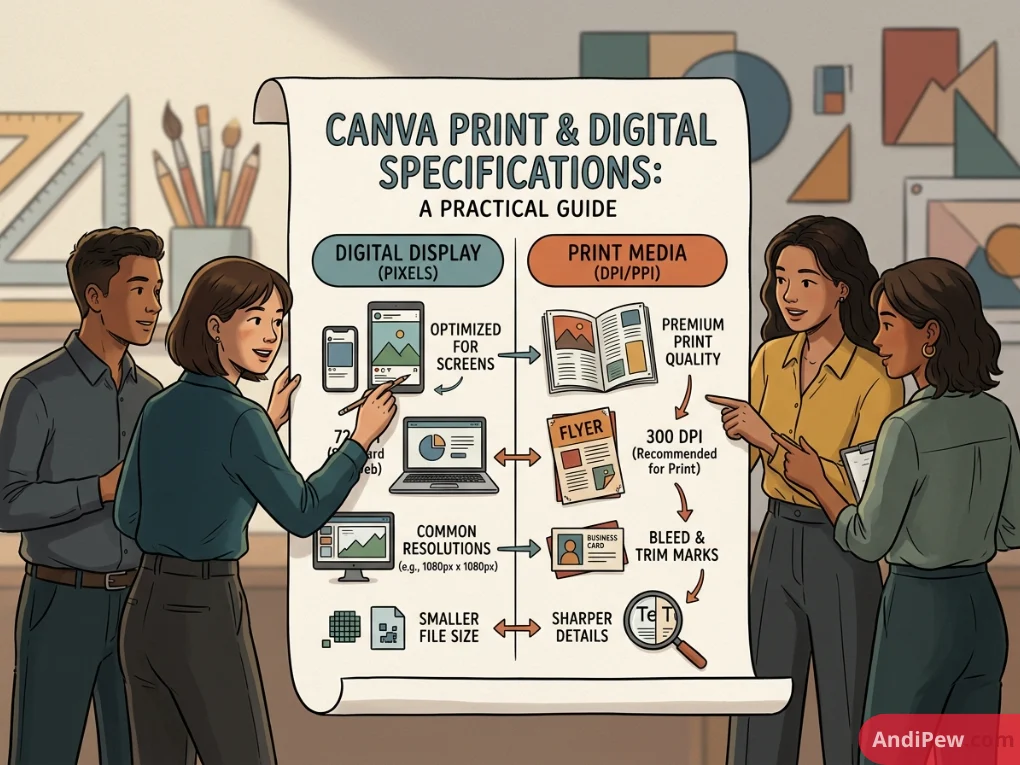
px), inches (in), millimeters (mm), or centimeters (cm). - DPI (Dots Per Inch): A metric of spatial printing density. Standard high-resolution print requires 300 DPI, while web screens display at 72–96 PPI (Pixels Per Inch).
- Drag-and-Drop: The foundational interaction mechanism of Canva, allowing users to pull assets from side panels and place them directly onto the canvas.
- Duotone: A visual effect that replaces the highlights and shadows of an image with two contrasting colors.
                    CANVA DESIGN SPECS: DIGITAL VS. PRINT
+---------------------+-----------------------+------------------------+
| Specification       | Digital Media (Web)   | Commercial Print       |
+---------------------+-----------------------+------------------------+
| Measurement Unit    | Pixels (px)           | Inches / Millimeters   |
| Standard Resolution | 72 to 96 PPI          | 300 DPI                |
| Primary Color Space | RGB / sRGB            | CMYK                   |
| Margins & Bleed     | Safe Zones (Optional) | Bleed + Margin Markers |
| Standard Formats    | PNG, JPG, WebP, MP4   | PDF Print              |
+---------------------+-----------------------+------------------------+
E
- Elements: A broad category in Canva encompassing non-text design components, such as shapes, lines, vector illustrations, graphics, stock photos, charts, and stickers.
- Export: The process of converting your active canvas project into a downloadable, shareable file format (such as PDF, PNG, JPG, SVG, MP4, or PPTX).
F
- Flatten PDF: An export setting that merges all overlapping layers, text boxes, and elements into a single compressed image layer within the PDF. This prevents font-rendering glitches during printing.
- Font Pairing: The intentional combination of two complementary typefaces (such as a bold Sans-Serif header paired with an elegant Serif body font).
- Frames: Structural element holders with built-in clipping masks. Dropping an image or video into a frame automatically crops it to the frame’s silhouette (e.g., circles, mockups, letters).
G
- Gradient: A smooth, gradual color transition between two or more hues across a single surface or shape.
- Grid (Layout Grid): Structured page overlays that help align elements proportionally. Also refers to multi-cell layout frames used to build photo collages.
- Guides (Rulers & Guides): Draggable horizontal and vertical alignment lines pulled from canvas rulers to ensure symmetrical spacing across layouts.
            VISUALIZING PRINT MARGINS, TRIM, AND BLEED
+---------------------------------------------------------------+
| BLEED AREA (Extra 1/8" / 3.175mm beyond trim line)            |
|  +---------------------------------------------------------+  |
|  | TRIM LINE (Where the paper is physically cut)           |  |
|  |  +---------------------------------------------------+  |  |
|  |  | SAFE MARGIN (Keep all vital text inside this line)|  |  |
|  |  |                                                   |  |  |
|  |  |               CORE DESIGN CONTENT                 |  |  |
|  |  |                                                   |  |  |
|  |  +---------------------------------------------------+  |  |
|  +---------------------------------------------------------+  |
+---------------------------------------------------------------+
H
- Handles: Small circular or pill-shaped nodes on the corners and edges of a bounding box used to scale, crop, or stretch elements.
- Hex Code: A six-character alphanumeric code preceded by a hash symbol (e.g.,
#FFFFFFfor white,#000000for black) used in web design to identify exact colors. - Hierarchy (Visual Hierarchy): Arranging elements in order of visual importance using variations in size, weight, contrast, and layout placement.
K
-
Kerning: The selective adjustment of horizontal spacing between two specific characters to prevent awkward gaps in typography.
L
- Layers: The stacked organization of visual assets on a canvas. Elements positioned higher in the layer order overlap assets sitting beneath them.
- Leading (Line Spacing): The vertical distance between baselines of consecutive lines of text. In Canva, this is adjusted via the Line Spacing slider.
- Letter Spacing (Tracking): The uniform widening or narrowing of spacing across a block of characters or words.
- Lock Tool: A security setting that immobilizes selected elements, preventing accidental moves, edits, or deletions while working on surrounding assets.
M
- Magic Studio: Canva’s centralized suite of AI-powered creative tools, including Magic Write, Magic Expand, Magic Edit, Magic Animate, and Magic Switch.
- Margin: The protective buffer zone between the outermost elements of your layout and the physical edges of your page.
- Masking: Concealing portions of an image using specific boundary paths (achieved in Canva using Frames or Grids).
- Mockup: A realistic rendering that places your flat design onto 3D merchandise or tech devices (like t-shirts, mugs, laptops, or smartphones).
                      TYPOGRAPHY ADJUSTMENTS
+------------------+---------------------------------------------------+
| Term             | What It Controls in Canva                         |
+------------------+---------------------------------------------------+
| Letter Spacing   | Uniform horizontal space across all characters    |
| Line Spacing     | Vertical gap between lines of body text           |
| Font Weight      | Light, Regular, Medium, Semi-Bold, Bold, Black    |
| Text Anchor      | Flow direction when typing expands the text box   |
+------------------+---------------------------------------------------+
O
-
Opacity (Transparency): The degree to which an object is solid or see-through. An opacity of 100% is completely opaque, while 0% is invisible.
P
- Position Panel: The interface drawer that provides fine alignment controls, forward/backward layer arrangement, and exact coordinate numerical inputs (X, Y, Width, Height).
- Preset: Pre-configured canvas dimensions optimized for industry standards (e.g., YouTube Thumbnail:
1280 x 720 px; A4 Document:210 x 297 mm).
R
- Resolution: The total pixel count or visual density of a digital graphic, directly determining visual sharpness and file size.
- RGB (Red, Green, Blue): The additive color model used by screens and electronic displays.
S
- Safe Zone: The interior canvas boundary within which all essential visual elements and copy should remain, protecting them from interface overlays or trimming.
- Scale: Resizing an element larger or smaller while preserving its original width-to-height proportions.
- Snap to Grid (Smart Guides): Automatic magnetic guidelines that appear temporarily as magenta lines to align moving objects with nearby elements.
- SVG (Scalable Vector Graphics): An XML-based vector image format that scales to any size without loss of resolution.
T
- Template: A pre-designed, fully editable layout containing sample imagery, text styles, color palettes, and structural elements.
- Tracking: See Letter Spacing.
- Typography: The visual art, styling, and structural arrangement of type and fonts to make written copy legible, clear, and appealing.
V
-
Vector Graphic: A digital image generated using mathematical formulas (points, lines, and curves) rather than static pixel grids. Vectors scale infinitely without pixelation.
Technical Canva Specifications & File Formats
To ensure your designs look sharp on digital screens and commercial print runs, keep these verified Canva specifications and Canva specs in mind:
+-----------+----------------------+--------------------+---------------------------------------+
| Format    | Compression Type     | Ideal Use Case     | Key Canva Feature / Limitation        |
+-----------+----------------------+--------------------+---------------------------------------+
| PNG       | Lossless             | Web, Social Media  | Supports transparent backgrounds      |
| JPG       | Lossy                | Web Photography    | Small file size, no transparency      |
| PDF Std   | Balanced Compression | Digital Docs       | Clickable hyperlinks, small file size |
| PDF Print | Uncompressed (Lossless)| Professional Print | Supports CMYK, crop marks & bleed     |
| SVG       | Vector Code          | Logos & Web UI     | Infinitely scalable, crisp rendering  |
| MP4       | H.264 Video          | Video & Animations | Multi-track audio and motion graphics |
| GIF       | Indexed Color (8-bit)| Animated Loops     | Short animations without audio        |
+-----------+----------------------+--------------------+---------------------------------------+
Technical Design Limits
- Maximum Canvas Size:
8000 pxby8000 px(for custom dimensions). - Minimum Canvas Size:
40 pxby40 px. - Maximum Pages per Design: Up to 500 pages per individual document (varies by document type).
- Upload File Limits:
-
-
Images: Up to
25 MBper static file (JPEG, PNG, WebP). -
Videos: Up to
1 GBper video upload. -
Custom Fonts:
.OTF,.TTF, and.WOFFformats supported.
-
For a deeper dive into features and tools, read our comprehensive how to create a design in canva tutorial.
Canva Free vs. Canva Pro: Feature Terminology
Understanding subscription levels helps you pick the right features for your workflow. Here is a breakdown of key terms:
+---------------------------+-----------------------+-----------------------+
| Feature / Term            | Canva Free            | Canva Pro / Teams     |
+---------------------------+-----------------------+-----------------------+
| Premium Stock Library     | Limited (~1M assets)  | Full Access (100M+)   |
| Brand Kits                | 1 Palette (3 colors)  | Unlimited Brand Kits  |
| Background Remover        | Not Included          | 1-Click Photo & Video |
| Magic Switch / Resize     | Manual recreate only  | Automated Multi-Format|
| Custom Font Uploads       | Not Supported         | Supported (OTF, TTF)  |
| Transparent PNG Export    | No (Solid white base) | Yes (1-Click Alpha)   |
| Cloud Storage             | 5 GB Storage          | 1 TB Cloud Storage    |
+---------------------------+-----------------------+-----------------------+
To compare tier values and enterprise configurations, read our detailed canva free vs pro review and check out canva app vs desktop for device-specific performance.
Using a Canva Glossary Template
If you work in education, lead a corporate design team, or manage client onboarding, having a clean canva glossary template is a great way to keep your team aligned.
How to Create a Custom Glossary Template in Canva
- Choose a Document Preset: Open Canva and select an A4 Document, US Letter, or Infographic preset.
- Establish Visual Hierarchy: Use a bold
32pt+header for your title,16ptbold text for terms, and11ptregular text for definitions. - Incorporate Visual Columns: Use Canva’s Grids or table elements to arrange terms alphabetically.
- Add Interactive Anchors: Link your table of contents directly to specific pages or letter headers in your multi-page documents.
- Publish and Share: Export your custom glossary as a View-Only Template Link for your team or students.
Troubleshooting: Fixing “Canva Not Working Properly”
Even intuitive browser applications can run into technical hiccups. When you run into errors like canva not working properly, here are common causes and solutions:
+----------------------------+-----------------------------+-----------------------------------+
| Error / Issue              | Root Cause                  | Recommended Solution              |
+----------------------------+-----------------------------+-----------------------------------+
| "Design Not Saving"        | Unstable internet or sync   | Duplicate tab, check status,      |
|                            | timeout                     | export PDF backup before closing  |
+----------------------------+-----------------------------+-----------------------------------+
| "Export Failed / Download  | Corrupted asset, unsupported| Remove third-party font/video,    |
|  Error"                    | element, or memory cap      | restart browser, export in halves |
+----------------------------+-----------------------------+-----------------------------------+
| Elements Lagging or Freezing| Browser hardware acceleration| Clear cache/cookies, disable bad  |
|                            | disabled or cache overloaded| extensions, enable WebGL          |
+----------------------------+-----------------------------+-----------------------------------+
| Blurry Print Output        | Low-res images or standard  | Check source DPI, switch export   |
|                            | PDF export                  | from Standard to "PDF Print"      |
+----------------------------+-----------------------------+-----------------------------------+
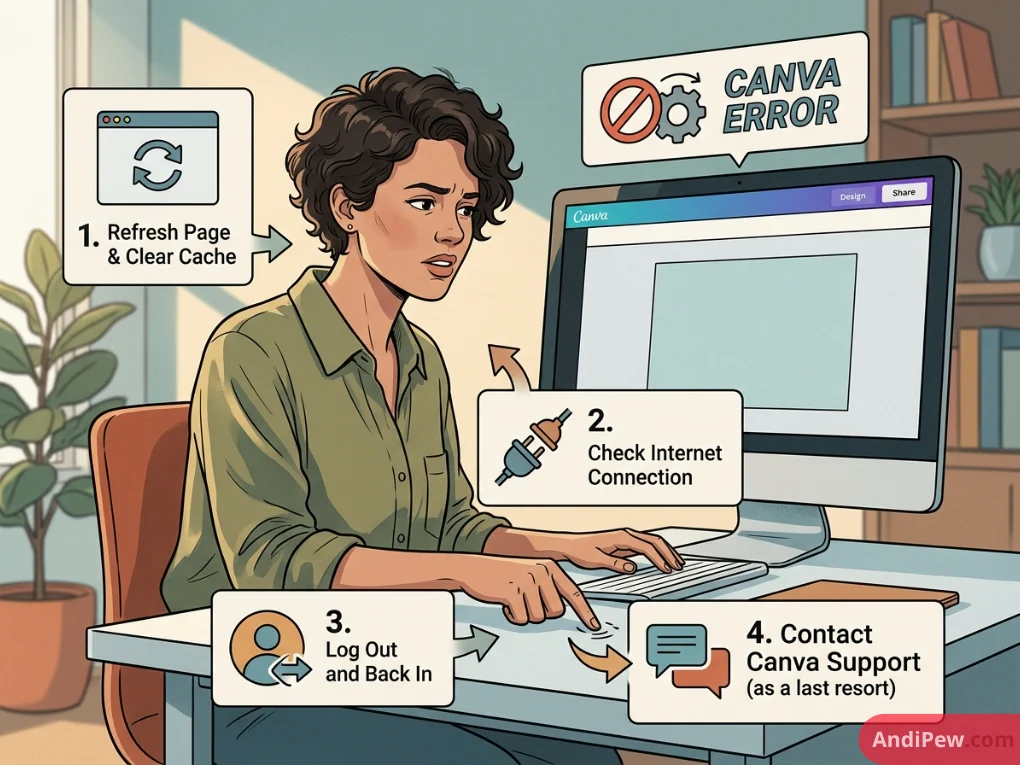
4-Step Quick Fix Protocol
- Clear Browser Cache and Cookies: Clear stored site data for
canva.comand reload. - Test in an Incognito / Private Window: This bypasses conflicting third-party browser extensions (like ad blockers or translation scripts).
- Verify Official System Status: Visit Canva’s official status page to check for ongoing server incidents or maintenance windows.
- Switch Hardware Acceleration: In your browser settings (e.g., Google Chrome), toggle “Use graphics acceleration when available” to resolve WebGL rendering bugs.
For more hands-on walkthroughs, browse our full collection of canva tutorials.
Frequently Asked Questions (FAQ)
What is the difference between Kerning, Leading, and Tracking in Canva?
Kerning adjusts the horizontal spacing between two specific adjacent letters. Tracking (called Letter Spacing in Canva) adjusts horizontal spacing uniformly across an entire word or paragraph. Leading (called Line Spacing in Canva) controls the vertical space between lines of text.
How do I enable Print Bleed and Margins in Canva?
Click File in the top navigation bar, select View settings, and check both Show margins and Show print bleed. A dashed line will appear around your canvas showing the safe boundaries and trim lines.
What causes images to look blurry after exporting from Canva?
Blurry exports usually happen when using low-resolution source images, designing on a canvas with small pixel dimensions, or exporting as a standard JPG instead of a high-resolution PNG (for web) or PDF Print (for physical printing).
Can I upload my own fonts into Canva?
Yes. Canva Pro, Teams, and Education subscribers can upload custom .OTF, .TTF, and .WOFF font files through the Brand Kit section in their workspace.
What should I do if my Canva changes are not saving?
First, check your internet connection. Do not close the browser tab. Open a new tab to see if canva.com loads normally. If your connection is active, try selecting and copying all elements (Ctrl+A / Cmd+A followed by Ctrl+C / Cmd+C) and pasting them into a fresh design canvas before closing the unresponsive page.
Conclusion
Mastering digital design starts with understanding the tools and terms of your workspace. By keeping this Canva glossary handy, you can navigate the interface with confidence, choose the right export settings, keep your brand consistent, and troubleshoot technical issues quickly.
Bookmark this guide as a quick reference sheet whenever you need to look up a design term, check export specifications, or configure a print-ready document.
Ready to build your next project? Open your workspace, put these terms into practice, and check out our in-depth canva tutorials to streamline your creative workflow.