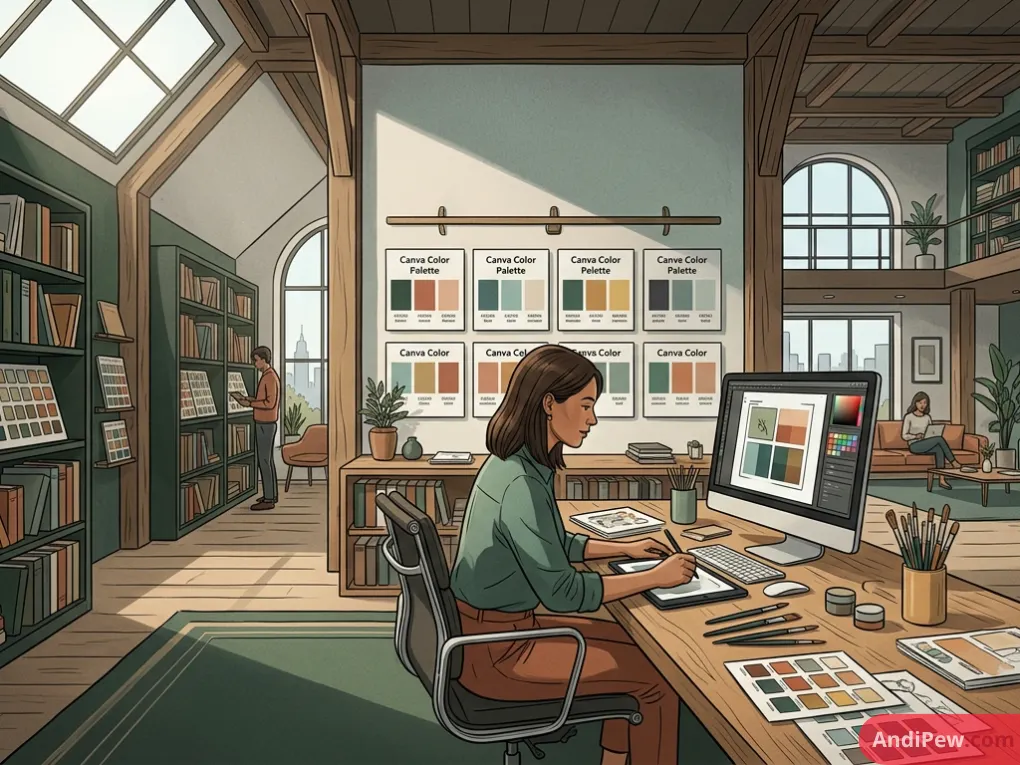
A Canva color palette is a centralized collection of saved colors that ensures visual consistency across all your design projects. Users can automatically extract palettes from uploaded images or manually build them using precise hex codes. Setting up a defined color scheme eliminates guesswork and speeds up your workflow. Whether you are creating a quick social media reel or designing a large-scale corporate event backdrop, consistent colors build brand trust. This guide covers how to leverage the built-in generator, utilize the picker tool, and apply advanced color combinations.
Quick Summary:
- Extract colors instantly from any uploaded reference image.
- Use the built-in eyedropper tool for precise pixel color matching.
- Organize branded hex codes systematically in the Canva Brand Kit.
- Apply high-contrast pairings to meet digital accessibility standards.
How to Extract a Canva Color Palette from an Image
Extracting a Canva color palette from an image is the fastest way to build a cohesive design layout. The platform’s automated algorithm scans your uploaded graphic and instantly pulls the dominant shades directly into your workspace.
- Upload your source image (like a brand logo or reference photo) directly into your design canvas.
- Right-click the image and select Apply colors to page to instantly generate a matching palette.
- Adjust the extracted colors manually if the automated algorithm misses your dominant brand shade.
How Do You Use the Canva Color Picker Tool?
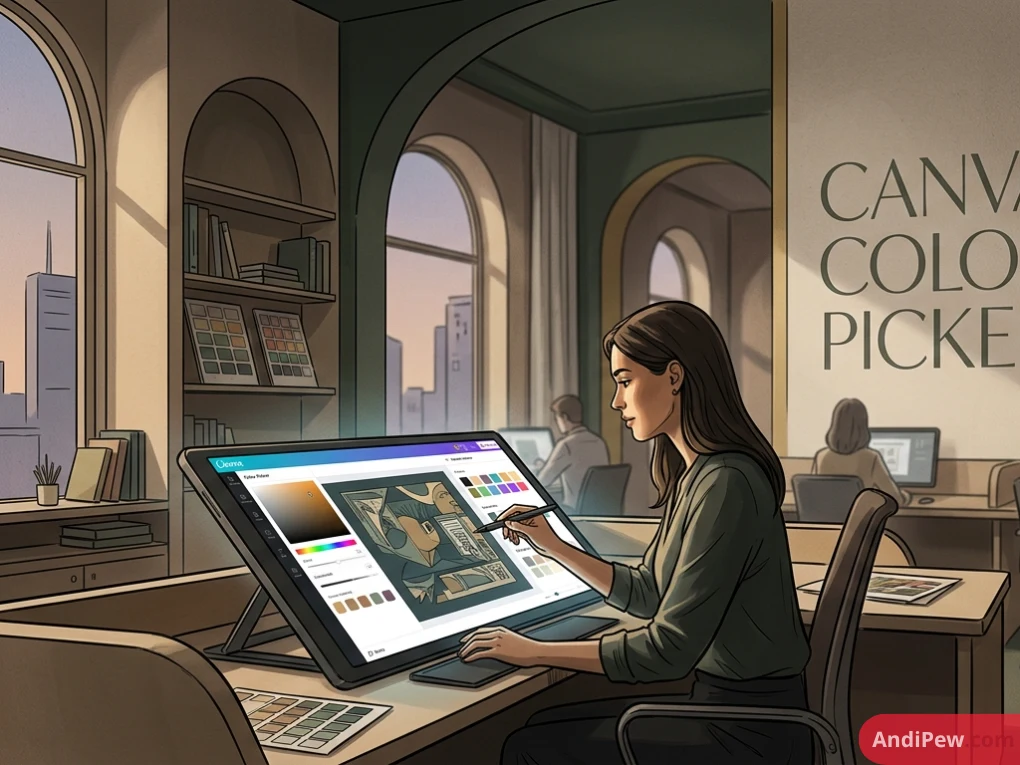
The Canva color picker tool allows you to sample and copy the exact color of any pixel currently on your screen. This built-in eyedropper ensures perfect color matching without forcing you to leave the design editor or install third-party browser extensions.
- Click on any design element and open the color selection panel on the top toolbar.
- Click the + icon to add a new custom color and activate the eyedropper icon.
- Hover the eyedropper over any pixel on your canvas to instantly copy its exact hex code.

What Are the Best Canva Color Combinations for 2026?
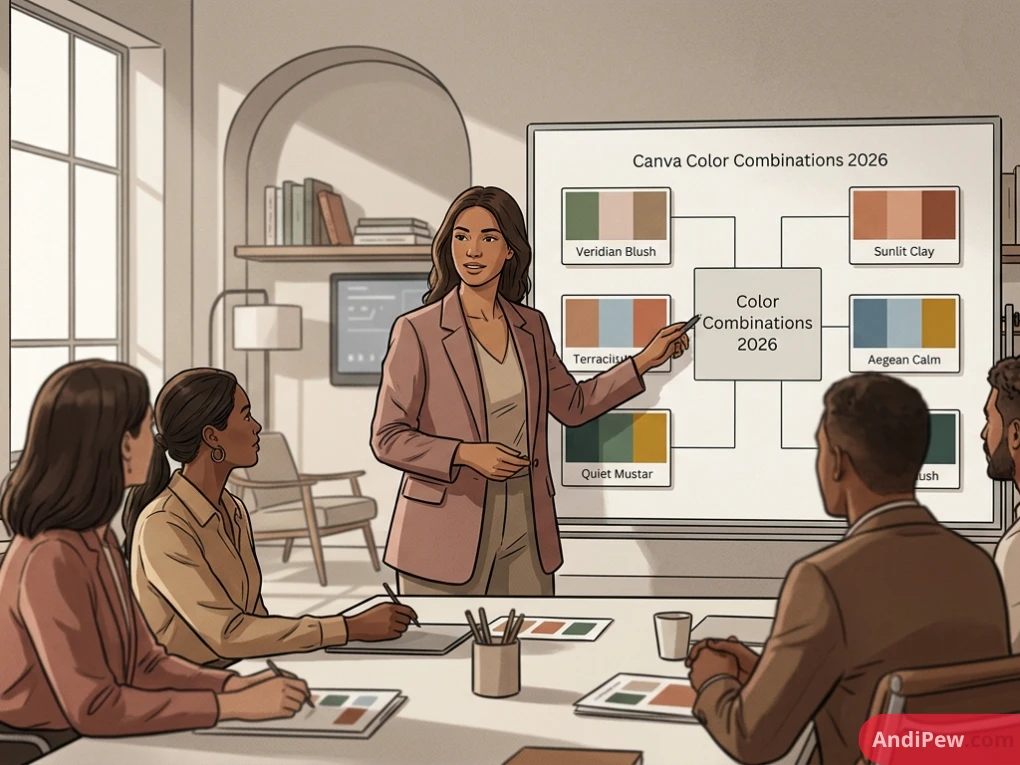
The best Canva color combinations for 2026 prioritize digital accessibility and consumer brand trust. High-contrast neon pairings dominate the modern tech sector, while earthy neutrals remain the standard for lifestyle businesses.
| Style Name | Hex Codes | Best Use Case |
| Neon & Dark Mode | Deep Black (#121212), Neon Green (#39FF14) | Tech industry digital assets and modern web banners. |
| Earthy Neutrals | Warm Terracotta (#E2725B), Muted Sage Green (#9DC183) | Lifestyle brands, wellness coaching, and local service brochures. |
| Corporate Trust | Deep Navy Blue (#000080), Crisp White (#FFFFFF), Silver (#C0C0C0) | Professional pitch decks and B2B corporate presentations. |
How to Save Your Custom Palette to the Canva Brand Kit
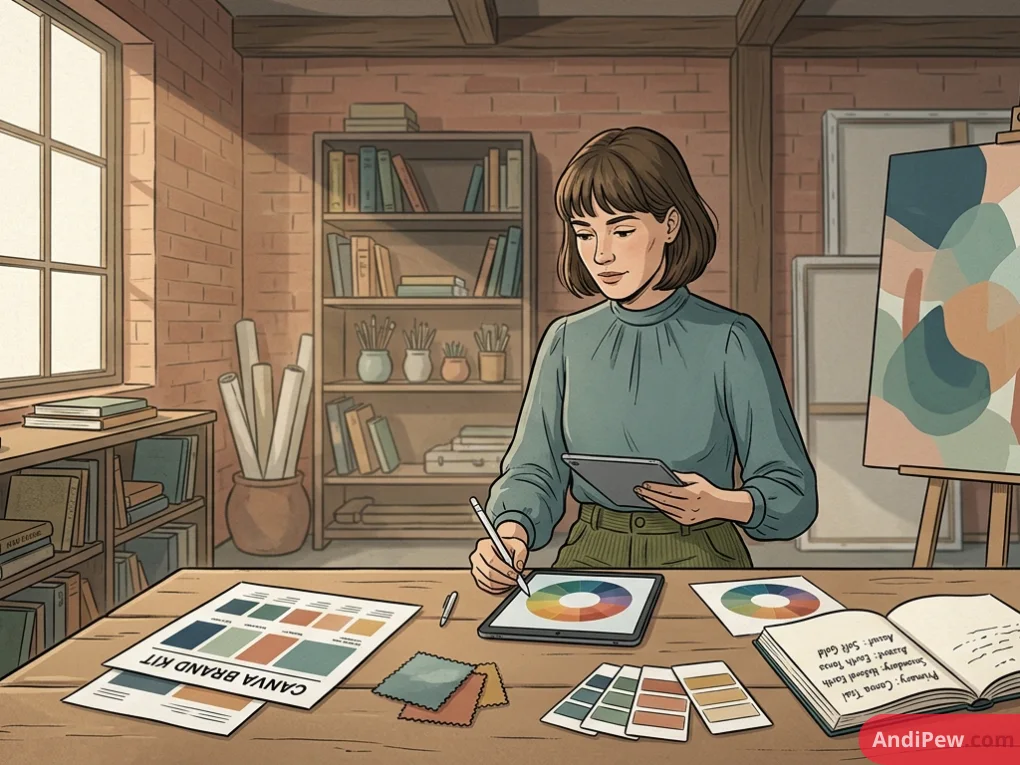
Saving a Canva color palette to the Brand Kit centralizes your corporate assets for quick, universal access. This centralized hub prevents your team from using incorrect hex codes across different marketing campaigns and documents.
- Navigate to the Brand tab on your Canva homepage dashboard.
- Click Add new under the Colors section to create a dedicated palette folder.
- Input your specific hex codes or CMYK values for print-ready projects.
Note: Free users are restricted to one custom palette with up to three colors. Canva Pro users unlock unlimited palettes with up to 100 colors each, making the paid tier mandatory for managing multiple client accounts.
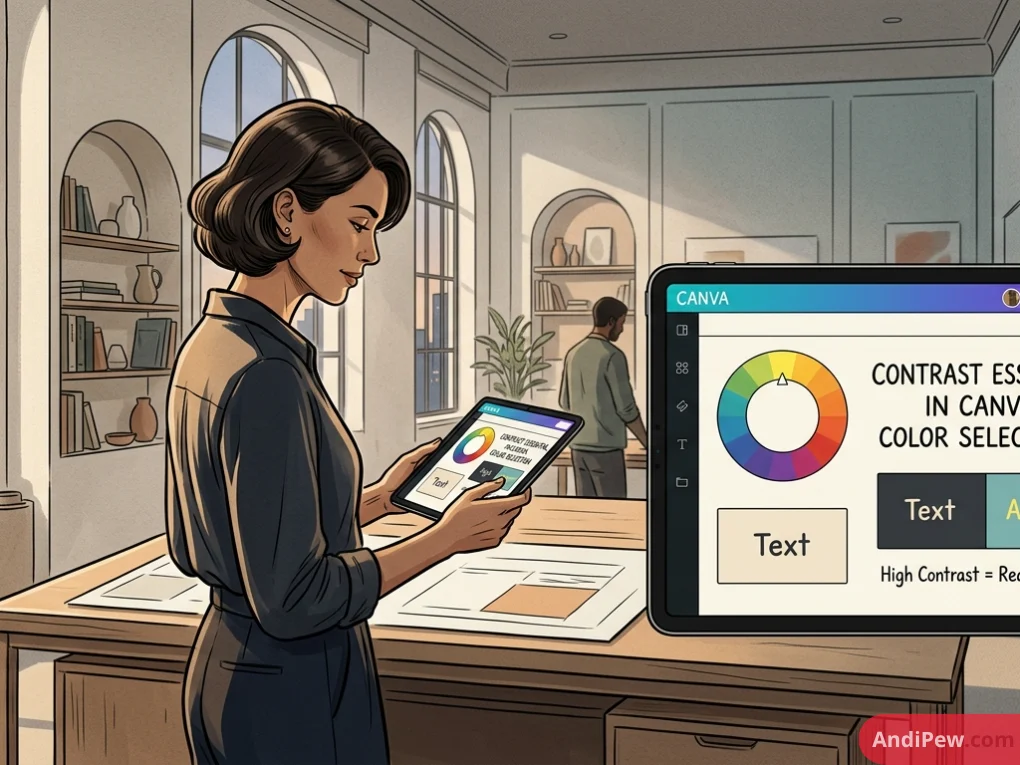
Why is Contrast Essential in Canva Color Selection?
High contrast ensures your text remains legible on various screen sizes and variable lighting conditions. Poor contrast directly harms the end-user experience and significantly reduces digital marketing conversion rates.
Check your Canva color combinations against Web Content Accessibility Guidelines (WCAG) contrast ratios. Text and interactive elements require a contrast ratio of at least 4.5:1 for standard legibility. Utilizing proper contrast ensures universal readability for visually impaired users.
Designers should use dark overlays with adjustable transparency on complex image backgrounds. This masking technique makes white text pop on busy photo backgrounds without altering the original image. Always test your final export on a mobile device screen to verify true field visibility.
Can You Import External Color Palettes into Canva?
Yes, you can seamlessly import palettes from external design generators directly into your Canva workspace. Bypassing manual entry speeds up mass production when transitioning brand assets from Adobe or Coolors.
- Copy hex codes from external tools like Coolors or Adobe Color directly into the Canva search bar to locate the exact shade.
- Use the Paste function inside the custom color menu to apply copied hex values instantly to your active Canva color picker tool.
- Upload a screenshot of an external palette into your workspace, then use the Apply colors to page extraction method to bypass manual data entry entirely.

Frequently Asked Questions (FAQ)
Is the Canva color palette feature free?
Yes, free users can create one custom palette with up to three colors. Canva Pro users can create unlimited palettes with up to 100 colors each. This upgraded capacity is essential for freelance designers actively managing multiple client brands simultaneously.
How do I find a specific hex code in Canva?
Select your design element, open the color panel from the top toolbar, and click the “+” icon. Your current color’s hex code will display directly in the text box below the color spectrum grid. You can highlight and copy this code for external use.
Why did Canva change my image colors?
When applying an extracted palette to a page, Canva shuffles the colors randomly across your design elements. If the initial layout looks incorrect, click the “Apply colors to page” button multiple times. This cycles through different layout arrangements until you find the right visual balance.
Can I use CMYK colors in Canva?
Canva designs primarily in RGB formats optimized for digital screens. However, Canva Pro users can select the CMYK color profile during the PDF download process. This file conversion ensures accurate ink translation for commercial printing [citation needed].
Where is the Canva color picker tool located?
The Canva color picker tool (eyedropper) is located inside the custom color menu. Click the color tile of any element on your canvas, click the “+” symbol to add a new shade, and select the eyedropper icon to activate pixel sampling.
Mastering the Canva color palette ensures visual consistency and accelerates your daily graphic design output. Leveraging built-in features like the image extractor and eyedropper eliminates tedious manual color matching. Organizing your hex codes systematically in the Brand Kit remains crucial for professional, scalable workflows. Open a new Canva document right now, upload your favorite reference photo, and use the extraction tool to build your first professional palette.
Explore more information and other interesting articles: