Struggling with messy image cutouts? The canva background remover instantly isolates subjects from their backdrops using advanced AI. This premium tool requires a Canva Pro subscription, but legitimate workarounds exist for zero-cost users. By utilizing specific export settings and hidden manual brush adjustments, you can achieve pixel-perfect transparent PNGs every time.
Quick Summary
- Speed: Removes backgrounds in under 5 seconds using AI.
- Access: Officially restricted to Canva Pro users.
- Quality: Includes manual erase/restore brushes for fine edge control.
- Export: Requires the Transparent background PNG checkbox to avoid white box artifacts.
What is the Canva Background Remover?
The canva background remover is an AI-powered image editing tool embedded within Canva’s Magic Studio. It automatically detects the primary subject of a photograph and deletes the surrounding backdrop in exactly one click. This feature eliminates the need for manual lassoing or complex masking typically required in professional graphic design software.

How Do You Use the Canva Background Remover?
To use this tool, upload your image to the editor, select the photo, and open the Edit image menu. Click the BG Remover icon to activate the AI mask and strip the background instantly.
Follow these exact steps to isolate your subject:
- Locate the tool: Upload your image to the Canva editor. Select the photo on your canvas and click Edit image on the top toolbar to access the Magic Studio dashboard.
- Activate the AI: Click the BG Remover icon. The AI will automatically process the image and strip the background within 3 to 5 seconds.
- Apply and verify: Check the cut-out quality against a high-contrast colored background. This helps spot any leftover artifacts or jagged edges quickly.
How Can I Remove Backgrounds in Canva for Free?
You can remove background canva free by utilizing the 30-day Pro trial, leveraging integrated third-party apps, or routing images through external zero-cost web tools before uploading.
Use these tested methods to bypass the paywall:
- The Pro Trial method: Activate the 30-day free Canva Pro trial. Process all your batch images, export them, and cancel the subscription before the billing cycle begins.
- App integrations: Search the Canva Apps tab for free third-party integrations. Certain plugins perform background removal directly within the Canva canvas at no upfront cost.
- External zero-cost alternatives: Route images through free web tools like Adobe Express Free Background Remover. Upload the resulting transparent PNG into your free Canva account for seamless design.

How to Fix Edges With the Canva BG Eraser Tools?
Fix messy edges by triggering manual mode after the initial AI pass. Adjust the brush dynamics, then use the Erase or Restore brushes to paint over imperfect areas.
Master the canva bg eraser workflow for complex images:
- Trigger manual mode: After the initial AI background removal, click the settings icon inside the active tool. This reveals the manual Erase and Restore brushes.
- Adjust brush dynamics: Scale the brush size slider down. Smaller brushes are essential for intricate details like flyaway hair or sharp product corners.
- Paint to perfect: Use the Erase brush to manually wipe away leftover background chunks. Use the Restore brush to paint back any mistakenly deleted subject parts.
How to Export Images With a Transparent Background
Exporting requires selecting the PNG format and actively ticking the transparency box. Failing to do this results in a solid white background covering your cutout.
Select the right format: Always choose PNG in the download dropdown menu. The standard JPG format does not support alpha channel transparency and will ruin your cutout.
Check the transparency box: You must actively tick the “Transparent background” checkbox in the download menu. Otherwise, Canva renders a solid white background behind your isolated subject.
Download settings: Avoid compressing the file upon export. Lowering the quality slider degrades edge crispness and introduces pixelation around your subject.
Why is Canva Background Remover Not Working?
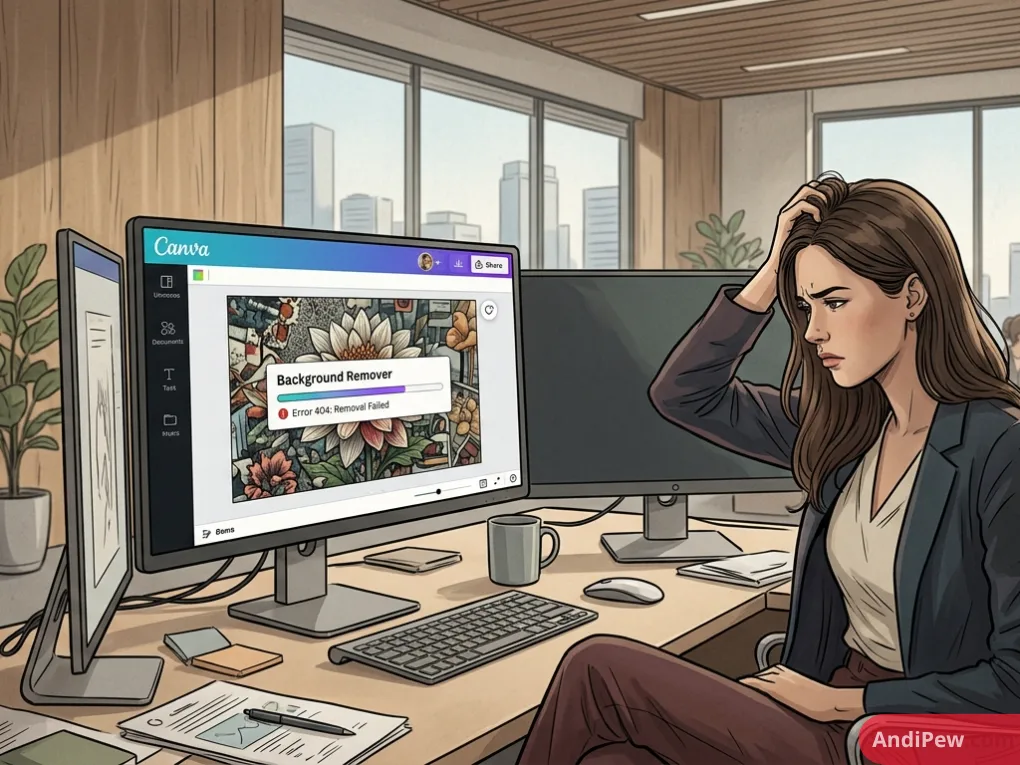
The tool typically fails due to poor internet connectivity, low subject contrast, or exceeding file size limits. Refreshing the page or adjusting the image often resolves the error.
Troubleshoot common errors with these fixes:
- Connection timeouts: The tool requires an active internet connection to communicate with Canva’s AI servers. Refresh the page if the loading bar hangs at 99%.
- Subject contrast issues: Images with low contrast between the subject and the background confuse the AI. This requires extensive manual brush corrections.
- File size limits: Ensure your uploaded image is under 25MB [citation needed]. The image must not exceed the maximum resolution limits set by Canva’s processing servers.
Canva Background Remover vs. Remove.bg vs. Photoshop AI
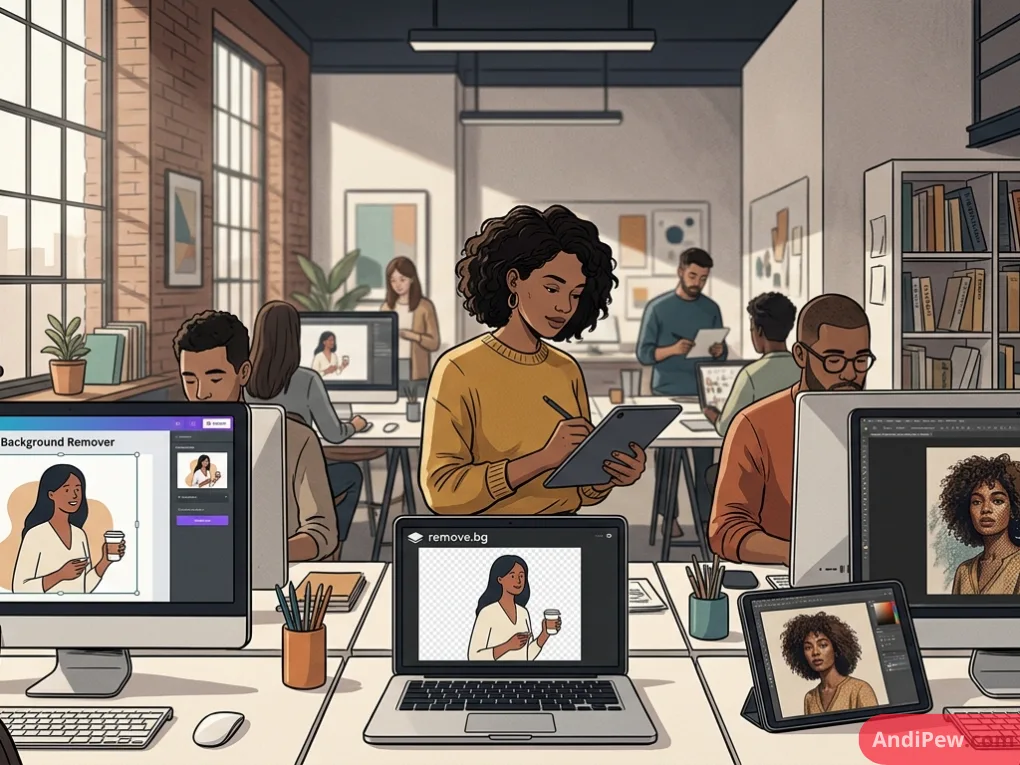
Canva Pro is best for all-in-one design workflows. Remove.bg excels in bulk processing speeds, while Photoshop AI provides unmatched precision for professional commercial masking.
| Feature | Canva Background Remover | Remove.bg | Photoshop AI |
| Price | Requires Canva Pro ($14.99/mo) | Free (Low Res) / Paid API (High Res) | Adobe Subscription ($22.99/mo) |
| Accuracy | Good (Struggles with fine hair) | Very Good (Excellent hair masking) | Excellent (Pixel-perfect precision) |
| Best Use Case | All-in-one social media graphic design | Fast bulk processing and API integrations | Complex commercial photography edits |
Frequently Asked Questions (FAQ)
Does the free version of Canva have a background remover?
No, the native background removal tool is permanently locked behind the Canva Pro subscription. However, you can utilize the 30-day free trial or use external free tools before uploading your assets to Canva.
Can I remove the background from a video in Canva?
Yes. Canva Pro includes a Video Background Remover tool that works exactly like the image version. It automatically masks out the background behind human subjects in MP4 clips.
Why does my removed background save as white?
You forgot to check the “Transparent background” box in the download menu. You must also ensure the export format is set to PNG, as JPGs automatically fill transparent areas with white pixels.
How do I restore parts of an image Canva erased?
Click the background remover tool again to open the manual settings. Select the “Restore” brush, adjust the brush size slider, and paint over the areas you want to bring back.
Is Canva’s background remover better than Photoshop?
Canva is faster and easier for beginners needing quick results for social media templates. Photoshop’s AI and manual masking tools offer vastly superior precision for complex commercial photography.
The canva background remover dramatically speeds up design workflows by replacing tedious manual masking with one-click AI processing. Utilizing the manual erase tools and ensuring proper transparent PNG export guarantees professional results every time. Upgrade to Canva Pro today or leverage our free workarounds to instantly elevate your design assets.
Explore more information and other interesting articles: