
Spreadsheets are the backbone of modern productivity. Whether you are tracking a monthly budget, managing project timelines, or analyzing company metrics, having a reliable and collaborative spreadsheet tool is essential.
Google Sheets has become the industry standard for cloud-based collaboration. It is completely free, saves your progress in real time, and allows multiple team members to work on the exact same dataset simultaneously from any device.
If you are wondering how to create a Google Sheet, this comprehensive guide walks you through every method—from launching your first blank sheet to importing Excel files, automating data collection with forms, and sharing securely with your team.
For a deeper dive into advanced functions, formulas, and data analysis techniques, explore our comprehensive Google Sheets tutorial library.
Prerequisites: Getting Started with Google Sheets Sign Up
Before you can start a spreadsheet in Google’s cloud ecosystem, you need a Google Account.
If you already use Gmail, Google Drive, YouTube, or Google Docs, you already have one. Simply log in with those credentials. If not, follow these quick steps:
- Visit accounts.google.com.
- Click Create account and select For my personal use or For work or my business.
- Enter your name, desired email address, and a secure password.
- Verify your phone number and complete the setup.
Once your account is active, your Google Sheets sign up is complete. You now have access to 15 GB of free cloud storage across Google Drive, Gmail, and Google Photos.




4 Fast Ways to Create a New Google Sheet
There is no single “right” way to start. Google provides multiple entry points depending on your workflow.
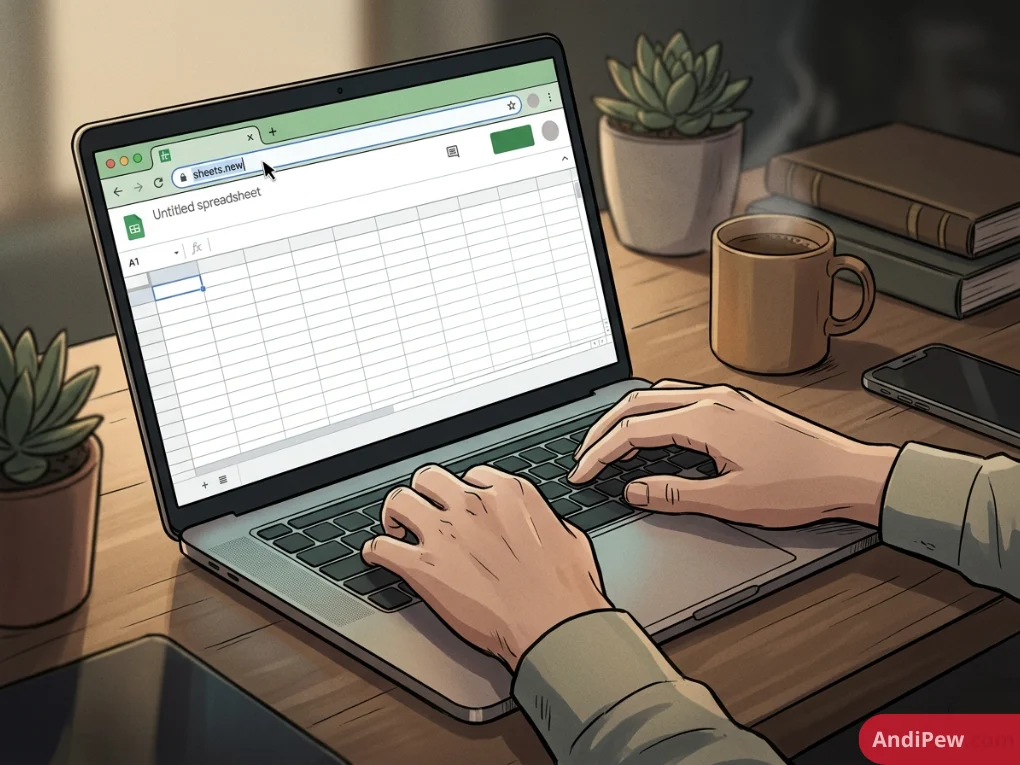
Method 1: Using the Browser URL Shortcut (The Fastest Method)
The quickest way to open a blank sheet requires only your browser address bar:
- Open any web browser (Chrome, Edge, Firefox, or Safari).
- Type
sheets.neworsheet.newinto the address bar and press Enter. - A brand-new, untitled spreadsheet will generate immediately in your Google account.


Method 2: Creating a Sheet via Google Drive
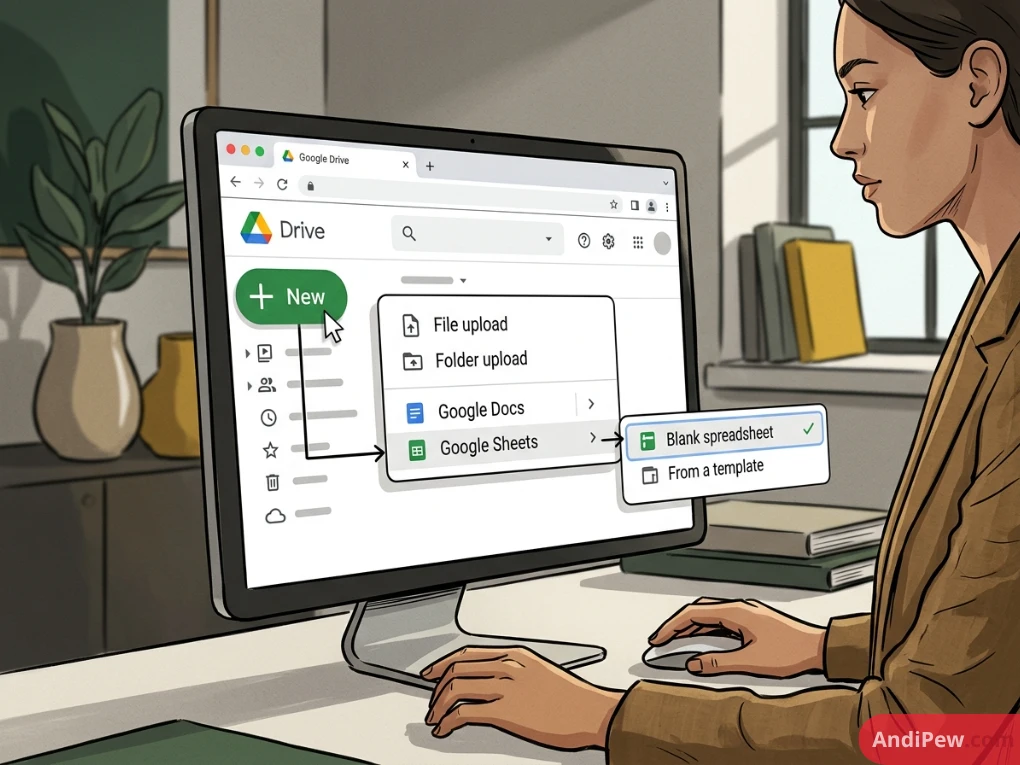
If you prefer keeping your folders and files structured:
- Navigate to drive.google.com.
- Click the large + New button in the top-left corner.
- Hover over Google Sheets and click Blank spreadsheet (or select From a template).
- Your new sheet opens in a new tab and automatically saves inside your current Google Drive folder.



Method 3: Through the Google Sheets Web App
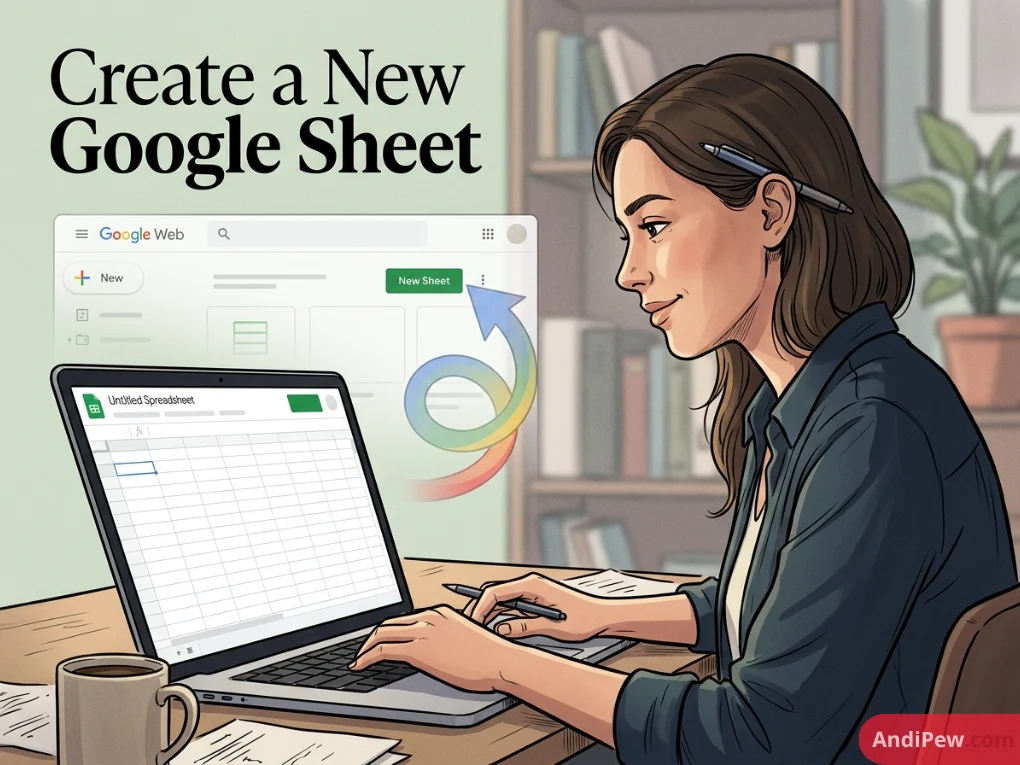
- Go directly to sheets.google.com.
- Under the Start a new spreadsheet gallery at the top, click the large + Blank card.
- You will be redirected straight to your workspace.


Method 4: Creating a Sheet on Mobile (iOS & Android)
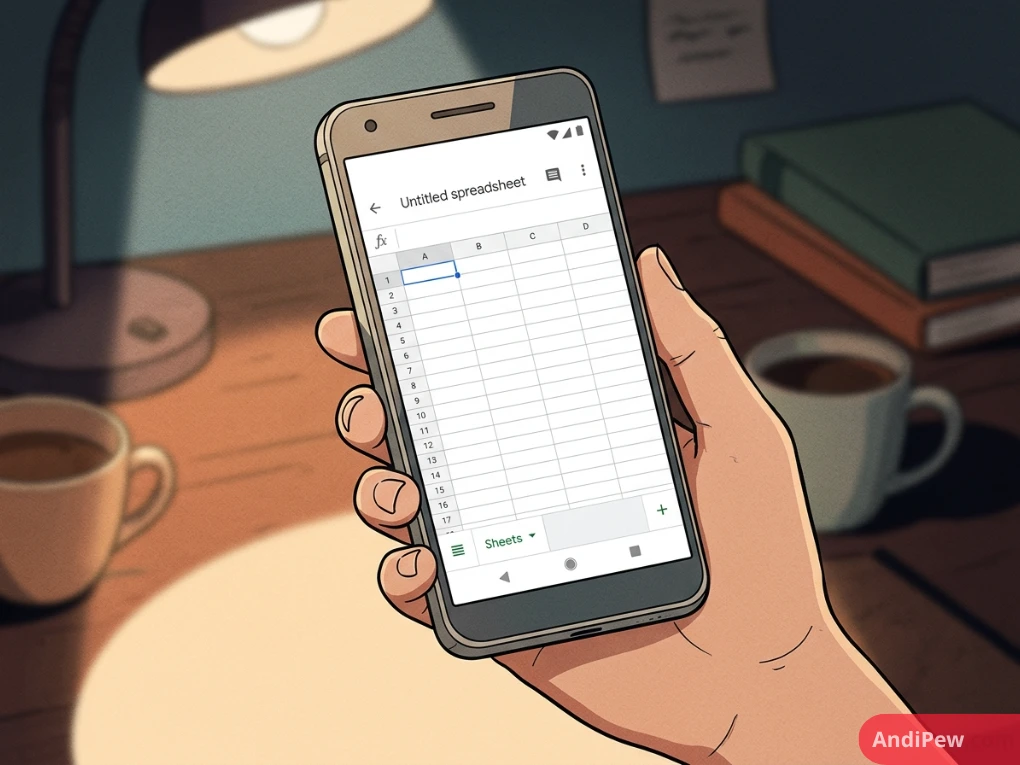
- Download the Google Sheets app from the Apple App Store or Google Play Store.
- Sign in with your Google Account.
- Tap the + (Plus) icon in the bottom right corner of the screen.
- Select New spreadsheet.



Workspace Tour: Understanding the Basics
When your new Google Sheet loads, take a moment to familiarize yourself with the workspace layout:
| Interface Element | Location | Primary Purpose |
| Document Title | Top Left | Click “Untitled spreadsheet” to rename your file. |
| Menu Bar | Below Title | Access File, Edit, View, Insert, Format, Data, and Tools. |
| Action Toolbar | Below Menu | Quick access to undo, redo, print, formatting, and borders. |
| Formula Bar ($fx$) | Above Grid | Displays and edits cell formulas and raw data entries. |
| Grid Workspace | Center | Columns (A, B, C…) and Rows (1, 2, 3…) forming individual cells. |
| Sheet Tabs | Bottom Left | Add, rename, duplicate, or delete individual worksheet tabs. |
| Share Button | Top Right | Manage access permissions and collaboration links. |
How to Create a Google Sheet from an Excel File
Many organizations transition from legacy software to cloud tools. If you already have data in Microsoft Excel (.xlsx or .xls), you do not need to rebuild your sheets manually. Here is how to create a Google Sheet from an Excel file using two straightforward approaches.
Approach 1: Upload and Convert via Google Drive
- Go to drive.google.com.
- Click + New > File upload.
- Select your Excel file from your computer and click Open.
- Double-click the uploaded file in Google Drive.
- Click File in the top menu and select Save as Google Sheets.
Google creates a native Google Sheets copy of your spreadsheet while leaving your original Excel file intact.





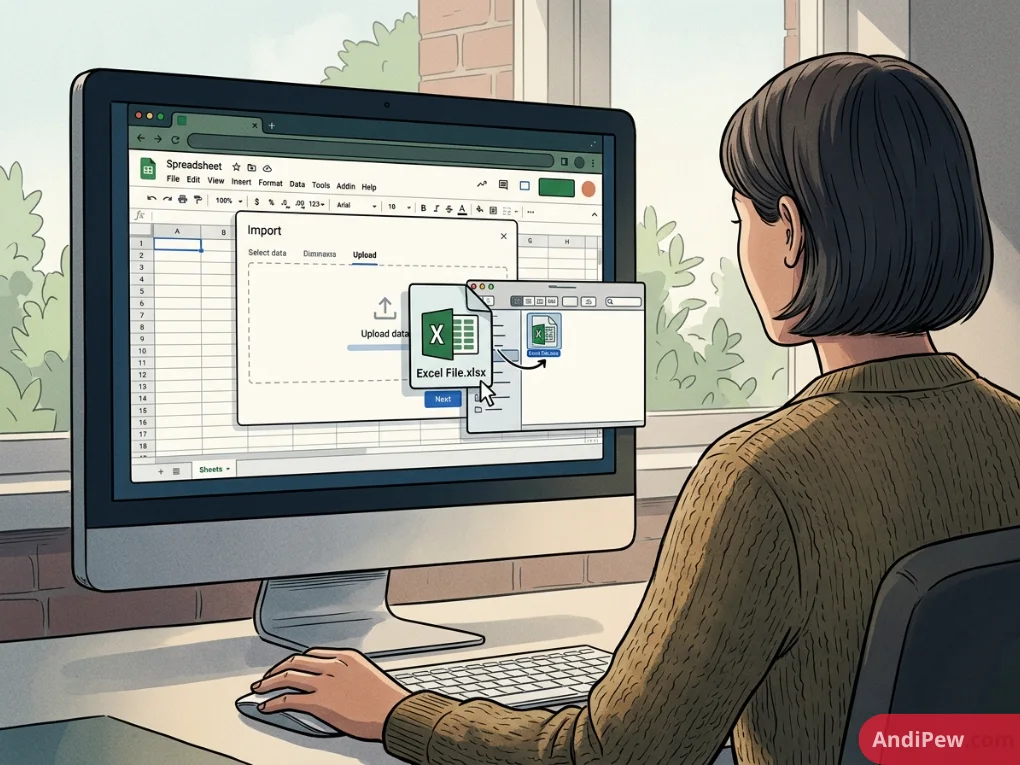
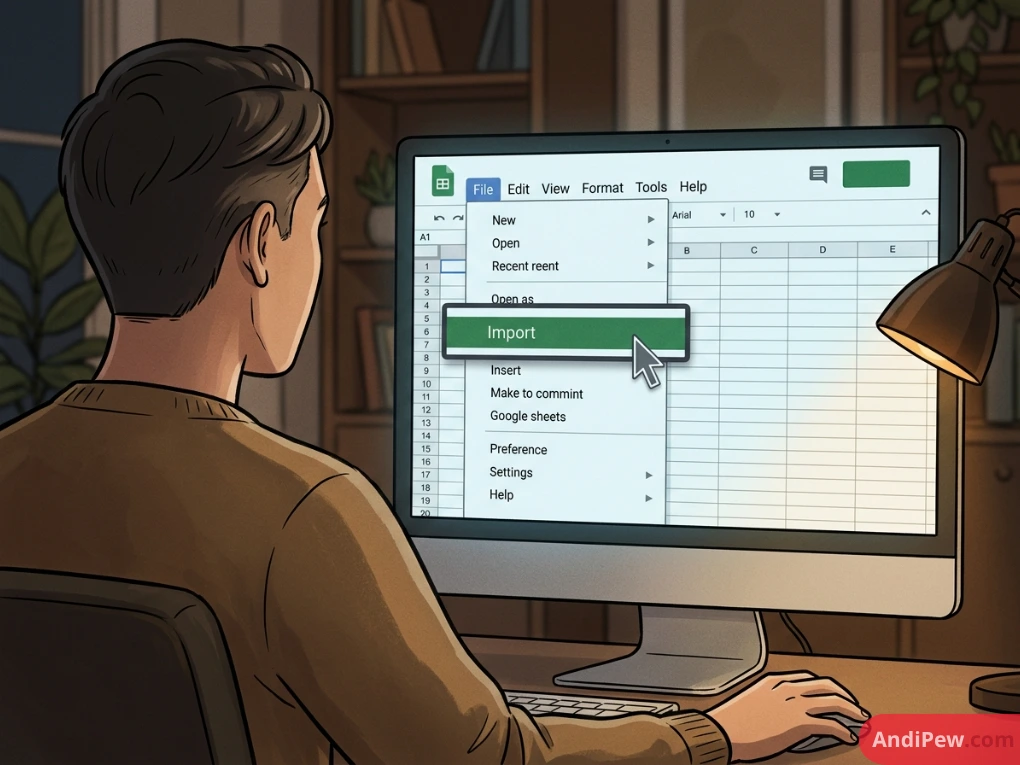
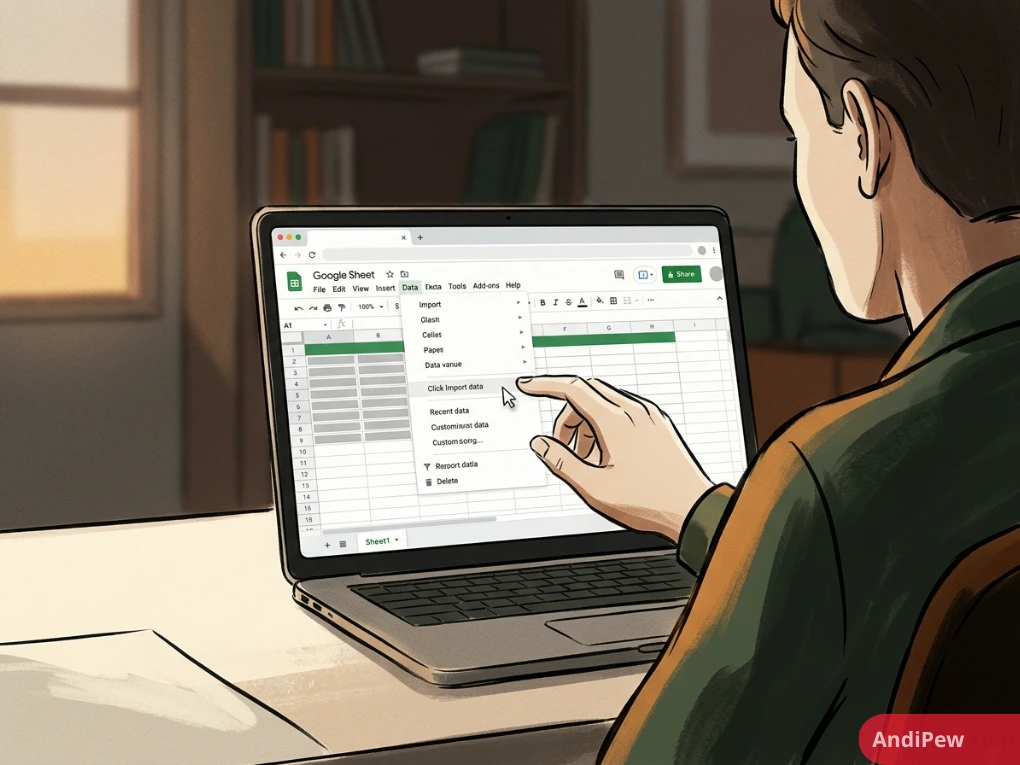
Approach 2: Import Directly Inside an Existing Sheet
- Open a new Google Sheet (
sheets.new). - Click File > Import.
- Click the Upload tab and drag your Excel file into the window.
- Choose an Import location from the prompt:
-
Replace spreadsheet
-
Insert new sheet(s)
-
Create new spreadsheet
-
- Click Import data.


How to Create a Google Sheet and Share with Others
One of Google Sheets’ most powerful features is real-time collaboration. Instead of emailing endless file versions (budget_v2_final_FINAL.xlsx), everyone works from a single live link.
Setting Up Permissions
To start sharing:
- Click the green Share button in the top-right corner of your spreadsheet.
- In the text box, enter the email addresses of the collaborators you want to add.
- Choose their permission level from the dropdown menu:
-
Viewer: Can read the data, but cannot make edits or add comments.
-
Commenter: Can view data and leave margin comments/suggestions without altering values.
-
Editor: Can change cell contents, formulas, structure, and sharing settings.
-
- Check the Notify people box to send an email invitation, add an optional message, and click Send.
How to Create a Google Sheet Link for Anyone
If you need to distribute your document to a wider group or paste it into Slack or Teams:
- Click Share > look under General access.
- Change the status from Restricted to Anyone with the link.
- Set the role to Viewer, Commenter, or Editor.
- Click Copy link and click Done.




How to Create a Google Sheet to Share in Excel Format
If an external partner specifically requests an offline Excel file rather than a cloud link:
- Open your Google Sheet.
- Click File > Download.
- Select Microsoft Excel (.xlsx).
- Your file will instantly download locally formatted for Microsoft Office.
How to Create a Google Sheet for Data Collection & Questionnaires
Manually typing survey responses or client intakes into a spreadsheet is slow and prone to errors. You can automate this process completely by pairing Google Sheets with Google Forms.
How to Create a Google Sheet Questionnaire
- Open a blank Google Sheet.
- Click Tools in the top menu and select Create a new form.
- A new Google Form tab will open, automatically linked to your spreadsheet.
- Add your questions (e.g., Short answer, Multiple choice, Dropdown, Checkboxes).
- Customize your settings and click Send to distribute the form via email or public link.
How to Create a Google Sheet from a Google Form
If you already built a standalone Google Form and want to route future submissions into a new spreadsheet:
- Open your form at forms.google.com.
- Click the Responses tab at the top.
- Click the green Link to Sheets icon.
- Select Create a new spreadsheet and give it a title.
- Click Create.
Every time a user submits your questionnaire, a new row appears in your Google Sheet in real time.
How to Create a Google Sheets Template
If you regularly build identical layouts—such as invoices, weekly sprint trackers, or monthly balance sheets—turning your layout into a reusable template saves hours.

Step 1: Design the Master Layout
- Open a new spreadsheet and set up your headers, default formulas, borders, and conditional formatting.
- Leave the data input cells blank.
- Name the file clearly (e.g.,
TEMPLATE - Client Invoice Master).
Step 2: Organize and Duplicate
- For Personal Use: Create a dedicated folder in Google Drive named
Templates. Whenever you need a new document, right-click the template file and choose Make a copy. - For Google Workspace Organizations: If you have a business or school account, go to sheets.google.com, click Template gallery > your organization’s tab > Submit template, and select your sheet.
Step 3: Force a “Make a Copy” Link
You can generate a direct URL that forces anyone who clicks it to create their own clean copy without touching your master file:
- Copy the full URL of your template sheet from your browser address bar. It looks like this:
https://docs.google.com/spreadsheets/d/SPREADSHEET_ID/edit#gid=0 - Delete
/edit#gid=0(or/edit) from the very end of the URL. - Replace it with
/copy. - Share the modified link:
https://docs.google.com/spreadsheets/d/SPREADSHEET_ID/copy
When users click this link, Google displays a prompt asking: “Would you like to make a copy of [Template Name]?”
How to Create a Google Sheet Shortcut on Desktop
For direct one-click desktop access without navigating through your browser bookmarks every morning:
On Google Chrome (Windows & Mac)
- Open your target Google Sheet (or
sheets.google.com) in Chrome. - Click the three vertical dots (menu) in the top-right corner of Chrome.
- Hover over Cast, save, and share (or More tools depending on your browser version).
- Click Create shortcut… (or Install Google Sheets).
- Name your shortcut and check Open as window if you prefer a standalone app experience.
- Click Create. An icon is added directly to your desktop.
Manual Desktop Shortcut (Universal)
- Go to your desktop, right-click an empty space, and select New > Shortcut (Windows).
- In the location field, paste the full URL of your Google Sheet.
- Click Next, name the shortcut, and click Finish.
Best Practices for Structuring Your First Google Sheet
To keep your spreadsheets readable, reliable, and easy to maintain over time, follow these core layout principles:
- Freeze Header Rows: Keep column headers visible while scrolling down. Go to View > Freeze > 1 row.
- Use Data Validation: Restrict inputs in specific columns to maintain consistency. Go to Data > Data validation > Add rule to create dropdown lists or validate dates.
- Format Header Rows Visually: Use bold text, center alignment, and a subtle background fill to clearly separate headers from data rows.
- Color Code Sparingly: Use background colors to signal categories or status (e.g., green for completed, yellow for in progress) using Format > Conditional formatting.
- Protect Sensitive Cells: If you share an editable sheet but want to lock formula columns, highlight the area, right-click, and select View more cell actions > Protect range.
Frequently Asked Questions (FAQ)
Is Google Sheets completely free to use?
Yes. Anyone with a personal Google Account gets free access to Google Sheets, including 15 GB of shared Google Drive storage. Paid plans are only necessary for enterprise-grade management via Google Workspace.
Can I edit a Google Sheet without an internet connection?
Yes. To enable offline editing, install the Google Docs Offline Chrome extension. In Google Drive settings, check the option to sync Docs, Sheets, and Slides files to your computer for offline access. Any edits you make will automatically sync as soon as you reconnect to the internet.
How do I save a Google Sheet?
Google Sheets saves changes automatically to the cloud every few seconds. There is no manual “Save” button. You can review past revisions at any time by clicking File > Version history > See version history.
How many rows and cells can a single Google Sheet hold?
Google Sheets supports up to 10 million cells (or 18,278 columns) per spreadsheet.
Conclusion
Creating a Google Sheet is quick, flexible, and built for team collaboration. Whether you spin up a quick workspace using sheets.new, convert a legacy Excel tracker, or connect a live questionnaire through Google Forms, you now have the tools to structure and manage your data efficiently.
Ready to take your data skills further? Check out our step-by-step [Google Sheets tutorial] collection to master lookup formulas, pivot tables, query functions, and automated dashboard reporting.